
Text to PDF Converter Free Online
Type, paste, or upload text, format the document, set the page layout, preview the result, and download the finished PDF.
Write from scratch
Type Text and Convert It to PDF Online
A text file is not required when the document starts inside the editor. You can write the content there from the beginning, while existing text can be pasted from another app. Format the document and check the preview before saving the final PDF.
Type Text Directly
Start inside the editor when you want to write a new document and save it as PDF without creating a text file first.
Paste Existing Text
Paste content from another app when the wording is already written, then review and format it before PDF creation.
TXT to PDF
Convert a TXT File to PDF
Upload an existing .txt file when the text is already saved on your device. The content opens inside the editor before conversion, giving you time to review it, rename the PDF and change the page layout instead of exporting raw text exactly as it appears in the file.
Need richer source formatting? RTF import is available in Rich Text to PDF.
Document editor
Format Your Text Before You Create the PDF
Plain text does not describe how a finished PDF should be organised. Prepare simple notes with basic formatting or build a structured document with the blocks it actually needs.
Text Formatting
Use headings, paragraphs, bold or italic text, font styles, links, alignment and lists for an organised written structure.
Structured Content
Add quotes, callouts, checklists, dividers or page breaks when sections need their own visual structure.
Technical Content
Insert inline code, code blocks, equations or tables when the PDF contains technical material.
Reusable Content Blocks
Add sticky notes or date blocks, then reorder sections when the document needs further work before export.
More than plain text
Add Images, Tables and Fillable Fields
Insert the content your document needs before export. Images, equations, tables, diagrams and fillable areas can all be prepared in the same workflow.
When a document needs a visual explanation, you can also build an Excalidraw diagram inside the editor instead of switching to another design tool.
Advanced PDF settings
Control the PDF Page Layout Before Download
The editor controls the content, while advanced PDF settings control how that content is placed on the final page. Choose a common document size or define your own dimensions, then adjust the page structure before creating the PDF.
Layout Configuration
Choose a standard page size or enter your own dimensions when the document needs a different format. Portrait and landscape layouts are available, and the page can also be divided into multiple columns. Margin controls sit in the same area, with preset sizes available alongside a custom option.
Font size, font styles, line spacing, paragraph spacing, first-line indentation and page background colour give you control over how much room the content uses on each page. Margin lines support solid, dashed, dotted and double styles with a custom colour.
Header & Footer
Add a title or author to identify the PDF, then choose the header style and alignment. You can keep the header on the opening page when the document needs a different first-page presentation. Footer controls let you add supporting details and page numbering.
Document & Security
Add a subject, keywords and document language before export. Password protection can restrict access to the finished PDF, while status stamps can show Approved, Rejected, Draft, In Review or Paid.
Watermarking
Enter your own watermark text, then choose its position, colour, opacity and pattern. Single, repeating, diagonal, cross and circular patterns support drafts, ownership notices and review copies.
Review before export
Preview Your PDF Before Download
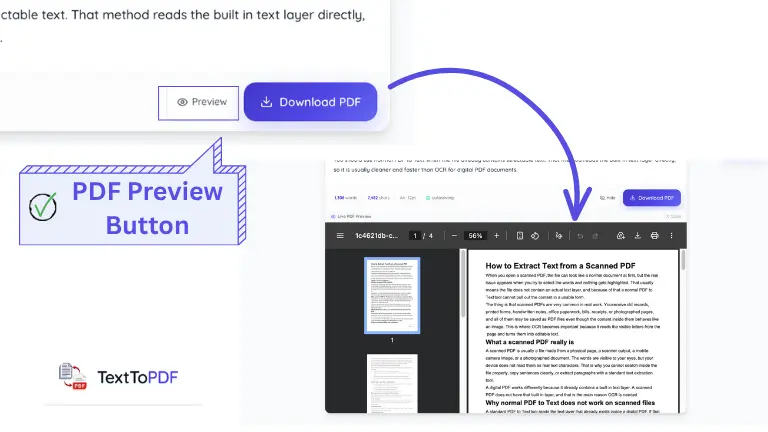
A PDF can look different once the document content is placed into its final page layout. Preview it before download to check the page structure and spacing while the source is still editable. If something looks wrong, return to the editor and correct it there instead of rebuilding the PDF after export.
Create, Format and Review Documents
TextToPDF.net keeps the main document workflow in one place: write or import content, format it, control the PDF page and preview the result before downloading.
Type or Upload Text
Start typing, paste existing content or upload a TXT file, then keep the document editable until it is ready.
Rich Document Editing
Use headings, lists, links, images, equations, tables, code blocks and page breaks before export.
Layout and Preview
Set page size, margins, spacing, headers, footers and page numbers, then preview the final PDF.
Document Controls
Add metadata, watermarks, status stamps, fillable fields and optional password protection before download.
Security and document control
Protect Sensitive Information Before PDF Export
Documents can contain information that should not remain visible or open to everyone. Use the document security controls to add password protection, metadata and workflow status before you share the finished file.
Read security detailsPassword-protected PDF
Set a password before export when the document should not open freely.
AI privacy checks — Pro
Pro AI tools can scan for supported PII risks and help redact sensitive content before export.
Document status stamps
Show Approved, Rejected, Draft, In Review or Paid on the document when a clear workflow state is needed.
Reusable brand kits
Reuse headers, letterheads, footers, watermarks and approval details for repeat business documents.
Advanced document workflows
Pro Tools for Advanced Document Workflows
Most people can create and format a PDF with the standard editor. Pro is for work that needs AI assistance, privacy checks, reusable business presets and tools for repeated document tasks.
AI Document Assistance
Use the AI Document Copilot to prepare structured proposals, NDAs, reports or retainers from a guided workflow.
Review and Summaries
Run the AI pre-flight risk scanner or create executive summaries when a longer document needs another review.
Forms and Translation
Use AI form detection and translation workflows, including a parallel-column layout when both language versions should remain visible.
Privacy and Presets
Pro can check supported personal details before export with AI redaction and the privacy guard. It also includes ready-made legal and proposal layouts, along with Code-to-PDF Studio.
AI features use metered Pro access. Check the pricing page for current limits and availability.
Working With an RTF File?
If the source file already contains richer formatting, you can import the RTF instead of rebuilding the document from plain text. The content opens inside the editor, where you can review it before creating the PDF.
Upgrade when your workflow grows
Need AI assistance, structured document workflows, bulk processing, history, or API access?
Keep using the complete Text and Rich Text PDF editor for free, and compare plans only when your workflow needs paid server processing or automation.
How to Convert Typed Text or a TXT File to PDF
Start by typing, pasting or uploading text. Then format the document, configure the PDF layout, review security options and preview the final pages before downloading.
Type, Paste or Upload Text to Create a PDF
If the document is new, begin inside the editor and write there normally. Existing content can be pasted from another app. Saved documents can also be brought into the editor through TXT or RTF import.
The content stays editable before conversion, so you can organise the document before creating the final PDF.
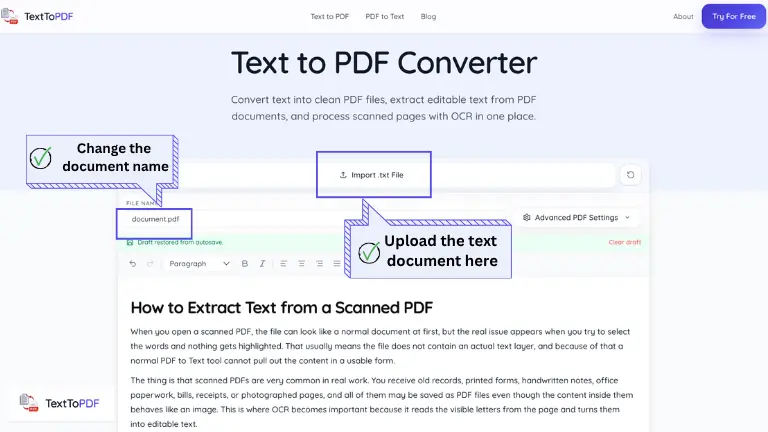
1. Type Text, Paste Content or Upload a TXT File
Start with the content you already have. Write directly in the editor when you are creating a document from scratch, paste text from another app, or upload a TXT file when the content is already saved.
- Type text directly into the editor
- Paste text you already have
- Upload a TXT file
- Set the PDF file name before export
2. Write and Format Your Document
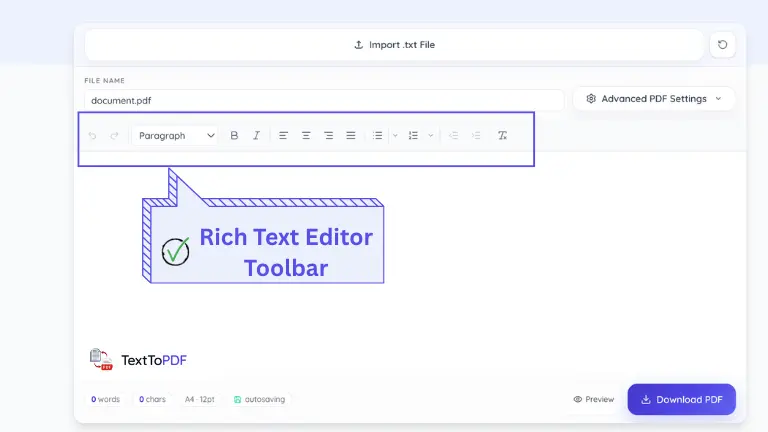
The editor keeps your content editable before PDF conversion. Use headings, paragraphs and lists for structure, then add the formatting or content blocks that the document actually needs.
- Format headings, paragraphs and lists
- Add links, images, equations or tables
- Use quotes, checklists or code blocks
- Reorder or remove content blocks
3. Set the PDF Layout and Preview the Page
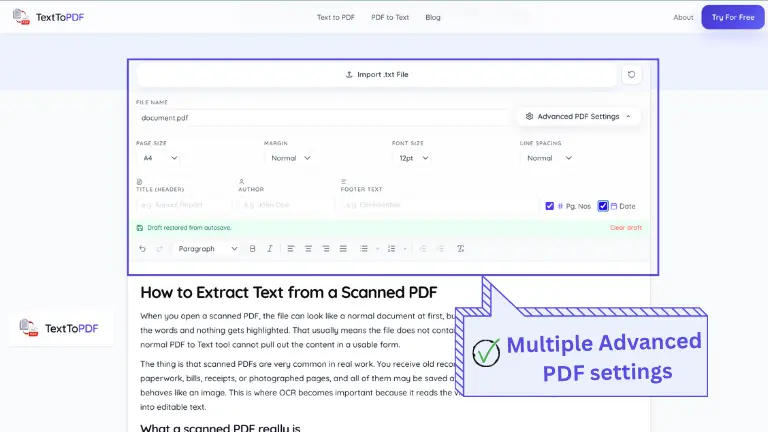
Text formatting changes the content itself, while the PDF settings decide how it sits on the page. Set the page size and orientation first, then adjust the margins when the document needs more or less room. Open the preview before export so layout problems can still be corrected inside the editor.
- Choose page size and orientation
- Adjust margins and document spacing
- Add headers, footers or page numbers
- Open the PDF preview before download
4. Create and Download Your PDF
Once everything looks right in the editor, create the PDF. The downloaded file follows the text and page layout you already set, so you do not have to format the document again after export. This works the same for text you write inside the editor and for content you bring in from elsewhere.
- Confirm the file name and page settings
- Create the finished PDF
- Download the final document
- Return to the editor when something needs changing
Watch the Text to PDF Workflow
Watch this video to know how to turn text into a clean PDF in a few simple steps before you try the converter yourself.
How to Convert Text to PDF in Seconds (Free & Easy Guide) 2026
Watch the complete text-to-PDF workflow when you are ready. The video loads only after you press play.
What Can You Type or Turn Into a PDF?
TextToPDF.net works for short notes, study material, business reports, technical documents and reusable forms. Start with typed text, pasted content or a TXT file, then build the PDF around the document you actually need.
Notes and study documents
Type class notes directly or paste study material into the editor when you need a PDF copy that can be saved or submitted.
Reports and business documents
Prepare written reports with headings, tables or supporting images, then add page numbers or document details before export.
Technical documents
Code blocks, inline code, equations and diagrams help when a PDF contains technical information rather than normal prose alone.
Forms and reusable documents
Add fillable fields, checkboxes, date fields and signature boxes when the document needs information to be completed after it is created.
Frequently Asked Questions
Find answers about typing text, uploading files, formatting documents and creating PDFs with TextToPDF.net.
Knowledge Base & Guides
Check Our Latest Blogs on PDF, OCR & Document Workflows
Explore in-depth technical guides, conversion walkthroughs, and practical tutorials written by our engineering and editorial team.
PDF Layout & Structure
Best practices for headings, line spacing, margins, and typography when converting text to PDF.
Read layout guide OCR & ScanningOCR & Searchable PDFs
How OCR extracts text from scanned pages, and how to turn image-only scans into searchable PDFs.
Read OCR guide Students & StudyStudent Notes & Essays
How students can digitize handwritten notes, format essays, and prepare LMS-ready assignment PDFs.
Read student guide Document SecuritySharing & Preservation
Why PDF is the trusted universal standard for document security, cross-device sharing, and archiving.
Read sharing guideTextToPDF ecosystem
Use TextToPDF wherever your document work starts
You can also install our Android app and Chrome extension for faster everyday PDF tasks. If you are a WordPress developer or website owner, install our WordPress plugin to add TextToPDF-powered PDF workflows directly to your site.
Explore more tools
More Document Tools from TextToPDF
Security and Trust
Privacy Aware Document Handling
Your documents may contain invoices, receipts, notes, or contracts. TextToPDF explains how temporary processing and document handling work before you create and download a PDF.
Temporary Processing
Server tools process your file only to create the result you requested, such as a PDF file or extracted text output.
Browser Based Processing When Possible
Supported conversion tools keep more work inside your browser when the task allows it.
Clear Policies and Limits
Supported formats, privacy details and editorial policies are available before you upload a document.
Export Controls
Review the document settings and output controls before you download the finished PDF.
Why People Trust TextToPDF
TextToPDF keeps its product information and policies easy to check. You can review file handling, supported formats and privacy details before you upload a document.
About TextToPDF
Meet the team behind the tools and learn how we build practical document workflows.
Blog & PDF Guides
Read Text-to-PDF, formatting and document conversion guides from the TextToPDF team.
Security & Privacy
How temporary processing, file handling, and deletion policies work.
Editorial Policy
How guides, updates, and technical content are reviewed before publication.
Corrections Policy
How we fix mistakes and keep public content current.
Supported Formats
The file types and document formats currently available across the tools.