


Has this ever happened to you when you opened an old scanned PDF, looked at the page, and thought the text format and structure were good enough to read properly, but the OCR result still gave the wrong words or broken numbers?
That is the point where the OCR PDF file will confuse and mislead people. The problem usually starts before OCR, not after it. A scanned PDF can carry small issues that your eyes ignore very easily, such as a slight page tilt or faded text.
That usually looks more obvious when the scan is from an old photocopy or a phone capture taken in uneven light. The photo still has dark borders around the page, and shadows may fall near the letters.
In some files, the contrast is also weak. I have seen pages like this that still look readable at first glance, but OCR does not read them with that same flexibility. It has to read exact letter shapes and proper line direction from the page image.
That is why this topic is important. OCR works better when the source page is prepared properly before upload. If the page is straight and sharp, with cleaner edges around the text, the extracted result will be clean and crisp. If the page is weak at the start, the OCR system has to guess more, and that is where mistakes start showing.
What Usually Makes OCR Output Worse
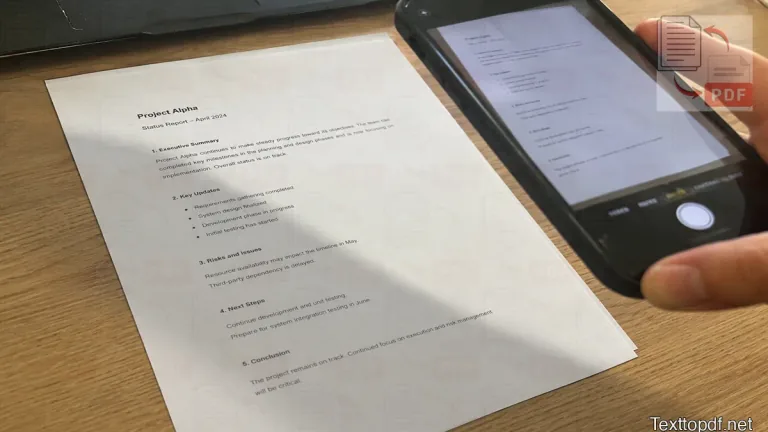
Most OCR problems in scanned PDFs start from a few very ordinary scan defects, and that is exactly why they get ignored so easily. Even if a slight page tilt can disturb line order, while a faded photocopy can weaken letters or numbers enough to confuse recognition.
A blurry camera capture creates another problem because the character edges lose firmness, and once that happens, OCR has less detail to work with. Dark borders around the scan make the page weaker in a different way, because they can introduce extra marks that were never part of the original text.
Tesseract also notes that skew can badly affect OCR quality, and it warns that dark scan borders can be picked up as unwanted marks during recognition. You can verify that in this Tesseract OCR image quality guide.
A page can aheavy tables can create trouble even when the scan looks readable. OCR may read the words, but still shift rows or mix columns. That is why invoices, forms, mark sheets, and statements need more care than a plain paragraph page.
You should pay extra attention to these parts before OCR:
- page tilt and skew
- blur and weak sharpness
- low contrast and faded print
- dark borders, shadows, page marks, or stains
What We Noticed from Old College Scanned PDFs
We also checked some old scanned PDFs from our college days while shaping this guide. Those files included class notes, scanned records, mark sheet style pages, and photocopied material that had already become dull with time.
That became easier to notice once we compared ordinary paragraph pages with mark sheet style pages from the same old scans. One pattern showed up again and again in those files. A page could still look readable on the screen, but OCR quality dropped much earlier in names and numbers, especially inside table sections.
The first mistakes usually did not appear in long paragraph text. They appeared in the smaller parts that mattered more, such as roll numbers, dates, subject codes, and marks placed in rows.
This became easier to notice once we compared the same type of scanned page under slightly different conditions. Even a small tilt was enough to weaken line order, dark borders started adding marks that did not belong to the content, and faded copies created more confusion between characters that look similar.
| What we checked | What we noticed |
|---|---|
| Slightly tilted pages | Line order and spacing started breaking first |
| Faded photocopies | Numbers and short words were missed more often |
| Dark scan borders | Extra marks and wrong characters appeared more often |
| Mark sheet style layouts | Rows and values needed extra review |
The Best Setup Before You Upload a Scanned PDF
Before uploading, the goal is not to make the file look polished. The real goal is to make the text easier for OCR to separate from the background and read in the correct order.
ABBYY also explains that distorted text lines, page skew, noise, and defects in scanned images or phone captures can reduce recognition quality. That is useful here because it shows why small scan defects matter much earlier than many people expect. You can go through that in this ABBYY recognition quality guide.
A good setup before upload usually looks like this:
- Keep the page as straight as possible
- Use a sharper scan when the text edges look soft
- Avoid dark shadows and heavy borders
- Make sure the text stands apart from the page clearly
If you are working with an old file and rescanning is possible, that is the best first fix you can do. If rescanning is not possible, then at least check the first page carefully before processing the full file. That one page usually tells you how much trust you can place in the OCR result.
A Quick Check Before OCR
Before using OCR on the full PDF, I would always look at one page and ask four simple questions.
- Do the letters look sharp enough
- Is the page straight enough
- Do the words stand out from the background
- Are borders, shadows, or marks touching the text
Not every scan problem needs the same level of attention. Some issues damage OCR much faster than others, so the order of correction matters when time is limited.
The first fix should usually be the page angle. If the lines are not straight, OCR can lose reading order very early. After that, sharpness deserves attention because soft letter edges make similar characters harder to separate.
You can treat the priority in this order:
- Straighten the page first
- Improve sharpness where letters look soft
- Increase contrast if the text looks faded
- Remove dark borders, marks, and shadows
A Better Scan Usually Starts with Better Capture
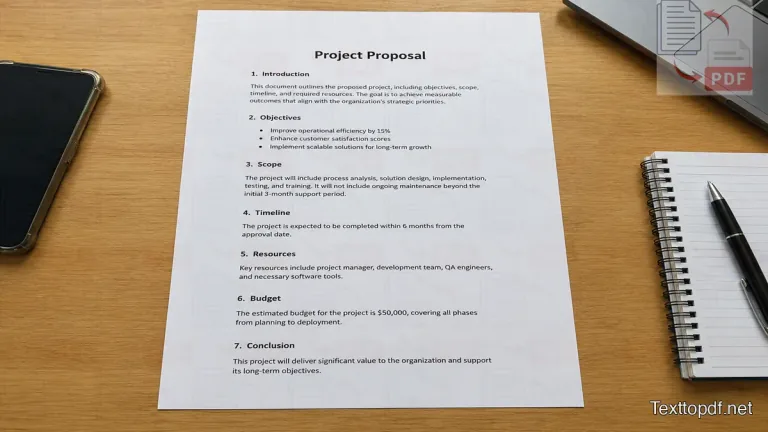
If rescanning is possible, that is the best option to improve OCR. An old, weak scan can sometimes be cleaned a little, but a better capture will give a good result from the start.
For printed documents, a scan around 300 DPI or higher is commonly treated as a good starting point for OCR. You should keep the page aligned properly, and you should also make sure the document language matches the OCR setting. You should try to keep the lighting even as well. If the language setting is wrong, character recognition can become weaker even when the page itself looks clean.
Adobe also recommends a high-quality scan, proper page alignment, and the correct OCR language before recognition starts. You can verify that in this Adobe guide to OCR preparation.
This is also where our product texttopdf.net fits naturally into the workflow. When the file behaves like an image and direct extraction will not work, the scanned PDF to text path becomes the right one. Before upload, a quick scan check makes that OCR step more reliable and reduces cleanup later.
Why Tables, Forms, and Mark Sheets Need More Care
A plain paragraph page is easy for OCR to handle because the reading flow moves in one direction. A table or form page is different because the system has to read words and also keep their position tied to the correct row or field.
This is why mark sheets, invoices, statements, and form pages many times need extra review after OCR. The words may still be recognized, but values can shift into the wrong row. Labels can move away from the correct field, and short entries may also mix with nearby text. In our own old college files, this was one of the first places where OCR quality started weakening.
Google Cloud also explains that document OCR can return page, block, paragraph, word, and break information. That helps explain why dense layouts and field-heavy pages need closer review after OCR. You can read that in this Google Cloud OCR documentation.
| Document type | What often goes wrong | What needs extra review |
|---|---|---|
| Mark sheet style pages | Rows and values may shift | names, roll numbers, subject marks, totals |
| Invoices and bills | Totals may move near the wrong lines | amounts, dates, item rows, totals |
| Forms | Labels and answers may mix | field names and entries |
| Statements | narrow columns may merge | dates, balances, row order, column order |
What OCR Can Improve and What It Cannot Fully Repair

OCR is useful because it can turn visible letters from an image page into editable and searchable text. That is a big improvement when the original PDF behaves like a flat photo and direct text extraction gives nothing useful.
At the same time, OCR cannot solve every document problem completely. If the scan itself is weak, OCR can still show wrong characters, and that problem is more obvious when the page contains tables or handwritten notes, because the table structure can break, and handwritten text is much harder to read properly.
Even in good conditions, OCR should still be treated as a recovery method, not a perfect reconstruction tool. The European Data Protection Board notes that clear printed documents can commonly reach OCR accuracy in the 95% to 99% range, but it also makes clear that document type, language, and software can change the result. You can read that in this EDPB OCR accuracy note.
You should treat OCR as a strong recovery method, not as a magic repair step. A better source page gives OCR a better chance, but a difficult file may still need manual review after extraction.
Common Mistakes Before OCR
By the time OCR gives a weak result, the real problem has often already started much earlier in the scan itself. Most weak OCR results can be traced back to a few repeated mistakes. The page already shows warning signs before you upload the file, but those signs get ignored because the text still looks easy to read to the eye, and that is where people usually trust the file more than they should.
These are the mistakes I see most often before OCR starts:
- A tilted scan is uploaded without straightening it first
- A weak or blurry phone capture is used as it is
- Shadows, dark borders, background marks, or stains are ignored
- The full OCR result is trusted without checking page one first
A little care before upload usually saves more effort than correcting the full output later.
Related Workflows That Also Matter
Sometimes the file does not need OCR at all. If the PDF already allows text selection, a direct extraction method is usually the better option. This difference matters because the wrong method can add extra errors that were not needed in the first place.
If the file already contains readable text, you can use the PDF to Text tool instead of OCR. If you want to understand that difference in more detail, this PDF to Text vs OCR guide explains where each method fits better. For scanned pages that need OCR, this What Is OCR in PDF guide, this How Scan Quality Affects OCR Accuracy guide, and this Why OCR Results Are Wrong guide, can help you connect the full workflow.
FAQs
How do I prepare a scanned PDF for better OCR results?
You should check page angle, sharpness, contrast, and dark borders or scan marks before you upload the file. A good page gives OCR a better chance to read the text correctly.
Does 300 DPI help OCR?
For normal printed pages, 300 DPI is a good starting point because it usually gives OCR enough detail to read letter shapes more accurately.
Should I straighten a scanned page before OCR?
Yes. A tilted page can disturb line order and reduce OCR quality much earlier than many people expect.
Why does OCR fail even when the page looks readable?
A person can ignore blur, tilt, faint print, or dark borders more easily. OCR depends on exact letter shape and line direction, so a readable page can still produce weak output.
Can OCR keep the same table layout?
Not always. OCR may read the words correctly but still weaken row order, field placement, column flow, or table structure, which is why tables need extra review.