
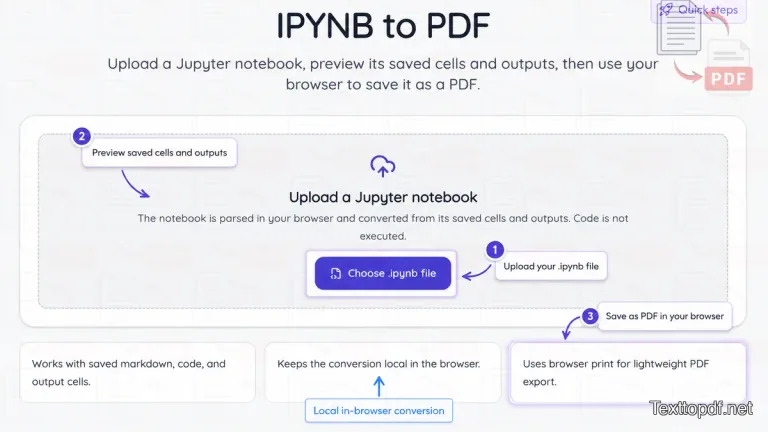
This tool helps you turn a saved Jupyter Notebook into a readable PDF without setting up extra export tools. You just need to upload the .ipynb file, check the notebook preview, and then you can use your browser print option to save that preview as a PDF.
The page is built for quick notebook sharing. It reads the notebook file in the browser and shows the content that is already saved inside it. That includes markdown cells, code cells, and saved outputs. The tool does not run Python code during conversion, so it works best when your notebook is already saved in the form you want to export.
What this tool reads from your notebook
An IPYNB file can store different types of notebook content in one place. This tool is meant to preview the parts that are already saved in that file so you can export them as a PDF.
It works well with saved markdown, code, and output cells. That makes it useful for notebooks with notes, examples, printed results, tables, and charts that were already generated before the file was uploaded.
How the IPYNB to PDF process works here
On this page, the workflow stays simple on purpose. You choose the notebook file from your device, the tool reads the saved notebook structure in your browser, and the page renders a printable preview. After that, you save the preview as a PDF through the browser print dialog.
This approach keeps the tool very simple to use. It also avoids the setup that many notebook users run into when they try to export through local packages or command line tools. If your notebook is already saved with the output you need, this method is often enough for a fast PDF copy.
What to check before you upload the file
This converter depends on what is already saved inside the notebook. If the notebook has markdown headings, code, and saved charts, those parts can appear in the preview. If the notebook was saved without outputs, the PDF will also be missing those outputs.
A quick check before upload can save you time later. Open the notebook in Jupyter, Colab, or your editor, make sure the cells you want are visible, save the file, and then upload that saved version here.
Where this tool is useful
This tool is useful when you need a PDF copy of a notebook for sharing or keeping the records. You can use it for coursework, project notes, experiment summaries, team updates, or documentation that should be easier to open outside a notebook editor.
A notebook file is fine for active work, but a PDF is easier when the goal is reading, sending, or storing the result in a more stable document format.
What this tool does not do
This page is meant to show the notebook content that is already saved in the file. It does not run notebook cells after upload, and it does not install packages or fix code issues before export. If a chart, table, or printed result is missing in the notebook file, the preview here cannot recreate it for you.
That is why this tool works best as a notebook to PDF helper, not as a notebook execution tool. You prepare the file in Jupyter or Colab first, save the notebook with the output you want to keep, and then use this page to turn that saved view into a PDF.
How to get a better PDF result
Before you save the notebook as a PDF, it helps to do one quick check so the final document is easier to read. This matters most when the notebook has long outputs, wide tables, or sections that were written in a hurry and never prepared for sharing.
You will usually get a better result when you do these checks first:
- Keep the markdown headings you want in the final document
- Save the notebook after the needed outputs appear
- Remove very long outputs that do not need to stay in the PDF
- Check the browser print preview before saving the file
These small steps help because the PDF is created from the saved notebook preview, not from a fresh notebook run. If the notebook already looks organized before upload, the exported document usually looks better as well.
When browser print helps most
This tool uses the browser print flow for the last step, and that is useful when you want a quick export without extra setup. You do not need to deal with local PDF packages just to create a readable copy of the notebook.
This also gives you one more chance to adjust the output before saving. Inside the print window, you can check margins, scale, and page layout. If a notebook page looks too wide or too crowded, the print preview often shows that before the PDF is saved.
Common cases where this tool helps
Many people do not need a complex notebook export workflow every time. They just need a fast way to turn a saved notebook into something easier to share with a teacher, teammate, client, or reviewer.
You can use this tool in cases like these:
- A class notebook needs to be submitted as a PDF copy
- A project notebook needs to be shared with someone who does not use Jupyter
- A saved analysis notebook needs a document version for review
- A notebook with output and notes needs a file that is easier to store
Quick problems you may notice
Sometimes the preview looks different from what you expected, and the reason usually comes from the notebook file itself rather than the converter page.
- If output is missing, the notebook was usually saved before those cells finished running
- If a chart does not appear, that output may not have been stored in the file
- If the PDF looks too wide, the notebook may contain a wide table or a long code block that needs a better print scale
- If the page looks crowded, the markdown sections may need better spacing before export
FAQs
Does this tool run notebook code before creating the PDF
No. This page only reads the content that is already saved inside the .ipynb file. It does not run Python code after upload.
Why are some notebook outputs missing in the preview
This usually happens when the notebook was saved before those outputs were stored in the file. Open the notebook again, run the cells you want to keep, save it, and then upload that saved version.
Can this tool show markdown, code, and notebook output together
Yes. If those parts are already saved inside the notebook, the preview can show them together before you save the page as a PDF.
Is this tool useful for Google Colab notebooks too
Yes. You can download the notebook as an .ipynb file from Colab and then upload that saved file here. The result still depends on what was saved inside that notebook before download.