


A lot of people reach this step after the main job is already finished. The PDF is open, the words are visible, and in some cases, the text has already been copied out into a temporary box or editor. Then one more question shows up, and it matters more than it first appears. How do you save that content properly as a text file instead of leaving it in a clipboard or a half cleaned note?
This sounds like a small final step, but the quality of the saved file depends on what kind of PDF you started with. A digital PDF with a usable text layer can move into a text file much more cleanly. A scanned page may need OCR first, and even after that, the output may still need cleanup before it is worth saving as .txt.
This guide explains what it really means to save PDF text as a text file, what kind of PDFs give better output, what to check before saving anything, and why the extracted text sometimes looks wrong before the save step even begins. It also connects that workflow with the way texttopdf.net separates direct PDF text extraction from scanned PDF OCR so the full process stays practical.
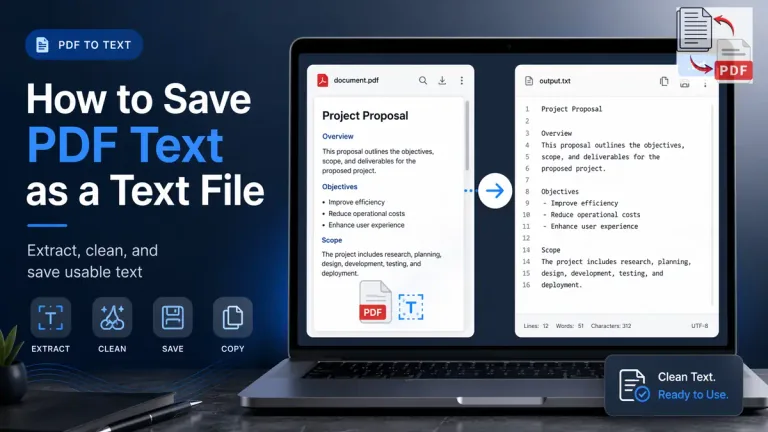
What It Means to Save PDF Text as a Text File
The process of saving PDF text as a text file means taking the written content out of a PDF and keeping it in a plain text format, such as .txt. The goal is not to keep the original page layout, images, or the full visual structure of the document. The goal is to preserve the words in a lighter file that can be opened in basic editors, searched quickly, reused in other workflows, and stored without the weight of the original PDF presentation.
That difference matters because a PDF and a text file do two different jobs. A PDF is built to preserve the appearance of a document across systems, while a text file is built to hold raw written content in a very plain form. Adobe explains PDF in exactly that broader presentation role, which helps show why moving content into plain text changes the purpose of the file completely in this Adobe explanation of what a PDF file is.
If the file already contains selectable text, the natural first step is PDF to Text, because that route fits digital PDFs where the words are already stored inside the document in a usable form.
Why People Save PDF Text as a Text File
People usually do this when the written content matters more than the original document layout. A report may need to be quoted in another file. Notes may need to be cleaned and reused. A long document may need to be archived in a lighter format that opens quickly in a simple editor.
This is also useful when the next workflow no longer depends on a PDF presentation. A text file is easier to move into scripts, notes, tools, writing drafts, content systems, and plain editor environments. Once the page design is no longer the priority, a .txt file becomes a much simpler working format.
What Kind of PDF Gives the Cleanest Text File Output
The cleanest results usually come from digital PDFs that already contain a proper text layer. These files are exported from word processors, browser print workflows, office tools, or document generators that store the words as real characters inside the file. When that layer already exists, extraction is usually more stable, and the result is easier to review before saving.
That is why the origin of the PDF matters before you save anything. If the file began as a digital document, the extracted text is cleaner and easier to turn into a text file. If the file began as a paper scan or a photographed page, the output may need OCR and correction before it is worth saving.
File Types That Usually Save Better as Text
- Digital PDFs with selectable text usually give cleaner output
- Browser generated PDFs keep a usable text layer
- Word exported PDFs are easier to save as plain text
- Scanned PDFs may need OCR and review before saving
If you are not sure what kind of file you have, it helps to first read Searchable PDF vs Scanned PDF, because that difference affects the entire save workflow.
How to Check the PDF Before Saving the Text
A small check before extraction saves time later. Start by trying to highlight one sentence. If the words select normally, the file probably contains a usable text layer. Then search for a word you can clearly see on the page. After that, copy one paragraph and paste it into a plain text editor to see how the output behaves outside the PDF.
Those checks matter because they reveal whether the document is ready for direct extraction or whether the output will need correction first. If the text comes out cleanly in a plain editor, saving it as a text file is usually straightforward. If it comes out broken, empty, or badly ordered, the issue should be fixed before the save step.
Quick Checks Before You Save Anything
- Highlight one sentence and see whether the words select normally
- Search for a visible word inside the PDF
- Paste one copied paragraph into a plain editor to test the output
- Notice whether the page behaves like text or like an image
How to Save PDF Text as a Text File from a Normal Digital PDF
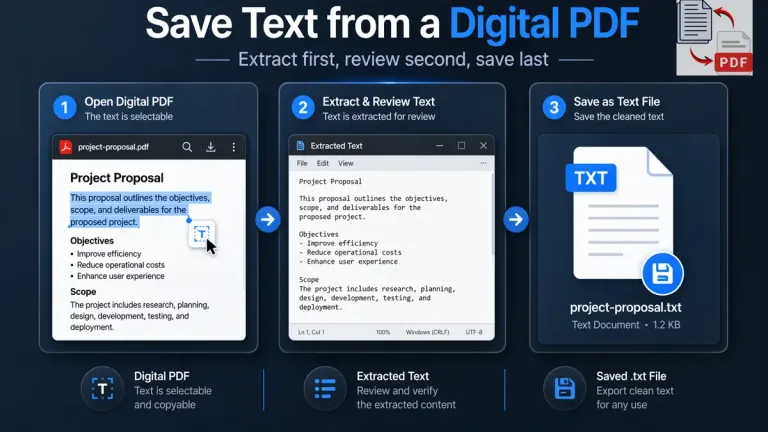
The simplest route starts with a digital PDF that already contains selectable text. In that case, you extract the text first, review it in an editor or extraction panel, and then save the output in plain text format. The actual save step is easy. The more important part is checking the output before you create the final .txt file.
On texttopdf.net, this workflow fits the direct extraction route. A normal digital PDF can move through PDF to Text, the extracted content can be reviewed, and then the text can be copied or downloaded for the next step. That keeps the save process cleaner because you are working from a document that already contains a readable text layer.
Basic Workflow for a Digital PDF
- Open or upload the PDF and extract the text
- Review the result before saving anything
- Remove obvious line breaks or spacing issues if needed
- Save the cleaned output as a
.txtfile
Why Extracted Text Sometimes Looks Wrong Before Saving
A lot of people assume the save step caused the problem, but the issue usually appeared earlier. The extracted text may already contain broken line order, merged columns, weak OCR output, or uneven spacing before it is ever saved as a text file. That is why some saved text files look messy even though the save process itself worked exactly as expected.
This is especially common when the source document had multi column sections, rigid tables, or a poor scan. Google’s OCR guidance also points out that recognition quality depends on factors like readable text, correct orientation, and the condition of the source file, which helps explain why the extracted text may need review before you keep it in plain form. You can read that in this Google Drive OCR help page.
You can understand that problem more clearly in Why Some PDF Files Let You Copy Text and Some Do Not, because copy quality and saved text quality come from the same file level issue.
Text File vs PDF: What Changes After Saving
A text file keeps the words, but it does not keep the full PDF presentation. Page boundaries disappear. Images do not carry over. Visual hierarchy becomes much lighter unless it is preserved through spacing, headings, or line breaks inside the extracted output.
That is not a failure of the text file. It is the normal tradeoff. A .txt file is meant to hold written content in a very plain structure. That makes it useful for editing, archiving, and reuse, but it also means you should not expect it to preserve the full design of the source PDF.
How to Save Text from a Scanned PDF
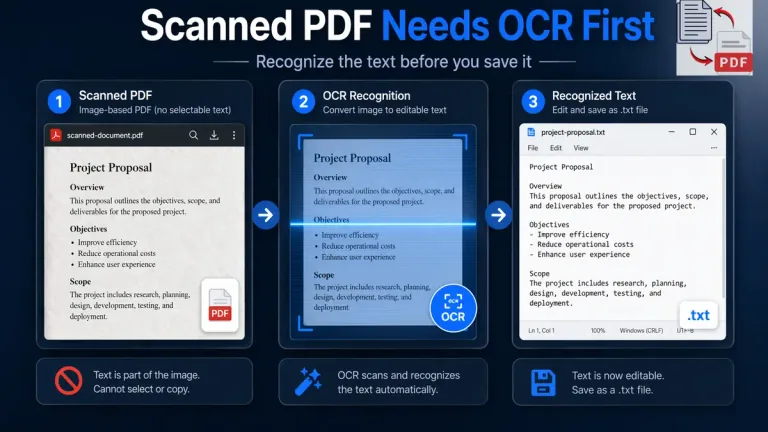
A scanned PDF needs a different start because the file sometimes behaves like an image instead of live text. That means saving it as a .txt file is not really the first step. The first step is OCR, because the words have to be recognized before they become usable for saving.
This is where many people lose time. They try to copy text from a scanned page, paste the result into an editor, and then wonder why nothing useful appears. In that kind of file, the save step is not the real problem. The document needs recognition first. Adobe explains OCR as the process that turns scanned text images into searchable and editable text, which is why it matters before you even think about creating a text file in this Adobe guide explaining what OCR is and how it works.
If the page behaves like an image, the better path is usually scanned PDF to Text or the fuller walkthrough in How to Extract Text from a Scanned PDF.
Clean the Text Before You Save It
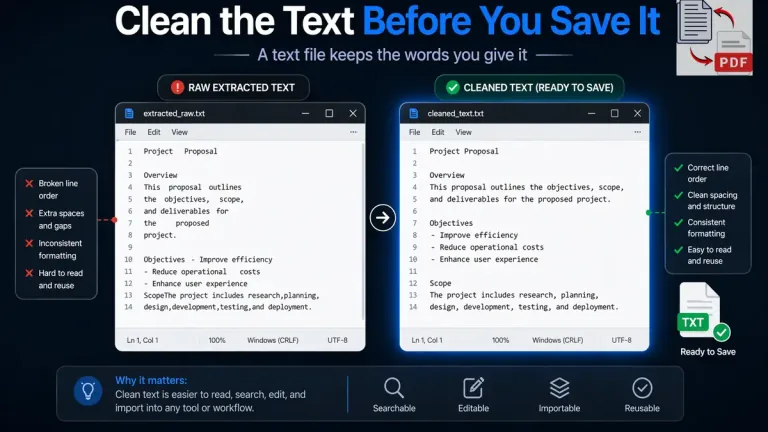
A text file keeps the words you give it, but it does not repair them. That is why the review stage matters so much. If the extracted result already contains broken line order, merged columns, wrong OCR characters, or uneven spacing, the .txt file will carry those same issues forward.
The easiest approach is to clean obvious problems before saving. Fix line breaks that split sentences for no reason. Remove extra blank lines if they break reading flow. Check headings, paragraph spacing, and repeated fragments if OCR introduced them. A plain text file works best when the content is already stable enough to read in a simple editor.
Common Mistakes People Make at This Stage
This part usually looks easy, which is why mistakes slip in. A person sees usable text in a box, saves it quickly, and only later notices that the file is full of bad spacing or awkward line order.
Mistakes That Usually Make the Final .txt File Worse
- Saving the output without reviewing it in a plain editor first
- Expecting a text file to preserve the original PDF layout
- Trying to save a scanned PDF before OCR has been used
- Keeping OCR mistakes that should have been fixed first
These mistakes are small, but they change the usefulness of the final file. A quick cleanup step usually saves more time than fixing the text later in another workflow.
Best Practices Before the Final Save
A good final save usually comes from a short review, not from rushing to finish the file. Once the extracted text looks stable enough in a plain editor, the save step becomes much safer and the result is easier to reuse later.
- Check the extracted text in a plain editor before saving
- Fix spacing and line order before creating the
.txtfile - Use OCR first if the source PDF behaves like an image
- Save only after the output is clean enough to search and reuse
These steps are simple, but they prevent a lot of avoidable cleanup work.
How TextToPDF.net Fits the Full Workflow
This topic fits naturally with texttopdf.net because the site already separates the two routes that matter here. A digital document with selectable text belongs in the normal PDF to Text flow. A scanned or photographed document belongs in the OCR side of the workflow through scanned PDF to Text.
That clean structure is useful because saving text as .txt is really the last part of a larger process. First the document has to be understood. Then the text has to be extracted the right way. After that, the result has to be reviewed before it is worth saving. If you want a proper explanation around your decision, you can check these pages like How to Extract Editable Text from PDF Files and Searchable PDF vs Scanned PDF.
FAQs
How do I save PDF text as a text file
Extract the text first, review it in a plain editor, fix obvious spacing or line issues, and then save the result as a .txt file. The save step is easy once the extracted text is already usable.
Can I save scanned PDF text as .txt
Yes, but a scanned PDF usually needs OCR before the text becomes usable. If the page behaves like an image, saving directly will not give you a good text file until recognition has been done first.
Why does extracted PDF text look messy before saving
That usually happens because the extraction result already contains layout problems, weak OCR output, or broken reading order. The save step does not create those problems. It only preserves what was already there.
Does a text file keep PDF formatting
No. A text file keeps the words, but it does not keep the full page layout, images, or the visual structure of the PDF.
When should I use OCR before saving PDF text
Use OCR when the PDF is scanned, photographed, or behaves like an image instead of live text. In those cases, recognition is needed before the text is worth saving as .txt.
What is the difference between a PDF and a text file
A PDF is built to preserve document presentation, while a text file is built to hold raw written content in a much simpler form. That is why moving from PDF to .txt changes both the structure and the purpose of the file.
Final Note
A final text file may look like a small last step, but its quality depends on everything that happened before it. The type of PDF matters. The extraction method matters. The cleanup step matters.
Once those parts are handled in the right order, the save step becomes straightforward. You extract the text, review it properly, fix what needs fixing, and then keep the words in a lighter format that is actually useful for the next job.