


Generally, you face this situation more often than you expect, where you have a text file or some copied notes, and you now need to share them in a proper document format that looks clean and consistent.
A raw text file does not present your content well because it has no fixed structure, no control over spacing, and it can appear different on another device depending on how it is opened.
That’s why many people move to PDF, because what you need to understand is this, a PDF file keeps your document stable and preserves layout, so your content looks the same everywhere. If you want a deeper understanding of how this process works in detail, you can check this complete text to PDF guide. You can also follow these simple editable-content-to-PDF methods when you want to compare Word, online, and Google Docs workflows. You can also understand how PDF files maintain layout across devices from this detailed explanation on how PDF works.
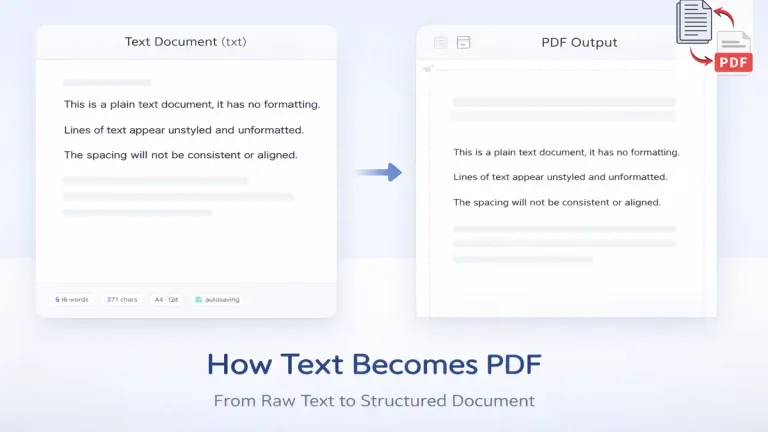
Why People Convert Text Documents to PDF
A text file only contains plain content and does not carry real formatting rules, which means there are no fixed margins, no proper spacing system, and no guarantee of how the content will appear when someone else opens it.
The main issue starts when you try to share it, because a file that looks fine on your system can break in spacing or alignment on another system, and because of this, the overall presentation starts looking unprofessional.
That’s where PDF solves the problem, since once your text is converted into a PDF, the layout becomes fixed and your spacing, alignment, and structure remain consistent across devices, which makes sharing and printing much more reliable. For a closer look at the practical reasons PDF works well when a document is shared, see why PDFs are the go-to format for sharing digital documents.
What Happens When You Convert Text to PDF
Converting text to PDF is not just about changing the file type, because what actually happens is your content gets placed inside a structured document layout.
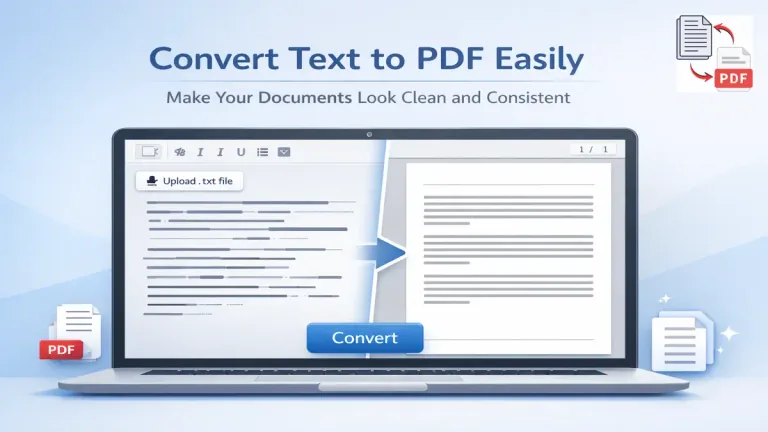
Your text is organized within defined page boundaries where margins, spacing, and font size are applied in a controlled way, and because of this, your content starts looking more structured, readable, and consistent across different devices.
You may think it is just a simple conversion, but it is not like that, since the final output depends on how your text is arranged before conversion, as well as what settings you apply during the process. You can also read about how the PDF format is standardized and why it stays consistent from this official overview of the PDF format.
That’s why a good tool does not just convert your file directly; instead, it gives you control so you can adjust and refine your content before generating the final PDF.
Convert Text to PDF Using an Online Tool
Online tools are the fastest way to convert text into PDF without installing anything, and this makes them useful for quick document creation.
The workflow is straightforward, but the important part is the level of control you get before conversion, because that directly affects how your final PDF will look.
On a tool like TextToPDF.net, you can start in two ways, where you either import a .txt file directly or paste your text into the editor, and because of this, both types of users are covered, those who already have files and those working with copied content. If you want to directly try this workflow, you can use this text to PDF tool to convert your document step by step.
After that, you are not forced to convert immediately; instead, you get an editor where you can adjust your content, apply formatting like bold or alignment, and make sure your text looks correct before moving forward.
This is where most basic tools fall short, because they only convert without giving control, while here you are actually preparing your document before generating the PDF.
Step by Step: Convert Text to PDF on TextToPDF.net
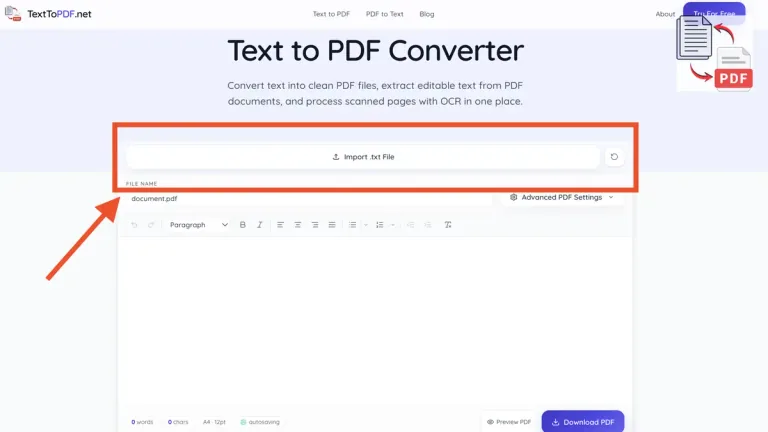
Now let’s go step by step so you can understand the exact process clearly from start to finish.
- Import your text file or paste your content into the editor, and once your content is inside, review it and correct any issues before moving ahead.
- Set your file name so your output stays organized, because many people skip this step and later end up with unclear file names.
- Adjust formatting by changing paragraph styles, spacing, and alignment based on how you want your document to appear.
- Open the advanced settings to customize page margins, typography, and document layout formatting.
- Preview your PDF before downloading so you can check everything, and once the layout looks correct, download your PDF file.
That’s how the process works from start to finish, but the real difference comes from how you use the settings before conversion, which we will cover in the next part.
Adjust Settings Before Converting (Important)
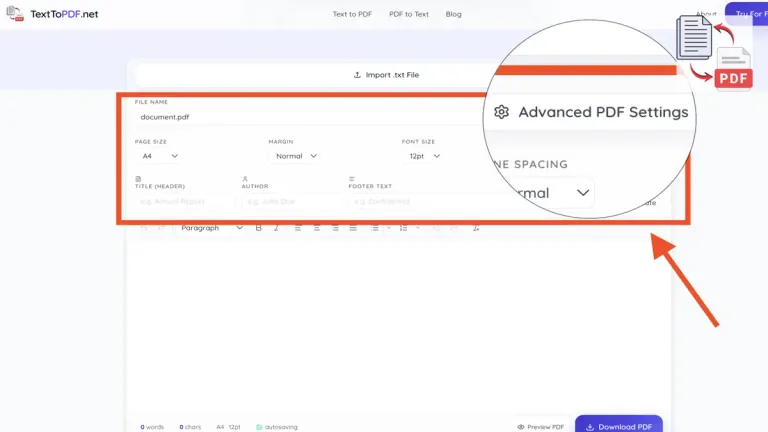
This part changes the final output. Before you convert, you can control how your document will look on each page, and because of this, you can avoid most formatting issues in advance.
- Page size decides how your content fits on paper, so choosing A4 or Letter based on your need helps keep the layout balanced.
- Margins control the space around your content, and proper margins make your document easier to read and print.
- Font size affects readability, where smaller text can look cramped and larger text can break the layout, so you should choose a balanced size.
- Line spacing improves clarity, especially for longer paragraphs, and slightly increased spacing usually makes content more comfortable to read.
- Header and footer options help you add a title, an author, or page numbers so your document feels complete and organized.
Recommended Settings Guide
| Setting | What it Controls | Recommended Starting Point |
|---|---|---|
| Page Size | Page dimensions | A4 |
| Margins | Space around content | 1 inch all sides |
| Font Size | Text readability | 11 to 12 pt |
| Line Spacing | Space between lines | 1.3 to 1.5 |
| Header/Footer | Extra document information | Title or page numbers |
As you can see, small changes in these settings can improve your final PDF a lot, and because of this your document looks more professional without extra effort. If you want to understand this deeper, you can check these text to PDF formatting best practices where layout and spacing are explained clearly.
Common Mistakes While Converting Text to PDF
Sometimes this fails too, not because of the tool but because of how the text is prepared before conversion.
- Text without proper line breaks can appear as one long block, which makes reading difficult.
- No spacing between paragraphs can make the document look cramped and confusing.
- Very small or very large font sizes can break page structure and affect readability.
- Missing headings or structure makes the document feel unorganized.
- Direct conversion without preview can lead to small mistakes staying in the final output.
If you are exporting from Microsoft Word and entire sections go missing, read this guide on why text disappears when converting Word to PDF before converting again.
You can fix most of these issues by preparing your text properly before converting, and you can check this guide to prepare your text before converting to PDF, where structure and spacing are explained in detail. You can also review these common text to PDF problems to understand what usually goes wrong.
Other Ways to Convert Text to PDF
There are other methods as well, but each comes with different levels of control.
- Print to PDF option lets you convert from any editor, but it gives very limited control over layout.
- Word to PDF works better for formatted documents, but it adds extra steps if you only have plain text.
- Offline tools can work without the internet, but many of them do not give flexible formatting options.
You can also explore different conversion approaches in this overview of file conversion methods, which explains how different tools handle document formatting and output.
Comparison of Methods
| Method | Ease of Use | Formatting Control | Speed | Best For |
|---|---|---|---|---|
| Online Tool | High | High | Fast | Quick and controlled output |
| Print to PDF | Medium | Low | Medium | Basic conversion |
| Word to PDF | Medium | Medium | Medium | Pre formatted documents |
| Offline Software | Low | Medium | Slow | No internet usage |
What you need to understand is that if you want both speed and control, an online tool with formatting options usually works better. If you are comparing methods, you can also look at this comparison of text vs Word PDF difference to understand how output changes between approaches.
Which Method Should You Use
Your choice depends on what you want from the final output.
If you only need a quick file, then basic methods can work, but if you want proper formatting, a structured layout, and better readability, then you should use a tool that allows adjustments before conversion.
That’s why using a tool where you can edit text, adjust settings, preview output, and then generate the PDF makes more sense in most cases.
Final Thoughts
At the end, converting a text document to PDF is not just about changing format, because the real value comes from how you structure your content before generating the file.
If you follow the process of input, adjust, preview, and then download, your output will stay consistent and readable across devices, and that’s what most users actually need when they convert text into PDF.
FAQs
How do I convert a text file to PDF without losing formatting
Formatting depends on how you prepare the text before conversion and what settings you apply. If you adjust margins, font size, and spacing before generating the PDF, your layout stays consistent and readable.
Can I convert text to PDF directly without using Word
Yes, you can convert text directly using an online tool without opening Word. You can upload a .txt file or paste your content, adjust the layout, preview the output, and download the PDF in one place.
Why does my text look different after converting to PDF
This usually happens when the text has no proper spacing or structure before conversion. Raw text does not carry layout rules, so you need to organize it and use correct settings to get a clean output.
What settings should I use for best PDF output
A balanced setup works best for most cases where you use A4 page size, normal margins, and readable font size like 11 to 12 pt. Slightly increased line spacing also helps make the document easier to read and more professional.
For reading electronic books or published EPUB files, you can convert EPUB to PDF online with custom font sizes, page margins, and chapter pagination.