


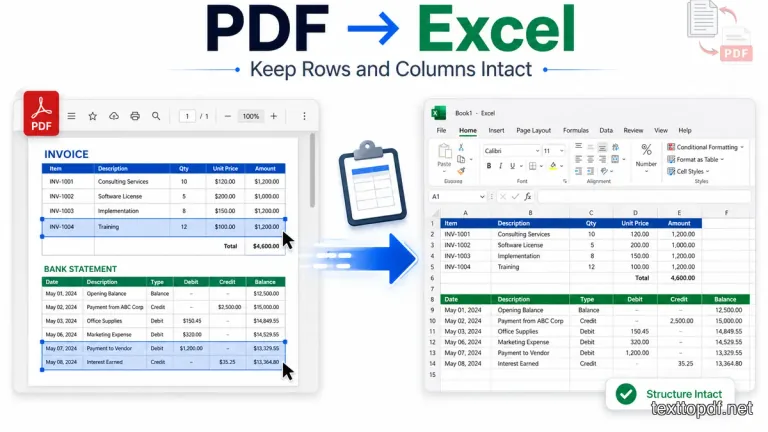
Have you probably faced this issue where you are working with invoices, bank statements, financial reports, research tables, GST sheets, or business documents, and after copying the data from a PDF file into Microsoft Excel, everything suddenly starts looking weird?
Sometimes all the content lands inside one single column. Sometimes numbers shift into the wrong cells. Sometimes rows merge together, and sometimes a clean table completely loses its structure.
This really frustrates everybody, especially when the file contains important figures, transaction details, product entries, customer records, or structured reports where even one broken cell can create bigger problems later.
The thing is very clear here. Any type of PDF files are naturally designed to preserve the visual layouts, whereas Excel is defaulted to work with rows, columns, delimiters, and data cells. Because of this difference, most people don't get the output they expect while copying data from PDF to Excel.
The good part is that there are working methods. If your file contains a real text layer, Excel can easily handle the data cleanly. If the file is scanned, image based, or protected, then the workflow changes entirely.
In this guide, you will know how to move your PDF text into Excel without breaking rows, columns, numbers, or table structure, and you will also learn which method works best for all types of files.
First Check What Type of PDF You Have
Before you can copy anything into Excel, you should first understand what kind of PDF you are working with. This one small step saves your time, prevents broken formatting, and you can also select the correct extraction method.
Text Based PDF
When your PDF is created from tools like Microsoft Word, Google Docs, accounting software, exported reports, billing systems, or digital office tools, the file usually contains a real text layer.
In these files, you can usually:
- Select text with your cursor
- Search for words inside the document
- Copy numbers and table content
- Move content into Excel more cleanly
Scanned PDF
When your PDF comes from a scanner, mobile camera, printed archive, old paper record, or image capture app, the file usually behaves like an image.
In these files, you often notice:
- Text does not get selected
- Search does not work
- Copying gives no output
- Tables behave like images
Protected PDF
Some PDF files include security permissions created by the file owner. In these files, the text exists, but copying can still be restricted.
| PDF Type | Can You Select Text | Can Excel Read It Directly | What You Usually Need |
|---|---|---|---|
| Text Based PDF | Yes | Yes | Excel or Copy Paste |
| Scanned PDF | No | No | OCR Tool |
| Protected PDF | Sometimes No | Limited | Permission Access |
If you want to understand how text layers work inside PDF files before extraction starts, you should also read this PDF to Text guide, because it explains why some files extract cleanly while others break.
If you are still learning the basics of selecting and extracting content from different PDF files, you should also read this How to Copy Text from PDF, because it helps you understand the root workflow before moving into Excel.
Method 1: Copy and Paste Directly into Excel
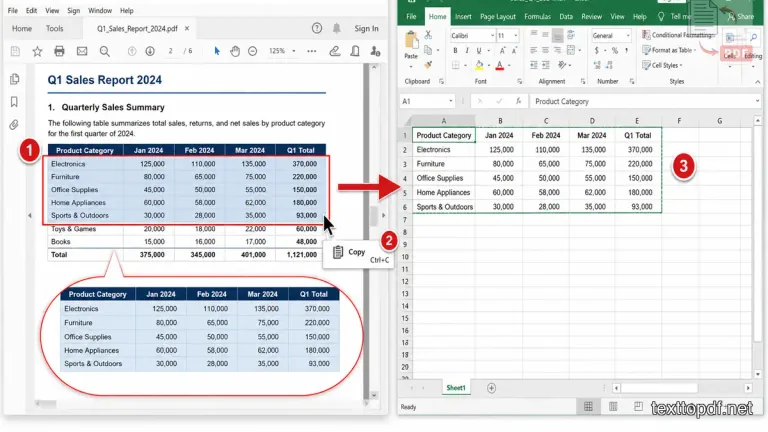
In many real world situations, this is the first method you should try. If your PDF already contains selectable text and the table structure is clean, Excel can receive the content without using any advanced tools.
Steps You Should Follow
- Open the PDF file using Adobe Acrobat Reader or another trusted PDF reader
- Select the rows, numbers, or table data you want to move
- Press Ctrl + C to copy the content
- Open Microsoft Excel
- Select the first destination cell
- Press Ctrl + V to paste the content
This method works best when you are working with:
- One page invoices
- Small transaction tables
- Product pricing sheets
- Basic expense reports
- Simple numeric data
Adobe also explains that content can be copied directly when the PDF contains selectable text and document permissions allow content copying. You can verify this in Adobe Reader’s official guide on copying content from PDF files.
When Everything Pastes into One Column
Now, here is the problem that frustrates most Excel users.
You copy a clean looking table, paste it into Excel, and instead of getting multiple columns, everything lands inside one single column.
The reason is quite clear. PDF files usually store spacing visually, not structurally. Excel receives the text, but it does not always understand where one column ends and another begins.
This problem appears commonly in:
- Bank statements
- Invoice exports
- Purchase reports
- Accounting summaries
- Multi column tables
Method 2: Fix Broken Columns Using Excel Text to Columns
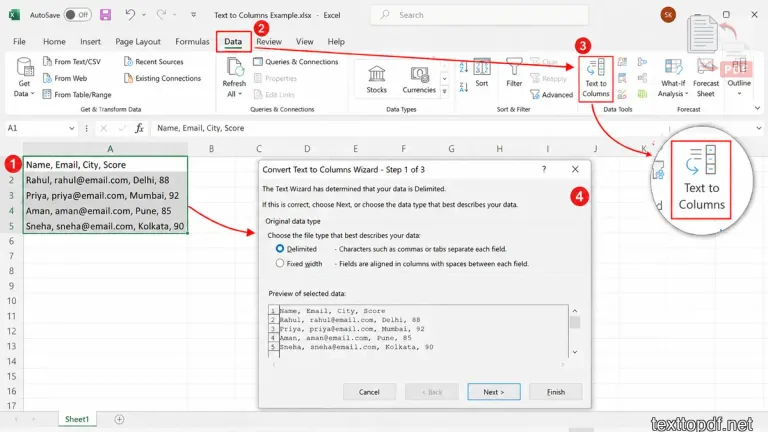
Now here is the part where most people finally get relief, because even if your copied data lands inside one single column, Excel already gives you a built in feature that helps you separate the content properly.
This feature is called Text to Columns, and it works very well when your PDF contains numbers, names, dates, invoice entries, transaction details, or product lists that paste together instead of going into separate cells.
Steps You Should Follow
- Select the column where the pasted data appears
- Open the Data tab inside Microsoft Excel
- Click Text to Columns
- Select Delimited and click next
- Choose the separator like space, tab, comma, or custom delimiter
- Preview the output carefully
- Click Finish
After doing this, Excel starts separating the values into proper cells based on the delimiter you choose.
According to Microsoft support, Text to Columns helps split one column of text into multiple columns based on separators used inside the content. You can verify this from Microsoft’s official guide on using Text to Columns in Excel.
This method works best for:
- Bank statements
- Customer records
- Transaction exports
- Product lists
- Pricing sheets
Method 3: Import PDF Directly into Excel Using Power Query
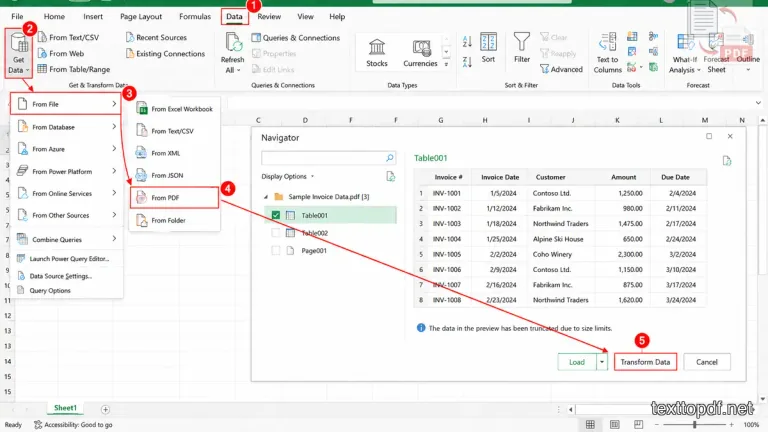
Now here comes a method that many people still do not know, even though Microsoft already gives this feature inside modern Excel versions.
If your PDF contains structured tables, financial reports, invoices, purchase records, or research data, this method often works much better than normal copy and paste.
Steps You Should Follow
- Open Microsoft Excel
- Click the Data tab
- Click Get Data
- Select From File
- Click From PDF
- Select your PDF file
- Wait for Excel to detect tables
- Choose the correct table from Navigator
- Click Load
Excel then tries to preserve rows, columns, and table structure much more accurately. Microsoft also documents this PDF import workflow in their official guide on importing PDF data using Power Query.
This method works best when you are working with:
- Bank statements
- GST reports
- Purchase invoices
- Financial tables
- Research sheets
If your file already contains a clean text layer, you can also use this PDF to Text tool before importing content into Excel.
When Excel Cannot Read the PDF Properly
Sometimes even Power Query fails, and this usually happens when the file is scanned using a mobile camera, stored as an image, or created from old printed records.
In these situations, Excel is not actually seeing text. It is only seeing images.
This is where OCR becomes necessary.
In the next part, you will understand how OCR helps in scanned PDF extraction, when PDF to Word to Excel works better, and what workflow professionals usually follow when table formatting keeps breaking.
Method 4: Use OCR When the PDF Is Scanned
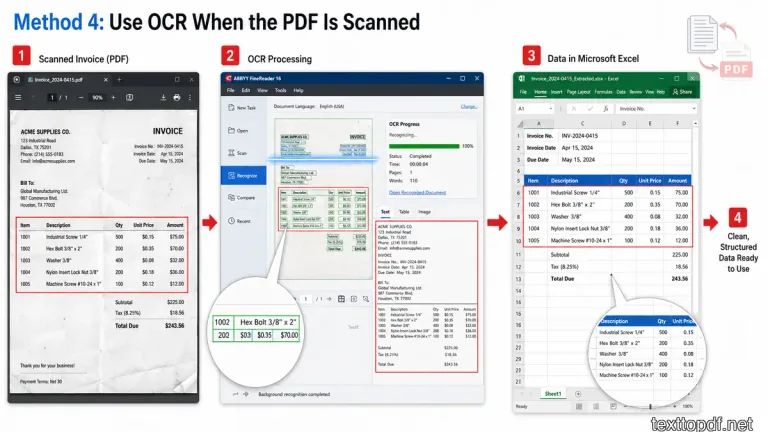
Now here is the situation where normal copy and paste completely stops working. You open the PDF, try to select numbers, drag your cursor across the table, and nothing gets selected.
The reason is very clear here. Your file does not contain real text. It only contains an image of text.
This usually happens with:
- Mobile scanned invoices
- Printed bank statements
- Camera captured bills
- Old paper records
- Archived business documents
In these situations, you should use OCR before moving anything into Excel.
Steps You Should Follow
- Upload the scanned PDF into an OCR tool
- Let the system recognize numbers, dates, names, and table values
- Review the extracted output carefully
- Copy the cleaned text
- Move the content into Excel
- Use Text to Columns if spacing still looks broken
If you want to understand how scanned extraction works in detail, you should also read this Extract Text from Scanned PDF, because it explains the OCR workflow step by step.
If your file is image based and you want to extract text directly, you can also use this Scanned PDF to Text OCR tool, because it helps convert scanned pages into editable content before moving data into Excel.
If you want to understand when OCR works better than direct extraction, you should also read this PDF to Text vs OCR guide, because it explains the difference very clearly.
Method 5: PDF to Word to Excel Workflow
Now here comes a workflow that many professionals quietly use when tables keep breaking, columns shift repeatedly, and direct import still does not give clean output.
Instead of moving data directly from PDF into Excel, you first move the content into Word, clean the formatting, and then move the structured content into Excel.
This method works especially well for:
- Multi section invoices
- Contracts with pricing tables
- Long financial reports
- Research tables
- Vendor sheets
Steps You Should Follow
- Open the PDF inside Microsoft Word
- Let Word rebuild the text structure
- Remove broken spaces or unwanted line breaks
- Organize the content properly
- Copy the cleaned content into Excel
If you want to understand this workflow in more detail, you should also read this How to Copy Text from PDF to Word Without Breaking Formatting, because it explains the Word cleanup workflow properly.
Real World Use Cases
Now let us look at where each method works best in real situations, because this is where most people finally understand what to use.
| File Type | Common Problem | Best Method |
|---|---|---|
| Bank Statements | Numbers shift | Power Query |
| Invoices | Rows merge | Excel Import |
| Research Tables | Multi page data breaks | Word to Excel |
| Scanned Bills | No text selection | OCR |
| GST Reports | Currency alignment breaks | Power Query |
Frequently Asked Questions
Why does PDF data paste into one Excel column
This usually happens because PDF files store spacing visually instead of storing real table separators. Excel receives the text, but it cannot always understand column positions automatically.
Can Excel directly import PDF tables
Yes. Modern Excel versions support PDF table import using Power Query through the Data tab.
Can I move bank statement data from PDF into Excel
Yes. Power Query usually works much better for bank statements because it preserves numeric structure more accurately.
Can scanned PDF data be copied into Excel
Yes, but you first need OCR because scanned files behave like images instead of text documents.
What works better, copy and paste or Excel PDF import
For small tables, copy and paste works well. For financial documents, invoices, and reports, Excel PDF import usually gives a good structure.
Final Conclusion
When you move data from a PDF into Excel, the result depends completely on how the original PDF was created. Some files work perfectly with direct copy and paste. Whereas many files need Text to Columns, and some work better with Power Query. Also, many scanned files need OCR extractions before Excel files can even understand the content.
When you first identify the file type and then choose the correct workflow, you easily save your time, protect your numbers, preserve table structure, and no need of any manual cleanup later.