


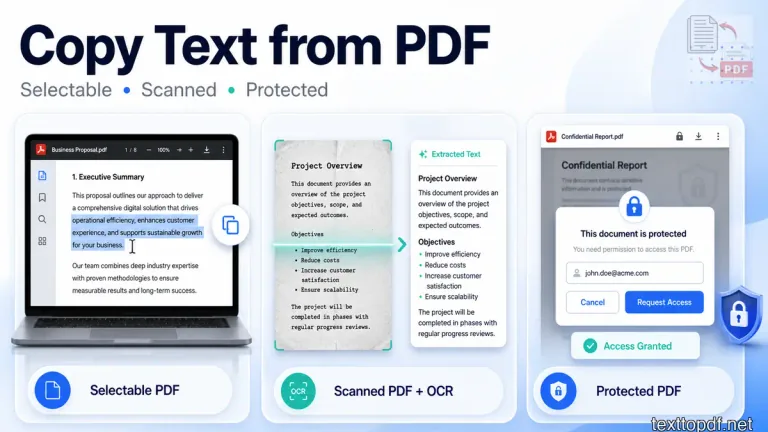
PDF files can be deceptive. The pages may look like normal text, but when you copy a paragraph, the file may behave differently. One PDF lets you select words smoothly, another pastes broken text, and another does not allow selection at all.
This becomes annoying when the content is needed for real work. You may be preparing notes, writing an email, collecting research, or reusing a section from an old document, but the PDF does not give the text in a clean form.
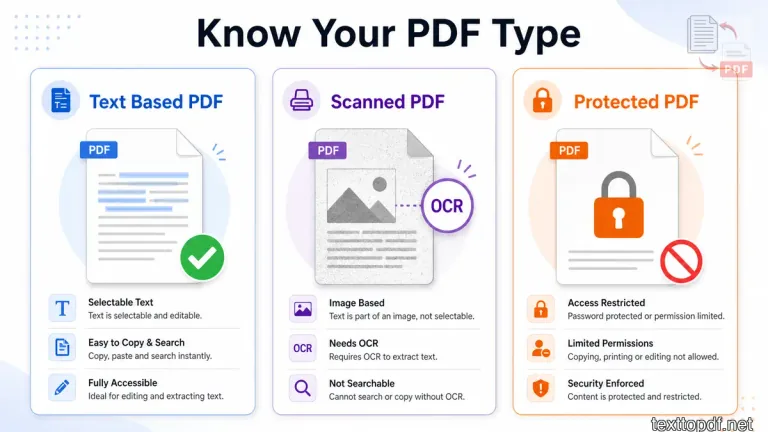
The copy method depends on what is inside the file. A normal text PDF can usually be copied directly, a scanned PDF needs OCR, and a restricted PDF may block copying even when the text is visible.
This guide keeps the process very practical. You will first learn how to test the PDF, then choose the right method for selectable text, scanned pages, or protected files, and finally fix the common copy problems that appear after extraction.
First Check What Type of PDF You Have
The best way to choose the right copy method is to test the file before touching the full content. A PDF can look normal on screen, but that does not always mean the words are stored as editable text.
You can start with one word from the middle of the page. If you can highlight that word properly, the file most likely contains a real text layer. If your cursor cannot select the word, and the page reacts more like a flat image, direct copying will not give a clean result.
Search is another quick check that you can do. First, open the search box in your PDF viewer and type a word that is clearly visible on the page. If the viewer finds that word, the file contains searchable text. If nothing appears, the letters may only be visible as part of the page image.
Here is a quick way to understand what the test result means.
| What happens when you test it | What it usually means | Better next step |
|---|---|---|
| Words highlight normally | The file contains selectable text | Copy directly or use PDF to Text |
| Search finds visible words | The text layer is readable | Extract the content normally |
| Nothing gets selected | The page is likely image only | Use OCR before copying |
| Copy option is blocked | The file may have permission limits | Check document permissions first |
A file created from Word, Google Docs, billing software, reports, or other digital tools usually contains selectable text. These files are easier to copy because the letters already exist as real characters inside the document.
A file made from a scanner, mobile camera, photographed page, or old printed record behaves differently. The words are visible to your eyes, but the system may only see the page as an image. In that case, OCR has to read the page before you can copy useful text from it.
If you want to understand why some files behave differently, you should also read this PDF to Text guide, because it explains how text layers work inside PDF files.
How to Copy Text from a PDF That Allows Selection
When a PDF already contains selectable text, you do not need a special conversion method initially. The file already contains real characters, so a PDF reader can usually send that text to your clipboard.
You can start with a small part of the page instead of copying everything at once. Select one paragraph, paste it into your editor or Word document, and check if the spacing remains usable. If the paragraph comes out properly, you can continue with a larger section.
Use this process:
- Open the file in a PDF reader such as Adobe Acrobat Reader
- Move your cursor over the text and check if words can be highlighted
- Select the paragraph or section you need
- Copy the selected text using right click or keyboard shortcut
- Paste it into your document and review spacing before using it
This method works well for text from reports, invoices, digital forms, guides, and documents exported from writing tools. It may still need a small cleanup after pasting, but the main text should come through without OCR.
Adobe also explains that text can be copied from PDF files when the document allows selection and the permissions do not block copying. You can check Adobe’s official guide on copying content from PDF files.
What to Do When Text Selection Does Not Work
If your cursor does not select words, do not keep dragging across the page again and again. That usually means the file needs a different path.
A page made from a scanner, mobile camera, or photographed document may look readable, but the letters may not exist as editable characters. Your eyes can read the words, but the PDF reader may only see a page image.
A simple way to confirm this is to search for one visible word in the file. If the search does not find it, the content probably needs OCR before copying.
If this is exactly what you are seeing, this guide on why you can't select text in a PDF explains the common causes before you choose the next method.
Use this check:
- Try to highlight one word from the middle of the page
- Search for a visible word using the PDF viewer search box
- Check if copy options are disabled by document permissions
- Use OCR if the page behaves like an image
At this point, random copy tricks will only waste time. If the file needs OCR, extract the text first and then paste the result into your editor or document.
You can follow this scanned PDF to text extraction guide to understand the OCR workflow in more detail.
How to Copy Text from a PDF Made from Scanned Pages
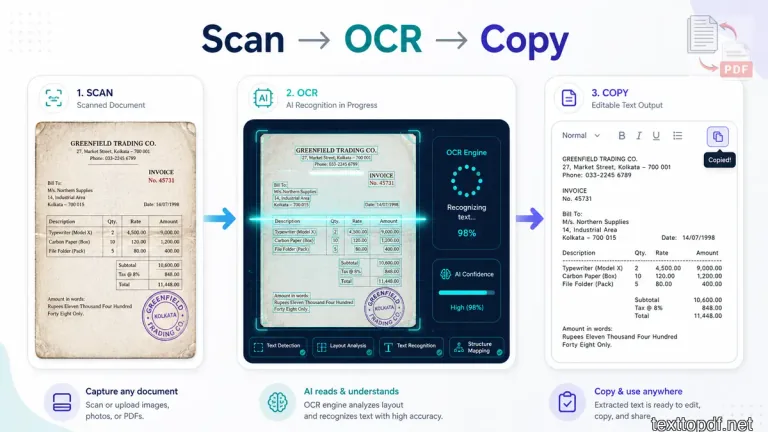
A file made from scanned pages has to be handled differently because the words are not always stored as real characters. The page may show text clearly, but your PDF reader may only see a flat image.
OCR is the bridge in this situation. It reads the shapes of letters from the page and turns them into editable text that you can copy, search, and reuse. Adobe also explains that OCR can convert scanned document images into searchable and editable text in this guide on OCR software for PDF text conversion.
A good OCR workflow looks like this:
- Upload the PDF into an OCR tool
- Let the tool read the visible letters from the page
- Review the extracted text before using it
- Copy the cleaned output into your document or editor
Do not skip the review step. OCR can make mistakes when the original page is blurry, tilted, shadowed, or captured from an old paper document. The output may be usable, but names, numbers, and headings should still be checked before you rely on it.
If you are not sure when OCR is needed, this PDF to Text vs OCR guide will help you choose the correct method before extraction.
How to Copy Text from a PDF with Copy Restrictions
Some PDF files show readable text but still refuse to copy. This is a different issue from scanned pages because the text may exist inside the file, but the owner has restricted what users can do with it.
In this case, the first thing to check is the permission status. A restricted document may allow viewing but block copying, editing, or printing.
Check it like this:
- Open the file in Adobe Acrobat Reader
- Go to document properties
- Open the security section
- Check if content copying is allowed
- Use authorized access if copying is restricted
This is not a formatting problem, and it should not be treated like one. If the option to copy is blocked by permissions, the correct path is to use the allowed access method, ask the document owner for an unrestricted version, or work with content you are permitted to reuse.
Adobe explains that PDF security settings can control actions like copying, editing, and printing in its guide on securing PDFs with passwords and permissions.
Why Copied Text Sometimes Looks Broken
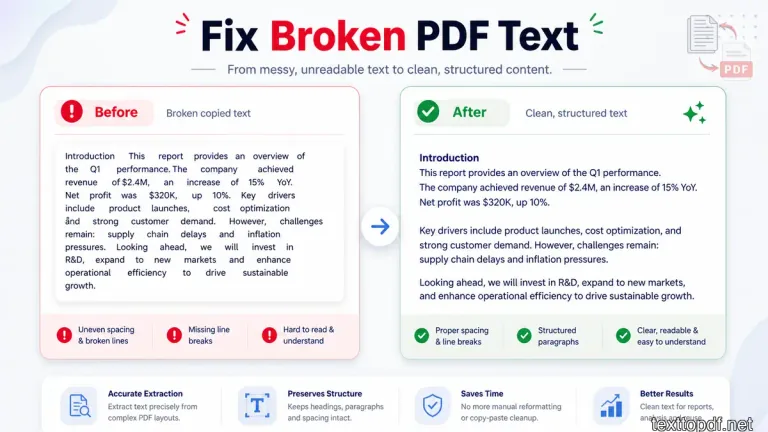
A proper copy does not always mean a clean result. The copied text from Word, Notes, or Google Docs may look clean and okay, but the spacing and paragraph flow may still need repair.
This happens because a PDF files many times stores content according to where it appears on the page. It keeps one line in one position, another line in another position, and a heading in a separate block. When that content is copied out, the receiving app tries to rebuild it as normal editable text.
That rebuild is where the mess usually appears. In such cases, the paragraph will break after every line, spaces will disappear between words, in fact sometimes the table will turn into a loose block of text.
You can usually fix the copied text by checking the main problem first.
- If every line breaks too early, remove manual line breaks and rebuild the paragraph
- If words are joined together, paste as plain text and correct spacing before formatting
- If lists lose shape, recreate the bullets inside your editor
- If tables collapse, extract the content first and rebuild the table manually
This does not always mean the PDF is bad. It usually means the file was designed to show a fixed page, not to transfer perfectly into another editor.
For a proper explanation of this behavior, you can read this guide on why some PDF files let you copy text and some do not.
When Manual Copying Is Not the Best Option?
Manual copying is useful for one paragraph, one quote, or a small section from a readable file. It is very slow when the document has many pages, repeated sections, tables, or long blocks of content.
At that point, page by page selection creates more work than it saves. You copy one section, fix spacing, move to the next page, and repeat the same cleanup again.
A better approach is to extract the content in one workflow and then edit the output. This is more useful for research papers, invoices, office reports, legal files, and documents where you need more than a small snippet.
If your main goal is to move rows, columns, or invoice data into a spreadsheet, this guide explains how to copy text from PDF to Excel without breaking rows and columns.
Use a PDF to Text converter when the file already contains selectable text. It helps you pull out the text layer first, so you can clean and reuse the content without selecting every page manually.
Copying PDF Text: Quick Repair Guide
A PDF copy problem usually gives you a signal before you waste too much time. The important part is to read that signal correctly instead of trying the same copy method again and again.
Use this table when the copied text does not behave the way you expected.
| What happens | What it usually means | Better next move |
|---|---|---|
| Words do not highlight | The page may not contain editable text | Run OCR before copying |
| Copy option is disabled | The file may have permission limits | Check document security settings |
| Text pastes with broken lines | The page layout carried manual line breaks | Paste as plain text and rebuild paragraphs |
| Spaces disappear between words | The text came from separate visual blocks | Correct spacing before applying formatting |
| Table columns merge together | The table was not stored as a real table | Extract first or rebuild the table manually |
The best fix depends on the first problem you see. If the cursor cannot select words, any kind of formatting cleanup will not help at all because the text has not been extracted yet. If you select the texts properly but paste badly, then the issue is usually layout cleanup, not OCR.
A good habit is to test one small section before copying a full document. One paragraph, one table row, or one visible heading can tell you which way is safer for cleaner output.
Choose Between Direct Copy, PDF to Text, and OCR
There is no single best method for every PDF. The correct method depends on how the file was made and how much content you need.
Direct copy is fine when you only need a small paragraph from a file where words can be selected. A PDF to Text tool is better when the file has many pages, and the text layer is already present. OCR is needed when the page behaves like an image, and your cursor cannot select the words.
Here is the easier way to decide.
| Your situation | Better method |
|---|---|
| You need one small quote | Direct copy |
| You need text from many pages | PDF to Text |
| The page acts like a photo | OCR |
| Copying is blocked | Check permissions |
| Tables keep breaking | Extract first, then rebuild |
This approach saves time because you are not forcing one method on every file. You are matching the method to the file.
Where ChatGPT Can Help After Extraction
ChatGPT is useful after the text is already available. It can help clean broken paragraphs, remove extra line breaks, improve spacing, rewrite messy copied text, and organize rough output into a more readable format.
It should not be treated as the first priority method. If the PDF page is an image, you still need OCR first. After OCR gives you text, ChatGPT can help you to polish the output and make it easier to use in notes, emails, reports, or Word documents.
For example, you can paste extracted text and ask it to fix paragraph breaks. You can also ask it to turn rough lines into bullet points or clean headings without changing the original meaning.
A Note About OCR Accuracy
OCR is useful, but it is not perfect. It reads letters from the visible page, so the output depends heavily on the quality of that page.
A sharp document with straight text will most probably give a better result. Whereas a blurry photo, tilted page, dark background, or faded print can create wrong letters and missing words.
That is why OCR output should always be reviewed before you use it in important work. The documents containing names, numbers, dates, invoice values, and legal wording need extra checking because one small recognition mistake can change the meaning.
For a broader technical understanding, you can read this overview of Optical Character Recognition.
Frequently Asked Questions
Why can I not copy text from a PDF?
This usually happens when the page does not contain selectable text, the file has copy restrictions, or the document was created from a scanned page image.
Why does the copied PDF text paste badly?
PDF files store text according to page position. When that content moves into another editor, line breaks, spaces, and tables may not rebuild in the same way.
Can I copy text from a PDF made from scanned pages?
Yes, but OCR is usually needed first. The visible letters must be converted into editable text before you can copy them properly.
Can I copy text from a protected PDF?
You can copy it only when the file permissions allow copying and you have proper access. If copying is restricted, the document owner controls that permission.
Should I use OCR or PDF to Text?
Use PDF to Text when the words can be selected inside the file. Use OCR when the page behaves like an image and normal selection does not work.
Final Conclusion
A PDF does not always give away its real structure from the outside. One file may behave like normal text, another may act like a photo, and another may show the words but still block copying because of permissions.
So the better approach is to treat this copying process as a small diagnosis first. Try to select one word first. Or try searching for one visible term. Check if copying is allowed. These few checks tell you more than repeated copy attempts.
Once you know how the file behaves, the rest becomes simple. So the final thing is, a selectable text can move directly, image-style pages need OCR, and restricted documents need to allow access. Large documents usually deserve a proper extraction tool instead of page by page copying.
That way, you are not just copying text from a PDF. You are choosing the cleanest path for the exact type of file in front of you.