


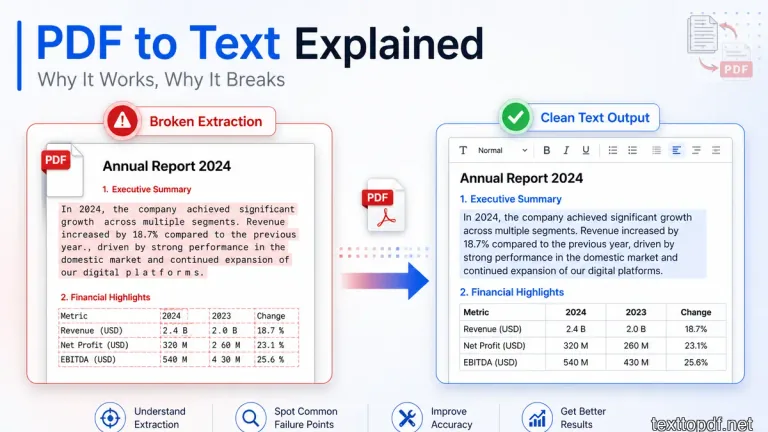
A PDF always looks like a normal document when you open it, but the real test starts when you try to copy a few lines from that PDF file. Sometimes the words get copied cleanly, sometimes the lines break in strange places, and sometimes nothing gets selected even though the page clearly shows readable content. This moment confuses us because the file looks readable to our eyes, but the device will not see the same thing as editable text.
This usually happens because a PDF is not built like a normal writing file. It is mainly designed to keep a page layout stable, so the file stores content in a manner that works well for viewing and printing. When you try to extract text from that layout, the system has to rebuild the readable words from the way the content is placed on the page. You can also understand this better from this PDF text extraction explanation by pypdf, which explains why PDFs are not always easy to read as plain text.
This guide will help you understand why PDF to text extraction works in some files and fails in others. You will also see when normal extraction is enough, when OCR is needed, and how you can fix messy output after conversion.
What Actually Happens When You Try to Extract Text from a PDF
When you select text inside a PDF, your device is not reading a normal paragraph stored in a neat written flow. The file may store letters, words, spacing, and page positions separately, and then the software tries to rebuild them in the order that makes sense to the reader. This is why the same PDF can look perfect on screen but still produce broken output after extraction.
A normal document editor works in a different manner because the text usually follows a writing flow. A PDF gives more importance to page appearance, so the text may be stored according to where it appears on the page rather than how a person would naturally read it. That difference is the main reason extraction depends so much on the internal structure of the file.
If you want to understand the PDF workflow in detail before moving further, you can read this complete text to PDF guide, because it explains how text becomes a fixed document and why layout matters during conversion.
First Check What Type of PDF You Have
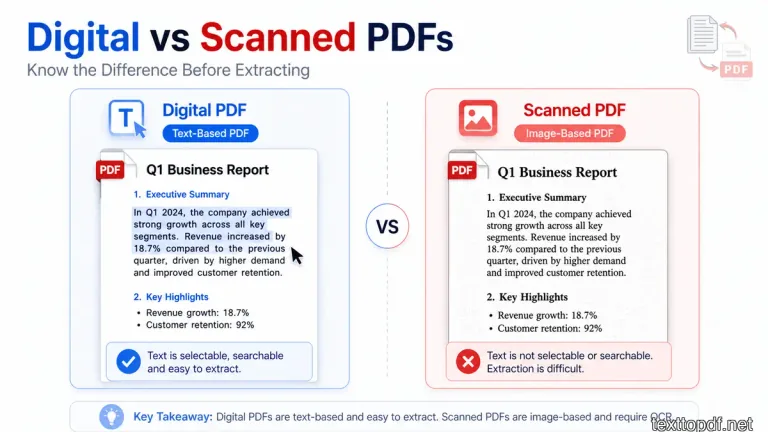
Before you use any PDF to text tool, you should first check if the file contains any real text or only an image of text. This small check can save your time because both file types need different methods.
- If you can drag your cursor over words and copy them cleanly, the file is most likely a digital PDF with a text layer.
- If the whole page gets selected like a flat image or nothing gets selected at all, the file is likely a scanned PDF and needs OCR.
Many users skip this check and start testing random tools. After that, the output looks poor and they assume the tool failed, while the real issue is that the file needed a different extraction method from the beginning.
Text PDF vs Scanned PDF
The difference between these two file types decides the entire extraction process. A digital PDF already has text inside it, while a scanned PDF only has a picture of a page.
| PDF Type | What It Contains | Best Method | Common Result |
|---|---|---|---|
| Digital PDF | Real text stored inside the file | PDF to text extraction | Text can usually be copied or converted |
| Scanned PDF | Image of printed or written content | OCR processing | Text must be recognized from the image |
| Mixed PDF | Some real text and some image content | Extraction plus OCR if needed | Output may need manual cleanup |
A digital PDF is usually created from Word, Google Docs, design tools, or browser print options. A scanned PDF usually comes from a scanner, mobile camera, photocopied document, receipt, old record, or printed form.
Why PDF to Text Works in Some Files
PDF to text works well when the file already contains a readable text layer. In that case, the tool can pull characters from the file and turn them into editable content. The result may not always keep the same visual layout, but the actual words usually come out properly.
This is why digital PDFs are easier to handle than scanned files. If the PDF was exported from a document editor, the text is already present inside the file, so extraction has something real to read.
You can use the PDF to Text tool for this type of file when you need editable content from a normal digital PDF. It works best when the words inside the file are already selectable and the document does not behave like an image.
Why PDF to Text Fails in Some Files
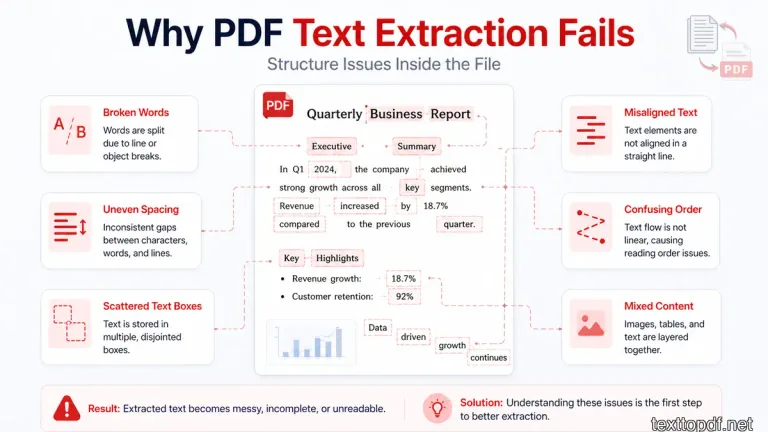
PDF to text fails sometimes because the file does not give the tool enough usable information. The page may look clean on screen, but the internal text order may be broken, hidden, or missing. That is why output problems usually appear only after conversion from the PDF files to texts.
Some PDFs store letters separately. Some use unusual font encoding Ssome place text in columns, boxes, headers, footers, or side notes, which can confuse the reading order. In these cases, the tool will extract the content, but the result will not look like a natural paragraph.
This is also why text sometimes appear with broken spacing, mixed lines, missing letters, or strange symbols. The file is not always wrong visually, but the extraction path may not be easy for a tool to follow.
Common Problems After PDF to Text Conversion
Many PDF to text problems appear after the content is already extracted. The words may be present, but the reading flow may still need cleanup.
- Lines may break in the middle of sentences because the PDF stored them according to page width.
- Spaces may disappear between words when the file does not store spacing clearly.
- Paragraphs may merge when the tool cannot identify where one section ends and the next one begins.
- Characters may appear in the wrong order when columns or side elements confuse the extraction flow.
If your output looks messy after extraction, it does not always mean the conversion failed. In many cases, the text is usable, but it needs spacing correction and paragraph cleanup before it can be edited properly.
When OCR Becomes Necessary
OCR is needed when the PDF does not contain real text. A scanned PDF is only an image, so a normal PDF to text converter cannot extract words from it directly.
OCR reads the shapes of letters from the image and turns them into editable text. Adobe also explains that OCR can make scanned documents editable and searchable, which is exactly why it is used when direct extraction does not work. You can read more in this OCR explanation by Adobe.
If your file is scanned, you should use a scanned PDF workflow instead of forcing normal extraction. You can follow this detailed guide on how to extract text from a scanned PDF when the page behaves like an image and the words cannot be selected.
PDF to Text vs OCR
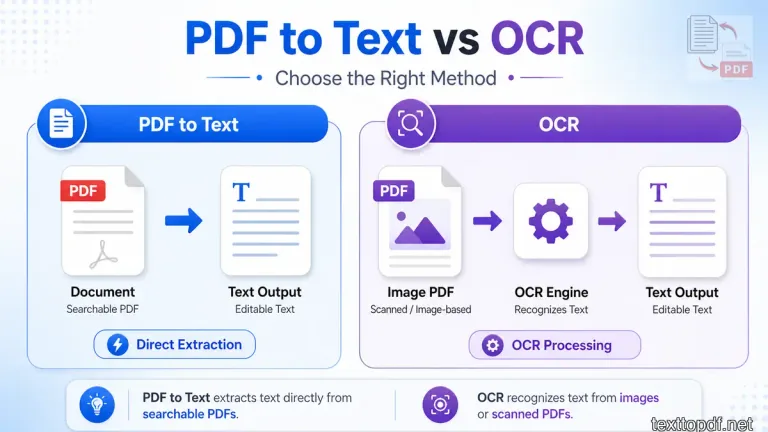
Normal extraction and OCR solve different problems. The mistake many users make is treating both methods as the same process.
| Situation | Better Method | Why It Works Better |
|---|---|---|
| Words can be selected | PDF to text | The file already has real text inside it |
| Words cannot be selected | OCR | The content must be read from an image |
| File comes from Word or Docs | PDF to text | The text layer is usually present |
| File comes from a scan or photo | OCR | The page is stored as visual content |
Normal PDF to text is usually cleaner for digital files because it reads the existing text layer. OCR is useful for scanned files, but it can make mistakes if the page is blurry, tilted, shadowed, or poorly scanned.
If you are choosing between both methods for one file, this PDF to Text vs OCR comparison explains the decision in a more direct way.
How to Fix Messy PDF to Text Output
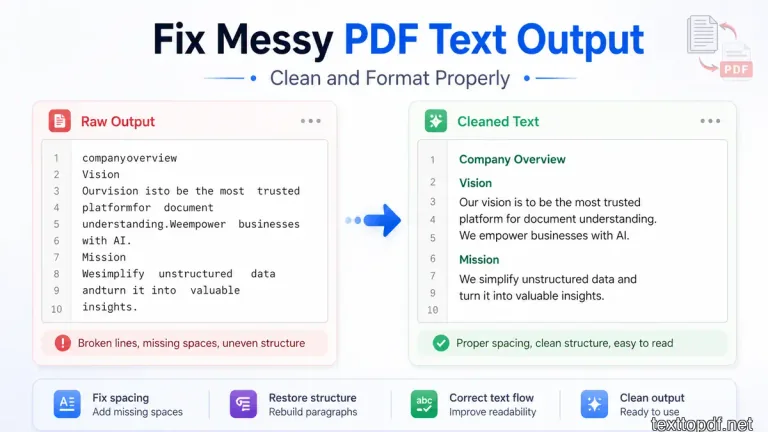
You should clean the messy output after the extraction is completed instead of simply copying the content directly into another document. First, you need to check the line breaks because many PDFs create short broken lines that need to be joined into proper sentences. After that, you have to look at paragraph spacing and remove empty gaps that do not belong in the final text.
You should also check headings, lists, and section order because PDF extraction may not preserve them correctly. If the extracted content needs to be converted back into a clean document later, this text to PDF formatting guide can help you understand how spacing and structure affect the final PDF output.
How to Get Better Results Before Conversion
You should know that better extraction starts before you upload the file. The first step is to check if the PDF is digital or scanned. After that, choose the method that matches the file type instead of using the same process for every document.
A clean digital PDF usually gives better output through normal extraction. A clean scanned page usually gives better OCR results. If the scan has shadows, tilted text, or low resolution, the final text may need more manual correction after extraction.
You can also read this searchable PDF vs scanned PDF guide if you want to understand why some PDF files behave like real documents while others behave like images.
Where texttopdf.net Fits in This Workflow
The main job of texttopdf.net is to keep these document tasks easy to understand. When your file has selectable text, the PDF to Text tool helps you extract editable content from the file. When the file is scanned, the scanned PDF to text workflow is the better path because OCR is needed.
This difference matters because one tool cannot solve every PDF problem in the same way. A digital PDF, a scanned PDF, and a messy extracted text file each need a different step before the final output becomes useful.
Real Situations Where PDF to Text Helps
PDF to text is useful when you need to reuse content instead of typing it again. A student may need notes from a PDF, an office worker may need text from a report, and a writer may need old content in editable form for rewriting.
It also helps when you need to save extracted content as a plain text file. If that is your goal, this guide on how to save PDF text as a text file explains the next step after extraction.
If the PDF contains tables, reports, or invoice data that you want to reuse in a spreadsheet, follow this guide to copy text from PDF to Excel without breaking rows and columns.
Mistakes You Should Avoid
Many problems happen because we rush into conversion without checking the file format first. Many people simply upload the scanned PDF file into a normal extractor, and this leads to activation of OCR unnecessarily, or you get a messy output without a proper cleanup.
The better approach is to identify the file type first, choose the correct method, and then clean the result if needed. That workflow gives you a much better chance of getting usable text without repeating the same task again.
FAQs
Why can’t I copy text from some PDF files
These things happen generally when your PDF is scanned or when the file does not contain a proper text layer. In that case, the normal text extraction cannot read the words directly and OCR may be needed.
Why does the PDF to text output look messy
PDF files often store content by page position instead of natural reading flow. During extraction, that structure can create broken lines, missing spaces, or mixed paragraphs.
Is OCR always needed for PDF to text
No. OCR is only needed when the PDF behaves like an image. If the words are selectable, normal PDF to text extraction is usually the better method.
How do I improve PDF to text results
Start by checking if the file is digital or scanned. Use PDF to text for selectable files, use OCR for scanned files, and clean the extracted output before editing or saving it.
Final Note
The PDF to text conversion process is very simple when you stop treating every PDF file the same way. Some files already contain real text, while others only show an image of text. That single difference decides which method you should use.
Once you understand that difference, the workflow becomes easier to manage. You check the file, choose the correct method, review the output, and clean the text where needed. This gives you a usable result without wasting time on the wrong process.