


A PDF can look completely normal when you first open it. The page looks readable, the document appears finished, and nothing on the screen tells you that there is a problem. The trouble starts a little later, when a word needs to be searched, a paragraph needs to be copied, or a line needs to be highlighted, and the file suddenly stops behaving like a text document.
That moment confuses a lot of people because both file types can look almost the same at a glance. One PDF may let you select every sentence without any trouble, while another one acts like a flat photo even though the words are right there in front of you. This difference matters because it decides whether a normal PDF to Text process will work properly or whether OCR is the only path that makes sense.
This guide explains what a searchable PDF is, what a scanned PDF is, how to tell the difference quickly, and why the answer changes the tool or workflow you should use next. It also connects that explanation with the way texttopdf.net separates direct PDF text extraction from PDF OCR so the decision becomes easier when you are ready to process the file.
Why This Difference Matters So Early
Many document problems start before the extraction process even starts. A person opens the file, sees readable text, and assumes the content should come out cleanly through any PDF to Text tool. When the result turns out empty, broken, or impossible to copy, the tool often gets blamed first even though the real issue started with the file type itself.
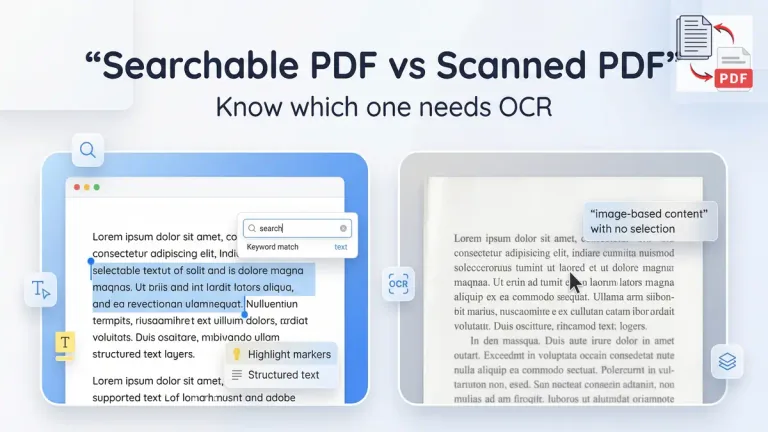
A searchable PDF already contains a usable text layer inside the file, so a standard extraction tool can read the words directly. A scanned PDF works differently.
The page may show readable text to your eyes, but the file often stores that page as an image instead of live text, so a normal extraction tool has very little real text to read. That is the point where OCR becomes important.
If you want the broader explanation of how editable text is pulled out of normal PDF files, you can also read How to Extract Editable Text from PDF Files.
What Is a Searchable PDF
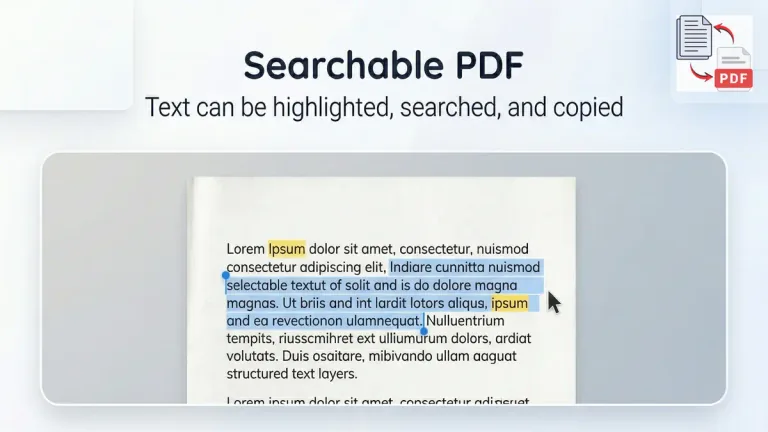
A searchable PDF is a file that contains a real text layer inside the document. That means the words are stored as actual characters rather than only as a picture of a page. When a PDF has that text layer, the document usually lets you highlight sentences, search for words, copy sections, and extract text more cleanly.
You can also understand how searchable PDFs work and why embedded text matters from this Microsoft explanation of searchable PDF processing.
This is the reason some PDFs work smoothly with direct extraction. The tool is not guessing what each letter looks like on the page. It is reading text that already exists inside the file. That difference often leads to better output because the process starts with stored words instead of visual letter recognition.
When you work with this kind of file, the direct PDF to Text route is usually the better option because it is built for PDFs that already contain selectable text.
Signs That a PDF Is Searchable
- You can highlight words normally inside the file
- Search usually finds words that appear on the page
- Copy and paste returns usable text instead of empty output
- Direct extraction usually gives a cleaner result than OCR
These signs matter because they help you decide what to do before you waste time on the wrong workflow. A quick check at this stage can prevent a lot of failed attempts later.
What Is a Scanned PDF
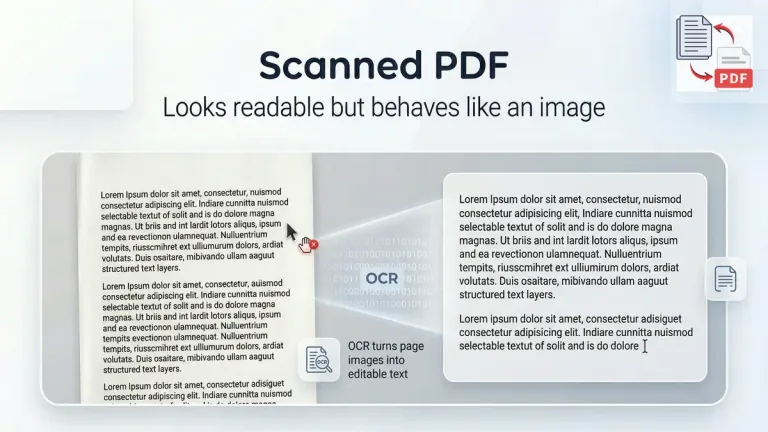
A scanned PDF is usually a file created from a paper scan, a photographed page, a receipt capture, an old record, or another document image saved as PDF. The page may look readable, but the file often behaves more like a picture than a text document. That is why the words can be visible while still refusing to act like real text.
This is where many users get stuck. The content is sitting on the page in front of them, but highlighting does not work properly, search does not return the right word, and copying a paragraph either fails completely or gives back useless fragments. In that kind of file, the problem is not that the text is hidden. The problem is that the text is not stored in a usable text layer.
If the file behaves like that, the workflow shifts toward OCR. That is why your scanned document path should connect naturally to How to Extract Text from a Scanned PDF, because that guide goes deeper into the OCR side of the process. For image files that have not been saved as PDFs, the extracting text from an image guide covers the equivalent workflow.
Signs That a PDF Is Scanned
- You cannot highlight words properly on the page
- Search inside the file does not work in a normal way
- Copying text returns nothing useful or badly broken output
- The page behaves like one flat image instead of live text
A file can still look polished on screen and fall into this category. That is why appearance alone is not enough. The behavior of the file tells you more than the visual design.
Searchable PDF vs Scanned PDF
The fastest way to understand the difference is to stop thinking only about what the page looks like and start thinking about what the file contains underneath. One file stores real text. The other often stores an image of text. That single difference changes the whole extraction method.
| File Type | What is inside the file | What usually works |
|---|---|---|
| Searchable PDF | Real text layer | Direct PDF to Text extraction |
| Scanned PDF | Image only page content | OCR |
| Searchable scanned PDF | Image plus OCR text layer | Search and extraction usually work better |
This table matters because users often assume there are only two categories, but there is a middle case as well. A scanned PDF can become searchable after OCR adds a usable text layer over the image. That does not make it identical to a native digital PDF, but it does improve searching and text access in a practical way.
Why a Readable PDF Is Not Always a Searchable PDF
A readable page and a searchable page are not the same thing. This is where a lot of wrong assumptions begin. A document can look perfectly fine while still behaving like a photo, and that is why people often think something is broken when the file refuses to cooperate.
The easiest way to understand this is to picture two documents that show the same sentence on screen. In the first file, the sentence is stored as actual text. In the second file, the sentence is only part of an image. Both pages show the same words visually, but only one of them gives a text tool something real to read.
That is why a normal extraction tool can succeed on one file and fail badly on another that looks almost identical. The tool is responding to what exists inside the PDF, not to what your eyes happen to see on the page.
How to Check if Your PDF Is Searchable or Scanned
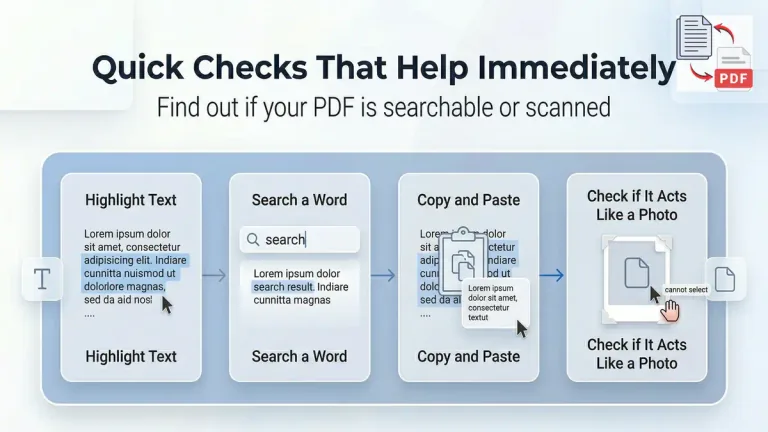
A quick check usually tells you more than a long explanation. Before uploading a file anywhere, it helps to test how the document behaves in a few direct ways. This takes less time than trying the wrong workflow and then cleaning up a broken result.
The first check is the most useful one. Try to highlight a line of text. If the words select normally, the document probably contains a usable text layer. If the page behaves like a flat image and nothing highlights in a natural way, the file probably needs OCR.
The second check is search. Try searching for a word you can clearly see on the page. If the file cannot find that word, there is a good chance the page is image only or missing a usable text layer. The third check is copy and paste. When copied text comes out empty, scrambled, or badly fragmented, that is another sign that the file may not be a normal searchable PDF.
When the main symptom is that nothing highlights at all, this deeper guide on PDF text selection not working helps separate scanned pages, missing text layers, and permission-related issues.
Quick Checks That Help Immediately
- Highlight one sentence and see if the words select normally
- Search for a word you can clearly see on the page
- Copy one paragraph and paste it into a text editor
- Notice whether the page behaves like text or like a photo
A few seconds spent on these checks can save a lot of trial and error. The right workflow becomes much easier once the file type is identified early.
When to Use PDF to Text
Use normal PDF to Text when the file already contains selectable text. That is usually the cleaner route because the tool reads the words that already exist inside the document instead of trying to recognize letter shapes from an image.
This method works well for digital PDFs created from word processors, exported reports, online documents saved as PDF, and other files that were generated with a real text layer from the beginning. In those cases, direct extraction is usually faster and the text often comes back in a more usable form.
On texttopdf.net, this is the point where the PDF to Text tool fits naturally. It is meant for people who already have a finished PDF and need the words back in editable form without moving straight into OCR.
When to Use OCR Instead
OCR should be used when the file behaves like an image instead of live text. That usually means the document came from a paper scan, a photographed page, a receipt capture, a printed form, or an archived record that was saved as PDF without a usable text layer.
In this situation, a direct extraction tool cannot do much because there are no stored words inside the file for it to read normally. OCR solves a different problem. It looks at the visible letters on the page and converts those letter shapes into editable text.
You can read a broader explanation of how OCR turns scanned pages into searchable text from this Adobe guide explaining what OCR is and how it works.
What a Searchable Scanned PDF Really Means
A scanned PDF does not have to stay locked in its original form forever. Once OCR is applied, the file can become searchable because a text layer is added over the page image. The page still began as a scan, but it now behaves differently because words can be found, selected, or extracted more easily than before.
This middle case is useful to understand because many people think there are only two possibilities. They assume a file is either fully digital or fully scanned with no overlap between the two. In real document work, there is often a third situation where a scanned file has already passed through OCR and now supports text search and partial extraction much better than a raw image only PDF.
That does not make it identical to a native digital PDF. A digital PDF starts with a built in text layer from the beginning, while a searchable scanned PDF depends on recognition that was added later. The result can still be very useful, but the output quality often depends on how clean the original scan was before OCR was applied.
Common Problems People Notice
A lot of confusion around this topic comes from the way the file behaves after the user tries something practical. The page opens normally, the content looks readable, and then the problems begin in small but frustrating ways. Search returns nothing. Highlighting behaves oddly. Copy and paste gives back broken lines or empty output.
These problems are often a direct clue about what kind of file is in front of you. When text cannot be selected, the page is often image only. When OCR has already been applied but the scan quality was weak, the file may allow searching and copying while still producing small mistakes in the extracted text.
Problems That Usually Point to File Type Issues
- Text looks readable but cannot be highlighted at all
- Search inside the file returns no result for visible words
- Copy and paste gives broken or empty output instead of usable text
- OCR output includes wrong characters because the scan quality was poor
A blurry page, a tilted scan, a dark background, or weak contrast can all reduce OCR quality. That is why two scanned files can produce very different results even when the workflow is technically correct.
Best Practices Before Choosing a Tool
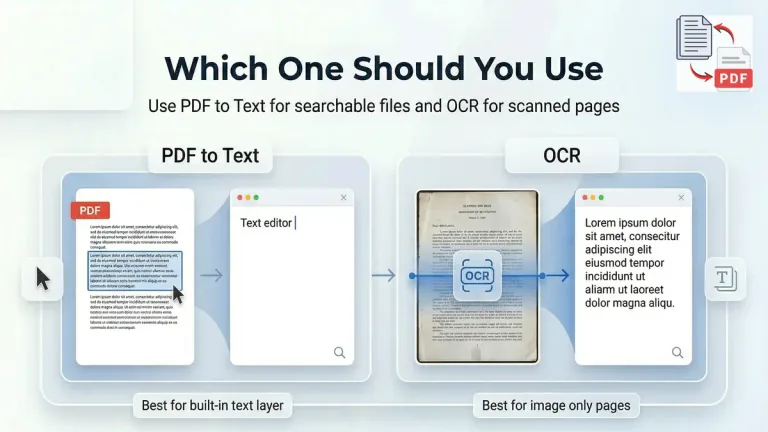
A better result usually comes from making one correct decision early. Instead of uploading the file into the first tool that sounds relevant, it helps to test the document and match the workflow to the file type. This takes only a moment, but it can save a lot of cleanup work later.
The first thing to do is check whether the words can be highlighted. If they can, direct extraction is usually worth trying first. If they cannot, OCR is usually the safer path. After that, it helps to test search, copy one paragraph, and review the result before moving the text into another document.
Better Way to Decide What to Use
- Check if the text can be highlighted before doing anything else
- Use direct extraction for searchable PDFs with a usable text layer
- Use OCR for scanned files, photographed pages, and image only PDFs
- Review the output before reusing the text in another workflow
This small check matters because the wrong path creates the wrong expectations. A user may expect perfect extraction from a raw scan, or may waste time running OCR on a clean digital document that never needed it in the first place.
FAQs
What is a searchable PDF
A searchable PDF is a document that contains a real text layer inside the file. Because of that, words can usually be highlighted, searched, copied, and extracted with a normal PDF to Text workflow.
What is a scanned PDF
A scanned PDF is usually a document made from a paper scan, a photographed page, or another image saved as PDF. The words may look readable on screen, but the file often behaves like an image until OCR is used.
How can I tell if my PDF is searchable
A quick way to check is to try highlighting one sentence. If the words select normally, search works, and copied text returns usable output, the file is probably searchable.
Why can I read a PDF but not copy the text
That usually happens when the file contains an image of text instead of a real text layer. The page looks readable to your eyes, but the document does not store the words in a way that a normal extraction tool can use directly.
When should I use OCR instead of PDF to Text
OCR should be used when the file is scanned, photographed, or saved as an image only PDF. Direct PDF to Text extraction works better when the document already contains selectable text.
Can a scanned PDF become searchable
Yes. After OCR adds a text layer over the page image, a scanned PDF can become searchable and easier to copy from, even though it still began as a scan rather than a native digital document.
Final Note
A searchable PDF and a scanned PDF can look similar on screen, but they do not behave the same way when you try to search, copy, or extract text. That one difference is what decides whether a direct PDF to Text workflow makes sense or whether OCR is the correct path.
Once you understand that, document extraction becomes as easy as that. You check the file first, you choose the workflow that matches what is actually inside the PDF, and the chances of getting clean usable text improve right from the start.