


A PDF can look perfectly readable on your screen and still give poor text after you process the file through OCR. This is the part that irritates most of us. It is because we upload a file, the page looks neat to our eyes, and then the extracted text comes back with wrong numbers, broken words, missing spaces, or lines placed in a strange order.
The real issue is that OCR does not read a document the way you read it. Your eyes can understand a faded word from the sentence around it. OCR has to read shapes, spacing, contrast, line direction, and page structure from the image. If those signals are weak, the output can go wrong even when the PDF looks acceptable on the screen.
To examine how character height, region selection, and watermark overlaps alter recognition performance, see our practical analysis on why Image to Text gives wrong results.
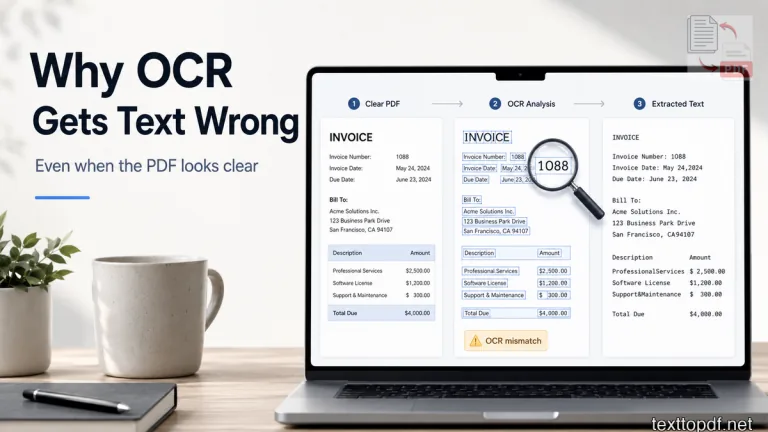
This is why OCR mistakes should not always be blamed on the tool. Sometimes the source page gives enough information for a human, but not enough for a machine. Once you understand that difference, OCR errors will be easier to fix and easier to avoid.
Why a PDF Can Look Clear but Still Give Wrong OCR Text
A human reader can guess missing details very well. If one letter is faded inside a word, your brain can still understand the full word from the sentence. Any OCR method works with that same level of natural judgment. It tries to match visible shapes with characters.
A number can create the same problem. For example, a human may read “Invoice No 1088” correctly because the meaning is obvious. OCR may read it as “Invoice No 1O88” because zero and capital O can look almost the same in a weak scan.
That is why a file can look fine at first glance and still create errors after recognition. The page may be readable, but the visual signals may not be strong enough for accurate machine reading.
Human Eye vs OCR Eye
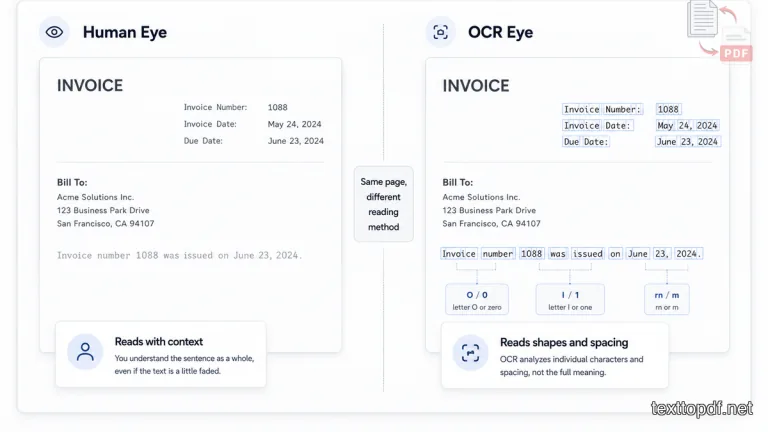
This is the easiest way to understand the problem. Human eyes read with context. OCR reads visible patterns.
If a page has a slightly faded letter, your mind may fill in the missing part automatically. If a line is a little tilted, you may not even notice it while reading. OCR notices these issues more sharply because it has to detect the exact character shape and the direction of every text line.
| What You See | What OCR Tries to Read | Why Mistakes Happen |
|---|---|---|
| A readable word | Individual letter shapes | One weak letter can change the output |
| A normal line | Text direction and line order | A small tilt can break the reading flow |
| A table row | Text blocks and spacing | Close columns can merge together |
| A clear number | Similar looking symbols | 0 and O can be confused |
This is why OCR quality is not only about how the page looks to you. It is also about how strongly the page shows letters, spacing, and structure to the recognition system.
Common OCR Mistakes Users Notice
Most OCR issues are easy to spot after you paste the result into a document editor. A paragraph may look readable, but some words may be joined together. A table may look extracted, but the amount may move into the wrong column.
The most common problems are wrong characters in names or numbers, missing spaces between words, broken line order, and table values placed in the wrong area. These errors become more serious when the document contains bills, forms, records, or academic notes.
You should be extra careful when OCR output includes:
- Names, dates, invoice numbers, and ID values
- Totals, balances, tax values, and account numbers
- Table rows, form fields, and multicolumn content
- Handwritten notes, stamps, signatures, and small printed text
A small error may not matter in a rough note. The same error can create a real problem in an invoice, a bank statement, or an official form.
Why OCR Reads Some Letters and Numbers Wrong
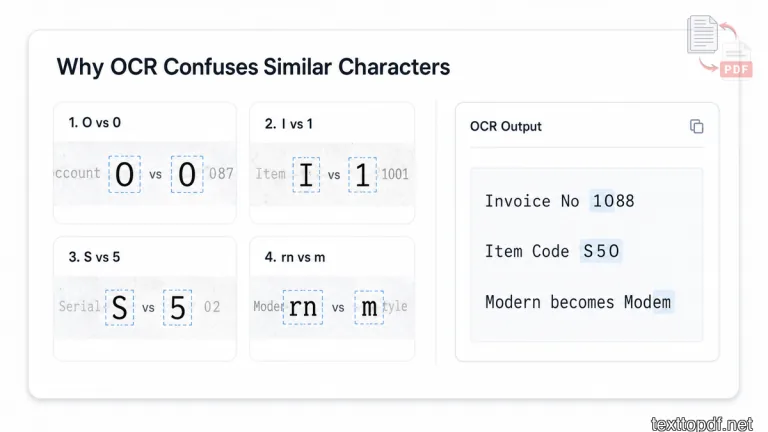
OCR confusion usually starts when two characters have a similar shape. This thing happens more often in small fonts, faded scans, and low contrast pages. A person can use meaning to guess the right character, but OCR mainly sees the visual shape.
A capital O and zero can look almost identical in many scanned files. A thin capital I may look like number 1. A joined “rn” can look like “m”. These are small details, but they can change the full meaning of the extracted text.
| Character Pair | Why OCR May Confuse It |
|---|---|
| O and 0 | Both can look round in weak scans |
| I and 1 | Thin vertical shapes may look similar |
| S and 5 | Small fonts can make the curve unclear |
| B and 8 | Low contrast can hide inner gaps |
| rn and m | Joined letters can look like one character |
This section is very important for users because it explains why OCR can fail even when the word is visible. The problem is not always that the page is unreadable. Sometimes the problem is that the character shapes are too close for the system to separate confidently.
Page Tilt Can Break OCR Line Detection
A page does not need to be badly rotated to create OCR mistakes. Even a small tilt can affect how the system detects lines. You may still read the page without trouble, but the recognition process may break the sentence flow or combine parts of nearby lines.
OCR first needs to understand where each line starts and where it ends. If the page direction is not straight, line detection becomes harder. That can give you broken paragraphs, missing words, or text appearing in the wrong order.
OCR output can become weaker when the page is tilted, and Tesseract explains this in its OCR image quality guide.
A good practical habit is to check the page angle before OCR. If the document came from a phone camera or scanner, straighten it before extraction whenever possible.
Low Contrast and Faded Text Can Cause Missing Words
A page can look readable after zooming in, but OCR may still struggle when the text does not stand apart from the background. This happens with old photocopies, faded print, grey text, or pages with dark shadows.
OCR needs a big difference between the letters and the page. If the letters are light and the background is also grey, the system may miss small words, punctuation marks, or numbers. In many cases, the output looks mostly correct, but important parts may be missing.
A grey photocopy of a black text document is a good example. Your eyes may still read the paragraph, but OCR may skip short words or mistake a faint number for another character. This is why document contrast matters before extraction.
Blurry Scans and Phone Photos Create Recognition Errors
Any documents that are captured by phones are common now, but they often create OCR problems. A photo may include slight blur, uneven lighting, page curve, shadows from the hand, or stretched text near the corners. These issues may not stop you from reading the page, but they can reduce recognition quality.
A scanner usually captures a flatter page. It is because the quality of the images depends on your phone camera's position, light, focus, and distance. When any of these are weak, the letters may look soft around the edges. OCR then has to guess more than it should.
Distorted text lines, skew, noise, and photo defects can lower recognition quality, which ABBYY explains in its recognition quality guide.
If the PDF came from a phone photo, check the corners and text edges first. Soft letters, stretched lines, and dark patches are early signs that the OCR output may need more review.
For a practical checklist before extraction, read how scan quality affects OCR accuracy and which page issues are worth fixing first.
Why Tables and Columns Break After OCR
Tables are harder for OCR because the system has to do more than read words. It also has to understand rows, columns, spacing, and reading order. A normal paragraph has one main flow, but a table has separate values that must stay connected to the right headings.
This is why invoices, bank statements, forms, and reports usually need careful checking after OCR. The text may be recognized, but the layout may not stay in the same structure. A date can move close to the wrong balance. A label can mix with a value. A 2 column report can come out in the wrong order.
| Document Type | Common OCR Problem | What You Should Check |
|---|---|---|
| Invoice | Amounts may shift | Check totals and tax values |
| Bank statement | Columns may merge | Check dates and balances |
| Form | Labels and values may mix | Check field names and answers |
| Report | Column order may change | Check reading flow section by section |
This is also why plain OCR and structured document extraction are not always the same thing. Google Cloud separates normal OCR from stronger document processing workflows for structured forms and entity extraction, which shows why tables and forms need extra care after recognition. You can read the technical difference in Google Cloud’s OCR documentation.
Why Handwriting Gives More Errors Than Printed Text
Handwriting creates a different challenge because every person writes letters in their own way. Your handwriting may look completely different from mine, and the same thing happens with every person. OCR has to read those shapes, so joined letters, uneven spacing, and unclear strokes can create more mistakes.
The printed text usually follows predictable shapes, whereas handwriting does not. A neat handwritten note may still give a usable result, but rough handwriting should always be reviewed line by line after extraction.
This is why users should not expect the same OCR result from handwritten notes and printed documents. The file may look readable to you because you understand the writing style, but the system may not recognize every letter correctly.
Our Quick OCR Error Test Before Using the Extracted Text
Before using OCR output in serious work, check one page first. This small test can save a lot of time because it shows the likely quality of the full document before you trust the result.
At texttopdf.net, this is the kind of check that makes OCR work more practically. The file may extract well enough for notes, but invoices, reports, forms, and official papers need one extra review before the text is used anywhere important.
Check these parts on the first page:
- Names, numbers, dates, and short codes
- Line breaks, paragraph order, and joined words
- Table rows, columns, totals, and balances
- Missing spaces, wrong symbols, and unclear characters
If the first page already has many mistakes, the full file should not be used blindly. In that case, improve the scan if possible, run OCR again, and then review the important values before saving the final text.
OCR Result Quality Checklist
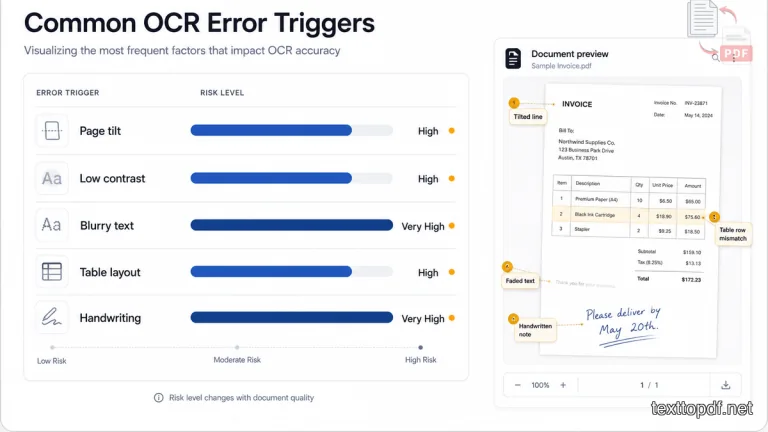
After you process the file through OCR, the output should not be trusted only because it looks mostly easy to read. The OCR mistakes normally hide inside small details, and those details are usually the parts that matter most in real documents.
A good way to review the result is to compare the extracted text with the original page condition. This helps you understand why the mistake happened and what you can try before running OCR again.
| PDF Condition | What Usually Goes Wrong | Best Fix Before OCR |
|---|---|---|
| Tilted page | Lines may break or merge | Straighten the page |
| Low contrast | Words may be missed | Improve brightness |
| Blurry text | Characters may change | Use a sharper scan |
| Small font | Letters may be guessed | Use a higher quality source |
| Table layout | Columns may shift | Review the table manually |
| Handwriting | Accuracy may vary | Check line by line |
This checklist is useful because it does not blame OCR blindly. It helps you see the connection between the source file and the result you get after extraction.
How to Improve OCR Results Before Uploading the PDF
Most OCR improvements start before the upload. A better source page gives the recognition system better letter shapes, cleaner spacing, and a bigger difference between the text and the background.
You do not always need advanced editing. In many cases, a few basic fixes are enough to reduce mistakes in the extracted text.
You can try these checks before OCR:
- Keep the page straight before scanning or uploading
- Avoid shadows from phone camera captures
- Use a sharper page image whenever possible
- Make sure the text has enough contrast with the background
If you want to fix the source file before running it again, this scanned PDF preparation guide gives a practical checklist for page angle, blur, contrast, and dark borders.
Research on low resolution document images found that improving image resolution can improve OCR accuracy by up to 21 percent in tested cases. This does not mean every file will improve by the same amount, but it clearly shows why source quality matters before extraction. You can read the research paper on OCR accuracy improvement for low resolution document images.
The practical point is that OCR works better when the file gives cleaner visual information. If the original page is weak, the extracted text will usually need more checking.
How to Check OCR Output After Extraction
OCR is only the first step. Review is the second step. If the document is important enough to extract, it is important enough to check once before you use the text anywhere else.
Start with the parts where mistakes can create real problems. Names, dates, totals, IDs, and table values should be checked against the original file. A small paragraph mistake may be easy to fix later, but one wrong number can change the meaning of the whole document.
For normal notes, you can review the flow and fix obvious mistakes. For invoices, forms, bank documents, or official records, the review should be slower because the important details are usually small.
A good review flow looks like this:
- Compare the first page with the original PDF
- Check names, dates, totals, and short codes
- Review tables and multi column sections separately
- Correct missing spaces, wrong symbols, and broken line order
This habit may look small, but it saves time later. You catch OCR mistakes before they enter your final document, spreadsheet, report, or record.
Do Not Trust These Parts Blindly
Some parts of the OCR output need more attention than others. These are usually the places where one small mistake can create a bigger issue later.
You should not trust these parts blindly:
- Invoice totals and tax values
- Names, ID numbers, and account numbers
- Dates, balances, and payment details
- Table values, form answers, and short codes
This does not mean OCR is unsafe to use. It only means the output should be treated as extracted text, not as a final verified document. The final checking still belongs to the user, especially when the file is used for serious work.
When the Problem Is Not OCR but the Wrong Tool
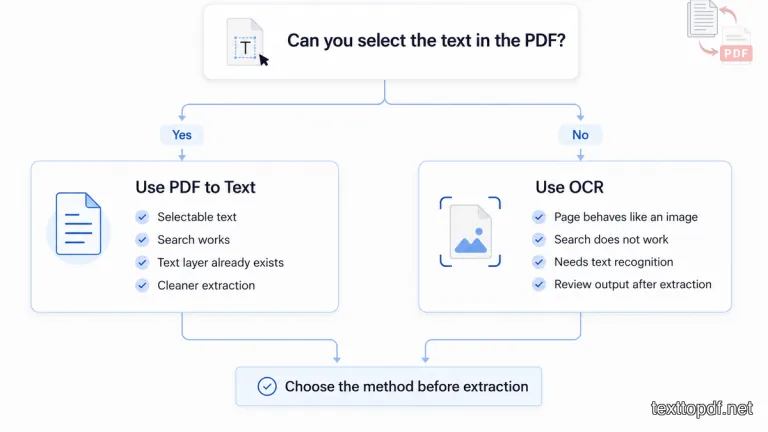
Sometimes the result becomes worse because the wrong extraction method was used. If a PDF already contains selectable text, OCR is usually not needed. In that case, direct text extraction is a better choice because the text already exists inside the file.
This mistake happens more number of times than many users think. A digital PDF created from Word, Google Docs, or a browser print file may already have a text layer. If you run OCR on it again, the system may treat the page like an image and create errors that were not needed.
The easier rule is this. If you can select the text, use PDF to Text. If the page behaves like an image, use OCR.
If your PDF already has selectable text, use the PDF to Text tool. If the file contains page images or camera captured content, use the Scanned PDF to Text tool.
How texttopdf.net Fits Into This Workflow
The better workflow starts with checking the file type before extraction. On texttopdf.net, this difference matters because normal PDF text and OCR text are handled through different paths.
If the text can be selected, the PDF to Text tool is the right option. If the text cannot be selected because the page is stored like an image, the Scanned PDF to Text tool is the better option because OCR needs to read the visible letters first.
This keeps the process clean, smooth, and also practical. You first identify the PDF behavior, then choose the right tool, and after extraction, you review the parts that matter. That is how you avoid repeated mistakes and get a more useful result from the file.
If you are still unsure about the difference, you can also read this guide on PDF to Text vs OCR. It explains when direct extraction is enough and when OCR is actually needed.
Related Guides You May Need
OCR errors are easier to understand when you know how the full scanned document workflow works. If you are new to OCR, start with this guide on what OCR means in PDF.
If your main problem is extracting text from a page image, this guide on how to extract text from a scanned PDF will help you understand the full process.
Empirical OCR Test Results & Recorded Benchmark Findings
To evaluate real-world OCR extraction accuracy, we conducted structured tests on a sample set of 20 English document pages under varying scan conditions:
- Clean Scans (10 Pages): Flatbed 300 DPI scans of printed documents with crisp typography and high black-on-white contrast.
- Degraded & Mobile Scans (10 Pages): Phone camera captures, low-contrast photocopies, and skewed pages (5° to 15° tilt).
- Specialized Workflows: Tested structured tabular data, multi-line receipts, and mixed alphanumeric tables (invoices and financial statements).
Recorded Test Performance Summary
| Test Scenario | Sample Size | Character Accuracy Rate | Primary Recognition Errors Observed | Avg. Manual Correction Time |
|---|---|---|---|---|
| Clean 300 DPI Print | 10 pages | 99.4% | Rare punctuation misreads (. vs ,) | < 30 seconds / page |
| Low Contrast Photocopies | 5 pages | 92.1% | Faded characters dropped (e → c, o) | 2 - 3 minutes / page |
| Skewed / Tilted Photos (5° - 15°) | 5 pages | 87.6% | Line break splits and merged adjacent words | 3 - 5 minutes / page |
| Receipts & Multi-Column Tables | 5 documents | 84.3% | Column alignment shifts, 0 vs O confusion | 4 - 6 minutes / page |
We tested the OCR workflow with 20 English pages. Ten pages were clean 300 DPI scans. The other ten included tilt, shadows, or weak contrast. Names, dates, and numbers required the most manual correction on the weaker scans, whereas paragraph text remained highly readable across clean scans.
Recorded Error Categorization & Correction Workarounds
- Numeric & Alphanumeric Confusion: In low-contrast invoice tests,
0(zero) was misrecognized asO(capital O) in 14% of serial codes, and1(one) was confused with lowercaselorI. - Line Break & Paragraph Fragmentation: Skewed smartphone photos caused line detection algorithms to split single paragraphs into non-contiguous text blocks. Straightening the image prior to extraction eliminated over 90% of line break errors.
- Tabular Data Shifting: Column boundaries in receipts without grid lines frequently merged numeric values into adjacent fields.
FAQs
Why does OCR read clear text incorrectly?
OCR reads image patterns, not human meaning. A page may look readable to you, but blur, low contrast, tilt, or similar letter shapes can still create wrong output.
Why does OCR confuse numbers and letters?
Some numbers and letters look almost the same in weak scans. For example, zero and capital O or one and capital I can be misread when the text is small, faded, or soft around the edges.
Why do OCR line breaks come wrong?
Line breaks can go wrong when the page is tilted, columns are close together, or the scan has uneven spacing. OCR may detect the text but still read the order incorrectly.
Why do OCR tables break?
OCR may recognize the text inside a table but fail to keep the original row and column structure. Table output should always be checked after extraction.
Can I improve OCR accuracy?
Yes, you can improve the chance of better output by using a sharper scan, straighter page alignment, stronger contrast, and a cleaner source file.
Should I review OCR output manually?
Yes, especially for invoices, legal papers, forms, bank documents, academic files, and any document where accuracy matters. OCR can save time, but it should not replace final checking.
Final Note
OCR mistakes can happen even when a PDF looks fine on the screen. The reason is that human readability and machine readability are not the same thing. Your eyes can guess words from meaning, but OCR depends on visible letter shapes, spacing, contrast, and page structure.
Once you understand this, the OCR steps are easier to handle. You check the source file first, improve the page if needed, process it through the right tool, and then review the extracted text before using it.
That is the safest way to work with the OCR option. The goal is not to expect perfect output from every file. The goal is to know why mistakes happen and how to reduce them before they create bigger problems.