


A PDF can look normal on the screen and still act in a weird way when you try to use the text inside it. It happens that you just open a file, read every word properly, and then suddenly notice that the mouse cannot select any sentence inside that PDF. When you search for something in that file, you can not find anything. At that moment, you understand the real issue. The file looks like a document, but it behaves more like a photo.
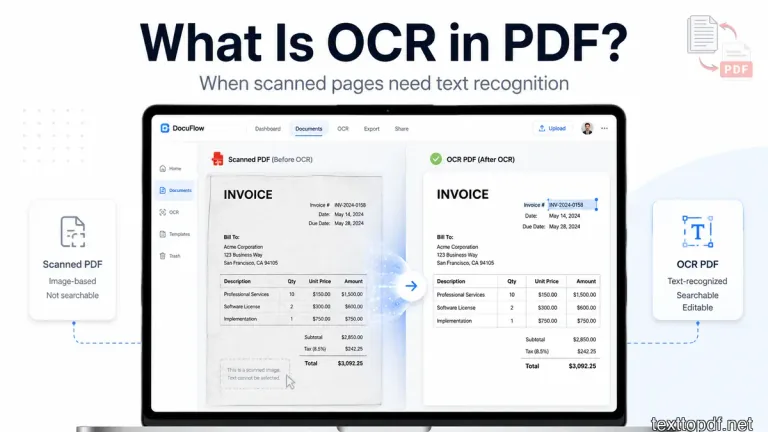
This usually happens when a PDF contains scanned content. The page has visible words, but the computer does not always see those words as real text. It can only see a page image. This is where the OCR helps, because it reads the letters from that image and turns them into text that a system can search, copy, or extract.
OCR is not needed for every PDF. A digital PDF that already has selectable text can usually be handled with normal PDF to Text extraction. A PDF made from scanned pages, a photo PDF, or an old paper document saved as a PDF usually needs OCR first. That difference is the main thing to understand before you choose any tool.
Why Some PDF Files Look Like Text but Cannot Be Copied
A PDF with scanned content can confuse anyone because it looks readable to human eyes. The page can show paragraphs, headings, tables, stamps, or printed labels. Still, when you drag your cursor over the text, nothing gets selected because the content is part of an image.
This happens when a paper document is scanned and saved as a PDF. It can also happen when someone uses a phone camera to capture a bill, receipt, form, old book page, handwritten note, or printed statement. The file have a PDF extension, but the content inside the page is not always stored as editable text.
You can understand this problem better in this guide on why some PDF files let you copy text, and some do not.
A normal PDF created from a document editor usually contains a text layer. A file created from a scan usually contains a page image. OCR becomes useful because it tries to read that image and create usable text from it.
What Does OCR Mean in PDF?
OCR means Optical Character Recognition. In PDF work, OCR is the process of reading letters and words from scanned pages, photos, or image documents and converting them into readable text that machines can understand.
A human can look at a scanned page and read the words without much effort. A computer needs a different process. It has to detect the shapes of letters, recognize the words, and then create text that can be searched or copied.
OCR is used in many document situations. It helps with scanned invoices, receipts, bank papers, old records, printed forms, books, statements, and archive files. The OCR technology is used to turn scanned text images into machine readable text, and Adobe explains this in its OCR PDF explanation.
The important point is that OCR does not just change the file name or file type. It tries to identify the words inside a page image. After that, the extracted text can be reused in a document, copied into notes, searched inside a file, or cleaned for another workflow. The same distinction appears outside PDFs in this guide to OCR on screenshots, photos, and scans.
How OCR Works Inside a PDF
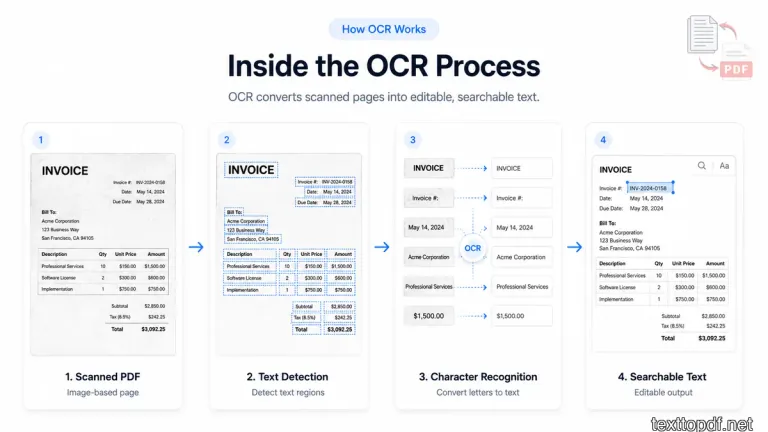
OCR works through a few small steps that happen behind the screen. The user only needs to upload a PDF containing scanned pages and wait for the result, but the system has to inspect the page image before it can return usable text.
Here is the basic workflow.
| Stage | What Happens |
|---|---|
| Page image | The PDF page is treated like an image |
| Text detection | OCR looks for letters and words inside the image |
| Recognition | The system converts letter shapes into text |
| Text output | The content becomes searchable or extractable |
When a page is scanned, the PDF stores it like an image first. The OCR system then looks for areas that sometimes contain letters. After that, it tries to match those letter shapes with real characters and words.
In some workflows, OCR adds a hidden text layer over the page image. In other workflows, OCR extracts the text separately so the user can copy it, edit it, or save it in another format. The final result depends on the tool, the file type, and the quality of the scan.
What Happens Inside a PDF Before OCR
Before OCR, a PDF containing scanned images usually behaves like a picture inside a document container. You can zoom into the page and read the text with your eyes, but the file may not contain real selectable text behind that page.
That is why normal copy and search can fail. The system is not refusing to copy the text. It may not have text to copy in the first place. It only has the visual page image.
This is also why two PDFs can look almost the same but behave differently. One file may come from a Word document or a digital invoice. Another file may come from a scanner or phone camera. The first file usually has a real text layer. The second file will need OCR.
You can also compare both file types in this searchable PDF vs scanned PDF guide.
When You Actually Need OCR
OCR is needed when the PDF contains visible words but does not contain usable text. The easiest sign is this: you can read the page, but you cannot select the words properly.
OCR is also useful when the search does not work inside the PDF. A bank statement saved from a scan shows account details and transaction rows, but a search will not find any word because the file only contains images of those rows.
You usually need OCR for these files.
| File Type | Why OCR May Be Needed |
|---|---|
| Scanned invoice | The invoice text is usually captured as a page image |
| Phone camera PDF | The file often stores a photo of the page |
| Old paper record | The text may not exist as a digital layer |
| Printed form | The visible fields may need recognition before extraction |
| Book page saved as PDF | The page may be an image from a scan |
| Receipt or bill | Small text may need OCR before reuse |
A PDF created from scanned content is not wrong or damaged. It just needs a different method to extract the text.
When You Do Not Need OCR
OCR is not the best choice when the PDF already contains selectable text. In that case, OCR can add an extra step that is not needed. A normal PDF to Text tool can extract the existing text layer more directly.
You can check this by opening the PDF and trying to select a sentence. If the sentence gets selected like normal text, OCR is usually not required. If the search also works inside the file, that is another sign that the PDF already contains text.
| PDF Situation | OCR Needed? | Better Method |
|---|---|---|
| Text can be selected | No | PDF to Text |
| Search works inside the PDF | No | PDF to Text |
| The page is scanned from paper | Yes | OCR |
| PDF came from a phone camera | Yes | OCR |
| Text is visible, but cannot be copied | Yes | OCR |
For normal digital PDFs, you can use the PDF to Text tool to extract editable content without running OCR first.
Quick Decision Box
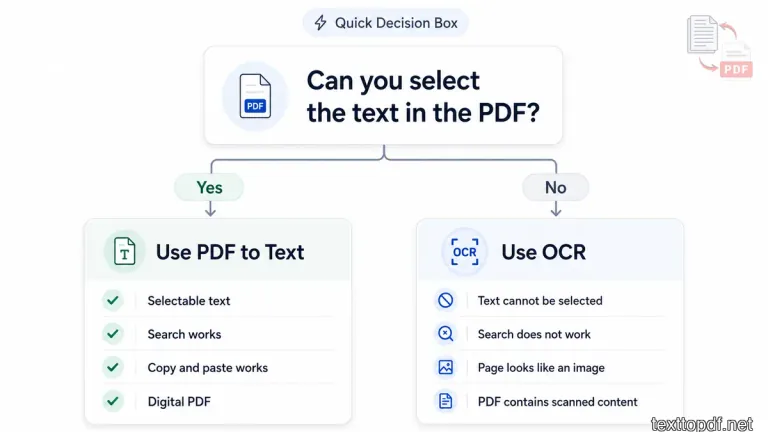
Use PDF to Text when the file already behaves like a normal document. Use OCR when the file only shows words as part of a page image.
Use PDF to Text when:
- Text can be selected
- Search works inside the file
- Copy and paste gives readable text
- The file came from a digital document
Use OCR when:
- Text cannot be selected
- The search does not find visible words
- The PDF came from a scanner or phone camera
- The page looks like an image
This small decision box can save a lot of confusion. Many PDF problems start because users choose OCR for a digital file or use normal extraction for a file that first needs recognition.
OCR vs PDF to Text
OCR and PDF to Text are connected, but they are not the same thing. The PDF to Text tool extracts text that already exists inside the PDF. OCR tries to create text from an image of a page.
This difference matters because the wrong method can waste your time. If your PDF already has selectable text, normal extraction is usually faster and cleaner. If your PDF behaves like an image, OCR is the better path because the system first needs to recognize the words.
| Workflow | Best For | What It Does |
|---|---|---|
| PDF to Text | Digital PDFs with selectable text | Extracts the existing text layer |
| OCR | PDFs with scanned images or photo style pages | Reads visible words from page images |
You can read the full difference in this PDF to Text vs OCR guide.
What OCR Can Help You Do
OCR is more useful when you need to reuse content that is trapped inside a page image. It can help you to copy text from scanned documents, search old files, extract information from paper records, and move printed content into an editable workflow.
This is helpful for students, office users, business owners, researchers, and anyone who works with old paper files. A document saved from a scanner looks locked at first, but OCR gives you a way to pull out the visible text and use it in another place.
The result still needs review, especially when the scan is not clean. But without OCR, a PDF made from page images often remains a picture of text. With OCR, the same file becomes more useful because the words can be detected and reused.
What OCR Cannot Always Do Perfectly?
OCR is useful, but it is not magic. It reads a page image and tries to convert visible letter shapes into text. That process can work well on clean printed pages, but the output still needs checking when the file has weak scan quality or a complex layout.
Some OCR errors are small. For example, a letter may be read as a similar character, or a space may appear in the wrong place. In other cases, a table may lose its structure, a 2 column page may come out in the wrong order, or numbers from a bill may not line up properly.
You should check the OCR output carefully when the file has:
- Blurry text or low contrast
- Tilted pages or shadows
- Small fonts or unusual fonts
- Tables, columns, stamps, or handwritten parts
A clean page gives OCR more information to work with. A weak page forces the system to guess more, and that is where mistakes usually begin.
Why OCR Accuracy Depends on Page Quality
OCR accuracy depends heavily on how readable the page image is. If the text is straight, sharp, and separated from the background, the system can recognize letters more confidently. If the page is tilted or the letters are not sharp, recognition becomes harder.
This is why two files can give different OCR results even when both contain the same text. A clean office scan will give neat output, and a phone photo of the same page may return broken words, missing spaces, or wrong characters.
For a closer look at blur, shadows, contrast, and page tilt, see how scan quality affects OCR accuracy before processing a long document.
OCR output can become weaker when the page is tilted, and Tesseract explains this issue in its OCR image quality guide.
A Quick OCR Test We Usually Recommend
Before trusting OCR output fully, test the file with one short page first. A good OCR result should copy names, numbers, dates, and paragraph spacing without major mistakes. If the first page already has broken words or missing spaces, the full file will need manual checking after extraction.
At texttopdf.net, this is the kind of check we recommend before using OCR output for invoices, reports, forms, or official documents. OCR can save time, but the final text should still be reviewed when the document contains important details.
OCR Quality Checklist
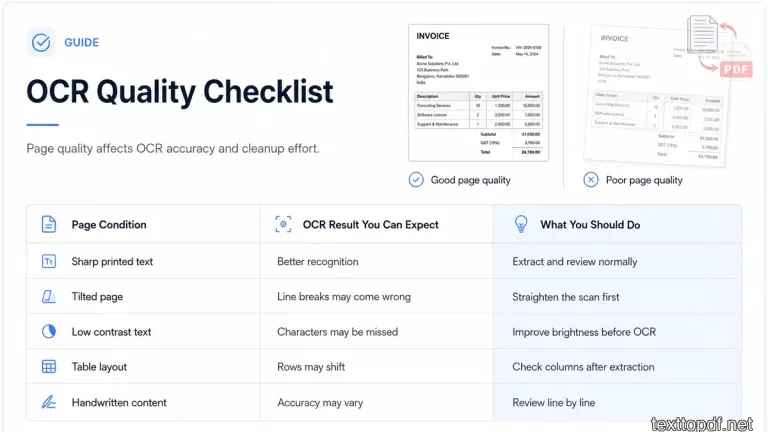
The OCR result depends on the source page more than many users think. A page that looks clean to your eyes usually gives the system a better chance to read letters properly, while a weak scan can create small errors even when the words are still visible.
| Page Condition | OCR Result You Can Expect | What You Should Do |
|---|---|---|
| Sharp printed text | Better recognition | Extract and review normally |
| Tilted page | Line breaks may come wrong | Straighten the scan first |
| Low contrast text | Characters may be missed | Improve brightness before OCR |
| Table layout | Rows may shift | Check columns after extraction |
| Handwritten content | Accuracy may vary | Review line by line |
This checklist is useful before you process a long file. If the first page already has poor scan quality, the rest of the document may also need extra cleanup after OCR.
A Simple PDF Behavior Test Before Choosing a Tool
Before using OCR, you should first check how the PDF behaves. First, open the file and try three small things. Select one sentence, search for one visible word, and copy one short paragraph into a note or document editor.
If selection, search, and copy work properly, the file probably has a real text layer. In that case, PDF to Text is usually enough. If all three fail even though the words are visible on the page, the file probably needs OCR.
This small test saves time because many PDF files look similar on screen but work differently behind the page. A digital invoice, a saved report, and a PDF containing scanned images may all open in the same viewer, but they do not need the same extraction method.
Real Examples Where Users Choose the Wrong Method
A student may upload a scanned book page into a normal PDF to Text tool and wonder why the output is empty or broken. The issue is not always the tool. The page first needs OCR because the content is stored like an image.
An office user may do the opposite and use OCR on a digital invoice that already has selectable text. That adds an unnecessary step and may give a less accurate result than direct extraction from the existing text layer.
This is why the file check matters before choosing the tool. If the PDF already behaves like text, use PDF to Text. If the PDF only shows text as part of a page image, OCR is the better path.
How to OCR a PDF
The right OCR method depends on what type of PDF you have. A file with selectable text should not be treated the same way as a file containing page images. The first step is always to check how the PDF behaves.
Try to select a sentence first or search for a word inside the file. If selection and search work properly, you can use normal extraction. If nothing gets selected or the search cannot find visible words, OCR is a better method.
Method 1: Use OCR for PDFs with Page Images
When a PDF contains scanned pages or photo style content, OCR is needed before the text can be reused. The OCR system reads the visible page and returns text that you can copy, clean, or save for later use.
On texttopdf.net, the Scanned PDF to Text tool is made for this type of file. You can use it when the page looks readable, but the words cannot be selected like normal text.
Method 2: Use PDF to Text for Digital PDFs
A digital PDF already contains text behind the page. In that case, OCR is not the first choice because the text does not need to be recognized from an image.
For this type of file, the PDF to Text tool is the better option. It extracts the existing text layer and gives you editable content without adding an unnecessary OCR step.
How texttopdf.net Fits Into This Workflow
The main job is to choose the correct path before processing the file. If the PDF has selectable text, you should use PDF to Text. If the PDF contains scanned images or camera captured photos, you should use Scanned PDF to Text with OCR.
This avoids a common mistake. Many users try the same method for every PDF because the files look similar on screen. But PDF behavior matters more than appearance. A file with real text and a file with page images need different handling.
This is where texttopdf.net keeps the workflow easier to understand. You can use the normal PDF to Text tool for digital documents and the OCR option when the file needs recognition first.
What We Have Noticed From Document Workflows
From real document work, one thing becomes very easy to notice. Most OCR problems do not start from the OCR tool itself. They usually start from the source file. A straight page with dark printed text on a light background usually gives a cleaner result, while a photo taken from an angle can create more mistakes even when the text looks readable.
Another common issue is how users judge a PDF. Many people see readable words on the screen and think the file already contains editable text. Once they understand that the PDF may only contain a page image, the whole process becomes easier to handle because they stop using the wrong method again and again.
This is also why the first check matters so much. Before you process the full file, check one page, copy a short line, and see what comes out. That small check can save a lot of cleanup later.
Common OCR Mistakes Users Should Check
OCR output should be reviewed before you use it in important work. The result may look mostly correct, but small errors can still change the meaning of a sentence, a name, a number, or a table value.
You should check these parts after OCR:
- Wrong characters in names, dates, or numbers
- Missing spaces between words
- Broken line breaks in paragraphs
- Table rows or columns placed in the wrong order
This matters more for invoices, bank statements, forms, reports, and academic documents. In these files, one wrong character or one shifted number can create confusion later.
Is OCR Safe to Use?
OCR itself is only a text recognition process. The bigger safety question is how the tool handles your file during upload, processing, and output.
You should also avoid uploading sensitive documents to tools that do not explain file handling clearly. A practical PDF tool should explain how files are processed, how long files are kept, and what happens after the result is generated.
For personal records, identity documents, financial papers, or business files, always check the privacy and file handling information before using any online OCR tool.
Can OCR Read Handwriting?
OCR can sometimes read handwriting, but printed text usually gives better results. Your handwriting may look completely different from mine, and the same thing happens with every person. Because of that, OCR may struggle with joined letters, uneven spacing, or unclear strokes.
A neat handwritten page may work better than a rough note. Still, you should not expect the same accuracy that you get from printed text. Handwriting output should always be checked line by line.
Can OCR Keep Formatting?
OCR may keep some visible structure, but it does not always preserve formatting perfectly. Paragraphs, line breaks, and basic spacing may be recognized, but tables, columns, and mixed layouts can still break.
This is why OCR output should be treated as extracted text, not always as a finished document. After extraction, you need to clean spacing, fix headings, correct line order, or rebuild tables manually.
Limits We Want Users to Know
OCR is not a full document repair tool. It can recognize text, but it can not rebuild the original layout in the same way. If a page has tables, two columns, stamps, signatures, or handwritten parts, the extracted text should be checked before you use it anywhere important.
This matters more for bills, identity documents, legal papers, exam notes, and business records. In these files, one wrong number or one missed word can create a bigger problem later. OCR can give you a strong starting point, but the final review still belongs to you.
FAQs
What is OCR in PDF?
OCR in PDF means Optical Character Recognition. It reads text from scanned pages or image style PDF content and converts the visible words into machine readable text.
Why do some PDFs need OCR?
Some PDFs contain images of pages instead of real selectable text. OCR is needed because the words first have to be recognized from the page image.
Is OCR the same as PDF to Text?
No. PDF to Text extracts text that already exists inside a digital PDF. OCR reads visible words from page images and then turns them into usable text.
Can OCR make a PDF searchable?
Yes. OCR can create searchable text from a page image when the words are visible enough for recognition.
Does OCR works on handwritten text?
OCR works on neat handwriting in some cases, but printed text usually gives better results. Handwritten output should always be reviewed carefully.
Can OCR keep tables and columns?
OCR can read text inside tables and columns, but the layout will not always be perfect. Table data should be checked after extraction because rows or columns can shift.
Final Note
OCR is useful when a PDF looks readable but does not behave like editable text. It helps turn page images into usable text so the content can be searched, copied, or extracted.
The main point is to choose the right method before you process the file. Use PDF to Text when the PDF already has selectable text. Use OCR when the PDF contains scanned content, pages with captured images, or page images that cannot be copied directly.
Once you understand this difference, PDF text extraction becomes much easier. You stop guessing, you avoid the wrong tool, and you get a good result without wasting time.