


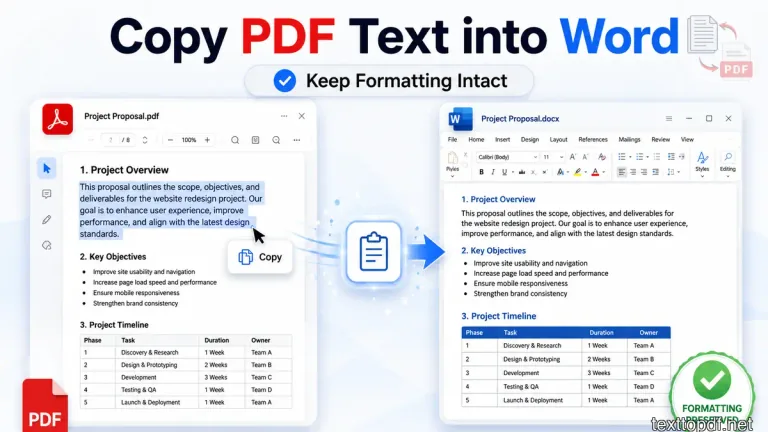
A PDF can look neat & clean on the screen, but that neat and clean layout does not always come with the text you have copied from the source PDF. Once you have pasted the content into a Word file, the page will sometimes show broken lines, uneven gaps, or sections that no longer sit in the same order as per your expectations.
This turns out to be more irritating when the content is not just casual text. The document can be your assignment, an office report, a legal note, or a client document where the wording matters, and the layout also needs to be readable.
This usually happens because a PDF is not built like a Word document. The PDF keeps the page looking fixed, while Word tries to treat the copied content as editable text, so the same paragraph can change shape after it moves into a new file.
The right method depends on the PDF you are working with. A file with selectable text can usually move into Word with fewer issues, but a scanned file or a restricted file needs a different workflow before the text becomes useful.
This guide is for those who want to properly copy the text content from a PDF to MS Word without hampering the structure of the original content. This article will also tell you why the file formatting changes after pasting and how to choose a better method when the direct copy and paste method gives poor output.
First Check What Type of PDF You Have
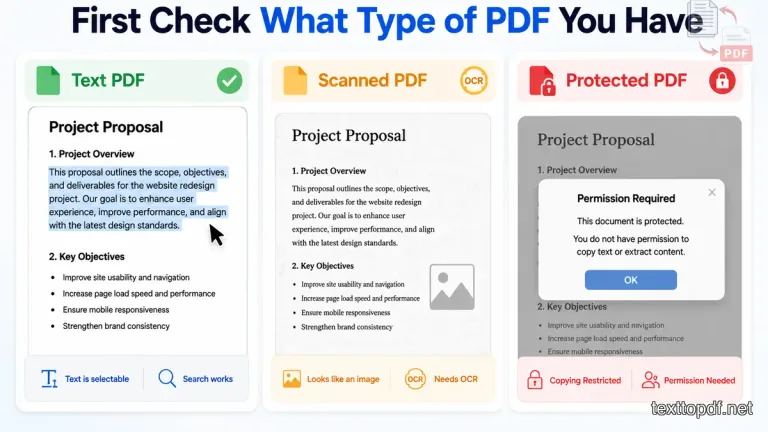
A PDF can hide its real nature very well. Two files may look almost the same on screen, but one may allow normal copying while the other may act like a flat image. That is why the first step is not copying the text. The first step is testing the file.
Open the PDF and try to select one word from the middle of a paragraph. If the word gets highlighted properly, the file most likely contains editable text. If nothing gets selected, or the whole page behaves like one picture, then the PDF is probably scanned, and direct copying will not work in a clean way.
You can also try a quick search inside the PDF. Press Ctrl + F or Command + F and search for a word that is clearly visible on the page. A normal text PDF will usually find that word. A scanned PDF may show no result because the letters are only part of an image.
Here is a practical way to understand the difference.
| What you test | What happens | What it means |
|---|---|---|
| You can highlight one word | The PDF has real text | Copying to Word may work |
| You cannot select any word | The page is likely scanned | OCR is needed first |
| Search finds the word | Text layer is available | PDF to Word copying is easier |
| Search finds nothing | Text may not exist as real characters | Direct copy will give poor results |
This small test saves time because it tells you which method to use next. A text PDF can usually be copied into Word or extracted with a PDF to Text tool. A scanned PDF needs OCR before the content becomes editable. A protected PDF may need permission access because the text may exist, but copying can still be blocked.
A good rule is this. If you can select the words, try to copy the content normally first. If you cannot select the words, do not keep trying the same copy method again and again. This is where you can use OCR or a scanned PDF extraction workflow instead.
If you want to understand why some PDF files give clean text while others do not, you can read this PDF to Text guide before choosing the next method.
Method 1: Copy Text Normally and Use Word Paste Controls
Normal copy and paste works best when the PDF already has selectable text. This method is useful when you only need a few paragraphs and the file has not been scanned.
Before copying the full content, test one small section first. This first helps you to see how the Word file handles the copied text before you waste time fixing a full page.
Use this process:
- Select one paragraph from the PDF and copy it
- Paste it into Word using the normal paste option
- Click the small paste icon that appears near the pasted text
- Try a different paste option if the spacing or layout looks wrong
Word usually gives you different paste controls. These options matter because each one handles formatting in a different way.
| Word paste option | What it does | When to use it |
|---|---|---|
| Keep Source Formatting | Tries to keep the PDF style | When the pasted text already looks close to the PDF |
| Merge Formatting | Matches the pasted text with your Word file | When you are adding PDF text into an existing document |
| Keep Text Only | Removes most styling and keeps plain text | When PDF formatting breaks after pasting |
| Paste Special | Gives more control over the paste format | When normal paste creates strange spacing |
A practical way to handle this is to paste the same paragraph in two formats and compare the results. First, try to keep the source formatting. If the lines break badly, undo it and use Keep Text part Only instead.
After that, apply headings, spacing, and lists inside Word manually. This takes a little more effort, but the final document usually looks cleaner than a badly pasted PDF layout.
This method works well for short sections from a normal text PDF. If the pasted content creates broken lines after every sentence, do not fix every line one by one. In that case, extract the content first using a PDF to Text tool and then format the cleaned text inside Word.
Microsoft support explains that Word's paste options control how copied content is kept or changes formatting after pasting. You can verify this from the official Microsoft guide on controlling formatting when you paste text.
Adobe also explains that PDF content can be copied when the file allows selection and permissions do not block copying. You can confirm this from Adobe Reader’s guide on copying content from PDFs.
Why Formatting Breaks When You Paste PDF Text into Word
A PDF page is not always stored like a normal editable document. It may look like one smooth paragraph on the screen, but behind that page, the text can be stored in smaller blocks placed at fixed positions.
Word does not read that page visually as your eyes do. It receives the copied text and tries to rebuild it as an editable document, due to which the pasted result may not follow the same spacing or line flow.
This is why any copied paragraph can suddenly look strange after pasting. The words may come through, but the structure around them may not transfer in the same way.
You may notice issues like these:
- A paragraph breaks after every line instead of staying in one block
- Words join together, or spaces appear in the wrong place
- Bullet points move away from the text or lose their indentation
- Tables stop behaving like tables and turn into plain text
This does not always mean the PDF is damaged. In many cases, the file was made mainly to preserve the page view, not to move content cleanly into Word.
That is why the first paste result should not always be trusted. If the text looks broken, try another paste option in Word, or extract the content first and then apply formatting inside Word again.
If this behavior is still confusing, this guide on why some PDF files let you copy text and some do not explains the difference in more detail.
Method 2: Open PDF Directly Inside Microsoft Word
Microsoft Word can open many PDF files on its own, and this method is useful when the file has more content than you want to copy manually. It works better for normal digital PDFs because Word tries to turn the page content into an editable document.
This method is not the same as copying one paragraph and pasting it into a blank file. Here, Word reads the PDF, converts the content, and opens a new editable version. The result may not look exactly like the original PDF, but it can save time when the file has reports, contracts, resumes, or long notes.
Use this process:
- Open Microsoft Word first
- Go to File and choose Open
- Select the PDF from your computer
- Allow Word to convert the PDF into an editable document
- Check the formatting before you start editing
Word may show a message before conversion. It usually tells you that the PDF will be converted into an editable Word document and that the layout may not match the original file exactly. That warning matters because it tells you what to expect before the file opens.
After the file opens, check the headings, paragraphs, tables, and lists before using the content. Some files convert neatly, while others may need small formatting fixes because PDF layout and Word layout do not behave in the same way.
This method is useful when you need most of the PDF content inside Word. For a small paragraph, normal copy and paste is still faster. For a scanned PDF, this method may not work well unless OCR is applied first.
If you want to understand how text gets rebuilt from a PDF before it becomes editable, you can read this guide on how to extract editable text from PDF files.
How to Copy Text from a Scanned PDF into Word
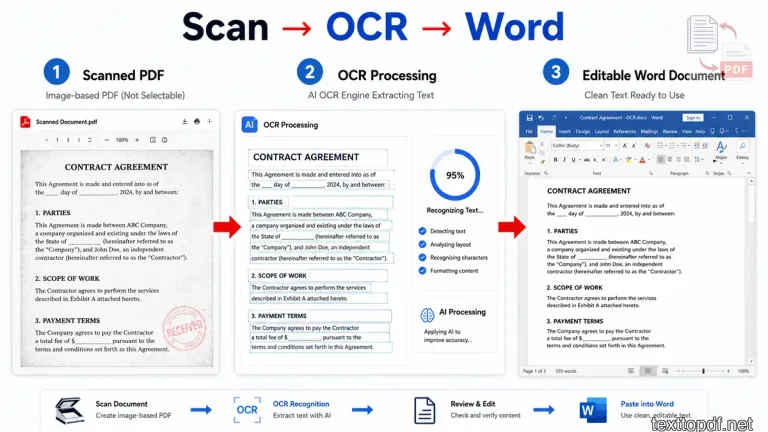
A PDF containing scanned contents needs a different approach because there may be no editable text inside the file at all. You may see words on the page, but those words are often part of an image.
A quick test will tell you what is happening. Try to drag your mouse over one word in the PDF. If the word does not highlight and the page behaves like a picture, normal copying will not help much.
In that case, OCR has to read the page first. OCR looks at the visible letters in the scanned image and turns them into text that Word can use. Adobe also explains this process in its guide on using OCR to convert PDF to text.
Use this workflow:
- Upload the scanned PDF into an OCR tool
- Let the tool read the page image and extract the visible text
- Review the output before moving it into Word
- Paste the cleaned text into Word and fix small spacing issues
The review step matters a lot here. OCR can misread letters when the scan is blurry, tilted, or shadowed. A clean scan usually gives better text, but older documents and photographed pages may still need manual checking.
A scanned PDF should not be handled like a normal PDF. If the file has selectable text, use normal PDF extraction. If the page contains image content, it is better to use OCR first and then move the extracted content into Word.
You can read this PDF to Text vs OCR guide if you want to choose the right method before extracting text. For a deeper OCR workflow, this scanned PDF to text extraction guide explains the process in more detail.
If your file behaves like an image, you can also use the Scanned PDF to Text OCR tool before pasting the result into Word.
How to Copy Tables from PDF to Word Without Breaking Columns
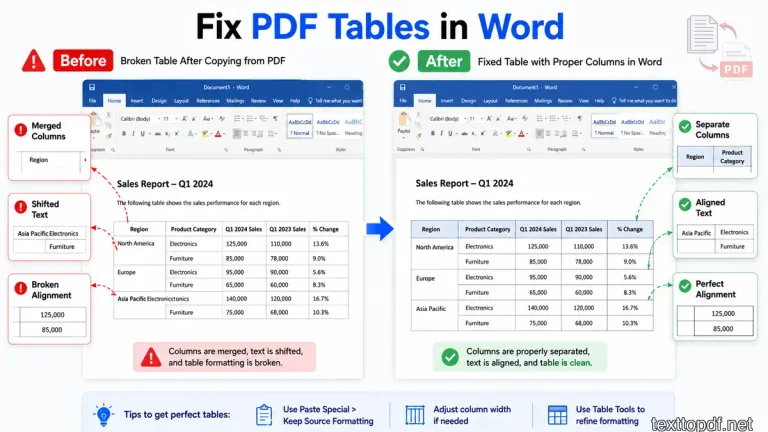
Tables need more care than normal paragraphs because a PDF does not always store them as real tables. An invoice will look like it has neat rows and columns, but the file usually only contains separate text pieces placed carefully on the page.
That is why a table can fall apart when it reaches Word. The column lines may disappear, values may move into the wrong row, or the full table may turn into plain text.
Before pasting a full table, test one small section first. Copy two or three rows into Word and check if the columns stay in place. If the first small test breaks, the full table will usually break too.
You can handle it this way:
- Open the PDF directly in Word and check if Word rebuilds the table properly
- Copy a small part first if you only need selected rows
- Use a PDF to text workflow if direct paste turns the table into plain text
- Recreate the table inside Word when column order is more important than speed
For important tables, do not depend on pasted formatting blindly. You should check names, numbers, dates, totals, and column order after pasting because even a small shift can change the meaning of the data.
This method is useful for invoices, research data, bank records, and office documents where the table structure matters. If the table is large or the columns keep breaking, you can use this PDF to Text converter first and then rebuild the table properly inside Word.
When the final destination is a spreadsheet rather than a document, use this guide to copy text from PDF to Excel without breaking rows and columns so you can choose a method that fits tabular data.
Common Problems and Real Fixes
Some PDF text problems only appear after the content reaches Word. The copy action may work, but the pasted result may still need a small fix before the document becomes usable.
Use this table as a quick repair guide.
| What you see in Word | Why it usually happens | Better fix |
|---|---|---|
| Spaces are missing between words | PDF text was copied from separated visual blocks | Paste again with Keep Text Only and adjust spacing manually |
| Paragraphs break after every line | The PDF carried line breaks from the page layout | Remove manual breaks and rebuild the paragraph inside Word |
| Bullet points lose alignment | Word could not match the PDF list structure | Use Merge Formatting or recreate the list with Word bullets |
| Table columns collapse | The PDF table was not stored as a real table | Open the PDF in Word first or rebuild the table manually |
| Nothing gets selected in the PDF | The page is scanned or image based | Use OCR before moving the text into Word |
A good way to handle these problems is to fix the biggest issue first. If the paragraph flow is broken, repair that before adjusting headings. If a table collapses, you can check the column order before you change fonts or spacing.
You can fix small formatting, and it is quite normal after copying from a PDF to Word. The main goal is not to make the pasted text look perfect in one click. The goal is to bring the content into Word in a form that can be edited without wasting too much time.
Frequently Asked Questions
Why does PDF text break when I paste it into Word
PDF text normally breaks because the file is made to hold a fixed page view. Word tries to turn that copied content into editable paragraphs, and that change can disturb line breaks or spacing.
Why are spaces missing after copying from PDF?
Spaces may disappear when the PDF stores words as separate, positioned blocks. In that case, Word receives the characters but does not always rebuild the spacing correctly.
Can I copy text from a scanned PDF into Word?
Yes, but OCR is needed first. A scanned PDF usually stores the page as an image, so Word cannot read the text properly until OCR converts the visible letters into editable text.
What is the best paste option in Word for PDF text?
Keep Text Only is often better when the pasted formatting looks broken. Merge Formatting can work well when you are adding the copied text into an existing Word document.
Can ChatGPT help clean broken PDF text?
Yes, after you extract the text, ChatGPT can help rebuild paragraphs, remove unwanted line breaks, fix spacing, and organize the content into a cleaner Word-friendly format.
Final Conclusion
Copying the text or content from PDF files to MS Word is easier when you stop treating every PDF the same way. A normal text PDF, a scanned page, and a PDF with heavy tables can all look similar on screen, but they do not behave the same after copying.
For a short paragraph, copying the words may be enough. However, for a full report, you should open the PDF directly in Word to save time. For scanned pages, OCR has to come before Word. For tables, the safest approach is to test a few rows first and then decide if the table should be rebuilt.
So the better workflow is not about finding one perfect copy method. It is about checking the PDF once, choosing the method that matches the file, and then cleaning only the parts that actually need attention. That way, the Word document stays easy to read without even turning the whole task into manual formatting work.