


A PDF can look perfectly readable when you open it, but the real problem starts later. You try to copy a paragraph, reuse a section in a draft, or pull text out for editing, and the result does not come out the way you expected. In one file, the words can be selected right away. In another file, nothing useful gets copied at all. That difference is exactly where most confusion begins.
A lot of people assume every PDF works in the same way because the pages look similar on screen. That is not how these files behave in real use. Some PDFs already contain a usable text layer, due to which the content can be extracted directly. Some PDFs only contain page images, so the file may look readable to your eyes while still giving you nothing clean to copy. That is the point where a normal PDF to Text workflow and an OCR workflow begin to separate.
This guide explains how PDF to Text actually works, why some files give clean output while others do not, when OCR becomes necessary, and what you should expect from the final text after extraction. It also connects that explanation with how texttopdf.net handles both direct PDF text extraction and PDF OCR in a practical workflow.
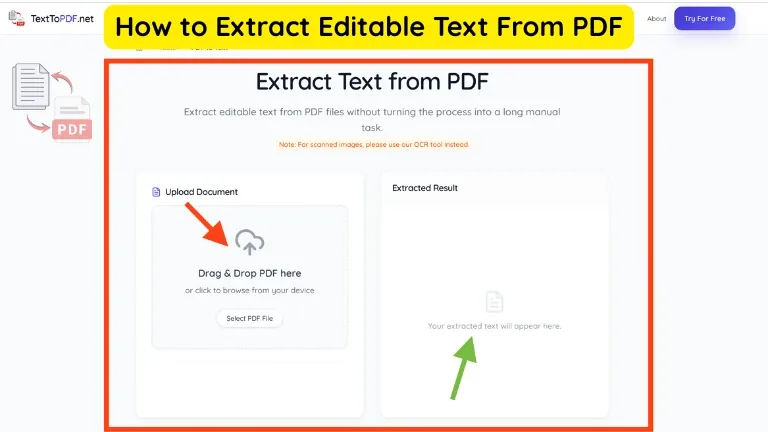
What PDF to Text Actually Means
PDF to Text is the process of pulling written content out of an existing PDF file and turning that content into editable text. The goal is not to preserve the full visual design of the original page. The goal is to recover the words so you can copy them, edit them, search them, or use them somewhere else.
That difference matters more than many people realize. A PDF is made to keep a document stable, due to which fonts, spacing, and page layout stay fixed when the file is opened on different devices. A text file works differently. It gives you the written content without carrying the same page structure, visual styling, or layout rules. That is why PDF to Text is useful when the writing matters more than the original appearance.
You can also understand why PDF is widely used for stable document exchange and consistent viewing from this official explanation of what a PDF file is.
Sometimes you do not need the document design anymore. You only need the report text, the contract wording, the research notes, or the written material from a file that was shared in PDF format. In that situation, extracting text is much faster than rewriting the content by hand.
If you want to do that directly, you can use the PDF to Text tool to upload a file and pull editable text out of a normal digital PDF.
Why People Need to Extract Text from PDF Files
People usually reach for PDF to Text when the content is trapped inside a format that is easy to read but harder to reuse. This happens in normal work more often than it seems. A document gets shared as a PDF because the layout needs to remain fixed, but later the same file has to be edited, quoted, summarized, or repurposed.
A student may need text from lecture notes that were saved as PDF. An office user may need a section from a report for a follow up document. A writer may want to reuse quotes from a research file without typing every line again. In all of these cases, the person does not need the full document design anymore. The person needs the words in a usable form.
PDF to Text also helps when you want a lighter working format. Instead of dealing with page boundaries, embedded styling, and visual layout, you get the written content in a form that can be moved into a text editor, a draft, a notes app, or another document.
Digital PDF vs Scanned PDF
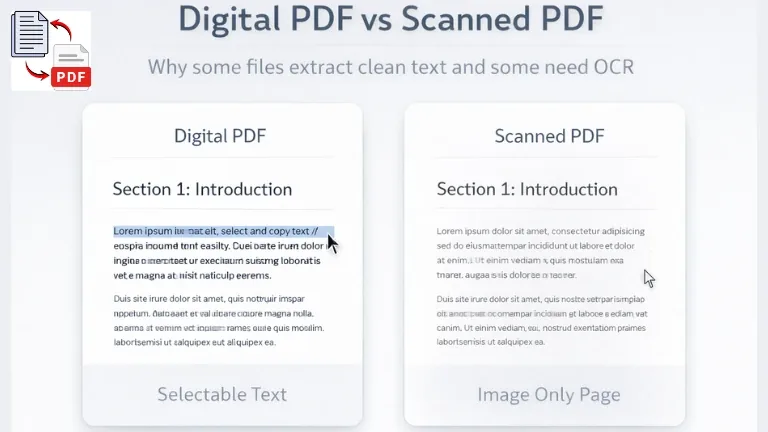
This is one of the most important parts of the whole topic, because the result depends on the kind of PDF you are working with. Two files can look almost identical on screen and still behave in completely different ways when you try to extract text from them.
A digital PDF usually contains a real text layer inside the file. That means the words were stored as actual characters when the PDF was created. In most cases, you can highlight the text, search for words, and extract the content with a normal PDF to Text process.
A scanned PDF is different. The page may show readable words, but the file often stores that page as an image instead of true text characters. Because of that, you may see the content clearly and still fail to select a sentence or copy a paragraph. The letters exist visually on the page, but the file does not treat them as usable text until OCR reads the image and turns those shapes into characters.
You can use PDF to Text OCR with OCR when the file behaves like an image and direct extraction does not work.
Quick Comparison
| PDF Type | What the file contains | What usually works |
|---|---|---|
| Digital PDF | Built in text layer | Direct PDF to Text extraction |
| Scanned PDF | Image only pages | OCR first |
| Searchable scanned PDF | Image plus recognized text layer | Text search and extraction work better |
Many failed extraction attempts happen because this difference was never checked first. A user tries a normal extraction tool on an image only file, gets poor output, and assumes the tool failed. In reality, the workflow itself was wrong for that kind of document.
Why Some PDF Files Let You Copy Text and Some Do Not
This question sits right at the center of the problem. You open one PDF and you can highlight every sentence without trouble. You open another one and the whole page acts like a flat picture. That behavior tells you a lot about what is actually inside the file.
If the words can be selected, the file probably contains a usable text layer. A normal extraction tool can usually read that text and return it in editable form. If the page cannot be highlighted properly, the file may be a scanned page, a photographed document, or an image only PDF. In that case, the tool is not refusing to work. The file just does not contain readable text in the way the tool expects.
Sometimes the signs are less obvious. A file may allow limited selection, but the copied result comes out broken. Paragraphs may lose their order. Words may be split in awkward places. A table may turn into a messy block of lines. These problems usually happen when the underlying text layer is poor, when the document structure is complex, or when the file is a scan that was processed imperfectly.
That is why you should always identify the file type before expecting a clean result. A quick selection test often saves time. If the text highlights normally, direct extraction is worth trying first. If it does not, OCR is usually the correct path.
How PDF to Text Works on Normal PDF Files
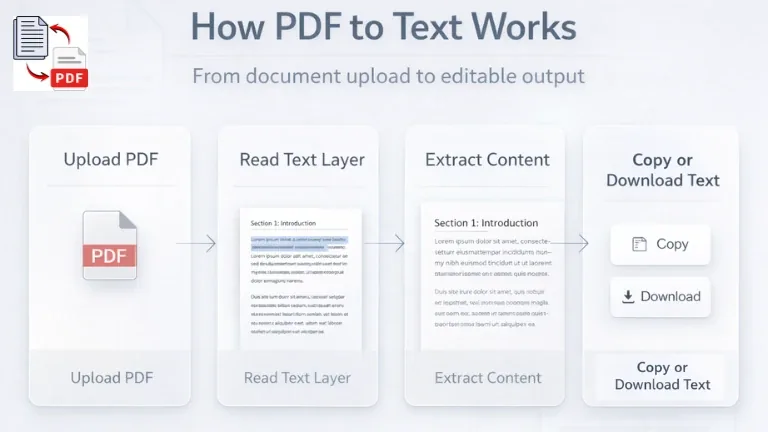
When a PDF already contains a proper text layer, the workflow is more direct than most people expect. The file is uploaded, the system reads the text stored inside the document, and the written content is returned in editable form. At that stage, the main task is not recognition. The main task is extraction.
This is why normal digital PDFs usually give cleaner results than scanned pages. The system is not trying to guess letter shapes from an image. It is reading text that already exists in the file. Because of that, the output is often more stable, and basic content like paragraphs, headings, and sentence flow usually comes through with fewer errors.
On texttopdf.net, this workflow is meant to stay practical. You upload the PDF, the tool reads the text from supported digital files, and the result can be reviewed, copied, or downloaded without moving into a different workflow first. That kind of flow matters because most users do not want a complicated document process. They want the content out of the PDF in a usable form.
What Usually Happens in a Normal Extraction Flow
- You upload the PDF file into the tool.
- The system checks the document and reads the existing text layer.
- The extracted content is shown in editable form.
- You review the result and copy or download the text.
That looks simple from the outside, but the quality still depends on the original document. A well created digital PDF often gives a cleaner result. A poorly structured file can still create odd line breaks, merged columns, or uneven paragraph flow.
When OCR Is Needed Instead of Direct Extraction
Direct extraction works only when the file already contains usable text. Once that text layer is missing, the process has to change. This is where OCR becomes important.
OCR reads visible letters from page images and turns those letter shapes into characters that can be copied, searched, or edited. In plain terms, OCR does not pull text out of the file in the same way a normal extraction tool does. It first identifies what the letters look like on the page, then converts that visual content into text.
This is why OCR is needed for scanned paperwork, photographed pages, printed forms saved as PDF, old records, and other files that behave like images. The words are visible on screen, but the document is not storing them as real text characters in a usable way.
If you want to understand that OCR side more deeply, you can read How to Extract Text from a Scanned PDF. That guide connects well with this page because the two workflows are related, but they do not solve the same problem in the same way.
A scanned file often needs OCR before the text can be copied or edited properly, because OCR converts visible text in scanned images into machine readable text. You can read more about that in this Adobe guide explaining what OCR is and how it works.
How to Convert PDF to Text Step by Step
The process becomes much easier once you stop treating every PDF as the same kind of file. The first thing that matters is not the button you click. The first thing that matters is the file itself.
Open the PDF and try to highlight a line of text. If the words can be selected normally, direct PDF to Text extraction is usually the right place to start. If the page behaves like an image and nothing meaningful gets selected, the file probably needs OCR instead.
After that, the workflow becomes much easier to manage. You upload the file into the right tool, let the system process the document, review the extracted output, and then copy or download the text that you need. That review step matters because even a good extraction result may need a quick check before you move the content into another document or workflow.
On texttopdf.net, this is where the product references should stay natural. A normal PDF can go through the direct PDF to Text tool. A scanned file can move into the OCR path through the scanned PDF tool. That split is not an extra complication. It is what keeps the process accurate.
What the Output Usually Looks Like
This is the part where expectations need to stay realistic. Extracted text is not the same thing as the full original document. Once the content leaves the PDF and becomes plain text, some parts of the source file may not survive in the same way.
The words usually come through first. The page design does not. A paragraph may still exist, but the original page layout may be gone. Headings may come through as lines of text without the same visual hierarchy. Images usually do not carry over into plain text output. Tables may lose their original cell structure and come out as lines that need manual cleanup.
That does not mean the extraction failed. It means the output is doing a different job. PDF holds presentation. Text extraction holds content. Once that difference is understood, the result makes much more sense.
Common PDF to Text Problems
Some problems appear again and again in real document work, and most of them make sense once you understand what kind of PDF you started with.
A file may return empty output because it was actually scanned and needed OCR. A paragraph may break in strange places because the source document had complex spacing or uneven structure. Two columns may merge into one block because the file layout was designed for visual reading, not plain text recovery. A table may lose its shape because plain text does not preserve the same structural boundaries as a PDF page.
There are also cases where the text comes out mostly correct, but the reading flow becomes awkward. Headings may blend into body text. Lists may lose spacing. Footnotes or side notes may appear in the wrong place. None of these issues are unusual. They are part of the tradeoff between a visually fixed document and an editable text result.
Common Issues at a Glance
| Problem | What you may notice | What usually causes it |
|---|---|---|
| Empty or useless output | Nothing meaningful is extracted | The file is scanned and needs OCR |
| Broken paragraph flow | Lines split in the wrong places | Source structure is uneven |
| Merged columns | Text reads in the wrong order | Complex page layout |
| Lost table structure | Data turns into plain lines | Plain text cannot preserve table design |
How to Get Better PDF to Text Results
A better result usually starts before the extraction itself. The first improvement comes from checking the file type correctly. If the PDF already contains selectable text, direct extraction is usually the cleaner choice. If the document behaves like an image, OCR should be used from the start.
The next improvement comes from reviewing the output instead of trusting it blindly. Even when a file is extracted successfully, small issues can still appear in spacing, reading order, or paragraph flow. An expedited review enables you to spot those errors before the material gets replicated in a new document.
The source file also matters more than many people expect. A well made digital PDF usually produces cleaner text. A poor scan, a tilted image page, a low quality copy, or a complex layout can reduce output quality even when the workflow itself is correct.
Privacy and File Handling
Document extraction is not only about output quality. It is also about trust. A PDF may contain personal records, work files, reports, invoices, academic notes, or internal material that should not stay stored longer than necessary.
That is why file handling matters when you use any PDF to Text workflow. On texttopdf.net, the process is presented as temporary file handling rather than long term storage. That matters because many users do not just want a working tool. They also want a workflow that treats their documents carefully and does not keep them around without reason.
This section is worth keeping in the guide because privacy questions are part of real user decision making. A person choosing a PDF extraction tool is not only asking whether the result will be accurate. The person is also asking whether the document will be handled in a way that makes sense for sensitive content.
Why File Handling Matters
- PDF files often contain personal or business information
- Extraction tools may process contracts, reports, forms, and records
- Short temporary processing is easier to trust than unclear storage behavior
- Privacy information helps users understand what happens after upload
PDF to Text vs OCR
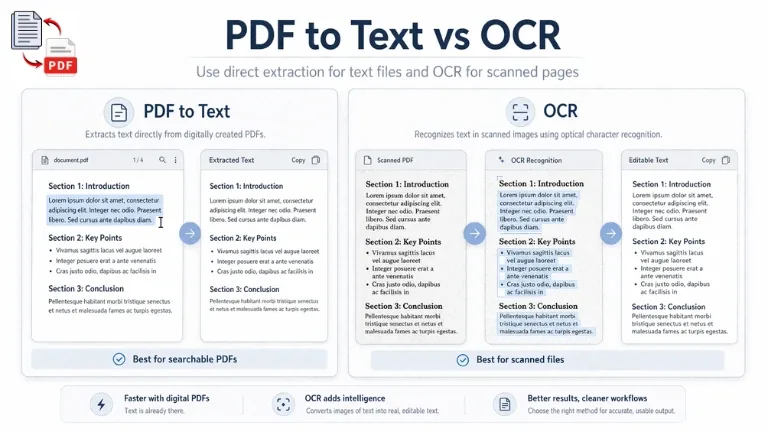
A lot of confusion disappears once these two workflows are placed side by side. They are related, but they do not do the same job. One reads text that already exists inside the file. The other reads visible letters from a page image and converts them into text.
Direct PDF to Text extraction is usually the better choice for digital files that already contain selectable text. OCR becomes important when the document behaves like an image and there is no usable text layer to read directly. The user does not need to guess blindly here. A quick highlight test normally tells you which path makes more sense.
Comparison Table
| Method | What it reads | Best for |
|---|---|---|
| PDF to Text | Existing text layer | Digital PDFs with selectable text |
| OCR | Visible letters inside images | Scanned PDFs, photographed pages, and image only files |
When Each Option Makes More Sense
- Use PDF to Text when the words can already be selected
- Use OCR when the page behaves like a flat image
- Use direct extraction first when the file is a normal digital PDF
- Use OCR for scans, photographed documents, and printed pages saved as PDF
How TextToPDF.net Fits Into This Workflow
The reason this guide should mention the product naturally is because the workflow on texttopdf.net already reflects the exact distinction the article is explaining. A normal digital PDF can move through the direct extraction path. A scanned file can move through the OCR path. Both actions stay inside the same wider document workflow instead of sending the user to unrelated tools.
That makes the product reference useful instead of forced. A reader who understands the difference between a digital PDF and a scanned one can make a better choice on the site right away. The site already gives both routes, due to which the article can connect explanation with action without sounding promotional.
What You Can Do on texttopdf.net
- Upload a normal PDF and extract editable text from supported files
- Use the OCR route when the PDF is scanned or image only
- Review the extracted result before copying it
- Copy or download the output after processing
Related Workflows You Should Know
PDF to Text does not exist in isolation. In real work, documents often move in both directions. Sometimes you start with a finished PDF and need the words out. Sometimes you start with raw text and need to turn it into a fixed PDF document. Understanding that wider flow helps the guide connect better with the rest of your site.
That is why this pillar should not sit alone. It should connect with the core product pages as well as the related guides that explain neighboring parts of the workflow.
Useful Posts From This Guide
- Use the PDF to Text tool when the file already contains selectable text
- Use PDF to Text OCR with OCR when the file behaves like an image
- Read How to Extract Text from a Scanned PDF if you need the full OCR explanation
- Read How to Convert Text Files into Clean PDF Documents if your workflow moves in the other direction
What This Guide Helps You Decide Faster
A strong pillar page should not only explain the topic. It should help the reader make the next correct decision without wasting time. In this case, the most useful decision is identifying what kind of PDF is in front of you.
Once that part is understood, the rest becomes much easier to handle. You know when direct extraction should work. You know when OCR is necessary. You know why some outputs look clean and why others need cleanup after extraction.
Quick Decision Points
- Check if the text can be highlighted
- Use direct extraction for digital PDFs
- Switch to OCR for scanned or image only pages
- Review the result before reusing the text
FAQs
What is PDF to Text conversion
PDF to Text conversion is the process of extracting written content from a PDF file and turning it into editable text. The purpose is to recover the words from the document so they can be copied, edited, searched, or reused.
Why can I copy text from some PDFs but not others
Some PDFs already contain a real text layer, due to which the words can be selected and extracted directly. Other PDFs are only page images, so the content looks readable but does not behave like real text until OCR is used.
How do I know if my PDF is scanned
A quick way to check is to try selecting a line of text. If the words highlight normally, the file is probably digital. If the page behaves like one flat image and the words do not select properly, the file likely needs OCR.
When should I use OCR instead of PDF to Text
OCR should be used when the file is scanned, photographed, or saved as an image only PDF. Direct PDF to Text extraction works better when the file already contains selectable text.
Does PDF to Text keep formatting
Not in the same way a full PDF does. The written content usually comes through, but page layout, table structure, images, and visual styling may not remain in the same form after extraction.
Is PDF to Text safe for private documents
That depends on how the tool handles files. This is why privacy and file handling matter. On texttopdf.net, the workflow is presented with temporary file handling, which is more reassuring for users working with sensitive documents.
Final Note
A PDF to Text workflow becomes much easier once you stop asking only one question, which is how to extract the words. The more useful question is what kind of PDF you are working with in the first place. That one check changes the whole path.
A digital PDF usually gives you a clear direct result. A scanned PDF usually needs OCR first. Once that difference becomes part of your normal workflow, you stop wasting time on the wrong method and start getting results that make more sense.
This is also where texttopdf.net fits naturally into the process. The site supports both the direct extraction route and the OCR route, due to which the explanation in this guide can move straight into action when the reader is ready.