


Have you ever tried to save a Word file as a PDF and then noticed that one part of the page is suddenly missing? The document looked correct before you exported, but the PDF shows a missing heading, a half copied paragraph, or an empty space where text inside a box is supposed to appear.
This kind of issue is very frustrating because nothing looks wrong before export. The content is present in Word, but the PDF is a fixed output, and it can only show what the export process is able to place on the page correctly.
In most cases, the text is not deleted from the document. It is either hidden by a setting, covered by a shape, pushed outside the page area, or affected by a font that does not render properly in the PDF. That is why the right fix starts with checking the Word file structure instead of converting the same file again and again.
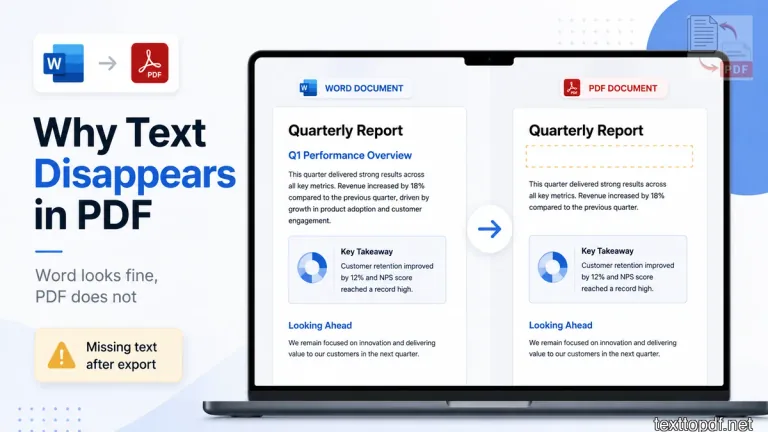
Why Text Can Disappear During Word to PDF Conversion
A Word document is not just plain text on a page. It can contain hidden formatting, text boxes, shapes, comments, tracked changes, custom fonts, floating images, headers, footers, and fields. These parts may look normal while editing, but the PDF export process has to rebuild them as a fixed page.
This is where the problem starts. A paragraph inside the main body usually exports without much trouble. Text inside a floating box or near an image can behave differently because its position depends on layout rules. A custom font can also create trouble if the PDF output cannot render it in the same way.
I have seen this happen most of the time when the missing line was not actually missing at all. It was inside a text box, sitting behind a shape, placed too close to an image, or written in a font that failed during export. In that situation, if you try to convert the same file again, it will not help much. The better check is to go back to the exact missing area in Word and see where that text is placed on the page.
Common Signs of This Problem
This problem usually becomes visible only after the PDF is opened and compared with the Word file. The Word document may still look fine, so it is easy to think that the converter made a random mistake. I would not stop there because the same issue often comes from how the content is placed inside Word.
In that situation, check the missing part in the Word file before exporting again. See if the text is inside a box, attached to an image, sitting in a header, or using a font that may not export properly.
You may notice issues like these:
- A heading or paragraph is missing from the PDF
- Text inside a box or shape does not appear
- List items are missing or placed in the wrong order
- Fonts look different or blank after export
This matters more when the document is used for work, forms, assignments, or reports. One missing line can change the meaning of the file, so the safer move is to check the exact missing area instead of converting the same document again without changing anything.
The Text May Be Hidden, Not Deleted
Microsoft Word has options for hidden text and document display. That means the text can stay inside the Word file, but it may not appear in the PDF if the document settings do not allow that part to print or export. Microsoft also explains this in its Word display options guide, where hidden text and print settings are covered. That makes this an important area to check before export.
Hidden text can appear in old templates, copied documents, edited forms, or files shared by another person. Sometimes the user does not even know that part of the content has hidden formatting applied to it. The page looks normal in one view, but the PDF output can behave differently.
In that situation, if the same section disappears again after export, the missing area inside Word should be checked first. I usually turn on formatting marks, check hidden text settings, and look at the exact section where the content is not showing in the PDF. Headers and footers also need a quick check because text placed there does not always behave like normal body text during PDF export.
Custom Fonts Can Break PDF Output
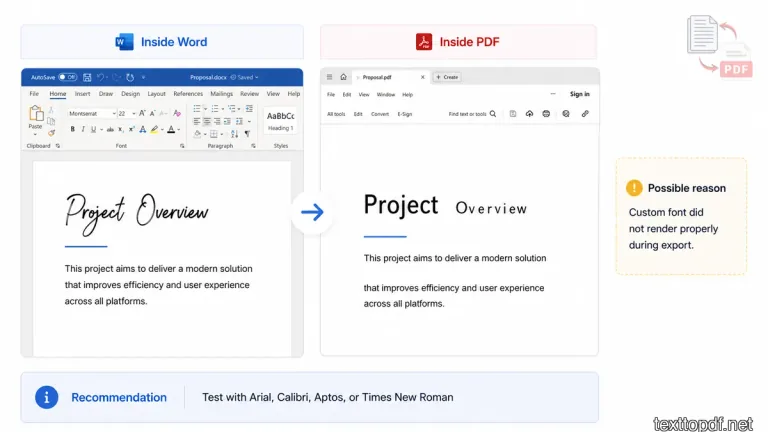
Font issues are worth checking when a Word file looks fine but the PDF output drops a line or shows blank text. I have seen this happen when the document used a custom font that looked normal inside Word, but failed during PDF export. The file was not broken. The PDF just could not render that font in the same way.
This problem shows up more often with custom fonts, icon fonts, variable fonts, or fonts downloaded from 3rd party websites. Microsoft also explains how font embedding in Word files helps preserve font appearance when a document is shared. That is why font handling is worth checking when a PDF drops text or shows blank characters.
In that situation, if the same missing text appears again after export, try one test copy before changing the full document. You should replace only the missing section with a common font like Arial, Calibri, Aptos, or Times New Roman. After that, you can export the file again and compare the PDF. If that text appears properly, the font was most likely the reason.
Text Boxes and Floating Objects Can Hide Text
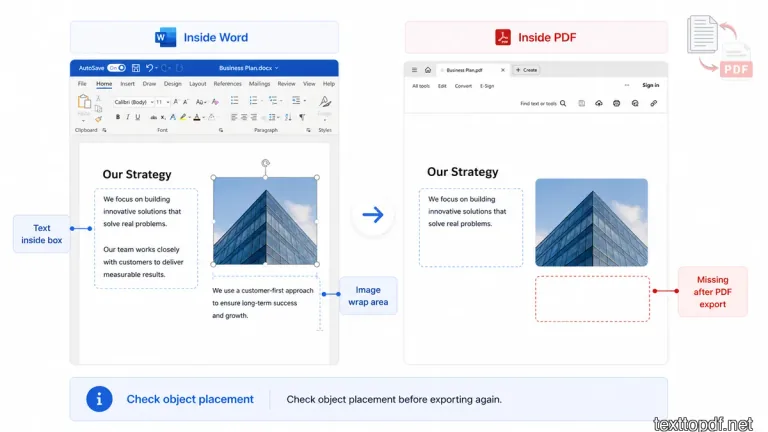
Text boxes and floating objects are one of the first things worth checking when text disappears after Word is converted to PDF. I have seen this issue happen when the missing line was not part of the normal paragraph at all. It was sitting inside a box, placed near an image, or covered by a shape that looked harmless inside Word.
In that situation, if you try to convert the same file again, it will not help much. The issue usually stays the same because the text placement inside Word has not changed. Adobe community discussions also show cases where users reported missing text below images after exporting Word files to PDF. That is why images, captions, and wrapping styles should not be ignored.
You should click near the missing text in Word and check whether it is part of the normal document body or placed inside another object. If the text is inside a box, shape, or caption area, you can move a test copy into the main paragraph area and export the file again. If the text appears in the new PDF, the problem was not the text itself. The problem was how that text was placed on the page.
Tables, Lists, and Fields Can Export Incorrectly
Tables, lists, and fields need a little more care before export. I have seen missing text happen inside tables when the row height was fixed, so the lower part of the text never reached the PDF properly. Lists can also break when the style is damaged, and fields may carry old values if they are not updated before the file is saved as PDF.
This table gives a quick way to check the most common structured content issues.
| Word Element | What Can Go Wrong | What to Check |
|---|---|---|
| Table | Text may get cut | Cell height and margins |
| List | Items may disappear | List style and spacing |
| Field | Old value may appear | Update fields before export |
| Header | Text may not show | Header and footer area |
A document with tables, references, page numbers, and repeated headers should be reviewed before exporting. The PDF may look like a final file, but the Word structure decides what reaches that final file.
Export Method Can Change the Result
The PDF method also matters. I have seen the same Word file export differently through Save As PDF, Print to PDF, and third party PDF add ins. One method may drop a line, while another method keeps the same text properly. Microsoft also explains the official process to save or convert Office files to PDF, so this is a useful reference when testing export methods.
In that situation, if the first PDF is missing text, you should not assume the whole document is damaged. You can export one more copy using a different method and compare both files. If only one PDF has missing text, the issue is probably connected to the export path.
You can test these methods:
- Word Save As PDF
- Word Export to PDF
- Microsoft Print to PDF
- Acrobat PDFMaker if it is installed
This check is useful because it separates document problems from export problems. If every method removes the same text, the issue is most likely inside the Word file structure. If only one method fails, the export method needs attention.
Quick 5 Minute Fix Test
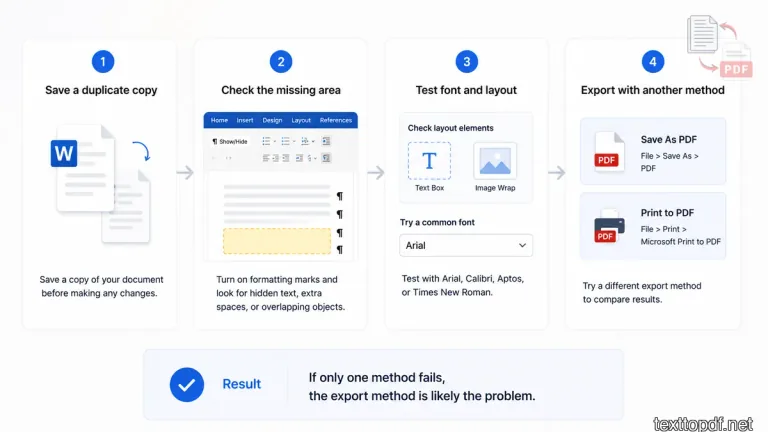
The first fix should not be a full document rebuild. In my experience, a small test copy gives a better clue because the original file stays safe and the problem can be checked without disturbing the whole layout.
You should first save a duplicate copy of the Word file. After that, check the missing section, accept or reject tracked changes, and turn on formatting marks. If the text is inside a box, near an image, or using a custom font, test only that section first.
A good, quick test looks like this:
- Save a duplicate copy of the Word file.
- Check the missing area with formatting marks turned on.
- Replace the missing section with a common font.
- Export the file through two different PDF methods.
If the text appears after one change, the reason is easier to identify. This saves your time because you are not guessing through the full document.
Safe Fixes Before You Convert Again
The safest fixes are the ones that keep the document editable. You should avoid changing the whole file at once because that can create new layout issues.
You can start with these small changes first:
- Move important text from boxes into normal paragraphs if the layout allows it
- Always use common fonts for important headings and body text
- Update fields before export
- Check headers and footers for the missing text that appears near the top or bottom of the page
If an image is close to the missing text, you can change the wrapping style in a test copy. Many Word to PDF issues happen because an image, shape, or caption controls the space around nearby text.
Risky Fixes You Should Use Carefully
Some fixes can make the PDF look correct, but they can also create a new problem. I have seen people turn the whole page into an image just to make the missing text visible. That may solve the visual issue, but the final PDF may lose selectable text, so copying or extracting the content later becomes difficult.
You should be careful with these fixes:
- Avoid turning the full page into an image if the text needs to stay selectable
- Do not use screenshots as a final fix for reports, forms, or reusable documents
- Use flattening only when the visual layout matters more than editable text
- Keep one editable Word copy before trying any image only export method
If the document needs searchable or reusable text, you should fix the Word structure first. You can use an image style export only when the PDF is needed for viewing and not for copying, searching, or future text extraction.
When Plain Text Conversion Is Better Than Word to PDF
Word is useful for designed documents, but it can add an extra layer of layout complexity when the content is only notes, drafts, instructions, or plain paragraphs. In those cases, text boxes, floating images, and custom styles may not be needed at all.
If the document is mostly text, you can clean the content first and use the Text to PDF tool on texttopdf.net. This works better for simple text documents because the focus stays on paragraph structure, spacing, preview, and final PDF output instead of Word layout objects.
What to Do If the PDF Is Already Created
If the PDF is already created and text is missing, the Word file should be checked first. The missing part usually has to be fixed before a better PDF can be exported.
If the PDF contains selectable text and you only need to inspect or reuse it, you can use the PDF to Text tool. If the PDF is only a screenshot or page containing images or scanned documents, OCR may be needed before the text can be extracted.
FAQs
Why does text disappear when I convert Word to PDF?
Text can disappear because of hidden text, font rendering issues, text boxes, floating objects, tables, headers, or the export method used to create the PDF.
Why does the Word file look correct, but the PDF is missing text?
Word editing view and PDF output do not always place layout objects in the same way. Text may move, hide, or fail to render during export.
Can fonts cause missing text in PDFs?
Yes. Custom fonts or unsupported fonts can fail during PDF export. You should test the missing section with a common font and export again.
Can text boxes disappear in PDF?
Yes. Text inside boxes, shapes, captions, or wrapped objects can shift or fail to show properly after export.
Can texttopdf.net fix Word to PDF missing text?
Texttopdf.net is not a Word to PDF repair tool. It is useful when the content is mostly text, and you want to create a clean PDF without Word’s complex layout issues.
Final Note
When text disappears after Word is saved as a PDF, the first thing to check is not the converter. I have seen this issue happen many times when the missing part was still inside the Word file, but it was sitting in a text box, hidden in a header, placed near an image, or using a font that did not export properly.
If you convert the same file again without checking these parts, the result will usually stay the same. You should first go back to the missing area in Word, check the font, look at nearby shapes or images, and test one export method against another. That small check usually tells you where the problem is coming from.
If the document is mostly plain text, notes, or normal paragraphs, you can avoid many Word layout issues by using a direct Text to PDF workflow. But for designed Word files with boxes, images, custom fonts, and complex page layout, the safer way is to fix the Word file first and then create the PDF again.