
Sometimes the only available version of useful text exists inside an image rather than in an editable document. It may be a screenshot saved from a conversation, a receipt photographed months ago, a scanned page, or a notice captured with a phone. The words are visible, yet selecting one sentence or copying a number is impossible because the file contains an image rather than editable characters.
OCR is a technique that solves such problems by recognising the visible characters and returning them as text you can edit. The task sounds straightforward until the source image is slightly blurred, tilted, compressed, or packed with unrelated elements. Those details can change the result far more than people often expect.
TextToPDF.net handles this workflow through its Image to Text tool. You can process one image or a batch of up to 10 files, focus recognition on a selected region, and review the extracted wording before you use it elsewhere. The free workflow currently accepts PNG, JPG/JPEG, WebP, and BMP files, with different OCR modes available for different layouts.
The important point is that OCR output should be treated as editable text, not as an unquestionable transcription. A good result can save a lot of manual typing, but names, numbers, reference codes, and other important details still deserve a quick comparison with the original image.
How to Extract Text From an Image
The workflow inside TextToPDF.net is designed around the image itself rather than forcing every file through the same recognition setup.
- Add the image. Upload a supported image or add several files when the same task includes more than one screenshot or photographed page.
- Choose the useful area. If only part of the image contains the text you need, select that region instead of asking OCR to read everything around it.
- Match the OCR mode to the layout. Auto works for general content, while Block, Line, or Sparse can help when the structure is obvious.
- Review the extracted text. Compare anything important with the source image before copying the result into another document.
That last step matters even when the output looks correct at first glance. An OCR engine can recognise a full paragraph successfully and still confuse one 0 with O, or read 1 as I. Those small errors are easy to miss because the surrounding sentence can still look normal.
What Image to Text OCR Actually Does
An image stores visual information as pixels. It does not normally contain the words in the same form as a text editor, which is why dragging a cursor across a screenshot often selects nothing.
Optical Character Recognition examines those visual patterns and estimates which letters, numbers, or symbols they represent. TextToPDF.net uses Tesseract.js in its free browser OCR workflow, which brings the Tesseract recognition engine into a web environment through JavaScript and WebAssembly.
The recognition process is not the same as understanding the document. OCR can identify a sequence of characters without knowing that one value is an invoice total or that another string is a tracking number. That distinction is why a human review remains useful whenever one wrong character can change the meaning.
You can read the implementation details of the underlying engine in the official Tesseract OCR project documentation.
Why OCR Accuracy Changes From One Image to Another
One of the easiest mistakes to make with OCR is to ask, “How accurate is it?” as though one percentage could describe every image.
A sharp screenshot with large dark text creates a very different recognition problem from a faded receipt photographed under uneven light. A clean scan has another set of characteristics, while handwriting introduces variation that printed fonts do not have. OCR quality therefore depends on both the recognition engine and the material it receives.
Published research shows just how wide that difference can become.
| Image situation | Research result | What it tells us |
|---|---|---|
| Phone photographs of printed text | In the Brno Mobile OCR benchmark, the listed Tesseract results ranged from 12.32% CER on easy images to 79.17% CER on hard images | Camera conditions can change recognition dramatically |
| Degraded printed documents | NIST reported character error ranging from roughly 1% to 74% as document and image quality deteriorated | A poor source can overwhelm an otherwise capable OCR engine |
| Full receipt pages | One SROIE experiment reported 50.6% CER for a full-page setup, which dropped to 4.98% when the receipt was divided into 15 chunks | Layout handling and region choice can matter as much as character recognition |
| Structured book scans | Published Tesseract tests on sampled books reported roughly 3.72% to 5.78% WER | Well-structured printed material is a very different OCR task from difficult phone photos |
CER means Character Error Rate, while WER means Word Error Rate. Lower values indicate fewer recognition mistakes, but figures from different studies should not be compared as though they were one leaderboard because the source material, engines, and scoring rules differ.
The official Brno Mobile OCR Dataset benchmark is particularly useful because it contains 19,725 photographs captured with 23 phones under real mobile conditions. Its Tesseract results show why an OCR tool should not promise the same accuracy for every photograph.
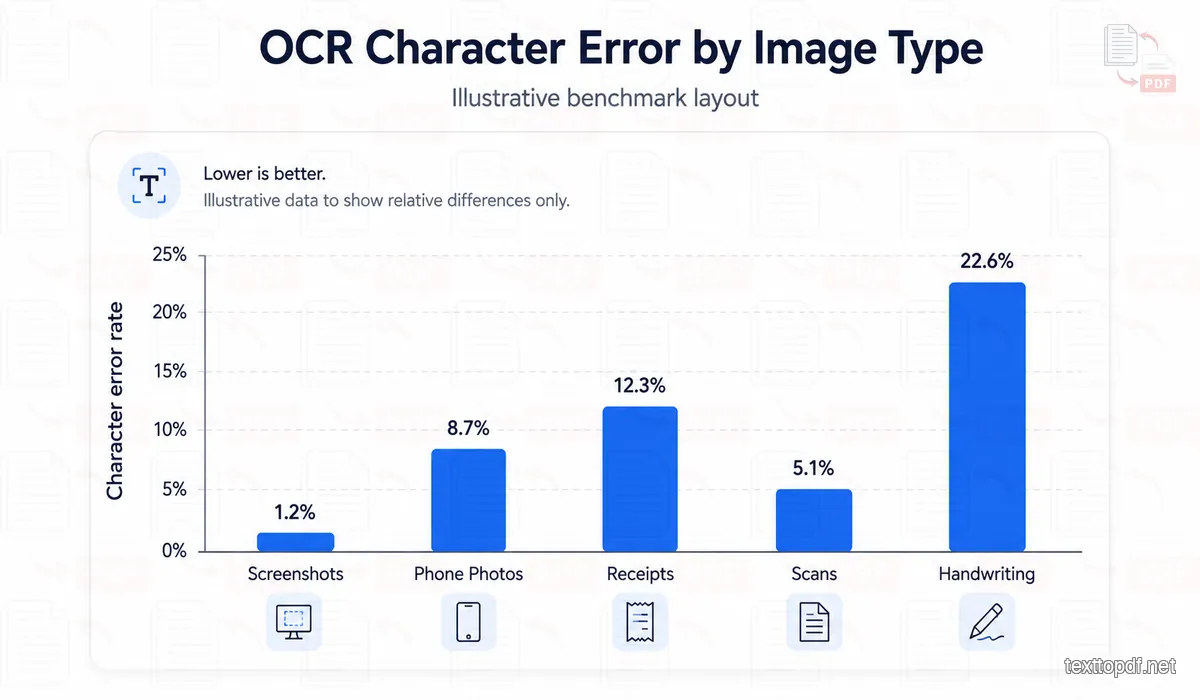
Illustrative OCR Error Patterns
Image type can change OCR error rates substantially. The chart below is illustrative only, not a measured TextToPDF result, so it should be read as a visual explanation rather than an accuracy claim.
Why We Do Not Use One “99% Accurate” Claim
A single accuracy percentage may look impressive on a product page, but without a test description it tells you very little.
Was the test done on clean computer-generated screenshots or old photocopies? Did it include receipts and handwriting? Were the results measured at character level or word level? Those questions can change the meaning of the number completely.
At TextToPDF.net, we would rather explain the conditions that influence recognition than attach one broad percentage to every possible image. That approach also makes it easier to understand why one image can work almost perfectly while another needs several corrections.
This becomes especially important when OCR is used for numbers. A paragraph with one wrong letter may still be understandable, while one wrong digit in a price, date, document number, or account reference can make the extracted result unusable.
Image Quality Has a Direct Effect on OCR
A person can often understand text even when part of a photo is soft or uneven. OCR has less contextual freedom because it still has to distinguish individual character shapes.
Tesseract's own documentation recommends image resolution around 300 DPI or higher where practical and discusses the effect of noise, skew, thresholding, and image preparation on recognition. The same documentation warns that poor binarisation or page rotation can reduce OCR quality.
The useful takeaway is not that every file must somehow be converted to exactly 300 DPI. A screenshot already contains a fixed number of pixels, while a phone photograph has no meaningful benefit from a fake DPI value if the characters themselves were captured poorly. Enlarging a blurred character cannot recreate strokes that were never present in the original image.
You can read Tesseract's technical recommendations in this official guide to improving OCR output quality.
Keep the Text Straight When You Can
A document photographed from an angle changes the shape and spacing of the text before OCR even starts. Lines that were parallel on the original page may slope across the image, while characters near one edge can appear smaller than those on the other side.
Tesseract specifically warns that page skew can interfere with line segmentation. For a quick phone capture, a small effort to hold the camera parallel to the document can therefore save more time than repeatedly running OCR on a badly angled source.
There is no need to chase perfect geometry for every screenshot or label. The practical goal is to give the engine a readable representation of the text rather than making it solve camera distortion at the same time.
Select Only the Part of the Image You Need
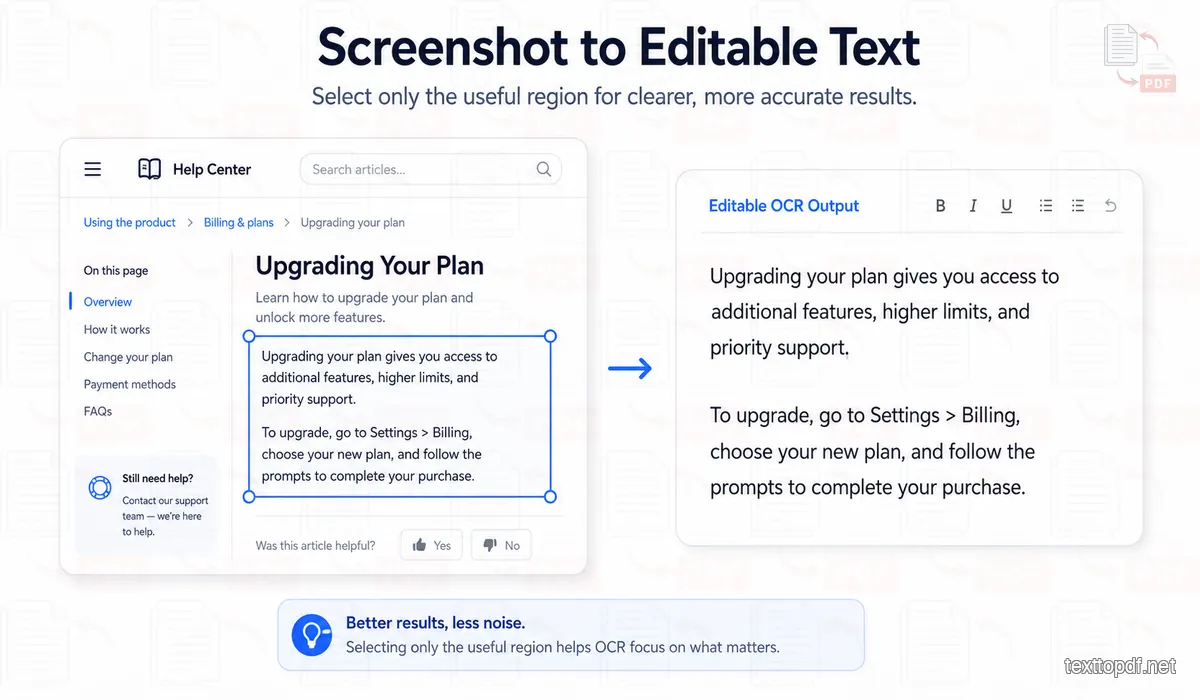
Full screenshots often contain much more text than the user actually wants. Browser menus, navigation labels, notification text, and unrelated interface elements can all enter the OCR result.
TextToPDF.net includes region selection for this reason. If the only useful information is an address in the middle of a screenshot, the recognition area can be limited to that part rather than processing the entire screen.
This does more than shorten the final output. Tesseract's own guidance recommends cropping images to a useful text area and choosing a page segmentation assumption that matches the content. Region selection therefore connects directly with the way the OCR engine itself approaches the page.
Receipt research gives another useful example. One published SROIE experiment reduced its character error substantially after the full receipt was divided into smaller regions, which shows how document layout can influence recognition even when the visible words remain the same.
Automatic Image Preparation for Difficult Sources
Some images are readable but not ideal for recognition. A faded photocopy may have weak contrast, while a compressed screenshot can leave rough edges around small characters. Uneven lighting can also make part of a photographed page much darker than the rest.
In Auto mode, TextToPDF.net can try the selected image area in its original form and then use grayscale or adaptive-threshold fallback passes when another representation may help. This automatic preparation happens inside the browser and does not turn into a separate accuracy promise.
Research supports the broader idea that preprocessing can have a large effect in difficult OCR conditions. One Tesseract 4.0 study cited in our research used 10,000 challenging images and reported substantial reductions in both CER and WER after an adaptive preprocessing pipeline.
That does not mean TextToPDF.net produces the same improvement. The algorithms and test material are different, which is why we do not attach another study's percentage to the product.
Automatic preparation is best treated as something to compare with the original result. A difficult receipt may improve, while a sharp screenshot may already contain everything OCR needs and gain little from additional processing.
Choose an OCR Mode That Matches the Layout
A paragraph and a tracking number do not have the same visual structure, yet an automatic OCR system has to make assumptions about both before it can separate the characters into lines and words.
TextToPDF.net exposes four recognition modes so the user can change that assumption when the layout makes it useful.
| OCR mode | Good fit | Example |
|---|---|---|
| Auto | General images where the structure is uncertain | Screenshot or document photo |
| Block | One connected section of text | Paragraph or note section |
| Line | One isolated row of text | Tracking number or label |
| Sparse | Separate words placed around an image | Interface or poster |
Auto is the sensible first attempt for ordinary files because it avoids unnecessary decisions. The other modes become useful when the image itself already tells you what kind of layout the engine should expect.
Tesseract provides several page segmentation modes for the same reason. OCR is not only a character-reading problem; the engine also has to decide how those characters are arranged across the image.
Real Examples: What to Expect From Different Images
Example 1: Screenshot
A screenshot with sharp, high-contrast text is often a good starting point. The main risk is not always character recognition; interface labels, buttons, and surrounding panels can be returned along with the paragraph you wanted. Select the useful region first when the screenshot contains several unrelated areas.
Example 2: Phone Photo of a Printed Page
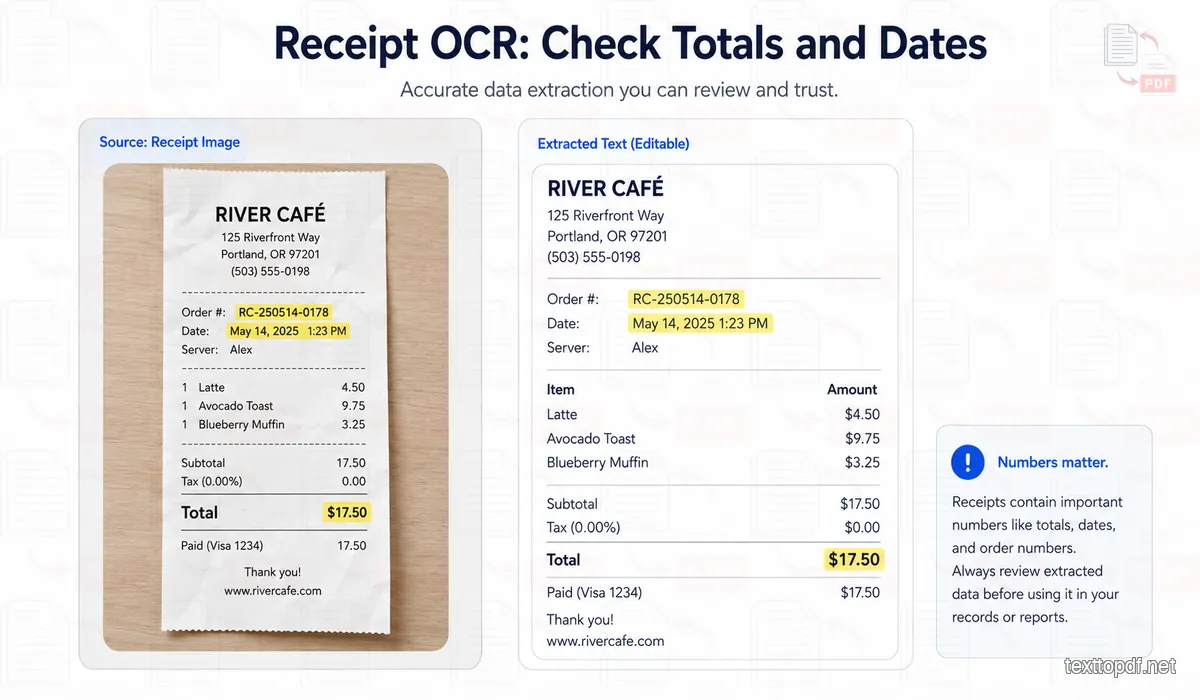
A phone photo can preserve enough detail for useful OCR, but blur, perspective, glare, and shadows can change individual characters. A straight, well-lit photo gives the browser more usable information than a heavily angled or compressed capture.
Example 3: Receipt
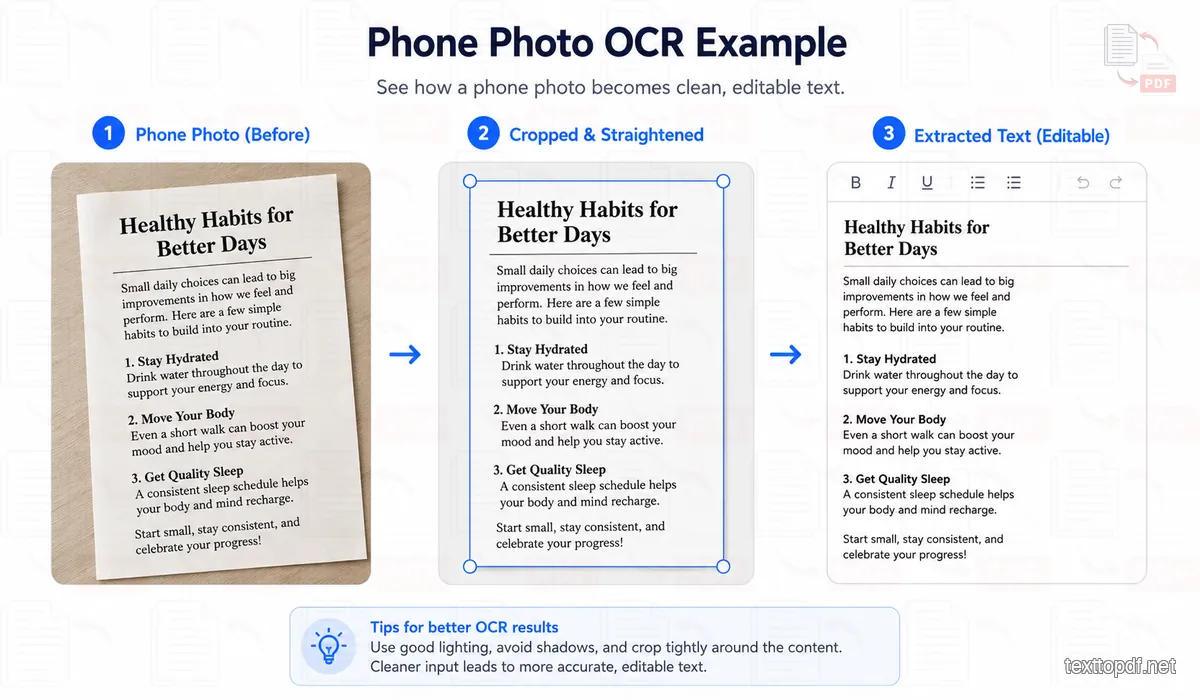
Receipts combine small type, dense spacing, abbreviations, and numbers. After extraction, compare totals, dates, order numbers, and product codes with the original image before relying on the text.
Screenshots Are Usually Clean, but the Layout Can Still Cause Problems
Screenshots often provide sharp text because there is no camera blur or paper texture involved. That advantage does not guarantee a perfect extraction, though, because interface screenshots can contain labels in several unrelated regions.
A social post may include the main caption, buttons, profile information, and recommendation text at the same time. OCR can recognise all of them successfully and still give you an inconvenient result because the words appear in an order you did not expect.
Region selection is especially useful in this situation. Instead of cleaning unnecessary UI wording from the extracted result afterward, you can restrict recognition to the paragraph or message that actually matters.
Phone Photos Introduce a Different Set of OCR Problems
A printed page may contain perfect typography, yet the photograph can add its own defects. Blur, shadow, glare, and perspective can alter the visible character shapes before the OCR engine receives them.
The Brno Mobile OCR benchmark makes this difference easy to see. Its official dataset contains phone photographs split into difficulty groups, and the published Tesseract performance changes sharply as image difficulty increases. That variation is one of the strongest reasons to improve the source photo before assuming the OCR tool itself has failed.
A new photograph can sometimes produce a better result than several attempts to repair a poor one. If the original page is still available, better lighting and a straighter angle may preserve character details that software cannot reconstruct afterward.
Receipts Need Extra Attention Around Numbers
Receipts combine small text with dense spacing, unusual abbreviations, and numerical values that do not always follow ordinary sentence patterns. Thermal printing can also fade over time, which makes some parts of the image much harder to recognise than others.
The SROIE benchmark was created specifically around receipt understanding and contains 1,000 scanned receipt images. Research on that dataset has shown that layout strategy can materially affect recognition performance, which is why receipts should not be treated as ordinary paragraphs.
For day-to-day use, totals and dates deserve the closest review. Order numbers and product codes are another good place to compare the OCR output with the image because one incorrect character can point to a completely different record.
Scanned Pages Can Range From Excellent to Very Difficult
“Scanned document” covers a surprisingly wide range of image quality.
A modern 300 DPI scan of a printed page may provide neat character edges and predictable line spacing. An old photocopy that has been scanned again can contain speckles, faded characters, warped margins, or dark page borders.
NIST studied this problem by examining how image degradation affected machine-print OCR and reported character error ranging from roughly 1% to 74% as quality deteriorated. The figures come from a specific historical experiment, but the wider lesson still applies: a scan is not automatically OCR-friendly just because it came from a scanner.
The original study is available through this NIST research on image quality and machine-print OCR.
Handwriting Should Be Treated More Carefully
Printed fonts repeat the same character shapes again and again. Handwriting does not.
Two people can write the same lowercase r in noticeably different ways, and even one person's writing can change with speed or pen angle. Cursive writing introduces another problem because neighbouring characters may join into shapes that do not resemble isolated letters.
Specialised handwriting-recognition systems can perform very well on research datasets such as IAM, but those results should not be presented as expected performance from browser Tesseract OCR. Our research found specialised systems reporting low CER figures on IAM, yet those systems were designed and trained for handwriting recognition rather than being equivalent to TextToPDF.net's current free OCR workflow.
TextToPDF.net can still recognise some handwritten material, particularly neat printed handwriting, but the result needs more scrutiny than ordinary computer-generated text.
Common OCR Errors Worth Checking Before You Use the Text
A long OCR result does not need a character-by-character inspection every time. Attention is better spent on places where one recognition mistake changes the meaning.
| OCR mistake | Example | Why it matters |
|---|---|---|
| Letter and digit confusion | O instead of 0 | Codes and identifiers can change |
| Narrow character confusion | I, l, or 1 | Names and reference strings may become wrong |
| Missing punctuation | 12.50 becomes 1250 | Values can change significantly |
| Broken word boundaries | One word becomes two | Search and reuse become harder |
A useful review habit is to compare names and numbers first. After that, check unusual words and any line where the extracted sentence does not make sense.
OCR-D's evaluation guidance uses Character Error Rate and Word Error Rate because OCR mistakes are not limited to wrong letters. Insertions and deletions also count, and a recognition system may even produce a WER above 100% when enough extra words are inserted relative to the reference text.
You can read the formal measurement approach in the OCR-D quality assurance documentation.
Our Practical OCR Workflow
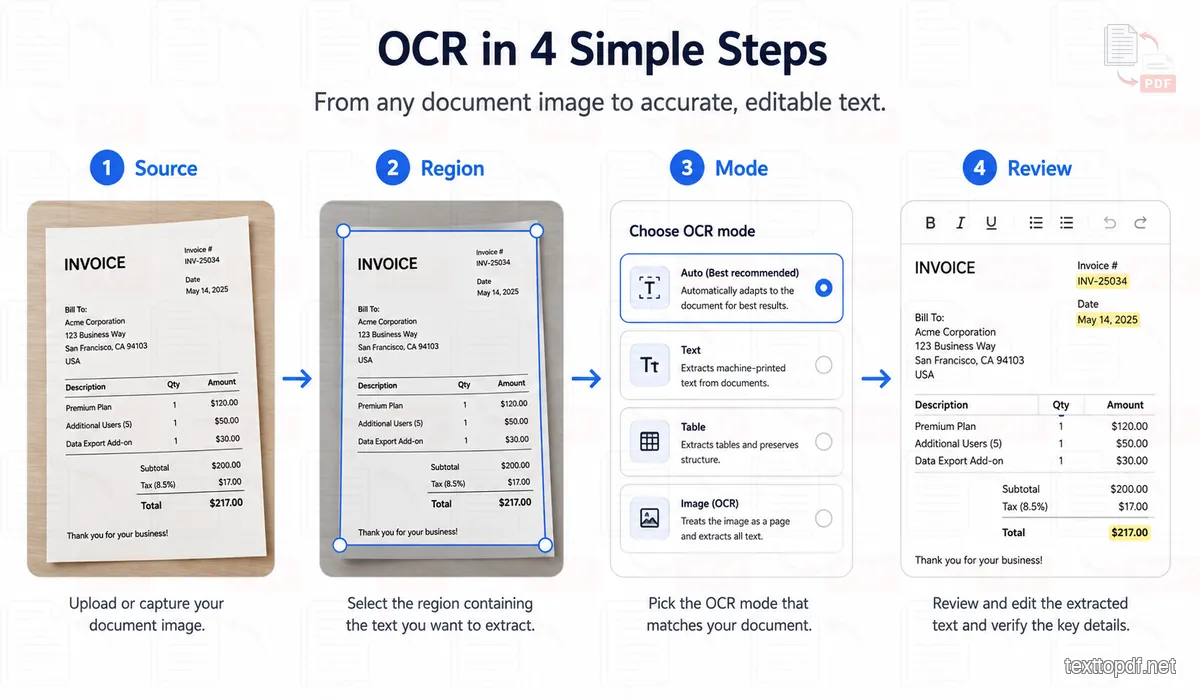
After working through the OCR research and the controls already available in TextToPDF.net, one practical workflow makes the process easier to remember:
Source → Region → Mode → Review
The source comes first because OCR cannot recover character detail that was never captured properly. A new photograph or a sharper screenshot can sometimes solve a problem before any settings are changed.
The region removes parts of the image that have nothing to do with the text you need. This is especially useful for screenshots, receipts, interface captures, and photographed pages with wide surroundings.
The mode tells the OCR engine what type of text arrangement it should expect. Auto is suitable for general material, while Block, Line, or Sparse can help when the structure is already obvious.
The review protects you from the final few mistakes that may remain even after a good extraction. Numbers and unusual words deserve extra attention because they are often the parts where context provides the least protection against an OCR error.
This is a practical TextToPDF workflow rather than a new OCR algorithm. The recognition engine still does the character work; the framework helps the user give that engine a more suitable input and check the output responsibly.
Image to Text and PDF to Text Solve Different Problems
The visual result can look similar on screen, but an image file and a digital PDF can store text in very different ways.
A normal PDF may already contain real characters behind the visible page. If you can highlight individual words inside the PDF, OCR is usually unnecessary because the existing text layer can be extracted directly.
For that situation, the PDF to Text converter is the appropriate workflow. It reads the available document text instead of trying to recognise the shape of every character again.
Scanned PDFs are different because each page may act like a photograph. If the words cannot be selected, this guide explains how to extract text from a scanned PDF and why OCR becomes necessary.
If you need the PDF pages as image files rather than editable words, the PDF to Images converter can render each page as a PNG or JPG. When several screenshots or photographed pages need to be collected into one document, the Image to PDF converter is a better fit because it keeps the images in page order without pretending they contain selectable text.
When Image to Text Is Not the Right Tool
Image OCR is useful when the words exist only as pixels, but it should not be forced into document problems that already have a better route.
A searchable PDF is one example because direct text extraction avoids the extra recognition step. A document that needs its original visual layout reconstructed is another, since OCR primarily gives you editable text rather than a pixel-perfect copy of the page design.
If the goal is to change a word, date, or label directly on a picture, use the Edit Text in Image tool. It works on the visible image rather than creating a separate text transcript.
The same distinction applies after extraction. If the objective changes from recovering words to creating a finished document, the cleaned text can be moved into the Text to PDF converter where headings, spacing, page layout, and document settings can be handled before export.
Choosing the right workflow saves correction work because each tool starts from the information the source file actually contains.
Privacy in the Free Browser OCR Workflow
Images can contain private material, so it is worth knowing where recognition happens rather than treating privacy as a generic checkbox.
The current free Image to Text workflow in TextToPDF.net uses Tesseract.js for OCR inside the browser. That approach keeps normal recognition on the user's device rather than sending every image through a separate remote OCR engine.
Browser OCR still uses your device's memory and processing resources. Large images or batches can therefore behave differently across devices, which is one trade-off of doing recognition locally.
Any premium workflow that uses a different processing path should be described separately rather than being grouped under the browser OCR explanation. TextToPDF.net keeps those distinctions important because a privacy statement is only useful when it matches the workflow that is actually running.
Frequently Asked Questions
How accurate is an image to text converter?
There is no single OCR accuracy percentage that applies to every image. Published research shows large differences between clean printed material and difficult phone photographs, while blur, page angle, noise, and layout can change the result further. Important names and numbers should therefore be checked against the original image.
Can I extract text from a screenshot?
Yes. Screenshots often provide sharp characters, although interface text around the main content can enter the result as well. TextToPDF.net's region selector can limit recognition to the part of the screenshot that contains the text you actually need.
Can I convert a phone photo into editable text?
A phone photograph can be processed through OCR as long as the text is readable enough for the engine to distinguish the characters. A straighter photo with good lighting generally gives the OCR engine more usable information than one affected by blur or strong perspective.
Does 300 DPI always improve OCR?
Tesseract recommends roughly 300 DPI or higher where practical for document images, but that does not mean assigning a larger DPI value automatically repairs a poor source. If the original capture has already lost character detail, artificial enlargement cannot restore strokes that were never recorded.
Does automatic image preparation always give a better result?
No. Image preparation can help difficult sources, yet a sharp screenshot may already contain suitable character detail. The better approach is to compare the normal result with automatic image preparation when the source contains noise, uneven contrast, or similar problems.
Can Image to Text recognise handwriting?
Some neat handwriting can be recognised, but the result is less predictable than ordinary printed text. Cursive writing and unusual letter shapes deserve a careful comparison with the source because specialised handwriting systems are different from the browser OCR workflow used here.
Why does OCR confuse numbers with letters?
Characters such as 0 and O, or 1 and I, can become visually similar after compression or blur. The surrounding sentence may help a person notice the error, but reference numbers and codes often provide less context, which is why those values should receive extra attention.
Should I use Image to Text for a PDF?
Use Image to Text when the source is an image file. If a PDF already lets you select individual words, PDF to Text converter can read the existing text layer without running OCR across every character. Scanned PDFs need an OCR workflow because their pages usually contain images rather than selectable text.
Final Note
OCR works best when the image gives the engine a fair chance to recognise what is actually there. A sharp source with a sensible recognition area can produce useful text quickly, while a degraded photo may still need correction no matter how many settings are changed.
That is why TextToPDF.net does not need to present Image to Text as a magic one-click transcription system. Region selection, OCR modes, automatic image preparation, and editable output give you ways to deal with different image conditions while keeping the final review in your hands.
The most reliable workflow is practical rather than complicated: start with the best source available, remove unrelated parts of the image, choose a mode when the layout calls for it, and compare important details with the original. Once the text is trustworthy, it is ready to copy, edit, save, or move into the next document workflow.