
Change Existing Text Without Recreating the Image
Another scene is that a poster may contain a wrong date even though the rest of the design is ready. An app screenshot may contain an old button label after a product update. Recreating the full image for one small correction takes time, especially when the original editable file is unavailable.
The image text editor on TextToPDF.net detects words that already appear inside the uploaded picture. You can select the required area, type the replacement and adjust its position while keeping the remaining design intact. The editor works with a single letter, a complete word, a full line and a larger paragraph area.
This lets you change text in an image online while keeping the useful parts of the original design. You can correct one word or rewrite a larger section without needing the editable source file.
Many photo text editors only place a new text box over the old wording. That approach will leave the original letters visible or create an obvious patch. This tool attempts to remove the previous text area and rebuild the background before placing the replacement.
How to Edit Text in an Image Online
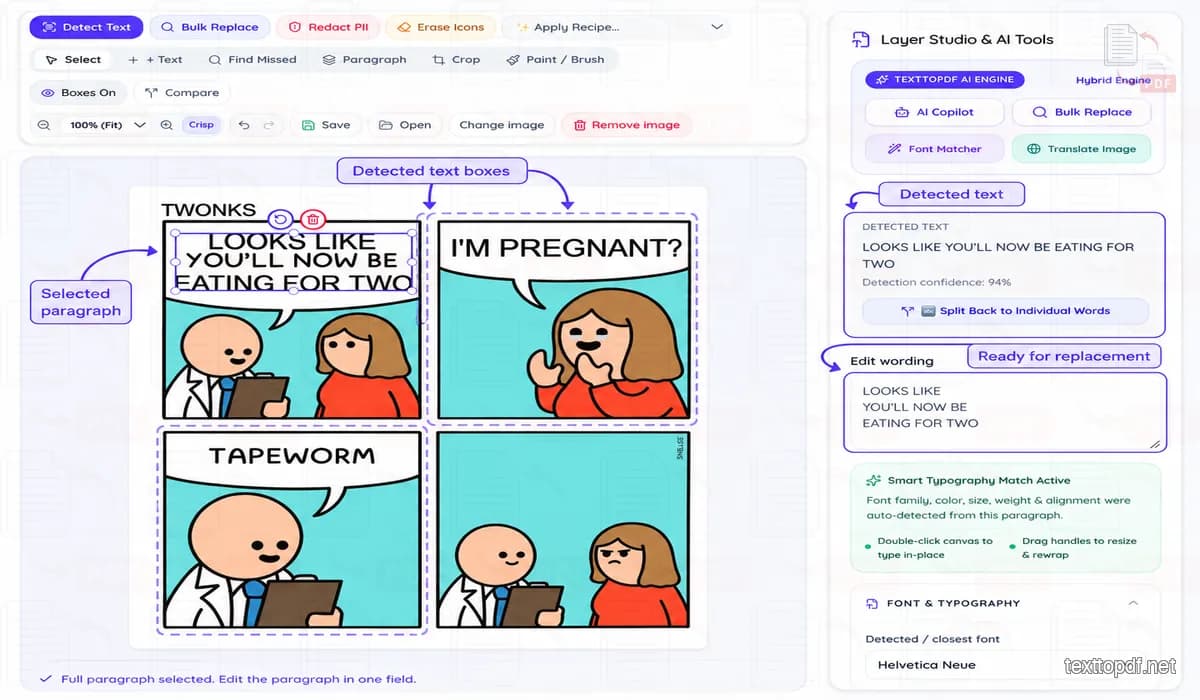
The image text editor online starts its scan after you upload a file. It examines the visible letters and marks the areas it can recognise, which gives you selectable regions for direct editing.
Once the area is selected, enter the replacement and check how it sits inside the picture. The font, colour, spacing and alignment controls help when the automatic suggestion does not match the surrounding design closely enough. The position can also be adjusted when the new sentence takes more space than the original wording.
The Before / After view option gives you the option to compare the edited version with the source image. Once the text position and repaired background look suitable, the image can be exported in the required format.
What People Actually Find Difficult About Image Text Editing
People who are normally searching for an image text editor are not only looking for a way to place a caption over a photo. In public design discussions, users are repeatedly asking for a method or tool to replace existing words while keeping the original font style, spacing, colour and background. Some users describe the manual process as cutting out the old letters and adding new text, but they later find that the spacing and style is not matching properly (Reddit Discussion).
Background repair is another repeated problem. Users working in GIMP and similar editors are commonly advised to cover the original words with a sampled colour or use a clone tool before placing new text. That method may work over a flat background, but it takes more effort when the text crosses a pattern or another object (GIMP Reddit Discussion).
These problems shaped the controls inside this editor. Text detection reduces manual selection work, while background reconstruction handles the area behind the old wording. Letter spacing, line height, font choice and text position remain adjustable because automatic matching cannot solve every image in the same way.
Detect a Letter, Word, Line or Paragraph
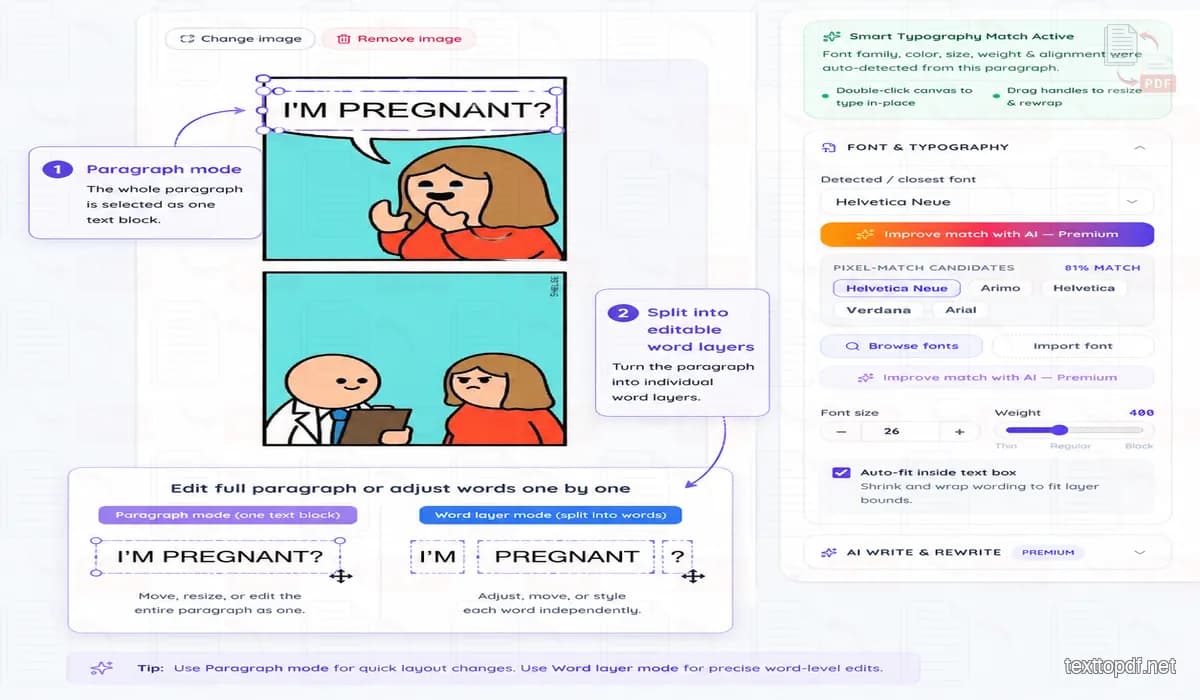
Text inside a JPG or screenshot is not stored as a normal editable layer. It has already become part of the image pixels, so the editor first needs to identify the characters and their position. Recognised areas appear inside selectable boxes that show where an edit can be made.
A detected paragraph can stay as one multi-line block when you want to rewrite the full sentence and keep natural text reflow. You can also split that paragraph into separate word layers with one click. This gives you direct control over a single word without forcing you to recreate the complete paragraph.
You can also edit text from a picture as one multi-line paragraph or separate it into individual word layers. The paragraph mode helps with a complete rewrite, while word selection works properly when only a date or short label needs correction.
The toolbar provides several selection options because the layout of each image is different. Detect text again runs another scan, while Find missed text helps when a word was not identified during the first attempt. Select paragraph area is suitable for longer content, and Hide boxes removes the visual guides when you want to inspect the result.
Direct canvas selection also helps when a paragraph contains one incorrect word. You can click that word inside the paragraph, edit it separately and leave the remaining text unchanged. This is useful for dates, prices, labels and short spelling corrections.
OCR is the technology that reads visible characters from an image. Google Cloud separates normal text detection from document text detection because scattered words and dense documents require different processing approaches. You can read the technical explanation in this official OCR text detection guide.
Replace Text Without Leaving an Obvious Patch
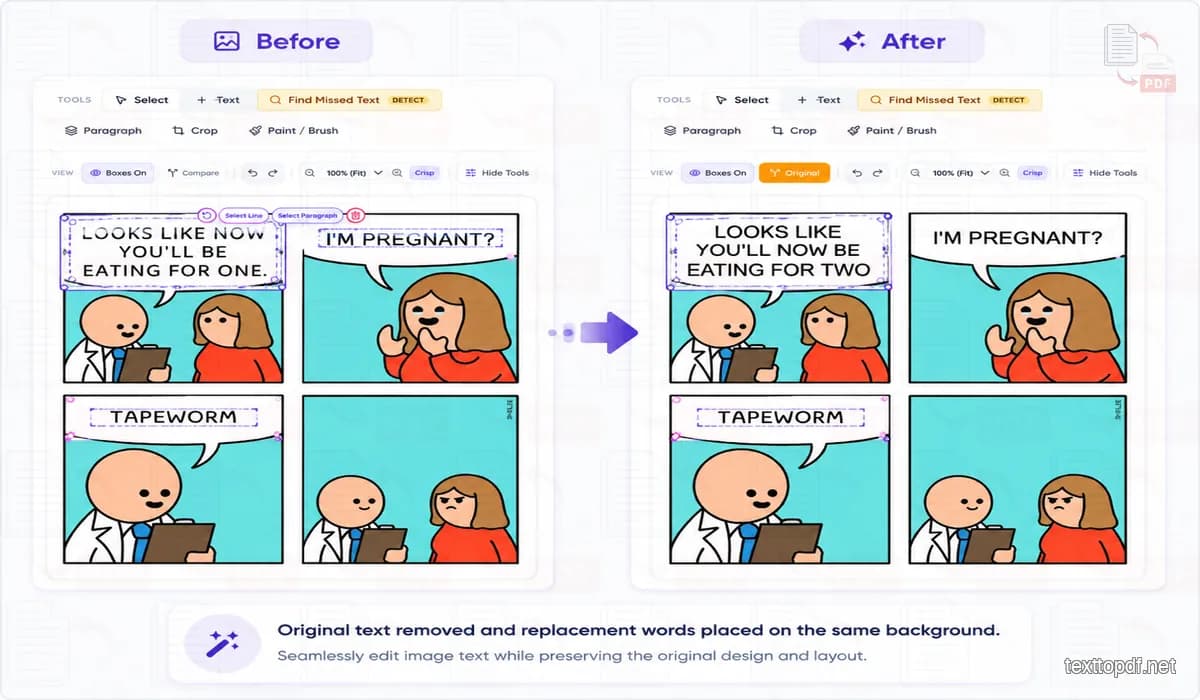
A text replacement involves more than typing over the old letters. The editor first attempts to reconstruct the area where the original wording appeared. The new text is placed only after that space has been prepared.
This process helps when you need to edit text on an image without placing a solid rectangle over the old wording. The editor prepares the selected background first and then adds the replacement inside that area.
A flat wall or plain colour is normally very simple to reconstruct than a patterned poster. Text placed across a product or another detailed object may require some manual correction because the missing area contains both structure and texture.
Image inpainting research also treats structure and texture as two important parts of reconstruction quality. A repeating pattern and an object boundary require different visual information, which explains why a flat background may produce a neater first result than a detailed scene (arXiv Inpainting Research).
Why We Do Not Show One Universal Accuracy Percentage
A single accuracy claim would not represent every image fairly. Text recognition changes with letter size, compression, contrast and image dimensions. Background reconstruction also changes when the text overlaps a pattern or another object.
Google Cloud notes that images must be large enough for important features to remain distinguishable. Its documentation also explains that smaller images may reduce recognition accuracy, while very large files may increase processing time without a matching improvement (Google Cloud Vision Documentation).
For this reason, TextToPDF.net does not describe the editor as perfectly accurate for every upload. The page explains the conditions that affect the result and gives you manual controls when the first output needs correction. This approach is more useful than displaying one percentage without explaining how it was measured.
Match the Replacement Text to the Original Design
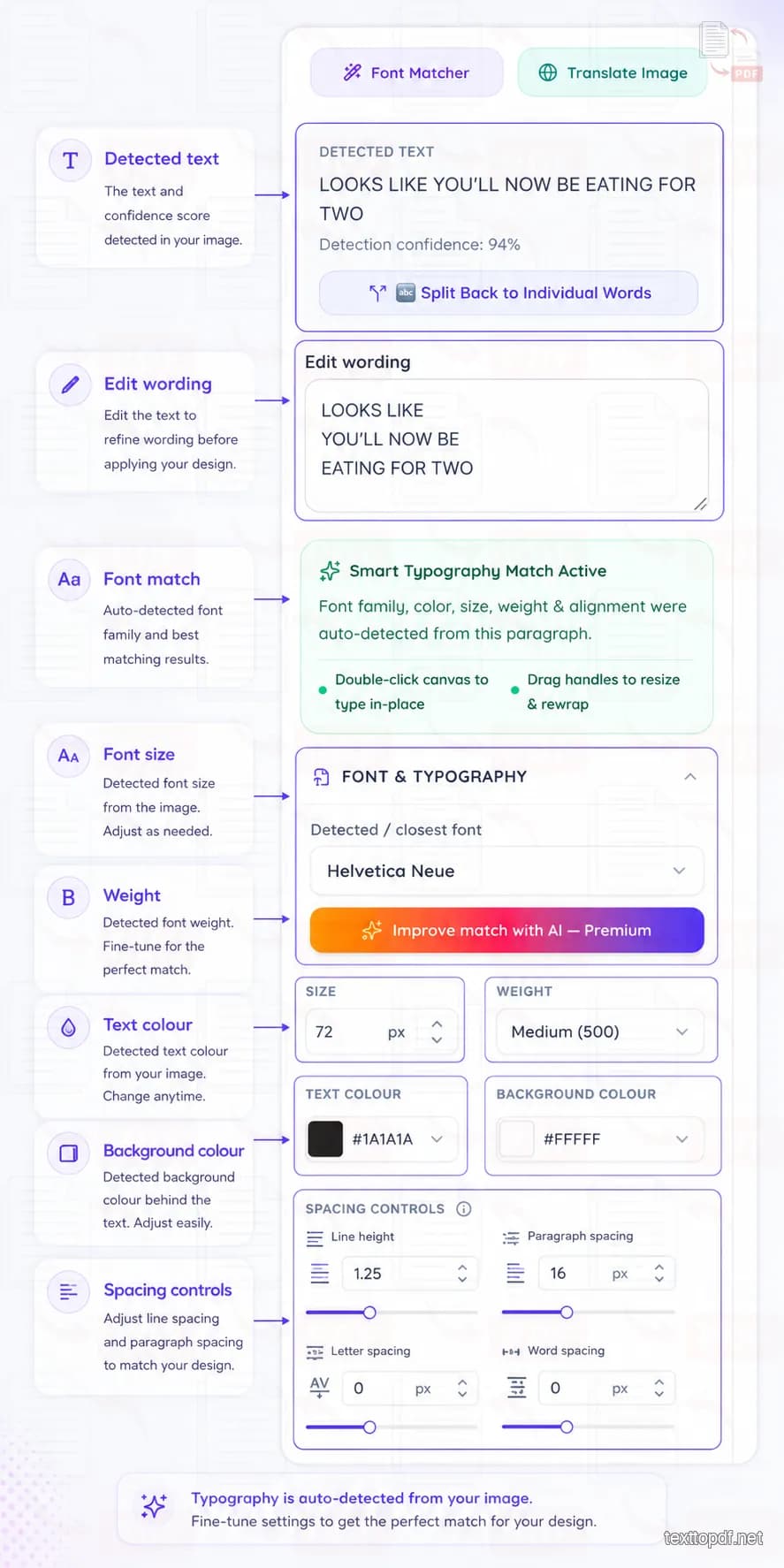
A replacement can use the correct words and still look out of place when the font width or spacing does not match the original. The editor examines the detected text area and estimates its font family, size, weight and colour. It also checks line height and letter spacing so the first result starts closer to the surrounding design.
The background colour is sampled separately because text may sit over a white card, a coloured panel or a darker photograph. This gives the editor more information when it prepares the area behind the original wording.
You can keep the automatic suggestion or adjust it manually. System fonts and custom TTF or OTF files are supported, while the colour picker and eyedropper help you match a shade already present inside the image. The text alignment, letter spacing and line height are easily editable when the replacement takes more space than the original sentence.
You should treat the automatic result as a perfect starting point instead of just thinking it as a guaranteed exact copy detection. It is because the decorative lettering, modified brand fonts and unique typography designs may not have a perfect public equivalent, so manual controls are always important.
Improve the Typography Match With AI
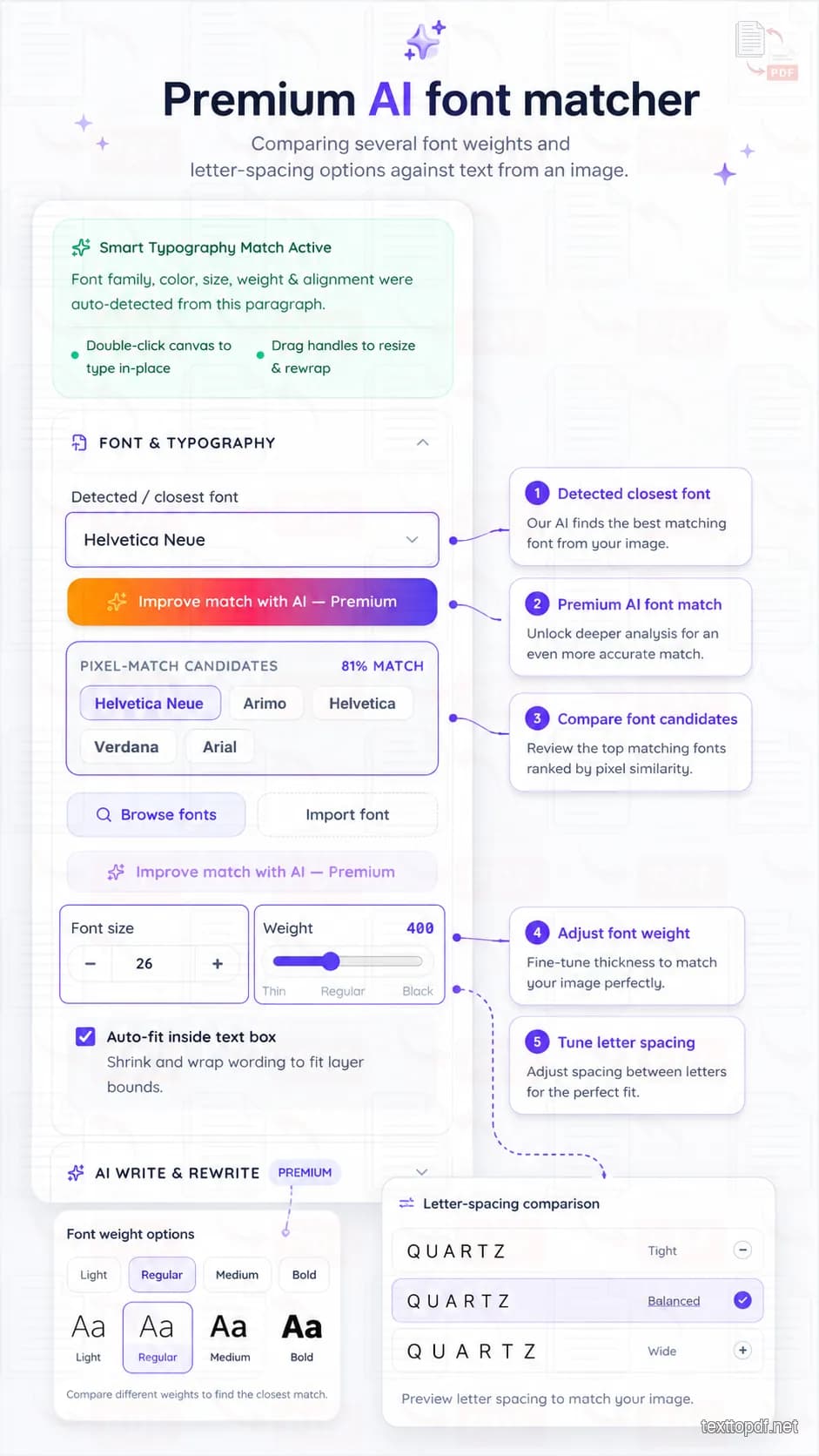
The standard typography match gives you an instant result, while Improve Match with AI performs a strong visual check. It crops the selected text area and compares the visible letter shapes across several font weights and spacing values.
The scan checks weights from 300 to 800 because two versions of the same font family can look very different inside an image. It also tests letter spacing across several passes, which helps when a replacement starts in the correct place but slowly moves away from the original width.
When the closest font is not already available inside the editor, the system can load a matching web font and apply it to the selected text. You can still review the result and make a manual change because unusual lettering or customised brand fonts may not have an exact public match.
The premium matcher performs a detailed font and spacing scan to find a closer visual match for difficult text.
Add a New Text Box Anywhere on the Image
In real-life scenarios, it is not that every edit needs a edit in the words that already exist in the image. Sometimes a picture need a new heading or label in an empty area. The Add text box control places fresh content anywhere on the canvas.
Existing-text replacement and new-text insertion solve different tasks. The first changes wording that is already part of the picture. The second creates a new text layer without requiring OCR detection.
This difference is important when you edit text in a photo. A spelling correction should use the detected text area, while a new caption should use a separate text box.
Ask TextToPDF AI to Make the Edit
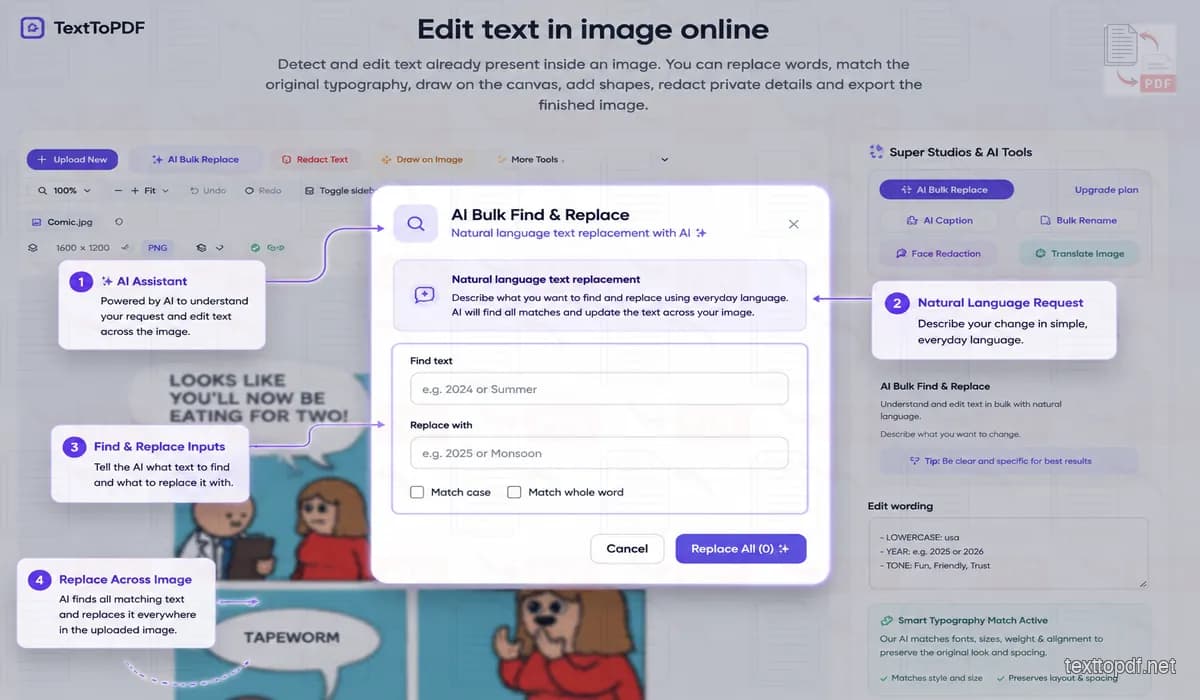
Some users know what needs to change but do not want to search through every editing control. TextToPDF AI provides an Easy Mode where you can describe the change in normal language.
A request can be as direct as:
Change “2024” to “2025” everywhere in the image.
Straight text replacements are handled immediately when the instruction can be completed through local find and replace. More complicated requests can use the AI assistant when they require interpretation rather than a direct word swap.
The assistant should show which text areas it plans to change before applying a wider edit. This review step is important because the same word may appear in a heading, paragraph and footer for different reasons.
Suggested example prompts:
- Change “Summer Sale” to “Monsoon Sale”
- Replace every “2024” with “2025”
- Make the main heading bold and dark blue
- Add a red arrow pointing to the selected button
Draw and Add Shapes Directly on the Canvas
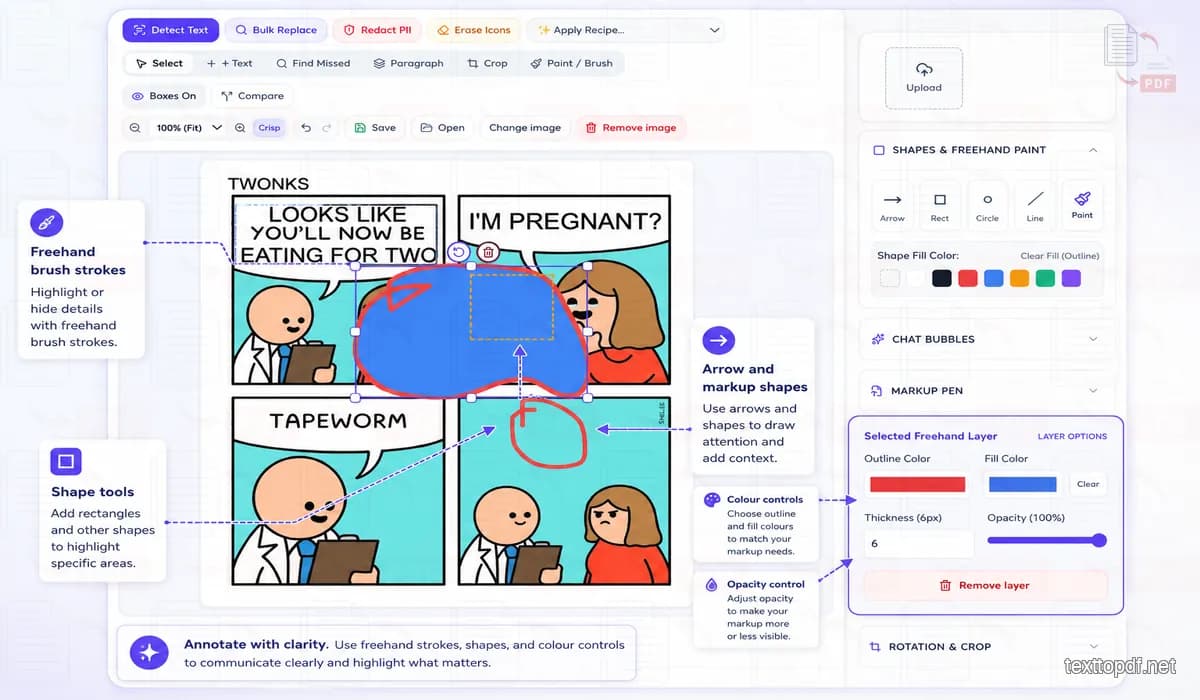
The editor also includes freehand drawing tools for notes, highlights and quick visual corrections. You can adjust the brush size from 1px to 40px, while the opacity control ranges from 10% to 100%. This allows a small pointer mark or a wider semi-transparent highlight without opening another application.
Shapes provide a clean option when the image needs structured markup. You can add arrows and lines or place rectangles and circles around an important area. Chat bubbles and markup pins are also available for tutorials, product feedback and screenshot explanations.
Each shape is easily editable after placement. The Layer Inspector lets you change the stroke colour and fill colour, while thickness and opacity can be adjusted without deleting the object. A shape can use a solid fill, a semi-transparent fill or an outline with a clear centre.
Redact Private Information Before Sharing
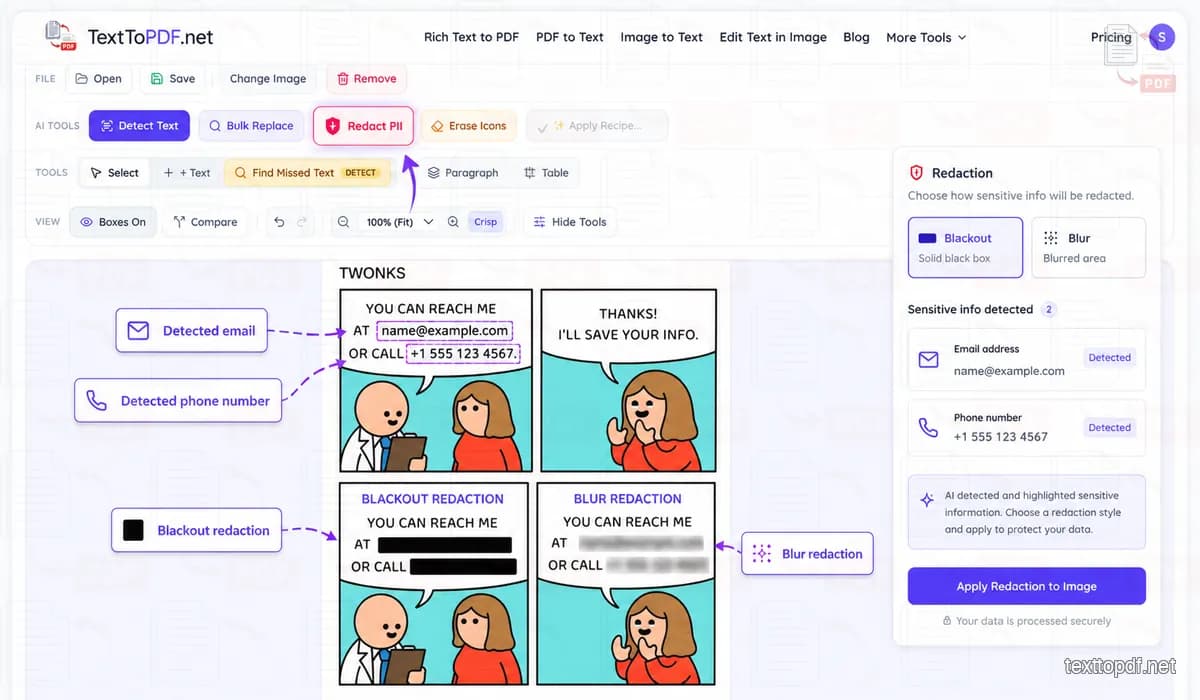
Screenshots and document images can contain details that should not be shared publicly. The redaction tool scans the visible text for common sensitive patterns such as email addresses and phone numbers. It can also look for card numbers and government identification numbers.
Detected areas can be covered with a solid blackout bar or a blur effect. You can review every suggestion before applying it because sensitive information does not always follow one standard format.
Automatic redaction should not replace a final manual check. A phone number written with unusual spacing or a partially hidden email address may not match the expected pattern. The editor therefore allows manual redaction through the brush and shape tools when the scan misses something.
Crop and Adjust the Image Before Export
The full image sometimes need attention after the wording has been corrected. The crop tool supports freeform resizing and preset ratios for square, landscape, portrait and story telling type of images.
Rotation and crop shapes give you control over the final frame. Brightness, contrast, sharpness and blur can also be adjusted when the source image needs a small visual correction.
These extra tools save you from opening another editor just for small changes. You can crop or adjust the image when needed, while the main job stays focused on changing the existing text without disturbing the rest of the picture.
Compare Every Change Before Saving
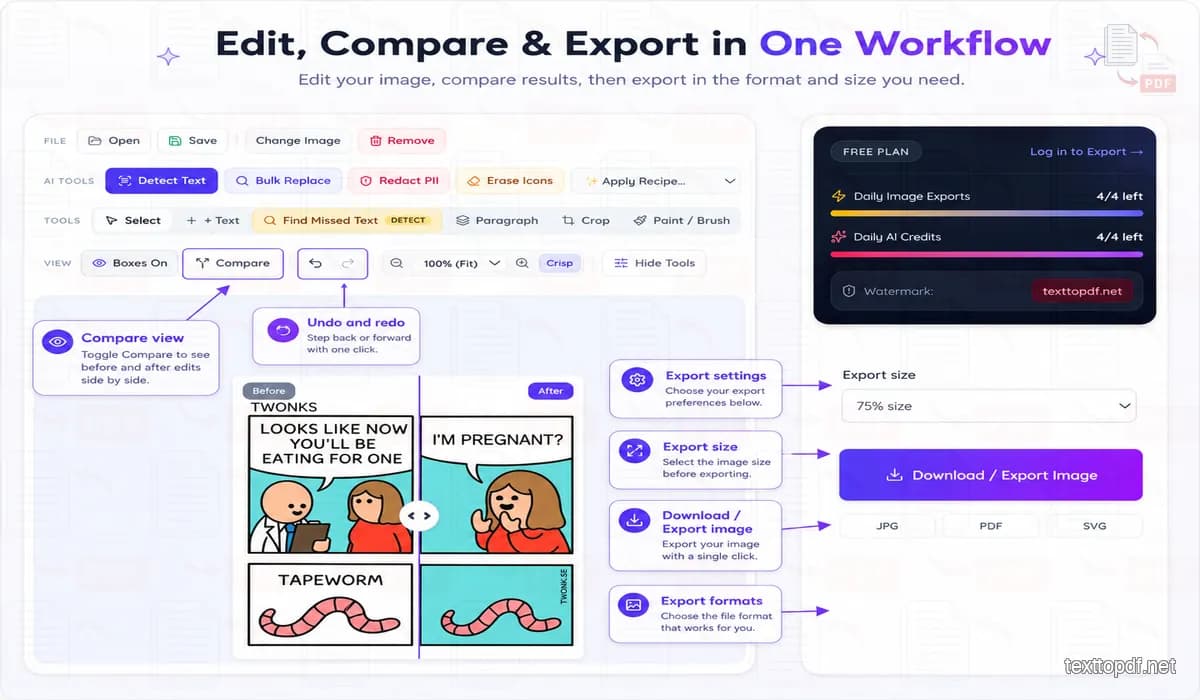
Small changes may look correct at normal zoom but reveal alignment problems during closer inspection. The Before / After mode shows both states, while Compare (Hold) temporarily displays the original image without removing the edit.
Undo and Redo apply across supported editor actions including text changes, crop settings, rotation and image adjustments. Zoom controls help when the replacement contains small letters that require closer inspection.
You can save the project and return to it later instead of starting again from the beginning. If you are signed in, your saved projects and export limits stay connected to your account. A recent session may also come back after a page refresh, but that browser copy can disappear if you clear your site data, so it is better not to depend on it as your only backup.
Edit Text in JPG, JPEG and PNG Images
JPG, JPEG and PNG files store their visible wording as part of the image pixels rather than as separate text layers. The editor uses text detection and background reconstruction so you can edit text in JPG or edit text in JPEG images without access to the original design file. PNG screenshots can be handled through the same workflow.
Choose the Format and Quality Before Export
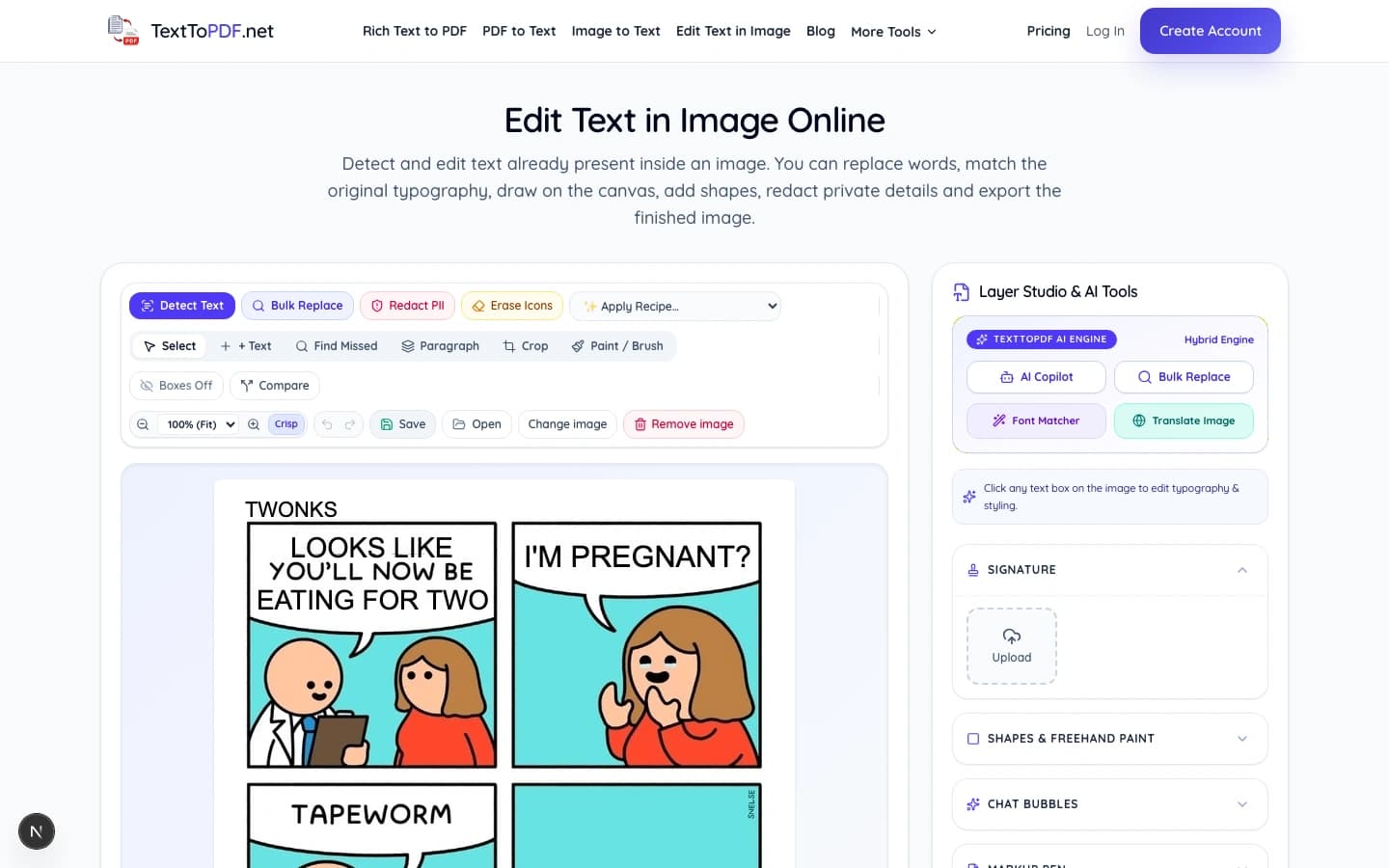
When the edit is ready, you can choose PNG, JPG, PDF or SVG from the export window. PNG works well for screenshots and designs where small text needs to stay sharp, while JPG is a better fit for photos when you want a smaller file. PDF is useful when you want to share the finished image as a document.
SVG is useful when you want the text and shapes you added in the editor to stay sharp at different sizes. The original photo or screenshot still remains an image inside the SVG, so exporting it this way does not turn the entire picture into a fully vector file.
A live quality slider lets you adjust the output from 10% to 100%. The estimated file size updates as the quality changes, which helps you balance image detail and upload size before downloading the file. The final number remains an estimate because compression can vary between different images.
Free accounts receive 5 image exports per day: the first 3 are clean and exports 4–5 include a repeated diagonal TextToPDF.net watermark. Lite, Pro and API plans include unlimited local exports without the watermark.
Sign In to Keep Projects and Export Access Together
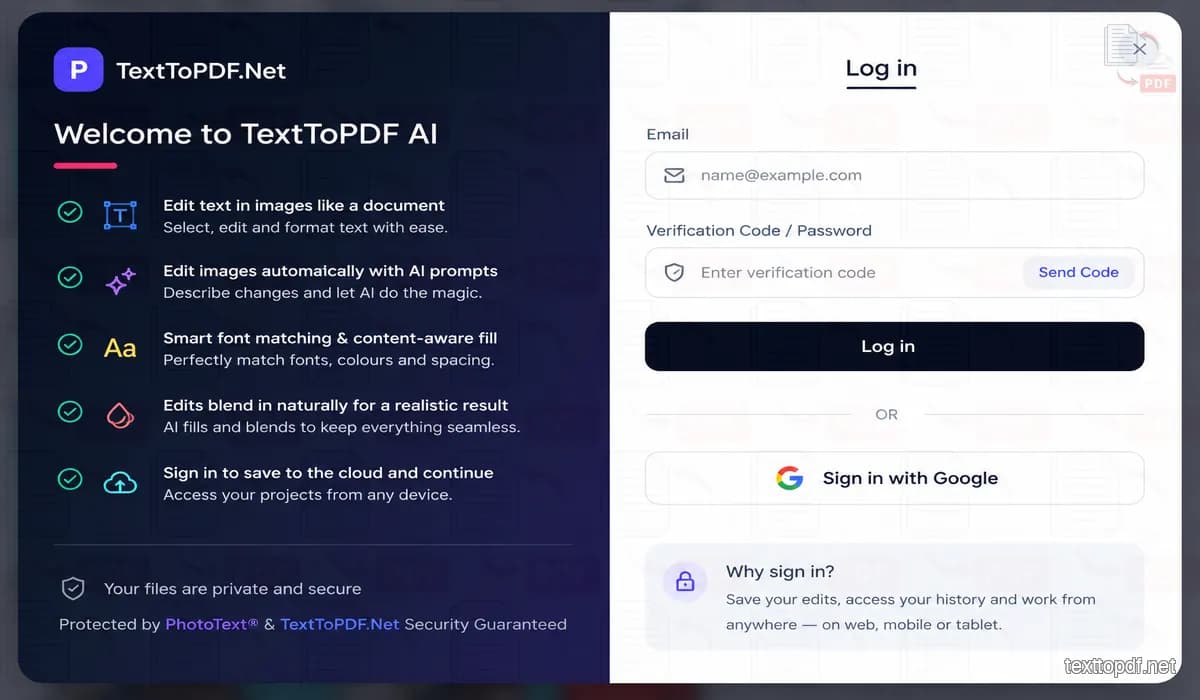
You can use the editor without opening a complicated account setup before the first edit. Sign-in step is useful when you want to connect saved projects, export limits and Pro access across sessions.
The authentication dialog supports email OTP and Google sign-in. Email OTP removes the need to create another password, while Google sign-in provides a faster option for users who prefer an existing account.
The left side of the sign-in dialog lists the features available after authentication, keeping your sessions connected across devices.
When the Result May Need Manual Adjustment
The result can change from one image to another because the editor can only work with the details that are actually visible. A sharp screenshot with dark text on a plain background is usually much easier to handle than a heavily compressed image with decorative lettering.
| Image condition | What may happen | Useful adjustment |
|---|---|---|
| Small or blurred letters | Part of the text may be missed | Use Find missed text or mark the paragraph area |
| Decorative lettering | The first font suggestion may differ | Run Improve Match with AI or upload the font |
| Detailed background | The repaired area may look uneven | Refine the selected region before another repair |
| Text over an object | Nearby details may be affected | Adjust the mask and compare the result closely |
The best source file is normally the version with the most readable letters. A larger image does not guarantee a perfect result, but heavy compression gives the detector less detail to examine.
Where an Image Text Editor Can Help
A picture text editor can help when the wording needs correction but the remaining image is still usable. This is more important when you need to edit text in a picture and no longer have access to the original design project.
| Situation | Practical use |
|---|---|
| Marketing graphic | Correct a spelling mistake without rebuilding the design |
| App screenshot | Use the screenshot text editor to update a heading or interface label after a product change |
| Product visual | Revise wording inside an image owned by your business |
| Social media image | Change a date or short message before reposting |
The tool should be used only for images that you own or have permission to edit. It should not be used to alter identity documents, payment proofs or records in a way that may mislead another person.
Image Text Editor or Image to Text?
These tools may accept similar source images, but they produce different results.
| You want to | Suitable tool |
|---|---|
| Change visible words while keeping the picture | Edit Text in Image |
| Extract words as separate editable content | Image to Text |
| Place a new caption in an empty area | Add Text Box |
| Extract words from scanned PDF pages | Scanned PDF to Text |
Use the image editor when you want to edit text from an image while keeping the picture. Use Image to Text when you only want the detected words as separate editable content.
When you only need the written content without changing the picture, the Image to Text tool extracts the visible words into editable text.
A scanned PDF requires another workflow because each page may behave like an image. That process is explained in this guide to extracting text from a scanned PDF.
How Your Image and Project Are Handled
Images can contain private business material and personal information, so the page should explain which actions happen locally and which require server or AI processing. Direct canvas edits and simple text replacement run inside the browser, while premium matching or complex AI requests may need remote processing.
Project recovery keeps editing information inside browser storage. That local copy can help after a refresh, but clearing browser data may remove it. Signed-in projects follow the storage period described in the account and privacy information.
AI redaction can locate common sensitive patterns, but the user should still inspect the full image before sharing it. Automatic detection may miss details written in an unusual format.
You can review the current handling process on the TextToPDF.net Security and Privacy page.
Frequently Asked Questions
Can I edit text that already exists inside an image?
Yes. The editor detects visible words and places selectable boxes over recognised areas. You can choose a letter, word, line or paragraph and replace the existing wording.
Can I edit text in an image without Photoshop?
Yes. For normal corrections, the browser tool works as an alternative to photo text editing software because it can detect and replace existing words, then adjust the typography and surrounding background. You do not need to install a desktop program for a basic image-text change.
Can I change text in a screenshot?
Yes. Interface screenshots often work well because their text usually sits over flat panels. Very small letters and heavy compression may still affect detection.
How does the editor match the original font?
The standard matcher estimates the font family, size, weight and spacing from the selected image area. Improve Match with AI performs a deeper comparison across several weights and spacing values when the first result needs a closer match.
Can I add completely new text?
Yes. The Add text box control places new wording anywhere on the canvas. This option does not require an existing text area.
Why was part of the text not detected?
Small characters, decorative fonts and low contrast can make detection difficult. The Find missed text and Select paragraph area controls let you mark the required region manually.
Which formats and quality levels can I export?
The export dialog supports PNG, JPG, PDF and SVG. You can adjust the quality from 10% to 100% and review the estimated file size before download.
Can TextToPDF AI replace the same word everywhere?
Yes. A request such as "Change 2024 to 2025 everywhere" can locate matching text and prepare the replacements. Review the selected areas before applying the change because the same word may appear in different contexts.
Can the editor redact private information?
The redaction scan can identify common patterns such as email addresses, phone numbers and card numbers. You should still review the complete image because an unusual format may require manual blackout or blur.
Will the exported image contain a watermark?
Free accounts receive 5 image exports per day: the first 3 are clean and exports 4–5 include a subtle TextToPDF.net watermark. Lite, Pro and API plans include unlimited local exports without the watermark.
Is this a photo text editor online or only a text-replacement tool?
It works as a photo text editor online for existing-text replacement, new text boxes, drawing and image adjustments. Its main strength is changing words that are already part of an image while keeping the surrounding design.
Edit the Text Without Rebuilding the Image
A small correction should not require recreating an entire screenshot or poster. Upload the image and select the text you want to change. You can then match its typography, ask TextToPDF AI for help or add your own drawings and redactions before export.