
After a meeting or interview, the transcript might look ready to use when you skim through it. The real problem usually appears later, when you copy an important detail into another document and notice that the recording says ₹18,450 while the transcript shows ₹18,540. A surname can cause the same trouble if speech recognition replaces it with a familiar-sounding word and the surrounding sentence still reads normally. For that reason, the useful question is not whether most of the transcript looks right, but whether the names, figures, and other details you plan to reuse actually match the recording.
The Audio to Text converter on TextToPDF.net keeps the original recording close to the editable result for that reason. When timing information is available, each transcript section can take you back to the matching part of the audio, so a questionable word does not have to be judged from the transcript alone. The result can be corrected before it moves into notes, subtitles, or a document.
MP3 to text is one common use for the tool, but the uploader also accepts WAV, M4A and AAC. OGG, WebM, MP4 and MPEG are supported as well, along with FLAC, and the current upload limit is 25MB. The finished transcript can be copied or exported as TXT, while SRT, VTT and a timestamped PDF are available when the timing needs to travel with the text.
From a Recording to a Transcript You Can Actually Check
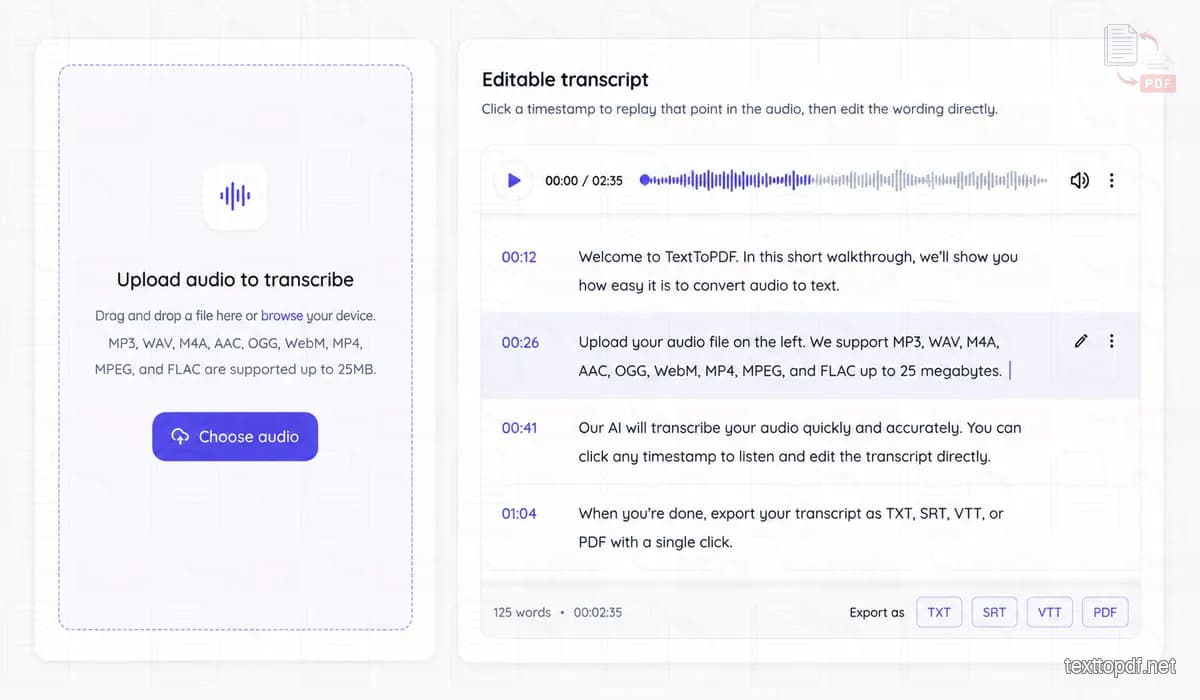
A recording is easy to keep and surprisingly awkward to search. A useful quote can sit twenty minutes into an interview, while one sentence from a voice note may require repeated scrubbing before the exact wording is found. Audio transcription changes that search problem because the spoken content becomes something you can read, edit and revisit beside the original recording.
TextToPDF.net keeps the audio to text transcription editable rather than returning the result as a locked block of text. When segment timing comes back with the transcription response, the timestamp beside a section can replay that point in the recording. A name or numerical detail can then be corrected where it appears instead of forcing the entire audio file through another listening pass.
The custom-terms field adds another useful checkpoint before transcription. The current tool accepts a short list of names, brands, locations and specialist words that may occur in the recording, which gives the recognition process extra context for terms that are easy to mishear. The list works best as context for the recording rather than as a place to paste large pieces of transcript text.
1. Upload audio
Choose an audio recording, or upload a supported video file when you need to turn its spoken audio into text. The original file stays available in the player while you work.
2. Add context
Select the spoken language when you know it and add concise custom terms for important names or unusual words.
3. Review and edit
Replay a marked section from the transcript, then adjust its wording before any download is created.
4. Export the format you need
Copy the text, save a TXT file, create subtitles in SRT or VTT, or download a simple timestamped PDF.
How TextToPDF Audio to Text Works
The process starts with the file you already have, whether that is an audio recording or a supported video with spoken audio. After you select the file, TextToPDF prepares the audio in your browser and sends it to the transcription worker. When timing information comes back with the result, the transcript is divided into sections with timestamps instead of appearing as one long block of text.
The recording stays beside the transcript while you work. If a name, amount, date, or phrase looks wrong, you can click its timestamp and listen to that part again rather than search through the whole recording. The wording can then be corrected directly in the transcript before anything is downloaded.
Once you have checked the parts you need, you can copy the transcript or export it as TXT, SRT, VTT, or a timestamped PDF. TXT works well when the text will be edited elsewhere, while SRT and VTT are useful when timing needs to stay with the spoken content. The PDF option gives you a document copy when you want the transcript and timestamps together.
What Makes This Audio to Text Tool Different
Getting words out of a recording is only part of transcription. The awkward part often comes afterward, when one sentence looks questionable and you have to find the exact moment in a long audio file to check what was actually said. TextToPDF keeps the recording and editable transcript together, so a timestamp can take you back to the relevant part without sending you through the audio from the start.
You can also give the transcription some context before it runs by adding important custom terms. This is useful for an unusual surname, a local place name, a product name, or specialist vocabulary that could otherwise be mistaken for a more familiar word. After transcription, the same workspace lets you correct the result and move it into text, subtitle, or document formats without rebuilding the transcript somewhere else.
That workflow does not mean every word will always be recognised correctly, and speaker identification is not automatically added to every recording. The point is to make mistakes easier to find and correct while the original audio is still available. That becomes especially useful when one wrong figure or name can change what you take away from an otherwise accurate transcript.
A Transcript Can Look Good and Still Contain the Wrong Detail
The mistake that changes the usefulness of a transcript is not always the mistake that changes the most words. Suppose an interview contains 700 words and the transcript gets almost every sentence right, yet ₹46,800 appears as ₹48,600. That difference occupies a tiny part of the document, but it can matter far more than several ordinary wording mistakes if the figure is copied into a report.
Names create the same problem. A transcription system can replace an unfamiliar surname with a common word that sounds similar, and the sentence around it can still make enough sense that the error survives a quick read. For TextToPDF, that is why names and numerical details deserve their own replay rather than being judged by how polished the surrounding transcript looks.
Our view is therefore stricter than attaching one impressive accuracy percentage to every recording. A useful transcript has to preserve the details that matter to the person using it, not only achieve a good average across hundreds of words.
How Transcription Accuracy Is Actually Measured
Speech-to-text and automatic speech-recognition research often use Word Error Rate, usually shortened to WER. The idea is straightforward: compare the machine transcript with a verified reference, count words that were replaced or missed, then count words that appeared even though they were not spoken. A lower WER means the automatic transcript stayed closer to the reference.
The formula is:
WER = (S + D + I) ÷ N
Here, N is the number of words in the reference transcript. NIST describes WER as a traditional speech-recognition metric in its ASR metrics explanation.
WER is useful for comparing recognition results, but it does not tell the whole story for someone working with a transcript. Two files can have similar WER values even though one missed several ordinary words while the other changed an invoice number or person's name. That is why we think important-detail accuracy and the amount of correction work deserve attention beside the technical score.
Why We Do Not Use One “99% Accurate” Claim for Every Recording
Audio transcription does not happen under identical conditions for every speaker or recording. The microphone can change the signal before the model hears it, while pronunciation and conversational speech can change what the recognition system has to interpret. A single percentage without information about the recordings behind it removes much of the context a user actually needs.
A well-known PNAS study illustrates how wide those differences can become. Researchers tested five commercial ASR systems on 19.8 hours of interview speech from 115 people, including 73 Black speakers and 42 white speakers across five US cities. Their matched evaluation reported average WER of 35% for Black speakers and 19% for white speakers across the systems they examined.
Those figures were published in 2020 and do not describe the performance of TextToPDF today. They are useful here for a different reason: they show why an accuracy claim needs information about the speakers and recording conditions behind the number. You can read the full methodology in the PNAS study on disparities in automated speech recognition.
For this page, we would rather tell you what deserves checking than borrow an attractive percentage from another transcription service.
Four Things That Can Change the Result Before You Edit Anything
A recording reaches speech recognition with more than spoken words inside it. The system also receives whatever the microphone captured around the voice, which means the same sentence can become a different recognition problem after the recording conditions change.
| Recording condition | What can happen | What deserves attention |
|---|---|---|
| Background sound | Part of a word can be masked by competing audio | Short words and similar-sounding phrases |
| Distant or weak speech | Characteristic sounds become less distinct | Names and short numerical values |
| Unfamiliar terminology | A familiar alternative can replace an uncommon word | Brands, locations and specialist vocabulary |
| Two voices at once | Speech from one person can interfere with the other | The overlapping section rather than the whole file |
Background Sound Can Produce a Plausible Mistake
Noise does not have to make the entire transcript unreadable to create a problem. Traffic or room chatter can cover a small part of a word while the rest remains audible, which gives the recognition system enough information to return something plausible but not necessarily correct.
This is where the source recording matters more than the sentence around the error. If the transcript contains a phrase that is grammatically reasonable but does not fit what you remember hearing, the timestamp provides a direct route back to that moment.
Proper Names Deserve More Attention Than Ordinary Words
Common words appear in huge numbers of sentences, while a local surname or a small company name can be comparatively unusual. That difference explains why a transcript can handle an entire paragraph well and still stumble when a specific person or place is mentioned.
The custom-terms control in TextToPDF is meant for that sort of context. A short list can include a person's name and an organisation, while another recording might need a location and a technical expression instead. The current page recommends keeping that list focused on the terms that matter in the recording.
The wider speech-recognition field uses similar contextual techniques. Google Cloud, for example, documents phrase sets and custom classes that can favour proper names or domain terminology in its own Speech-to-Text system, although that documentation should not be read as a description of TextToPDF's underlying provider. You can see how that approach works in Google's model adaptation documentation.
Numbers Need a Different Kind of Review
Numbers are small parts of most transcripts, yet they often carry disproportionate meaning. A meeting transcript can survive a missing filler word with little consequence, while 18.5% becoming 15.8% can change the point of the sentence.
The same applies to dates and amounts. Reference numbers and quantities also deserve another listen when they are going into another record, because surrounding grammar is not enough to tell you that every digit survived correctly.
This is why we would check these details separately rather than treating them as ordinary words:
- Names and organisation terms
- Amounts and dates
- Reference codes and phone numbers
- Percentages and quantities
Why Human Review Is Not Just a Formal Disclaimer
Modern transcription systems can produce text that reads naturally enough to earn trust very quickly. That makes obvious nonsense relatively easy to catch, while a confident-looking addition can be more difficult because the sentence itself does not warn you that anything is wrong.
A 2024 ACM FAccT study looked specifically at hallucinations in OpenAI's Whisper as evaluated by the researchers using the 2023 system. They reported that roughly 1% of the evaluated audio transcriptions contained entire phrases or sentences that were not present in the source audio. That result belongs to the Whisper system and dataset they studied; it is not a TextToPDF error rate.
The value of that finding for an ordinary user is the reminder that a polished transcript can still require comparison with the recording. The study is available through the ACM paper on speech-to-text hallucination harms.
TextToPDF keeps the audio player beside the editable result for exactly the kind of review the interface supports. When something important looks questionable, the source recording is still part of the workflow rather than something the transcript has replaced.
Our Review Rule: Check the Detail, Not Every Word Twice
A transcript becomes tedious if every sentence is treated as equally suspicious. The opposite approach is risky too, because reading from top to bottom once can allow a believable mistake to pass through unnoticed. We use a more practical way of thinking about review: spend the second listen where an error would change the value of the transcript.
Names and amounts come near the top of that list. Dates and reference values belong there as well, because these details are commonly copied into another place after transcription.
The sentence around an important value also deserves attention when the wording changes what the number represents. ₹9,500 was approved and ₹9,500 was not approved contain the same amount, but one missed word reverses the meaning completely.
For material that will be published or relied upon professionally, another check costs much less time than correcting a wrong quotation after it has already travelled into another document.
Why the Timestamp Is More Than a Navigation Link
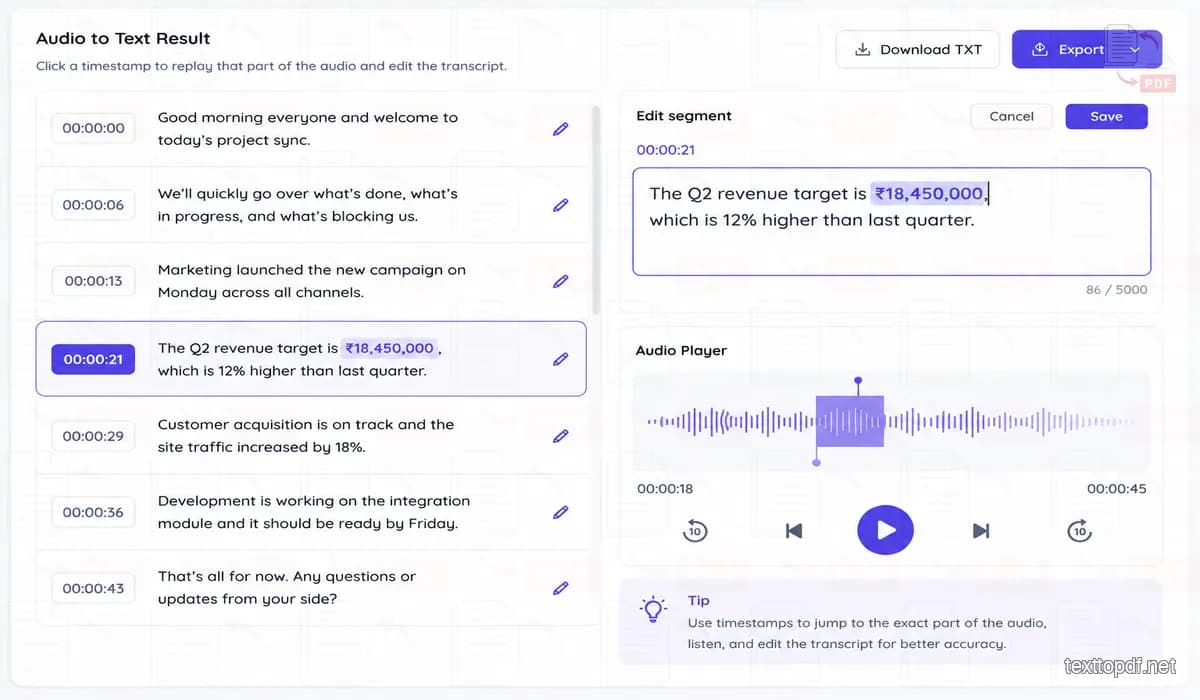
A timestamp changes the correction process because the reviewer does not have to remember roughly where a sentence appeared in a long recording. Each time-marked section can return the player to the corresponding part of the source when the transcription response provides segment timing.
Consider a 45-minute interview where one company name looks wrong around the middle of the transcript. Ordinary scrubbing means moving the playhead and listening until the phrase appears, while a timestamp can take you much closer to the part that produced the text. The advantage is not that the timestamp fixes the transcript; it reduces the search work before the person fixes it.
This is one reason a tool that can transcribe audio still needs a practical review workflow around the first automatic result. A transcription engine produces the initial text, but the surrounding interface determines how painful it is to verify the parts that remain uncertain.
Custom Terms Are Most Useful Before the Mistake Happens
The easiest time to deal with an unusual word is before the recording is transcribed. If an interview repeatedly mentions a product name that sounds like an ordinary English word, the transcript can otherwise choose the familiar alternative and repeat the same mistake several times.
TextToPDF provides an optional custom-terms field before transcription. The current interface recommends concise context such as names, brands, locations and specialist vocabulary rather than a long pasted paragraph.
A sensible example would be an interview that repeatedly mentions Bhubaneswar and a company with an uncommon brand name. Those terms can be supplied as context before transcription, while ordinary words such as “meeting” or “report” do not need the same attention.
The result still deserves review afterward. Custom context is a way to help recognition with unusual vocabulary, not a promise that every supplied word will appear correctly every time.
What We Check Before Exporting the Transcript
A long audio transcription does not need to be recreated by hand just because a few details require another listen. A focused review gives more attention to the parts where an error can change the meaning or create work later.
Our review order is:
- Wording and context: replay a sentence when the transcript stops matching the subject of the conversation.
- Important details: check names and amounts against the recording.
- Timing and sections: use timestamp links where they are available instead of searching through the audio again.
- Final output: choose the export that suits what happens to the transcript next.
That sequence keeps the original audio involved without throwing away the time saved by automatic transcription.
TXT, SRT, VTT or PDF?
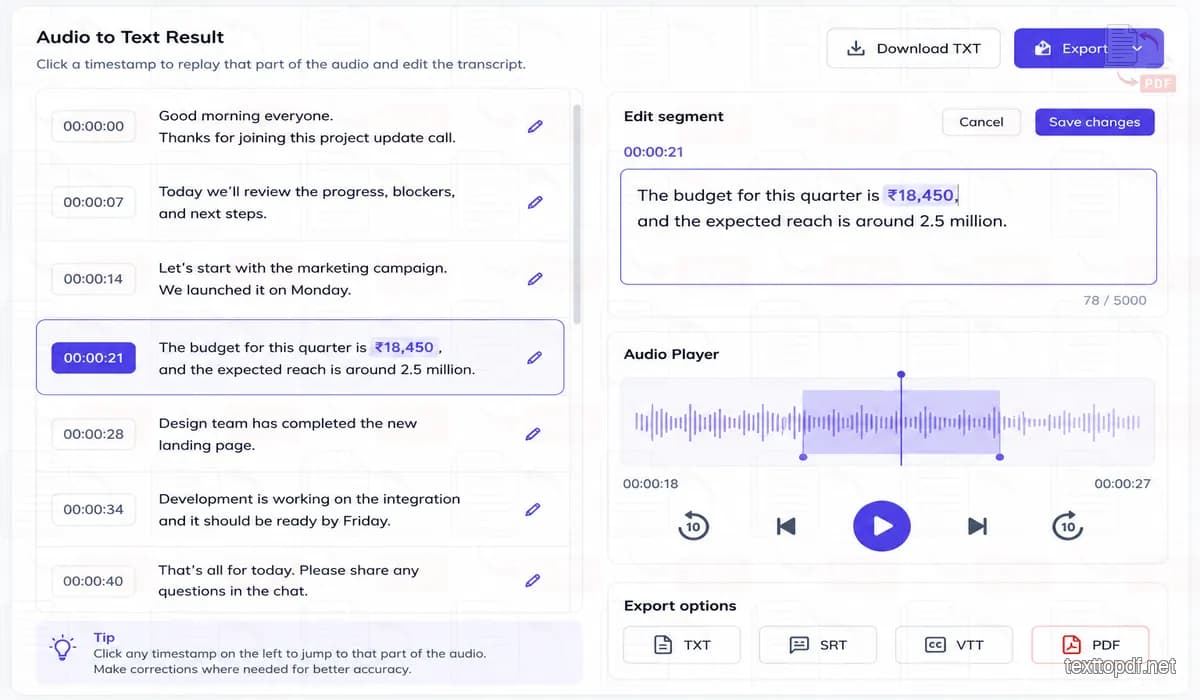
The best export depends on what will happen after the transcript leaves the tool. The four options are not different versions of the same file; they are useful for different workflows.
| Format | When it makes sense |
|---|---|
| TXT | The transcript will be edited, quoted or pasted somewhere else |
| SRT | A subtitle workflow expects standard subtitle cues |
| VTT | Captions will be attached to web audio or video |
| The transcript needs to remain a readable document with timestamps |
WebVTT is specifically defined for time-aligned text tracks associated with audio and video on the web. The W3C describes its role in the current WebVTT specification.
SRT is often the practical choice when an editing platform explicitly asks for an .srt file. VTT makes more sense when the destination is a web workflow that uses timed text tracks.
If the transcript needs a document layout beyond the timestamped PDF offered here, the final wording can also move into the Text to PDF tool where the document itself can be formatted before export.
Where Audio to Text Is Useful
Voice Notes That Need to Become Written Work
Voice to text is particularly useful when a voice note contains the beginning of an email or a thought that was easier to say than type. The transcript turns that recording into editable wording, and the original audio remains available when a phrase was spoken too quickly.
A voice memo to text workflow works especially well when the goal is not to preserve every pause or filler word. The useful part can be corrected and moved into the next document without replaying the note each time.
Lectures and Interviews
Long recordings create more of a search problem than a typing problem. Once the audio becomes time-marked text, a quote can be located through the transcript and checked against its source before it is reused.
Specialist vocabulary deserves extra care here because a technical term can look like an ordinary word after a recognition mistake. Names deserve the same treatment when the transcript will be quoted or shared.
Podcasts and Video Clips
A video to text workflow can serve two different jobs when the recording contains spoken content. The transcript can remain editable text, while SRT or VTT can move into a caption workflow when timing information is available.
The subtitle file still deserves a visual check against the media. A correct sentence can become awkward to read if a cue breaks in the wrong place, so transcription quality and subtitle presentation should not be treated as the same thing.
Meetings and Conversations
Turning an audio recording into text can make a meeting searchable, but several speakers create an extra limitation. The current TextToPDF workflow does not automatically add speaker identification to every file, so a multi-person transcript should not be treated as speaker-attributed unless labels actually appear in the result.
That matters when the identity of the speaker changes the meaning. A sentence saying “we approved it” is much less useful if the transcript cannot tell you which participant said it.
Important Limits Worth Knowing Before You Rely on the Result
Automatic audio transcription removes a lot of manual typing, but it does not turn uncertain audio into certain information. Background sound and speaker overlap can affect recognition, while accents and unfamiliar terminology can change the words that appear in the result. The current tool already warns users about these conditions rather than presenting every transcript as final.
Microphone quality deserves the same attention. A distant speaker can sound understandable after a person concentrates on the recording, yet part of the acoustic detail that helps speech recognition distinguish similar words may already be weak.
Legal or financial material should therefore be checked against the source before it is reused. Medical and published content deserves the same caution because a small transcription error can survive inside an otherwise readable paragraph.
The most practical lesson is not that automatic transcription cannot be trusted. It is that the recording still matters after the first transcript appears.
Privacy and What Happens to the Recording
The current TextToPDF page states that the uploaded recording is used to produce the transcript and is not turned into a public link. That is a narrower claim than saying the audio never leaves the device, and the distinction matters because those two statements describe very different processing arrangements.
Sensitive recordings still deserve attention after audio to text conversion, because the transcript can expose the same private information that was spoken in the original recording.
We do not make broader retention or provider claims here without documenting the exact processing route. A visitor should be told what actually happens to a file rather than being given a broad privacy phrase that the implementation cannot support.
Frequently Asked Questions
How accurate is Audio to Text?
There is no meaningful accuracy percentage that describes every audio to text transcription. Recognition changes with the source audio and the speech inside it, which is why a quiet single-speaker recording should not be treated as equivalent to a noisy conversation with overlap. The useful test is whether the details you care about survived correctly. Names and amounts deserve another listen, while dates and reference values deserve the same attention before the transcript is reused.
Can I edit the transcript before downloading it?
Yes. After you transcribe audio to text, each returned section remains editable, and its timestamp can replay the matching part of the recording when timing information is available. That lets you correct the wording before exporting it as text, subtitles or a PDF.
Which files can I convert from audio to text?
Yes. You can use the tool for MP3 to text or M4A to text, while WAV and AAC are supported as well. OGG, WebM, MP4 and MPEG can also be uploaded, along with FLAC, with a current file-size limit of 25MB.
Can I convert MP3 to text?
Yes. MP3 is one of the supported upload formats, so you can upload the recording, transcribe it into editable text, replay timestamped sections where timing is available, and export the reviewed result in the format you need.
Can I convert video to text?
Yes, when the supported video file contains spoken audio. TextToPDF can transcribe the audio track from formats such as MP4, MPEG and WebM into editable text, while SRT or VTT can be used when the transcript is needed for subtitles.
Can I give the transcription difficult names before it starts?
Yes. TextToPDF includes an optional custom-terms field for names, brands, locations and specialist words that may appear in the recording. The current page recommends a short list focused on the vocabulary that matters for that file.
Can Audio to Text create subtitles?
Yes. SRT is available for common subtitle workflows, while VTT can be used for web captions. Timing comes from the transcription response when the selected transcription model provides segment timings.
Does Audio to Text identify different speakers?
Speaker identification is not automatically added to every recording in the current workflow. A conversation can still produce an editable transcript, but the result should not be treated as speaker-attributed unless speaker labels actually appear.
Why did one word come out wrong when the rest of the transcript looks good?
Speech recognition does not have to fail across an entire sentence to choose the wrong word. An uncommon name or a partly masked sound can lead to a plausible alternative, which is why the timestamp is useful when one detail looks suspicious.
Should I review a transcript before publishing it?
Yes, especially when the source contains information where one incorrect word can change the meaning. Names and amounts deserve another listen, while dates and reference values should also be checked before they are quoted elsewhere.
Final Note
The part of transcription we find most interesting is not the number of words an automatic system can type for you. It is what happens in the small gap between a transcript that looks right and a transcript that has actually been checked.
TextToPDF keeps that gap visible. The words remain editable, the source recording stays available during review, and timestamps can take you back to the part that deserves another listen instead of asking you to trust the transcript because the surrounding paragraph reads well.
That is also why this page does not promise one universal accuracy percentage. A useful audio to text converter should save the typing without taking away your ability to replay and verify the details that matter.