
Translate Image
A screenshot, product label, poster, or saved message can be easy to understand until the words are in a language you do not read. This tool lets you choose the part that matters, check the recognised text, and create a simple translated version without sending the image itself to the translation service.
Lite, Pro, and API plans include a monthly character allowance for image translation.
How the Image Translation Process Works
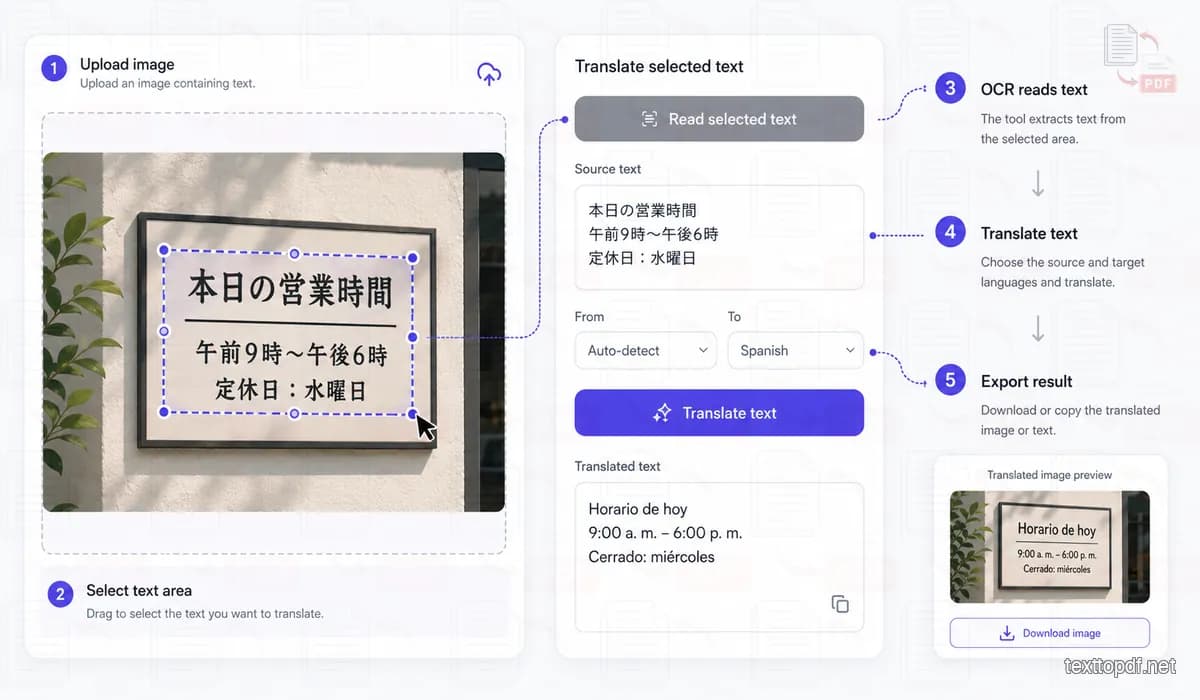
The translation starts with OCR rather than with the translation service. After you select the part of the image that contains the wording you want, OCR reads that area inside the browser and places the recognised result in the Source text field. You can compare those words with the image and correct a character before anything is sent for translation.
The reviewed source text is then sent to Google Cloud Translation, while the original image remains in the browser. When the translated wording returns, it appears in a second editable field instead of being placed onto the image immediately. This gives you another chance to adjust wording that is technically correct but does not suit the message shown in the image.
The final image is also created in the browser. TextToPDF covers the selected area with the chosen colour, draws the translated wording with the font settings you selected, and lets you export the result as PNG or JPG.
If the goal is only to recover the original words without changing their language, the Image to Text tool stops after the OCR stage and returns editable text instead.
Turn the useful part of an image into an editable translation
Most images contain more than the sentence that needs translating. A phone screenshot may include buttons and profile pictures, while a poster can have several separate text blocks. Drawing over the relevant area keeps the OCR focused on the words you actually want, which makes the review screen less cluttered and easier to correct.
After the selected area has been read, the recognised text appears in an editable box beside the image. A missed character can be fixed before translation, so a name, date, price, or reference number does not quietly carry an OCR mistake into the final wording. The translated text remains editable too, because a literal result is not always the most natural phrase for the context in the image.
Choose the image
Upload a PNG, JPG, WebP, or BMP image up to 10MB. The image preview remains on the device while you choose the area that contains the text.
Mark the text area
A drag selection tells the OCR reader where to look. A tighter selection usually avoids icons and background shapes that could be mistaken for characters.
Review the words
The source text can be edited before it is translated. This gives important details a visible check rather than treating OCR as a final answer.
Export the result
Choose a cover colour, text colour, font, and size before downloading a PNG or JPG. A plain text download is also available when the wording is needed elsewhere.
Image Files and Language Selection
The uploader accepts PNG, JPG, WebP, and BMP images up to 10MB. Those limits are part of the current upload workflow, so a file outside them needs to be changed before the tool can read it.
The translation controls separate the source language from the language you want as output. The From field includes Auto-detect alongside the source-language choices available in the tool, while the To field controls the translated language. This separation is useful when the language inside an image is unknown but the required output language is already decided.
The browser OCR uses the selected source language's Tesseract model for English, Spanish, French, German, Hindi, Bengali, Italian, Portuguese, Japanese, Korean, and Arabic. Auto-detect uses the English OCR model (eng) in the browser in the current implementation. The selected From value is still sent as the source-language setting for the translation request, so Google Cloud Translation can detect the source language when Auto-detect is selected.
What happens to the image and its text
OCR and image export run in the browser, so the original image is not uploaded by this tool. The translation request sends only the editable text that you submit to Google Cloud Translation. That separation is important when a screenshot contains visual details that have nothing to do with the sentence being translated.
Translation is available after login on Lite, Pro, and API plans. Each successful request reserves the submitted character count from the plan's monthly allowance. A failed request releases those characters, so a temporary provider problem does not reduce the user's allowance.
Check the OCR Before You Judge the Translation
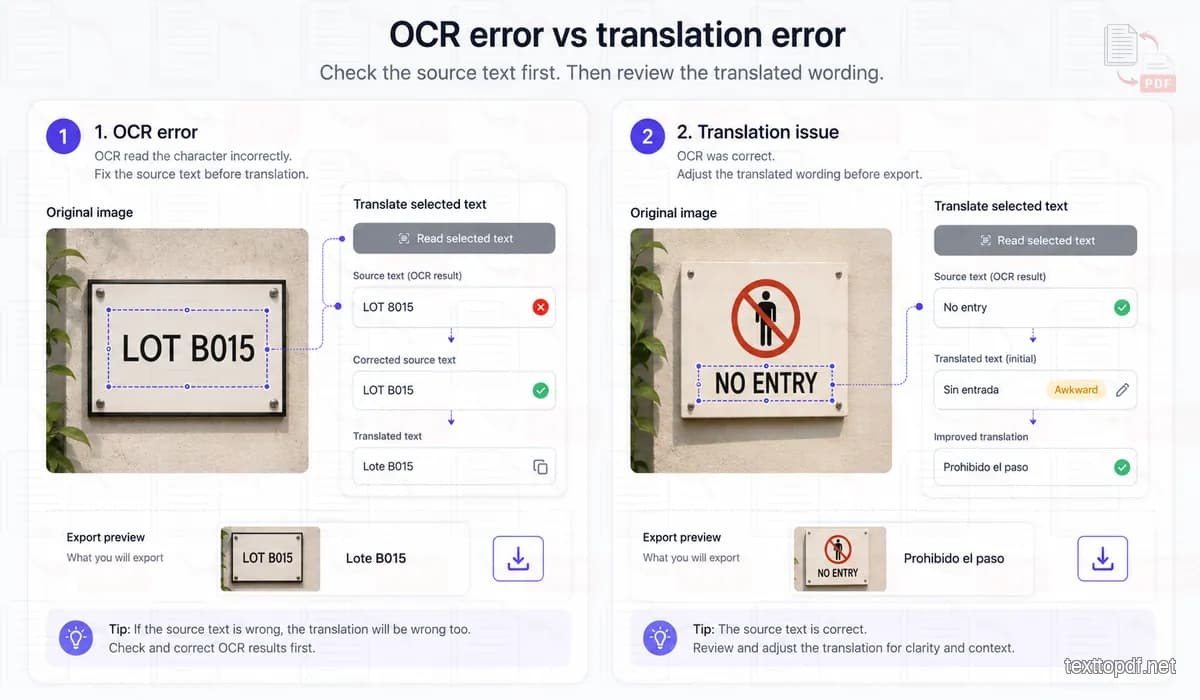
A wrong translated result does not always start with the translation itself. OCR reads the image first, so an incorrectly recognised character changes the source text that Google Cloud Translation receives. The Source text field exists partly for this reason because the wording can be checked against the original image before the translation request is made.
Take a label that contains LOT B015 as an example. If OCR reads it as LOT 8015, the translation service receives LOT 8015 because TextToPDF sends the reviewed source text rather than the original image. Correcting that field first prevents an OCR mistake from passing into the translated result.
The situation is different when the Source text matches the image but the translated wording still sounds wrong for that particular message. The translation can then be changed in the Translated text field before export, which is useful when a short phrase has more than one sensible meaning. The two editable fields therefore solve different problems: one lets you correct recognition, while the other lets you correct wording.
Where a manual check is still important
Clear typed text inside a simple rectangle is the best fit for this first version. A translated phrase can take more space than the original, and the tool covers the selected area with the colour you choose before it draws the new words. That approach is useful for simple screenshots and labels, but it cannot rebuild a detailed photograph or a patterned design behind the text.
The result should be checked whenever the image includes names, amounts, legal wording, or dates. Text that looks similar can have a different meaning in another language, while decorative fonts and very small letters can affect OCR before translation begins. For a more hands-on replacement workflow, the Edit Text in Image tool gives you manual control over the selected area.
When this image translator is useful
A short message from a chat or a product graphic often needs only one part translated. The selection box keeps the task focused, and the editable fields make it possible to adjust the wording before an image file is downloaded. The tool is designed for that practical, small-area workflow rather than for rebuilding a complete multilingual document design.
- A saved message can be translated after selecting the message bubble instead of the whole chat screen.
- A product label can be reviewed before the translated wording is placed over a plain selected area.
- A poster caption can be copied as text when exporting a redesigned image is not necessary.
- A travel sign can be translated for understanding, then checked against the image before relying on a date or location.
Frequently asked questions
Can the OCR text be changed before translation?
Yes. The recognised text appears in an editable field before the translation request is sent, so a word can be corrected or replaced when the image is unclear. That review is useful because a small OCR error can change the meaning of the translated sentence.
Will the translated image match the original design?
Not exactly. The tool covers the chosen rectangle and adds the reviewed translation with the selected font and colours. Detailed backgrounds, curved lettering, decorative typography, and complex layouts need manual design work because this version does not reconstruct them.
Which part is sent for translation?
Only the text submitted from the source-text field is sent to Google Cloud Translation. The image stays in the browser for all image handling, which avoids sending unrelated visual content with the request.
Which languages can I use for image translation?
The From and To menus currently list English, Spanish, French, German, Hindi, Bengali, Italian, Portuguese, Japanese, Korean, and Arabic. Auto-detect lets Google Cloud Translation identify the source language for the translation request, while the To field determines the language returned. Browser OCR uses the selected Tesseract model for those languages, and it uses the English model when Auto-detect is selected.
Can I translate a screenshot or a photo?
Yes. The tool accepts supported image files such as screenshots, photographed labels, posters, and saved message images as long as the file stays within the 10MB upload limit. Selecting only the useful text area keeps unrelated interface wording or background shapes out of the OCR result, which also makes the source text easier to check before translation.
How does usage work?
Image translation uses submitted characters: Lite includes 25,000 each month, Pro 100,000, and API 250,000. High Quality OCR uses the separate premium OCR credit allowance shown on the pricing page.
Explore More Document Tools
Seamlessly switch between document creation, text extraction, OCR, and conversion utilities.