


Converting an .rtf file to PDF seems straightforward at first glance, but formatting issues often appear in the final exported document.
The file looked almost finished when I opened it. The headings were in place, the numbered points looked right, and the page gave me the impression that only one export was left.
The trouble showed up after the PDF was created. One heading turned into normal text. A numbered list restarted in the middle. In another file, the words stayed correct, but the page break made the document look rushed and unfinished.
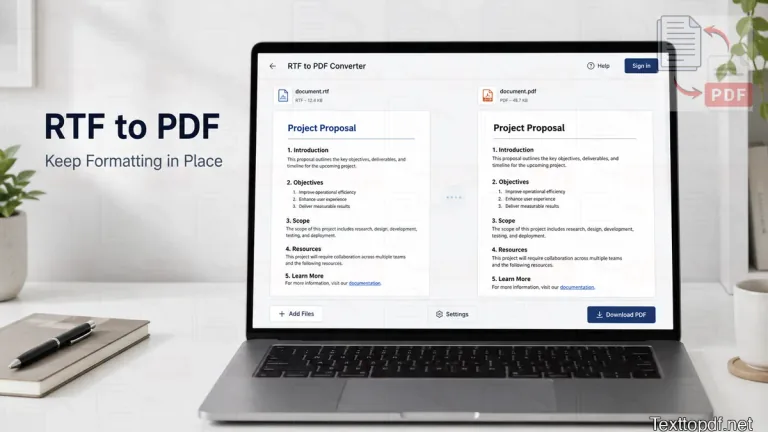
Converting RTF to PDF should be treated as a document-fidelity process because content structure can look correct in an editor yet shift during PDF page rendering.
Before choosing your source format, review our complete comparison on RTF vs plain text for PDF output to understand when plain text is enough and when RTF gives a better result.
This workflow is designed to maintain layout integrity on texttopdf.net. The Rich Text to PDF tool lets you import the .rtf file, review what came through, fix the weak spots, and preview the PDF before download.
An RTF file is not one predictable thing
Most users treat RTF like any standard document format and attempt direct conversion. The actual trouble will start earlier, in the way the file was created and in how much document structure it carries.
Two files can be in .rtf format and still give a different output after converting. One file may be in WordPad format and might produce a little trouble, while another file is in MS Word or LibreOffice and has some list rules, tables, font details, or image handling that need more care.
The key question before converting is: Where was this file created? The source app often determines how formatting behaves during export.
What “without losing formatting” should really mean
Preserving formatting can be evaluated across four distinct document layers:
| Layer | What to check first | Why it matters for the final document |
|---|---|---|
| Text fidelity | Are names, dates, numbers, and sentences still correct? | A PDF becomes risky if the content itself changes |
| Structure fidelity | Did headings, paragraphs, lists, and links survive? | The shape of the document often matters as much as the words |
| Style fidelity | Did bold text, italics, spacing, alignment, and images stay close enough? | A page can still read badly even when the structure survives |
| Page fidelity | Do page breaks still make sense after export? | A file can look fine in the editor and still look awkward as a PDF |
Evaluating a document layer by layer helps isolate specific issues. Sometimes the raw text remains intact while page breaks shift; other times, minor styling changes without affecting readability.
Why formatting gets lost in the first place
The shift usually happens in two stages. The first stage is import, where the .rtf file gets read and mapped into the editor structure.
The second stage is export, where the editor content turns into PDF pages. A file can pass the first stage well and still pick up trouble in the second one. This is also why document spacing and structure deserve a review before export, especially if you have already seen similar issues in the text to PDF formatting guide.
To solve conversion issues quickly, determine: did the shift occur during file import or during PDF rendering?
Once that became my habit, fixes became faster. If the trouble starts in import, I review headings, list levels, links, images, and odd characters. If the trouble starts during export, I look at spacing, long sections, image size, and where page breaks begin to look wrong.
A few edge cases create more trouble than people expect:
- Older RTF files can carry encoding issues, so mixed-language text or special characters need a careful look after import.
- Some image types move through the pipeline better than others, so a picture may shift, resize, or disappear while the rest of the page still looks acceptable.
- Drawing objects, comments, footnotes, and app-specific extras are less dependable than ordinary paragraphs and lists.
- Font substitution can change the look of the page even when the words stay correct and readable.
That is why a vague warning like “formatting may change” does not help much in practice. The useful part is knowing where the change started and what to inspect next.
The source app changes the risk level
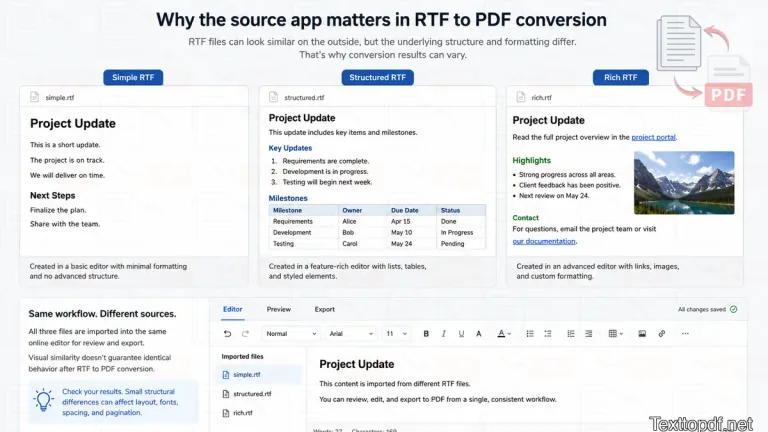
A simple WordPad file is generally easier to parse than a feature-heavy Microsoft Word document.
WordPad files are usually simpler, so there is less document logic to preserve. A Word or LibreOffice file can look richer and more finished, but it may also carry nested list rules, tables, or page-sensitive structure that turns fragile once the file leaves that app.
The files that have been created on MAC devices come with their own caution too. I have seen cases where someone said, “It is just an RTF,” yet images or attached elements behaved in an unexpected way after upload.
That is why I do not judge the file only by appearance. A simple document may export well, while a polished file may need a much slower review. You can also check the wider list of accepted inputs on the supported formats page.
When fast conversion is enough, and when a preview is needed
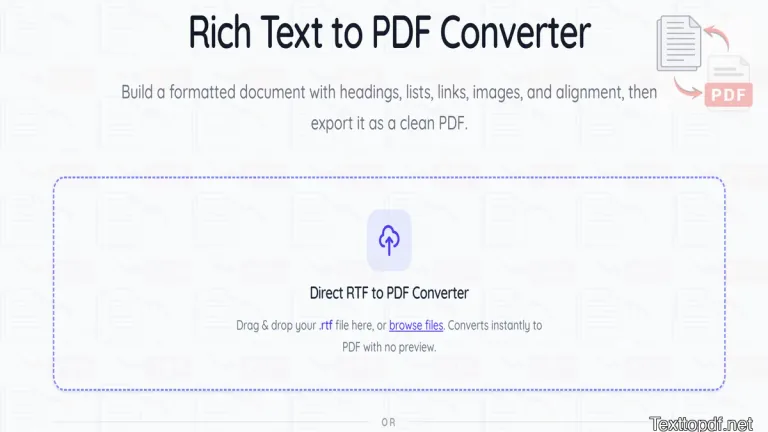
Not every RTF file needs the same amount of checking. A short file with simple paragraphs is one thing, but a report, a lesson handout, or a client document usually needs a slower review before you turn it into a PDF.
If the file has light styling and the page does not need strict control, a faster route is usually fine. That works perfectly for short notes, quick letters, meeting summaries, and other low-risk files.
If the document has headings that matter, those should still look like headings, the numbering should stay in the right order, the links should still work properly, and the images should stay where they belong on the page. It is good to export immediately after you upload the file. In those cases, the good step is to import the file, review it in the editor, and preview the PDF before downloading.
That is the best step in our Rich Text to PDF tool. If the source is only raw writing with line breaks and no important structure, the regular Text to PDF workflow is usually a better fit. For a broader explanation of how plain text conversion behaves before layout gets more complex, the Text to PDF Guide gives useful context.
Essential Checks Immediately After Import
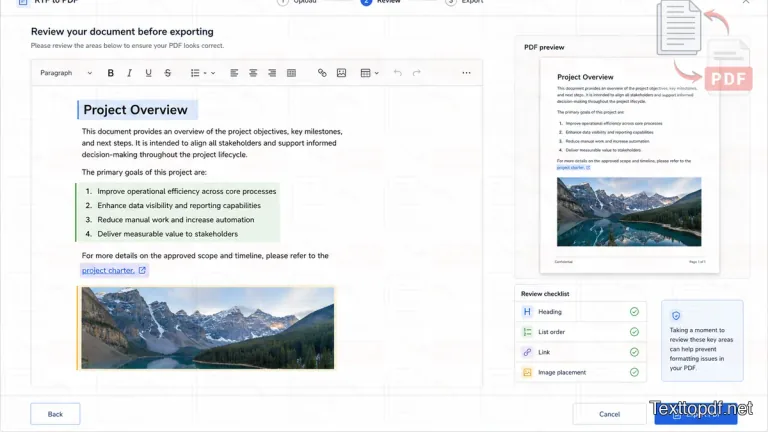
Rather than reading the entire document first, scan the structural elements where RTF files typically reveal layout shifts.
Check the main title heading first, followed by list items, hyperlinks, and embedded images, as these elements are most sensitive to layout changes.
That simple scan tells me almost everything I need to know about the rest of the file. If those parts already look weak, the document usually needs a slower pass before export.
I also check one more thing very carefully. I look at the places where numbering continues after a blank line or after a short paragraph, because that is where I have seen lists restart without warning.
A short check before you convert
You can do a quick check before uploading the RTF file for the conversion. Most formatting issues start from files that were already carrying warning signs before conversion even began.
Before converting, evaluate: What structural elements must remain intact for the PDF to be publication-ready?
That one question changes the whole workflow. If only the words matter, the job is then dead simple. If the headings, numbering, links, images, and page order are also important for you, then you need to make a more careful review of the file.
Check these points first:
- Look at the source app. A WordPad note and a Word export should not be treated like the same type of input.
- Review the document features. Tables, images, shapes, comments, and footnotes raise the chance of manual fixes after import.
- Review the fonts and language. Common fonts and one language usually move through with fewer surprises.
- Decide what kind of PDF is needed. Some files only need good readability, while others need stronger page control before sharing or printing.
How to convert RTF to PDF online with less loss
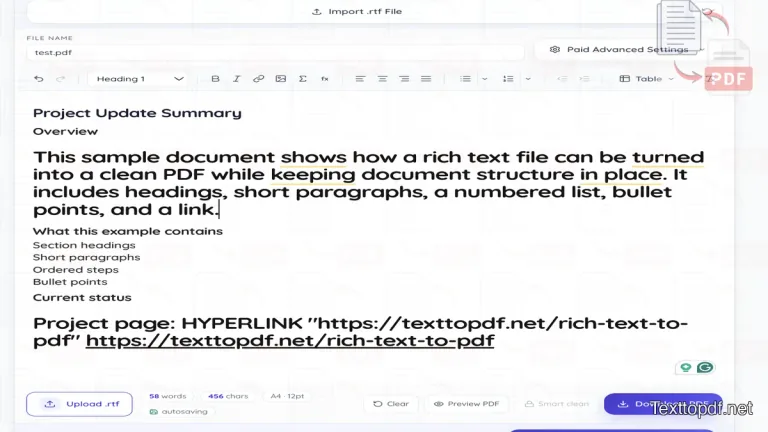
The workflow is very simple.
You just need to upload or import the .rtf file into our conversion tool. If the document has anything more than light styling, it is better not to download the PDF immediately.
After you import, first review the parts that can shift. I mean, you can check headings, list levels, links, images, and paragraph spacing. If the document uses section breaks, check those too.
Then move to preview. The editor's view can still hide trouble that only becomes obvious after the document turns into pages.
This is where I catch line wraps that look harmless in the editor but awkward in the PDF. It is also where split lists, lonely headings, and large image gaps are clearly visible.
Once everything parts look right, export the final PDF.
Common RTF to PDF Problems and Solutions
My headings became plain text
This simply means the words survived, but the editor no longer treats that line as a heading. The content is still there, yet the document loses shape.
I do not waste time rechecking the whole page first. I reapply the heading level, then preview again and see whether the page recovers its structure.
My numbered list restarted in the middle
This kind of issue shows up because list rules do not behave the same way in every app. During import, most of the list may still come through, yet the numbering can reset at the wrong point.
The places I check first are after blank lines, after short notes between list items, and after copy-pasted content that came from another app. Those are the points where I have seen numbering slip most often.
The words are correct, but the PDF page still looks wrong
This is usually not a text issue. It is often a page issue.
A heading may be present at the bottom of the page while the paragraph moves to the next one. A long list may be split in a way that makes the page look unfinished. In such cases, I shorten very long sections, adjust spacing, or reduce image size, then preview again.
My images disappeared or shifted
RTF image handling is uneven across software, so this is not unusual. One file may keep the image with little change, while another may need a manual adjustment after import.
I check every important image right after upload. If one is missing or misaligned, I fix it before doing anything else because image trouble can also alter the surrounding spacing.
My fonts changed
This is common, and it does not always ruin the file. I have had PDFs where the original font changed, but the document still stayed usable and presentable.
If the font is important for brand use, approval, or a formal document, I switch to a common option before final export. If the document only needs to stay readable, I do not always treat font substitution like a fatal issue.
My Mac file behaves strangely on Windows or online tools
I have seen this happen with files that looked normal, but the real issue had begun much earlier, at the point where the file was originally made.
I do not send those files through blind export anymore. I import them, inspect text and media carefully, and approve the PDF only after preview.
When Rich Text to PDF is a better fit than plain Text to PDF
A plain text file to PDF conversion works best when the document has no important formatting beyond paragraphs and line breaks. That route is somehow quick for raw notes, copied text, and short writing that does not depend on headings, lists, links, or images.
You need an RTF conversion tool when the source already has a structure that should be visible after the export. That includes sectioned notes, short reports, handouts, internal docs, and other files that would lose too much shape if they were reduced to plain text first.
If your priority is to keep the structure, I use the Rich Text to PDF converter. If you only want to keep the words in the content, I use the normal Text to PDF tool. That same difference is easier to understand when you compare a richer document workflow with a plain one in Text to PDF vs Word to PDF.
Final note
An RTF file may appear complete in an editor but still experience minor shifts during PDF rendering. That does not always mean the tool is weak.
Sometimes the file came from a more complex source app. Sometimes the import simplifies part of the structure. Sometimes, page rendering changed the document after the words were already safe.
The habit that helped me most is simple. I no longer trust a file only because it opens well. I trust it after the import review and after the preview.
That is usually the difference between sending the PDF with confidence and reopening it later to repair what shifted.
FAQs
Can I convert an RTF file to PDF online without installing Office software?
Yes. You can use the online Rich Text to PDF tool to import the .rtf file, show the content inside the editor, and then export it as a PDF after review.
Why does my RTF file look different after PDF export?
The shift can happen during import or during page rendering. Source-app differences, list rules, image handling, font substitution, and page breaks are common reasons.
Is direct conversion enough for every RTF file?
No. A short note may convert well without much review, but a report, handout, or client document is safe when you inspect the file in the editor and preview the PDF before download.
What should I check before converting RTF to PDF?
Look at the source app, document features, fonts, language, and how much page control the final PDF needs. Those points usually tell you whether fast conversion is enough or whether a review is necessary.
Is Rich Text to PDF different from normal Text to PDF?
Yes. Rich Text to PDF is meant for .rtf files and other formatted writing that already carries structure. Text to PDF is a better fit when the source is only plain text, and the document does not depend on richer formatting.