


You may finish a document on your screen and feel satisfied with how it looks, but the confusion starts when that same file is opened again somewhere else and the layout no longer looks the same. One paragraph may sit lower than before, spacing may look tighter than expected, and the page may stop looking as neat as it did during editing.
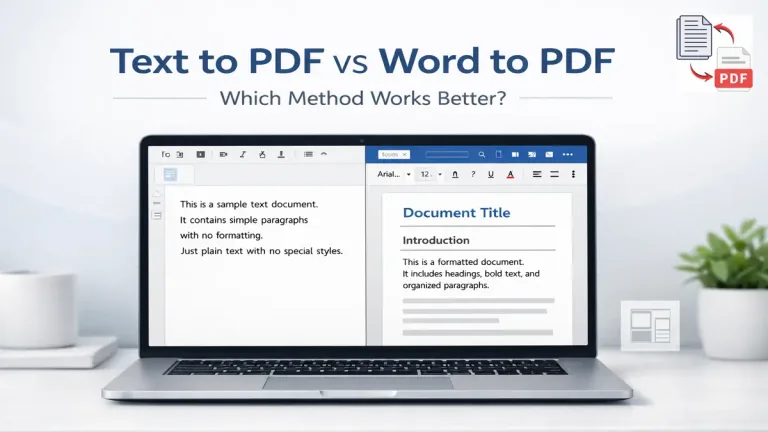
Most people blame the PDF at that stage, but the real cause begins much earlier. One workflow starts with plain text and builds structure from scratch, while the other starts inside Word with formatting already applied before conversion begins. Both methods lead to a PDF file, yet the path each one takes is different enough to create different kinds of problems.
For lighter document structure without opening heavy office software, check our breakdown of RTF vs plain text for PDF output. For a wider comparison of Word, online converters, and Google Docs, read these simple editable-content-to-PDF methods as well.
If you want to compare more than two workflows, see our best text to PDF converters in 2026.
That difference matters because structure, spacing, and formatting rules do not behave the same way in both workflows. Once you understand how each method handles those parts, it becomes easier to choose the right approach for your document.
What Is Text to PDF Conversion
Text to PDF begins with raw content that carries no built in styling. There are no hidden paragraph styles running in the background, no font rules attached to the file, and no invisible layout instructions shaping the document before conversion.
Everything depends on how the text is prepared. Proper spacing, paragraph breaks, and headings create the structure that will appear in the final document, while messy input produces a messy result because the converter does not repair weak structure on its own.
Many users expect a converter to clean the document automatically, but that expectation creates unnecessary confusion. The system reads the text as it is given and turns that input into pages, which is why preparation matters so much before the file is generated.
You can understand this process in more detail through the full Text to PDF guide.
What Is Word to PDF Conversion
Word to PDF begins from a document that already contains fonts, headings, spacing rules, margins, and alignment before export takes place. The file is no longer just content by that point because it already carries visual decisions made inside the editor.
That is exactly why many people prefer Word for reports and formal documents. Rich formatting gives more visual control during editing, but it also introduces another layer of behavior because those formatting rules need to survive the export process without shifting.
Problems begin when those internal document rules are interpreted differently during conversion. The file may look polished inside Word and still change slightly after export when font behavior shifts, spacing values are handled differently, or another system reads the document in its own way.
Core Difference Between Text to PDF and Word to PDF
The easiest way to understand the difference is to look at how each workflow reaches the final file. Text to PDF depends on how clearly the content was prepared before conversion, while Word to PDF depends on how the editor stores and exports document formatting.
| Factor | Text to PDF | Word to PDF |
|---|---|---|
| Input type | Plain text content | Fully formatted document |
| Formatting control | Manual through spacing and structure | Built into document editor |
| Output behavior | Follows prepared text | Follows document rules |
| Editing before conversion | Minimal | Full editing control |
| File complexity | Low | Higher |
Text based conversion removes a lot of hidden formatting behavior, but it asks the user to prepare the structure properly before generating the file. Word based conversion gives stronger editing control, but that control comes with formatting layers that can create surprises later.
How Formatting Actually Behaves in Both
You can also understand how the PDF format works across devices and maintains layout consistency from this detailed explanation on PDF format works across devices.
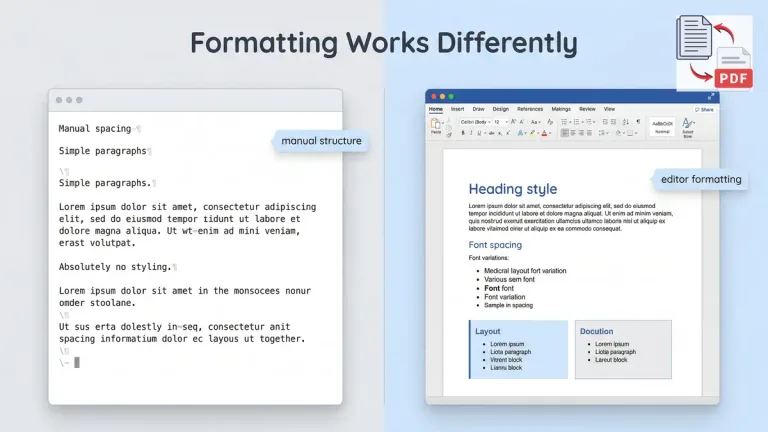
Plain text behaves in a very direct way because there are no hidden layout instructions changing the document behind the scenes. The spacing you type is the spacing the converter reads, and the paragraph breaks you add are the same breaks that appear in the final PDF.
Word behaves differently because formatting is handled through internal document rules rather than only visible text. Font settings, paragraph styles, spacing values, and layout instructions sit inside the file even when the user is focused only on the words.
These differences are also documented in how PDF rendering works. According to Adobe’s PDF specification, a PDF file stores layout in a fixed way so that the document appears the same across systems, unlike editable formats such as Word where rendering depends on fonts and environment.
Those rules are useful during editing, but they can also create small shifts during export. A line may move lower than expected, a heading may sit differently on the page, or a paragraph may no longer end where it ended inside the editor.
If you want better results with text workflows, these text to PDF formatting practices explain how preparation changes the final output.
Why Word to PDF Sometimes Breaks Layout
If you want to see how font behavior and formatting rules in Word affect document layout and export behavior, you can check this guide on font behavior and formatting rules in Word.
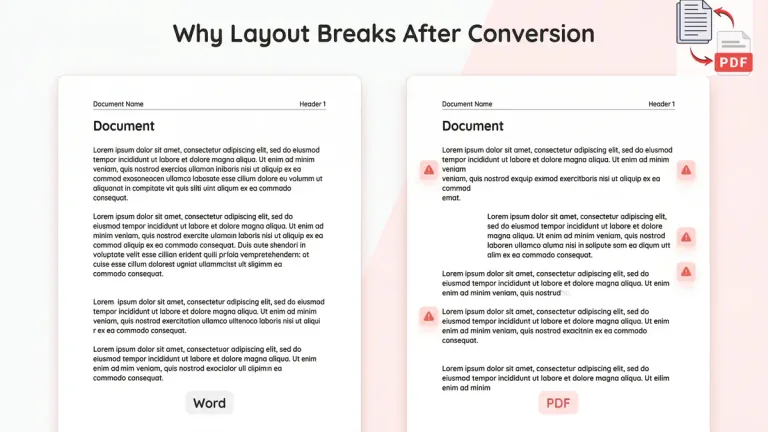
Most users notice this only after sharing the file or reopening it later. A font used in the original document may not exist on another system, and that missing font forces a replacement that changes line length, paragraph height, or page flow.
Microsoft documentation also highlights that document appearance can change when fonts are not embedded or when different systems substitute fonts during rendering, which directly affects layout and spacing.
Version differences inside Word can create the same problem. A file created in one version may not export in exactly the same way in another version, and the change can stay hidden until the final PDF is viewed again.
Small changes like these are enough to move text onto another line or push content onto the next page. That is why Word based conversion can look stable during editing and still create layout problems later.
If the exported file opens with missing sections rather than only shifted spacing, this guide on why text disappears when converting Word to PDF explains the likely causes and practical fixes.
Why Text to PDF Looks Clean When Prepared Properly
Plain text avoids much of that hidden behavior because the structure is created directly by the user instead of being managed through formatting layers inside an editor. Proper spacing, readable headings, and sensible paragraph breaks are enough to shape the final output when the content is prepared carefully.
That direct path between input and output is what makes text to PDF work well for notes, drafts, letters, instructions, and other files where readability matters more than design heavy presentation.
Well prepared text produces a document that remains readable because the converter reflects the same structure that was created before conversion. If you want to improve that part of the workflow, this guide on how to prepare plain text before converting to PDF explains where most issues begin.
When You Should Use Text to PDF
Text to PDF makes more sense when the document is built around content rather than visual styling. The strength of this method appears when you want a readable file without depending on a heavy editor or invisible formatting rules.
- You write notes and need a clean file for submission
- You prepare a draft and want a stable document
- You create structured content without design elements
- You want predictable output without hidden formatting issues
Simple documents benefit from this method because the structure stays direct and the workflow remains easier to control from the beginning.
When You Should Use Word to PDF
Word to PDF becomes the better option when the document needs visual formatting that goes beyond basic paragraph structure. Reports, tables, images, and styled sections usually fit better inside a document editor before export.
- You create reports with styled headings
- You include tables or images in the document
- You need full editing control before conversion
- You work with layout heavy documents
Formatting heavy documents benefit from this route because the editor provides stronger visual control during creation.
Internal Workflow Differences You Should Understand
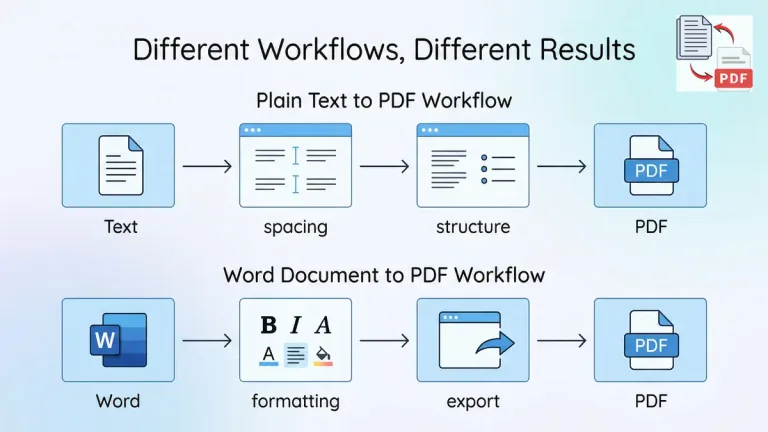
The biggest practical difference appears in the stage where problems become visible. Text workflows expose weak spacing, poor paragraph breaks, or missing headings early because those issues are visible while the content is still being prepared.
Word workflows can hide trouble until later because the document may look completely correct during editing even when the export process will change how some formatting behaves. That is why people trust the file too early and notice the real issue only after the PDF has already been shared.
Timing matters here. One method exposes problems before conversion, while the other can delay them until the final file is already in use.
Where texttopdf.net Fits in This
It also helps to know that PDF is a standardized document format, which is one of the reasons it is widely used for consistent document sharing, as explained in this overview of PDF as a standardized document format.
Texttopdf.net fits the workflow where plain text needs to become a clean PDF without pulling in the extra complexity of a full document editor. A user can paste content, adjust spacing, review structure, and create the final file while staying focused on the text itself.
This approach aligns with how fixed layout formats work. PDF is widely used for document sharing because it preserves structure across devices, which is one of the main reasons businesses rely on PDF instead of editable formats. For the broader sharing advantages, see why PDFs are the go-to format for sharing digital documents.
That makes the process easier when the goal is a clean result that still looks the same after download and after sharing. The workflow stays close to the content, which reduces the chance of unexpected layout shifts coming from hidden formatting rules.
The article on server side PDF generation explains why this matters when the layout needs to stay the same across different systems.
Real Comparison Scenarios You Will Actually Face
Real decisions usually happen when something stops working as expected, not when you are reading about formats in theory. A student may prepare notes in plain text, convert them into a PDF file, and later open that file on another device only to find that everything looks exactly the same. Nothing shifts, and nothing breaks because the structure was created manually from the start.
The situation changes when a report is built inside Word with styled headings, spacing, and layout adjustments. The document may look perfect during editing, but a small shift can appear after conversion when the file is opened again on a different system. The change may not be dramatic, yet it is enough to affect readability or page flow.
These two situations show where the difference becomes practical. A text based workflow reveals its issues early while you prepare the content, whereas a Word based workflow can hide issues until the file has already been exported and shared.
Common Mistakes Users Make During Conversion
Most problems do not come from the tool itself. The issue begins when the input is not handled carefully before conversion, or when assumptions are made about how the output will behave.
- You convert text without checking spacing and the document looks crowded
- You depend on Word formatting without reviewing how it behaves during export
- You skip preview and notice issues only after sharing the file
- You mix different formatting styles inside the same document
Each of these mistakes may look small at first, but they change how the final document appears once the PDF is opened again.
How to Decide Which Method You Should Use
The right choice depends on what kind of document you are creating and how much control you need over the structure before conversion. A plain text workflow works well when the content is simple and the focus stays on readability rather than visual styling.
A Word based workflow fits better when the document requires structured formatting such as tables, styled headings, or visual alignment that cannot be handled easily through plain text alone.
This decision becomes clearer when you think about the end use. A notes file, a draft, or an instruction document works well with text to PDF, while a formal report or a layout heavy file fits better with Word to PDF.
A Practical Workflow That Avoids Most Problems
You do not have to depend on only one method every time. A better approach is to use each method where it fits naturally instead of forcing everything into a single workflow.
Plain text works well when you want full control over spacing and structure without dealing with hidden formatting layers. Word works better when the document requires visual formatting that needs to be adjusted during editing.
Reviewing the document before final conversion makes a noticeable difference. A quick check helps you catch spacing issues, heading problems, or alignment errors before the file is shared.
Final Recommendation
Text to PDF works best when clarity and structure matter more than visual styling. The output remains stable because the structure is created directly without relying on hidden formatting rules.
Word to PDF works better when the document needs design elements and visual control before conversion. The editing environment provides flexibility, but the final output depends on how those formatting rules behave during export.
Both methods serve a purpose, and the better choice depends on the type of document rather than a fixed preference.
FAQs
Which method gives better output
Text to PDF gives cleaner output when the content is prepared with proper spacing and structure. Word to PDF gives stronger visual output when the document includes styled elements.
Why does Word to PDF sometimes change layout
Layout changes happen because fonts, spacing rules, and rendering behavior do not always stay identical during conversion across systems.
Can text to PDF look professional
Text to PDF can produce professional looking documents when headings, spacing, and paragraph structure are handled carefully before conversion.
When should Word to PDF be avoided
Word to PDF becomes difficult to manage when the document carries unnecessary formatting that may create layout shifts during export.
Can both methods be used together
Both methods can be used depending on the situation. Plain text works for structured content, while Word works for layout heavy documents.