


A plain text file can look completely fine when you read it quickly. The problem starts later, when that same text turns into a PDF, and the page suddenly looks uneven. One paragraph may look too tight, another may sit too far apart, and the full document may stop looking connected. In many cases, the issue does not begin at conversion. The issue begins much earlier, at the stage where the text was left exactly as it was copied.
What you need to understand is this. Plain text only carries words. It does not carry section flow or spacing rules. It also does not tell the document where one idea should slow down and where the next one should begin. Because of that, small issues inside the text become easier to notice after conversion, especially when the content comes from notes, websites, or old copied material.
If your document has headings or lists that need to stay visible after export, read our comparison on RTF vs plain text for PDF output to decide which format fits your document workflow best.
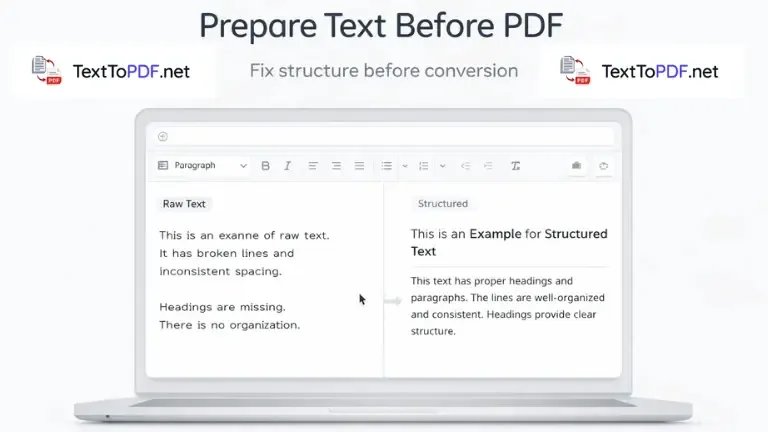
This is why preparation matters so much. A few careful fixes before conversion can change how the whole document looks on the page. When the text is cleaned properly and then converted with Text to PDF, the result looks more natural, more readable, and much easier to trust.
What Plain Text Looks Like in Real Use?
Most text does not come from a clean source. It usually comes from websites, notes, or copied content. Each of these sources brings small issues that are easy to ignore at first.
Text copied from websites may carry broken lines or extra gaps. Notes from apps may not follow consistent spacing. Chat types of content usually appear in short lines without proper flow. Extra symbols or unwanted characters may also get added without notice.
These issues may not stand out while reading the raw text, but they become very clear after conversion.
Why Preparation Matters Before Conversion
The quality of the final document depends on how the text is arranged before conversion. When the input is unorganized, the output becomes harder to read. When the input is clean, the document looks stable and structured.
A PDF converter does not correct your content. It only converts it into another format. That is why preparation plays an important role.
If you want to understand how formatting affects the final output in more detail, you can go through this text to PDF formatting best practices.
Step 1 Identify and Fix Broken Line Structure
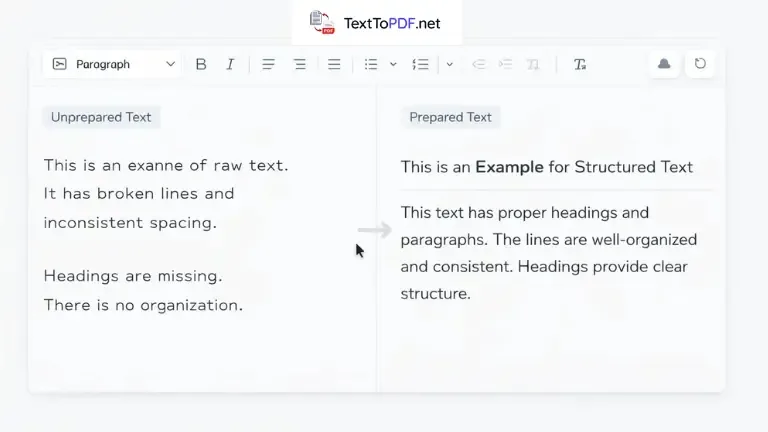
One common issue appears when text is copied line by line instead of paragraph by paragraph. Each sentence may appear on a separate line, which breaks the natural reading flow.
When this type of text is converted, the PDF looks disconnected and broken. You should combine related lines into proper paragraphs so that the content flows in a continuous manner.
Step 2 Remove Extra Spaces and Gaps
Spacing issues appear very often in copied text. Extra spaces between words and random blank lines between sections can disturb the layout.
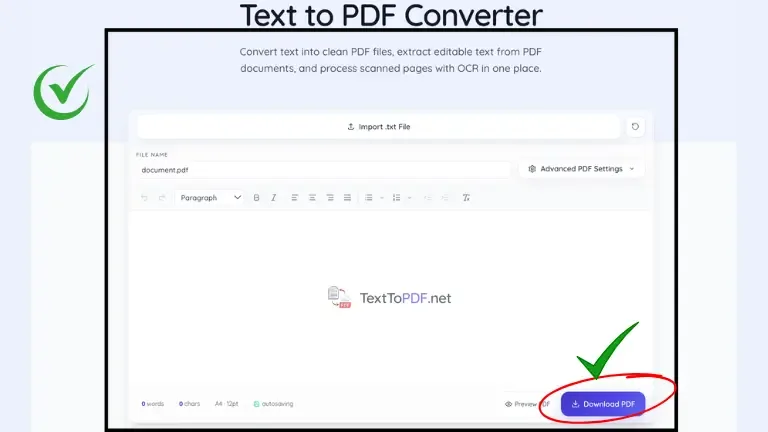
These gaps affect how the document is created after conversion. When you paste your content into Text to PDF, you can adjust spacing and remove unnecessary gaps before creating the final file.
Step 3 Group Content into Clear Paragraphs
Paragraph structure improves readability. When ideas are not grouped properly, the document becomes difficult to follow.
- Each paragraph should focus on one idea
- Unrelated points should stay separate
- Spacing between paragraphs should remain consistent
- Long sections should be divided into smaller parts
Clear paragraphs help the reader move through the content without confusion.
Step 4 Add Basic Section Structure
A document without sections looks continuous and dense. Readers find it difficult to identify where one idea ends and another starts.
You should identify natural breaks in your content and introduce simple headings. Even basic headings can improve clarity and structure.
Step 5 Convert Raw Lists into Proper Lists
Many texts include lists written in a single line or separated by commas. This makes the content harder to scan.
- Inline items should be converted into bullet points
- Steps should be written as numbered lists
- Spacing between list items should remain consistent
- Mixing different list styles should be avoided
Structured lists make the content easier to understand.
Step 6 Maintain Consistent Alignment
Alignment affects how the document appears. When alignment changes within the same document, the layout looks unbalanced.
Left alignment works well in most situations because it keeps the content consistent. You should avoid switching between alignment styles.
Step 7 Remove Unnecessary Content Noise
Copied content usually contains extra elements that do not belong in the final document. These may include symbols, fragments, or unwanted characters.
You should review your text and remove anything that is not part of the main content. This helps maintain clarity.
Step 8 Review and Preview Before Conversion
Preparation is not complete until you review the content once. Small issues are easier to correct before conversion than after.
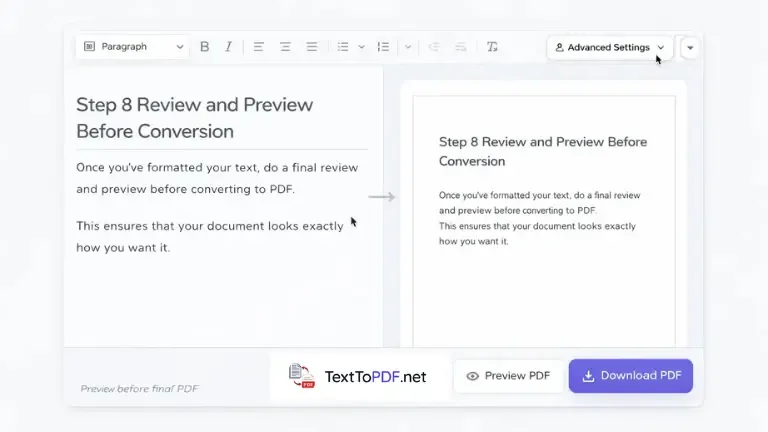
When you use Text to PDF, you can preview your content, check spacing, adjust headings, and confirm structure before downloading the final PDF. You can also understand how stable output is maintained in this server side PDF generation explanation.
Common Mistakes to Avoid
These mistakes often reduce the quality of the final document.
- Converting text without cleaning it first
- Ignoring paragraph structure
- Leaving uneven spacing between sections
- Mixing tabs and spaces
These issues affect readability and layout.
Real Example of Before and After Preparation
Before preparation, the text may appear in broken lines with no spacing and no clear sections. After preparation, the same content becomes structured with defined paragraphs and clear separation between ideas.
This change improves how the document looks and how easily it can be read.
When This Preparation Becomes Important
Preparation becomes important when the document is shared with others. Students submitting assignments need a smooth and clean structure. Office users sharing reports require a consistent layout. Writers who are distributing content, they expect readability across different devices.
In these situations, properly prepared text makes a noticeable difference.
Related Workflows You Should Know
Sometimes the process begins with extracting text instead of writing it.
If your content comes from an image document, you can follow this guide on How to Extract Text from a Scanned PDF.
If the file is already digital, you can use PDF to Text to convert it into editable content before preparing it.
For a broader understanding of how spacing and layout improve document readability, you can refer to this document design principles guide by Adobe.
Final Note
A clean PDF does not start at the conversion stage. It starts at the preparation stage.
When your text is structured with proper spacing, clear paragraphs, and defined sections, the final document becomes easier to read. Once you follow this approach, repeated layout fixes are no longer needed after conversion.
FAQs
How do I prepare text before converting to PDF
You should clean spacing, fix paragraph structure, add headings, and remove unnecessary elements before conversion.
Why does copied text look broken in PDF
Copied text usually contains hidden line breaks and uneven spacing, which become visible after conversion.
Can I fix formatting before creating the PDF
Yes, you can adjust spacing, headings, and structure inside the Text to PDF tool before generating the final file.
Does preparation really affect PDF quality
Yes, because the converter follows your input. Clean and structured text results in a cleaner and more readable PDF.