


Have you ever opened a bank statement, invoice, or old office PDF, tried to highlight one word, and then realized the whole page was acting like a photograph? That small thing usually tells you something important about the file. The words are visible on the page, but the PDF may not contain real text behind them.
I usually faced this with bills, archived reports, photographed pages, and paper documents that were turned into PDF after scanning. On the screen, the file looks perfectly fine. However, in the background, the page only contains an image layer, and that is why you can't even select the text by dragging.
In many cases, the page was saved from a scanner, a phone camera, or an older paper workflow, so the letters only exist as part of the page image.
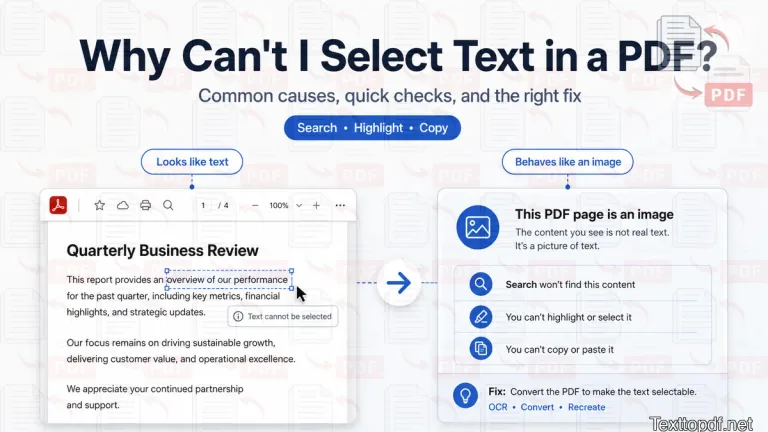
The first thing I usually want to know is if the file contains real text or if it only shows a picture of text content. That one thing helps me to decide whether direct extraction will work or if it will need OCR.
What It Usually Looks Like When Text Selection Fails
The problem usually looks obvious when you try to do something with the file practically. You try to highlight a sentence, copy a paragraph, search for a word, but the file does not work the way you had expected.
Most users notice one or more of these signs:
- The cursor moves across the page, but you can't select a word
- Copy and paste returns nothing useful or only random fragments
- Search does not find a word that is clearly visible on the page
- The PDF behaves more like a flat image than a live document
This is where many people feel heavily irritated. One thing you need to understand is that the PDF file can still show words clearly while storing them in a form that behaves nothing like normal text.
The Two Types of PDFs Most People Do Not Notice
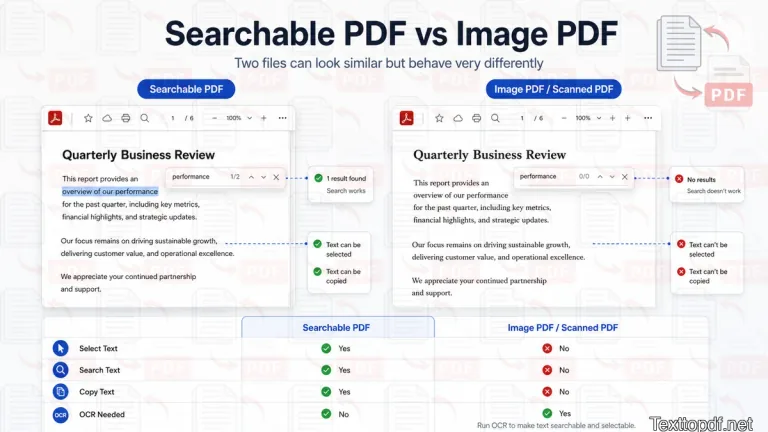
A PDF can look similar on the screen and still behave very differently in the background. One file may contain real text that the system can select, search, and extract. Another file may only contain page images, even though the words look perfectly readable.
That is why I usually divide PDFs into two practical groups. One group contains searchable PDFs with a usable text layer inside the file. The other group contains PDFs with lots of images where the page only looks readable, and those files very likely need OCR before the text can be reused.
| PDF Type | What Happens Inside the File | What You Can Usually Do |
|---|---|---|
| Searchable PDF | The file contains a real text layer | Select, copy, search, and extract text |
| Image style PDF | The page stores text as part of an image | Read visually, but selection and search may fail |
This difference decides what should happen next. If the PDF already contains selectable text, a direct extraction method is more than enough. If the page only shows a picture of text, OCR is the needed option because the text first has to be recognized from the page image.
If the PDF contains selectable text and you need to change page content or add annotations, follow our guide to editing a PDF online.
If you want to understand the file difference in more detail, you can also read this searchable pdf vs scanned pdf guide.
Why Some PDFs Look Like Text but Behave Like Images
As I already said, this happens mostly with documents having scanned content or image content. What happens is that a mobile scanner or camera captures the page as an image and saves that image inside a PDF.
The words are still visible, so the page looks normal at first. But the system is only showing you pixels that form the letters. It is not always storing those letters as actual text characters that you can select or search.
Adobe explains this clearly in its guide to scanned PDFs. When a paper document is scanned to PDF, the result contains image data first, not searchable text, and OCR is what turns that image text into selectable and searchable text. You can read that in this Adobe guide to recognizing text in scanned PDFs.
The PDF Association makes the same distinction in a broader PDF preservation context. It notes that scanned documents usually need OCR before they become searchable, which supports the same file behavior discussed here in this PDF Association FAQ on searchable scanned documents.
A digital PDF works differently. If a file comes from Word, Google Docs, a browser print flow, or another document tool, the PDF usually keeps a proper text layer behind the page. That is why one PDF lets you highlight words and another one does not, even when both files look almost the same.
A Quick Way to Tell What Kind of PDF You Have
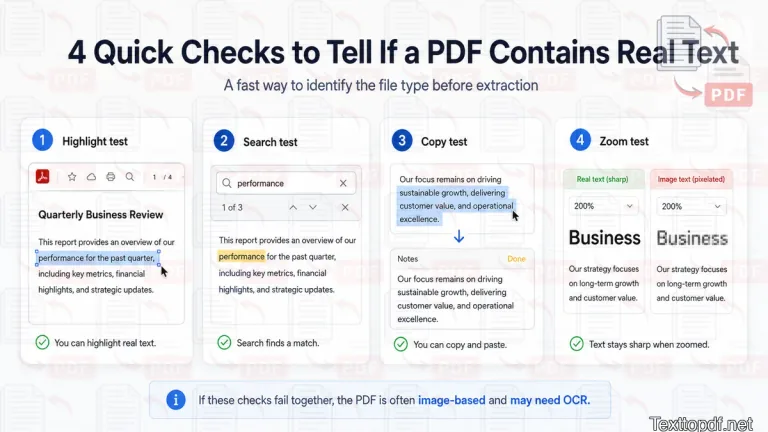
Before trying OCR, copying tools, or any extraction step, I would always check the file first. This takes only a few seconds, and it usually tells me what kind of PDF I am dealing with.
You can test the file like this:
- Try to drag across one sentence.
- Search for one visible word.
- Copy one short line into a notes app.
- Zoom in closely and see if the letters stay sharp.
If the sentence gets selected, the search works, and the copied text comes out properly, the PDF probably has a real text layer. If these checks fail together, then it clearly shows that the file contains scanned content or images, and it definitely needs OCR.
Why OCR Becomes Important Here
A scanned PDF does not always need a different viewer. Most of the time, it needs a different reading method. OCR helps when the words are visible on the page, but the file does not contain selectable text.
This is also how large OCR systems describe the job. Google Cloud explains that document OCR can detect text structure from scanned files and images, which is why OCR is the correct path when the page only contains visible letter shapes. You can see that in this Google Cloud OCR documentation for scanned documents.
If you want the OCR part explained in a simpler workflow first, you can go through this what OCR means in PDF guide.
On texttopdf.net, this is the point where the workflow is taken care of. If the text can already be selected, the PDF to Text tool makes more sense because the file already contains readable text data. If the text cannot be selected because the page behaves like an image, the OCR PDF to Text tool is the better choice because the file needs OCR first.
Not Every Text Selection Problem Means the PDF Is Scanned
A scanned page is the most common reason, but it is not the only reason. Some PDFs may block selecting the text because of permission settings. Some may contain a damaged text layer. In other cases, the viewer itself may create confusion even when the file is not fully image-only.
That is why this topic needs a little more care than a single answer.
Other Reasons Text Selection Can Fail
A scanned page is the most common reason, but it is not the only one. Some PDFs have permission settings that block copying the content. Some files contain a damaged text layer, and a few problems come from the PDF viewer itself rather than the file.
You can do a quick check inside the document properties in this case. If the file doesn't allow you to copy its content copy is restricted; the PDF may still contain real text even though selection or extraction is limited. If selection works in one viewer and fails in another, the file may not be the real problem.
Adobe Reader also notes that content can be copied from a PDF unless the author has applied security settings that disallow copying. That is useful because it confirms something many users miss: text selection problems can come from permissions, not only from scans. You can verify that in this Adobe Reader help page about copying content from PDFs.
Why Search Can Fail Even When Selection Works
This part surprises many users. A PDF can sometimes let you highlight text and still fail when you search for a word.
I usually see this when the text layer is damaged, the OCR output is messy, or the characters were stored in a strange encoding. The page looks readable, but the search tool does not understand the text properly. In that case, the file is not fully image only, but it is not behaving like a clean, searchable PDF either.
What To Do Next
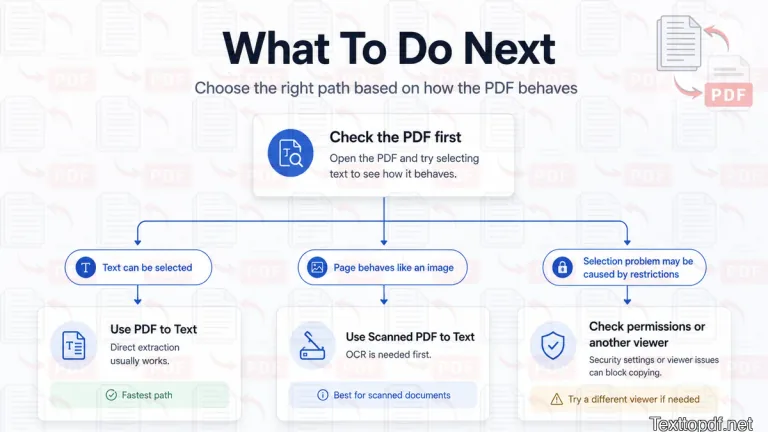
The right next step depends on what the file allows.
- If text selection works, use a direct PDF to Text method.
- If text cannot be selected, use OCR.
- If copying is blocked, check the document permissions first.
- If the result changes between viewers, test the file in another PDF app.
On texttopdf.net, this decision becomes easier. A searchable file fits the PDF to Text path. A page that behaves like an image fits the Scanned PDF to Text path.
If you want a broader comparison before choosing one method, this pdf to text vs OCR guide explains where each path works better.
My Quick PDF Selection Test
Whenever I receive a PDF and need editable text, I do not guess first. I check highlight, search, copy, and zoom.
That small test usually makes the file type obvious within a few seconds. Once that is clear, the next step is also automatically clear.
I am not forcing a random statistic into this article because there is no single universal percentage that explains why text selection fails in every PDF. The reason changes with file origin, permissions, OCR quality, and viewer behavior. A short diagnostic check is more useful here than a vague number because it helps you identify the real cause in your own file.
If the file does need OCR and the result still comes out uneven, you can also check this guide on why OCR results are wrong.
Final Note
A PDF can show words on the page without storing those words as real text. That is the reason why you can highlight and copy in one file, while another file that looks looking still doesn't allow you to copy, and its pages behave like a photograph.
Before trying random tools, spend a few seconds checking what kind of PDF you actually have. That small check saves your time and tells you whether direct extraction or OCR is the better path.