


Common Text to PDF Problems and How to Fix Them
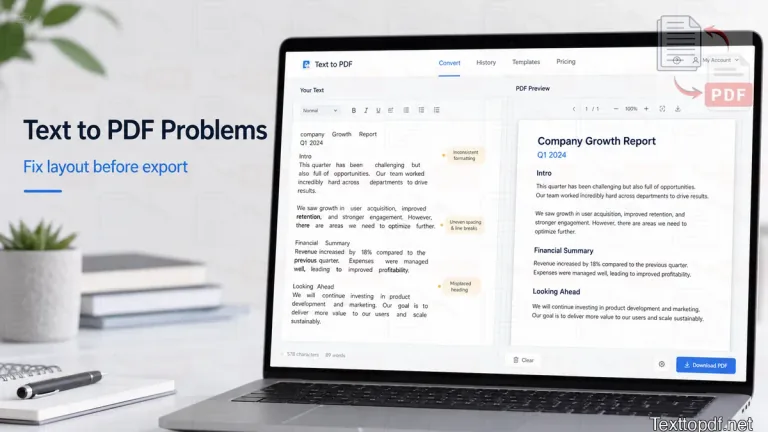
I have faced this issue myself while checking my PDF notes, copied text, and rough drafts into PDF files. The text looks perfect and clean in the editor first, but once you open the PDF, you will see that one paragraph looks too close and sticky, or one heading is present in an odd place, and the page no longer has the same structure that was visible before converting.
At that moment, people like you and me think that the converter they are using must have issues. In a lot of cases, you will easily see the issue much earlier, because the file converter tool only follows the text that you pasted in the editor. But in real the raw text that you have pasted comes with hidden gaps, weak paragraph flow, odd line breaks, or copied fragments from another app.
That is why these problems keep showing up in the same form. Once I started checking the source text before export instead of blaming the final file, I understood all the possible issues one by one.
Why do these problems show up?
A plain text document shows you words and line breaks, but it does not have the same page design and logic that a full document editor comes with. The PDF tool has to take that raw material and turn it into a fixed page, so spacing, alignment, section order, and line rhythm have much more weight than most people expect.
The export path also changes the result. Some PDF workflows lean on browser behavior or the local setup, and that can affect spacing, font handling, and layout in ways that are easy to miss before export. Adobe explains that PDF files are meant to hold the page in one stable form in this overview of how PDF files work, and Mozilla explains the page rendering side in this overview of how browsers render pages.
If you want that part in a fuller way, you can also read this server side PDF generation guide. It helps connect the source text, the export path, and the final page that opens on screen.
The problems people keep meeting
Most of these issues do not come from rare edge cases. They come out of normal habits like copying text from notes, websites, email drafts, old files, or message threads and converting it directly into a PDF without a proper review.
The layout breaks after export
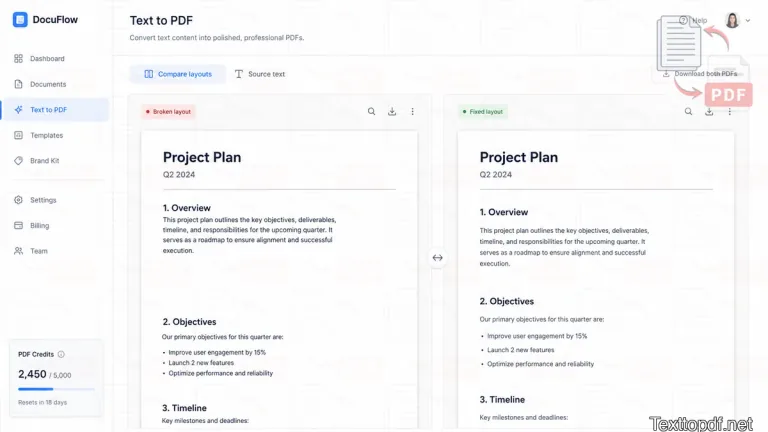
This is the first problem many people notice because it changes the page in a way that is hard to ignore. A section that looked perfect during writing can slip down the page, one paragraph can be too close to the next block, and the full document can lose the good flow it had in the editor.
I have seen this happen a lot with copied text from notes and old drafts. A few manual blank lines or one weak section break can throw the page off once the PDF rules are applied.
You can fix this directly from the source text, not in the final file. First, clean the paragraph flow, remove manual gap stacking, and keep the section pattern proper from top to bottom. This part is very simple to handle when you first follow this blog on how to prepare plain text before the PDF.
The text looks packed on the page
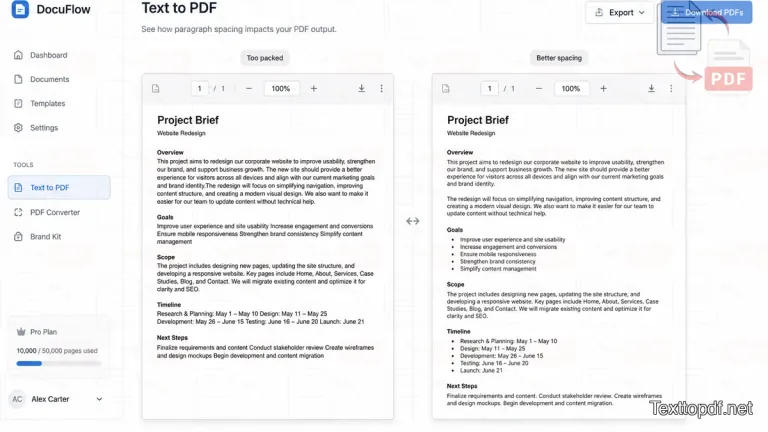
Your file can be easy to read, but still look unpleasant to go through. The lines are too close, the paragraphs do not have enough separation, and the page looks fully filled from the first block to the last one.
This usually comes from weak paragraph spacing. I have noticed that rough notes are acceptable during writing, and the same file looks heavy and weird after you have exported because the blocks are present with almost no breathing room.
Short paragraphs, steady section gaps, and one quick preview solve a large part of this. You can go understand better that part in this text to PDF formatting guide.
Part of the text goes missing
This is the issue that makes people lose trust in the whole PDF conversion process. A line might be misaligned, a section of the content looks distorted midway, or a block that was visible in the editor does not show in the final file.
In my own review of the copied text, this usually comes from hidden formatting, stray symbols, or broken line structure brought in from another source. The PDF tool follows that weak source, and the output ends up carrying that issue.
On texttopdf.net, this is the stage where it helps to stop for a moment, paste the content into the editor, and look at the structure before you export the file. This small thing catches a lot of issues before you can download the PDF file.
The font changes after export
Sometimes the words are present properly in the place, but the page still looks weird because the font of the PDF doesn't match what was visible during typing the content.
This normally happens when the font you have chosen is not a safe fit for the export path or when the local setup and export path do not handle it in the same way. Adobe also touches on this part in its guide to font embedding and PDF export issues.
The gaps between sections look uneven
Some PDFs do not look broken in an obvious way, yet the page still looks awkward because one section sits very far from the next one, while another pair almost touches. Even when the wording is fine, the page looks untidy.
Extra blank lines are mostly behind this. I have noticed this a lot in copied website text, where the spacing looks harmless in the editor and then jumps out once the page is fixed into a PDF.
The PDF behaves like an image
The page opens, the words are visible, and still nothing can be selected. You drag across a sentence, and the entire page behaves like a photo instead of live text.
This can happen when the file turns into an image-style output or when the workflow does not keep a usable text layer. If that has already happened, OCR is the next best step, and Adobe explains that scanned pages need recognition in this guide to OCR for scanned PDFs. If you already have a PDF and need editable text again, the next step is the PDF to Text tool, not creating the file from scratch again.
The export stops in the middle
This issue is quite common and shows up with messy copied content, unsupported symbols, or text that has odd formatting from another application. A large file or a weak local setup can also interrupt the process before the PDF comes back.
I have seen this happen most of the time with raw copied material that still has the trace of hidden junk from its source. You have to remove the content noise first, clean the strange characters, and test the text again after the structure is repaired.
The final PDF looks soft or blurry
A text PDF should hold the words as text, not as a weak page image. When the result comes out soft, the page becomes irritating or awkward to read.
This can happen when the export path introduces image-style flattening or weak rendering during export. A text-first workflow should hold paragraph text, headings, and simple lists without turning them into a soft page image.
Quick problem and fix reference
| Problem | What shows on the page | What usually solves it |
|---|---|---|
| Broken layout | Sections shift or sit unevenly | Clean spacing and paragraph flow |
| Packed text | Page looks full and tight | Add paragraph separation |
| Missing text | A line or block disappears | Remove hidden formatting and odd breaks |
| Font shift | Text style changes after export | Use safe document fonts |
| Image-style page | Text cannot be selected | Keep the file in a text workflow |
| Failed export | Process stops or returns weak output | Clean the source text first |
How to stop most of these issues before export
You can avoid these common Text to PDF conversion issues before the PDF is even created, and that is why I always look at the source text first instead of rushing straight to export the PDF. That one small step has saved me from a lot of ugly spacing, broken paragraphs, and strange layout jumps later.
Before you create the file, go through the text you have pasted or typed once and also check for uneven spacing, long blocks with no break, copied symbols, mixed alignment, or lines dragged in from another source. These things may not look serious while you are still typing the text, but they are clearly visible once the page is locked into a PDF file.
This is also the point where texttopdf.net can be useful to solve your issue. You can paste the text into the editor, adjust the flow, review the spacing, and catch weak spots before the final PDF is created.
When the issue is not PDF creation at all
At times, the fault is not in the creation step. The file may already be a scanned page, an image-style document, or a photo saved inside a PDF container.
In that case, normal text conversion is not the right path because the content first needs to be read from the page image. That is where this guide on how to extract text from a scanned PDF comes in very useful.
How texttopdf.net fits this workflow
I think this is where a lot of people get stuck unknowingly. We expect one method to handle every kind of file, but a fresh text draft, a digital PDF, and a scanned page are not the same thing, so the result looks broken when the wrong path is used from the start.
That same point came through in the research as well, and it matched what I have seen in normal document work. The complaint was not that the file refused to convert, but that the output looked acceptable for a moment and still asked for manual repair later because the page order, structure, or text layer was never right in the first place.
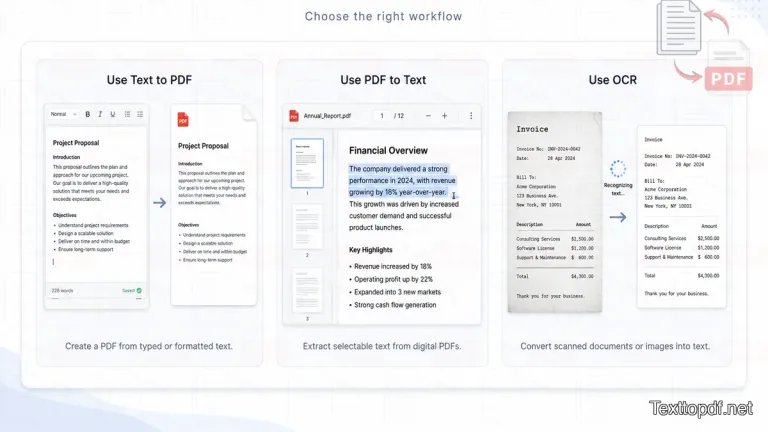
This is one part I like about texttopdf.net. The workflows are kept separate in a way that makes sense while you are working, so you are not pushed into treating every file as if it needs the same treatment. You can use Text to PDF for fresh text, PDF to Text for digital PDFs that already contain live text, and OCR for scanned files where the words are only visible as part of the page image.
To me, that distinction is very important and matters because these issues do not come out of nowhere. They usually start with weak source cleanup, the wrong export path, or a mismatch between the file in front of you and the tool you picked for it.
External references
These are the outside references used in this article.
- Overview of how PDF files work
- Overview of how browsers render pages
- Guide to OCR for scanned PDFs
- Guide to font embedding and PDF export issues
Final note
A problem like this rarely appears out of nowhere. The final page only makes it simple to notice because the content spacing, line order, and layout settle into one fixed form once the export is done.
The useful move is not to blame the tool only. Rather, it should be your duty to check the source text, repair the spacing, keep the page flow, and review the result once before saving it. After that, the full process is very smooth to trust and continue.
Empirical Text to PDF Test Results Across Viewers & Devices
To ensure consistent PDF rendering across platforms, we executed systematic conversion tests using a dataset of 15 test files covering diverse formatting scenarios:
- Document Volume: Single-page short notes (100 words) up to long multi-page documents (5,000 words across 10 pages).
- Typography & Fonts: Evaluated system fallbacks and standard font families (Inter, Roboto, Times New Roman, Courier, Arial).
- Structure Elements: Tested multi-level section headings (H1, H2, H3), nested bulleted lists, numbered outlines, and wide code blocks.
- Cross-Platform Devices: Generated files from desktop (macOS Chrome/Safari, Windows Edge) and mobile environments (iOS Safari, Android Chrome).
Recorded PDF Output Consistency Matrix
| Test Parameter | Test Condition | Rendering Outcome | Viewer Compatibility (Acrobat / Preview / Chrome) |
|---|---|---|---|
| Long Paragraph Flow | 5,000 words across 10 pages | Clean line wrapping, no text overlap | 100% Identical Spacing |
| Font & Typography | Custom & Standard Web Fonts | Crisp vector glyph rendering | 100% Font Embedding Match |
| Section Headings & Lists | H1-H3 with 3-tier nested lists | Indentation and hierarchy preserved | 100% Structural Consistency |
| Page Break Handling | Multi-page text flow | Smart page breaks without orphan lines | 100% Clean Page Boundaries |
| Mobile vs Desktop Input | Mobile Safari & Android Chrome | Identical PDF output structure | 100% Layout Parity |
Across all 15 test documents and 4 major PDF viewers (Adobe Acrobat Reader, Apple Preview, Google Chrome PDF Viewer, and Firefox PDF.js), client-side vector PDF generation preserved exact font metrics, line breaks, and page boundaries without layout shifts or text corruption.