


Digital documents are supposed to make things easier. But they have their own headaches. Some files don't open properly. Other file formats get changed when opened on another device. Organizing images of paper documents is another difficult task, as you may have to look at each image one by one to determine the correct page order.
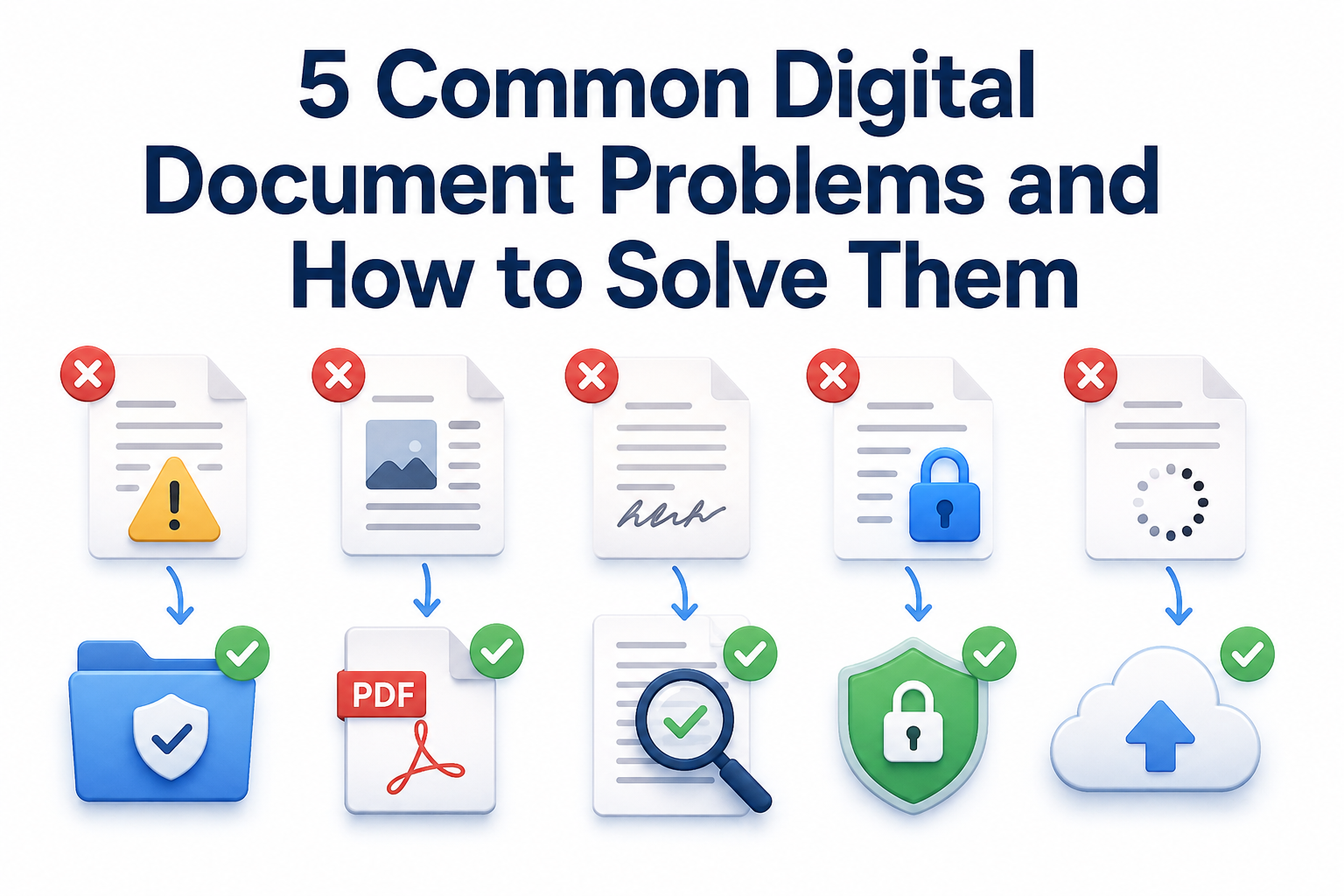
Most of these problems can be easily fixed once you know what is causing them. In this blog, we will review 5 common digital document problems people encounter regularly and how to actually solve each one.
1. Scanned Documents Are Difficult to Manage
Scanned images and PDFs look fine when you open them. But a big problem with them is that you cannot search inside them using keywords. If a scanned document has fifty pages and you need one specific line, there's no shortcut. You have to go through it manually. Also, they cannot be edited directly either.
Keeping documents this way also creates a storage problem over time. Instead of a clean, structured file, you get separate image files scattered in a folder. Images take up more space than a plain text document would.
Solution: This issue can be fixed using OCR tools. Running a scanned document or image through a reliable OCR tool converts it into digital text. One popular example of such tools is an online picture-to-text converter. The text becomes searchable and editable, so you can copy it wherever needed. If you reuse text taken from a scanned book or report, it can still match the original source. A free plagiarism remover can help rewrite those passages before you use them elsewhere. Once converted, you can search for a keyword instantly.
2. Multiple Document Versions Make Collaboration Difficult
Working on the same document with a team through offline copies causes a lot of confusion. Someone edits a file and sends it back, someone else edits that copy separately, and soon three or four different versions are created. Nobody is fully sure which one is actually the latest.
This often leads to real mistakes too. A team member might accidentally keep working on an outdated version or create a duplicate file that just adds to the confusion instead of fixing it.
Solution: Cloud-based tools like Google Docs solve this problem properly. Everyone works on the same file, and updates show up in real time. So there's no question about which version is current. Version history is also available there. Hence, if something needs to be checked or reverted, that's possible too.
3. Text Files Can Lose Their Formatting When Shared
A text document that looks perfect on one device can look completely different on another device. That's because different text editing apps or versions can sometimes cause formatting changes. Even a document created on an older version of Word, like 2010, may experience formatting changes when opened in a newer version like 2026.
This becomes a real issue for content containing images, text, and table data. For example, a resume, a report, or an official document needs to look perfect. But when they are opened on a different version or operating system, formatting may change. Also, if you have used specific fonts and spacing, they may be replaced with generic ones.
Solution: Converting the finalized version of a document into a PDF solves this. Once converted, the file stays exactly the way it was formatted. It doesn't change due to the device or software opening it. An easy way to do this is using a text-to-PDF converter tool. You can paste your formatted text there or upload a supported text file and convert it to PDF easily.
TextToPDF’s Text to PDF tool is another browser-based option when the final document needs a stable layout.
4. Sensitive Documents Need Better Access Control
Not every document needs to be accessible to everyone on a team. Financial records, contracts, or personal information don't need to be accessible to every employee or collaborator by default. Leaving access unrestricted increases the risk of sensitive information getting exposed without anyone even intending it.
Solution: Setting up permission-based access fixes this. Give people only the level of access they actually need; some can view only, others can edit, and sensitive files can be restricted to a smaller group entirely. This keeps documents protected without slowing down the actual work that needs to get done by the people who do need access.
5. Poor Document Organization Makes Files Hard to Find
Saving files randomly wherever feels convenient at the moment works fine when there's only a handful of documents. But once the number grows, searching for a specific file becomes a problem. Someone has to scroll through folders and try to remember where something was saved weeks ago.
This problem gets worse with time as new files keep adding to the mess without any real structure.
Solution: A proper folder and subfolder structure solves this over time. Organize files by whatever actually makes sense for the work, project, department, client, year, or document type. Use consistent, descriptive folder names based on the project, client, year, or document type so they are easier to locate. This way, finding a file later becomes easier as you can search through a name or you roughly have an idea where to look instead of searching randomly.
Final Words
So these are 5 common digital document problems. Each one has a fairly simple fix once you actually apply it. OCR makes scanned files searchable. Cloud tools fix version confusion. PDF keeps formatting intact. Permission controls protect sensitive files. And a proper folder structure keeps everything easy to find.
None of these solutions need heavy technical skill either. Fixing even one or two of these problems in your own routine already makes handling digital documents a lot less frustrating day to day.