
Best Text to PDF Converters in 2026


Table of ContentsTap to open
People usually start looking for a text to PDF converter when a note, draft, or TXT file needs to become a document that is easier to share. A good converter should do more than change the file extension. It should keep the page readable, preserve the structure you created, and make the final PDF simple to open on another device.
There are plenty of options online, but they do not all solve the same problem. Some focus on a clean writing space, some provide richer formatting controls, and others are more useful when several files need to be converted. This comparison looks at four text to PDF converters in 2026 and explains where each one fits.
The PDF format is designed to preserve a document's appearance across different devices and applications. You can also read our guide on why PDFs are used for sharing digital documents when you want to understand the format beyond conversion.
Why Convert Text to PDF?
Plain text is easy to create, but it carries very little layout information. The same file can look different when opened in another editor, and it usually does not provide a reliable way to combine text with images, headings, or page-level structure.
Converting the finished content to PDF creates a stable copy that is easier to share, print, and archive. The layout is less likely to change because of the recipient's device or the application used to open the file. For a deeper explanation of preparation and export, see our complete text to PDF guide.
What We Compared
The useful differences between text to PDF converters usually appear before the download button. We looked at the editing experience, formatting controls, batch conversion, device support, limitations, and whether the basic workflow requires an account or payment.
No single converter is ideal for every document. The right choice depends on whether you are preparing one structured file, writing notes directly in the browser, or processing several simple text files at once.
1. TextToPDF.net
TextToPDF.net is built around a document editor for people who want more control over the structure of the final PDF. You can type or paste content into the editor, or upload a TXT file when the text already exists somewhere else.
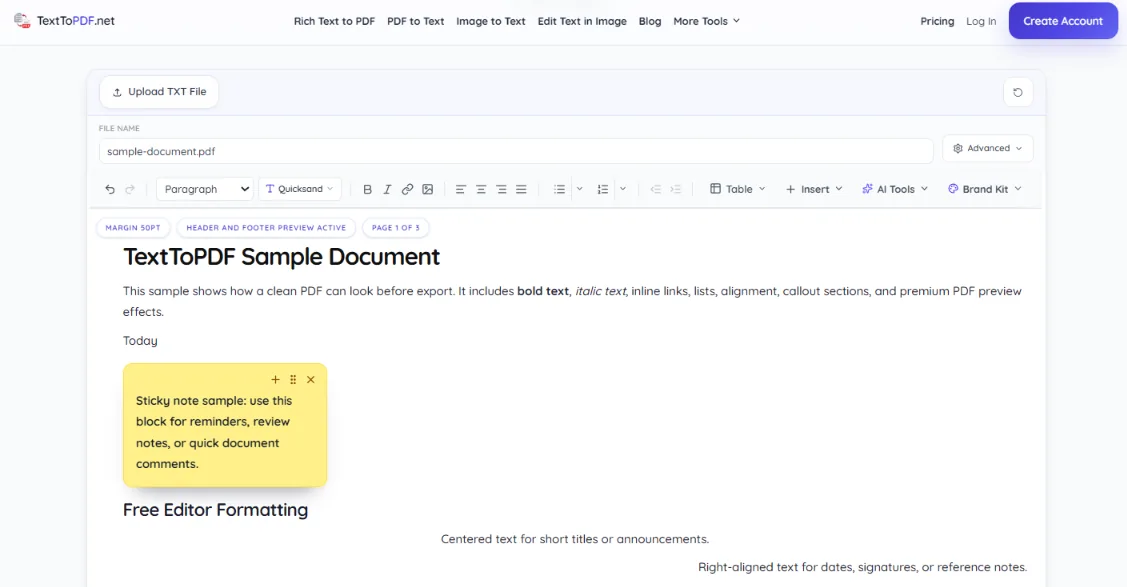
The editor is useful when a document needs more than plain paragraphs. You can organize content with headings, tables, bullet points, checklists, code blocks, equations, and inline links before exporting. A preview also gives you a chance to check the page before you download the finished file.
Features
- Supports headings, tables, lists, checklists, code blocks, equations, and inline links before export.
- Provides fillable fields, checkboxes, date fields, and signature boxes for form-style documents.
- Includes formatting profiles for documents such as corporate memos, legal documents, and startup specifications.
- Uses session-based processing so uploaded content is handled temporarily rather than kept as a permanent server file.
Limitations and Pricing
The core converter is designed for plain text and TXT files. DOCX and RTF files need to be converted or copied into a supported workflow first. The basic Text to PDF workflow is free and does not require signup.
If you want to see how the editor fits into a complete workflow, open the Text to PDF converter or compare it with the steps in our guide to converting a text document to PDF.
2. Imagetotext.me
Imagetotext.me provides a fully free Text to PDF tool with an advanced editor. Using this tool, you can easily turn plain text into a clean or well-formatted PDF. You can type or paste content directly into the editor, or upload a TXT file when your content is already prepared.
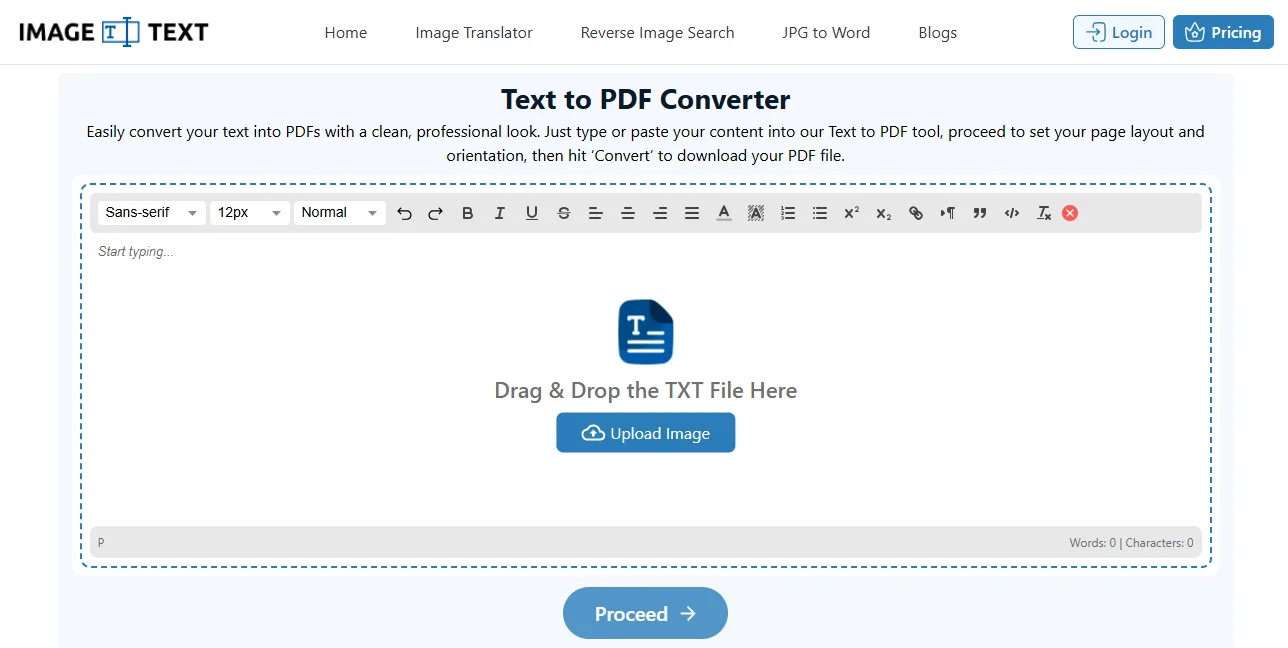
The tool also provides basic formatting controls and lets you adjust the PDF layout before conversion. You can choose the page orientation, page size, and margins to create a document that fits your needs.
Features
- Supports typing, pasting, and uploading TXT files.
- Accepts input upto a batch of five TXT files.
- Includes basic rich text formatting options such as font size, style, bold, and italic.
- Lets you choose between portrait and landscape orientation.
- Supports different page sizes, including A4, A5, Letter, Legal, and more.
- Allows you to adjust page margins before creating the PDF.
- Works directly in a browser without installation or sign-up for the basic workflow.
Limitations and Pricing
The tool creates one PDF per conversion, so you need to repeat the process when converting multiple files. The Text to PDF workflow is fully free and does not require registration.
3. Imagetotext.io
Imagetotext.io's Text to PDF converter works in a browser, so there is no desktop installation before you start. You can paste content from the clipboard or upload a text file, then make changes in the built-in rich text editor.
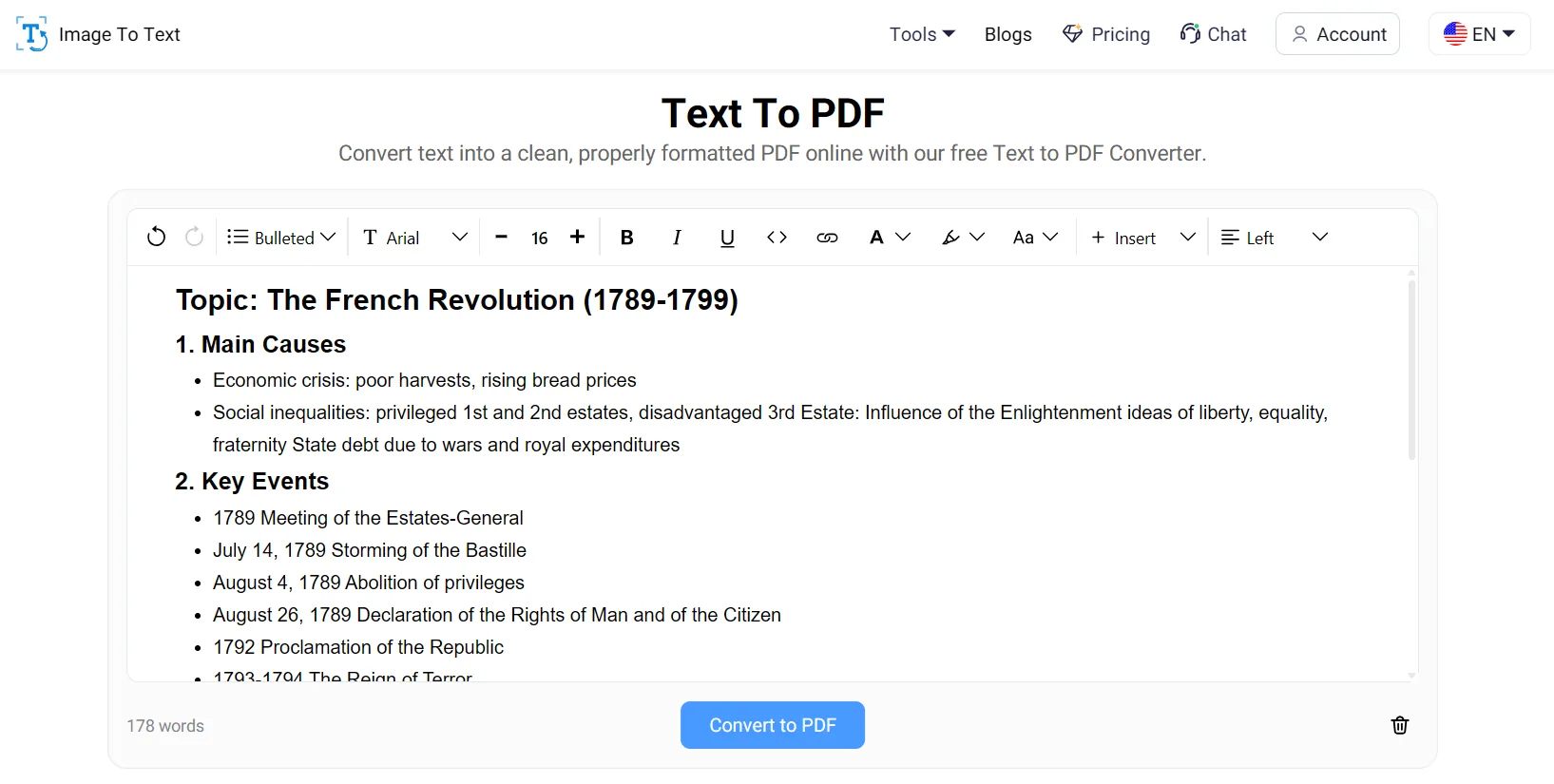
The editor is aimed at quick formatting before export. You can adjust options such as font, size, bold, italic, and alignment, then use the Convert to PDF control when the content is ready. The source comparison also lists batch conversion as a useful option when several text files need to be handled together.
Features
- Includes a browser-based rich text editor for basic formatting changes.
- Converts text quickly when the input file is straightforward.
- Offers a basic workflow without requiring signup.
- Works on desktop and mobile browsers and supports batch conversion according to the source comparison.
Limitations and Pricing
Larger files or a slower internet connection may make the process take longer. The standard text to PDF workflow is described as free and available without login.
4. OnlineNotepad.io
OnlineNotepad.io is suited to people who want to write and review content inside a browser before converting it. Its text editor is designed for quick notes, so the writing and PDF export steps can happen in the same workspace.
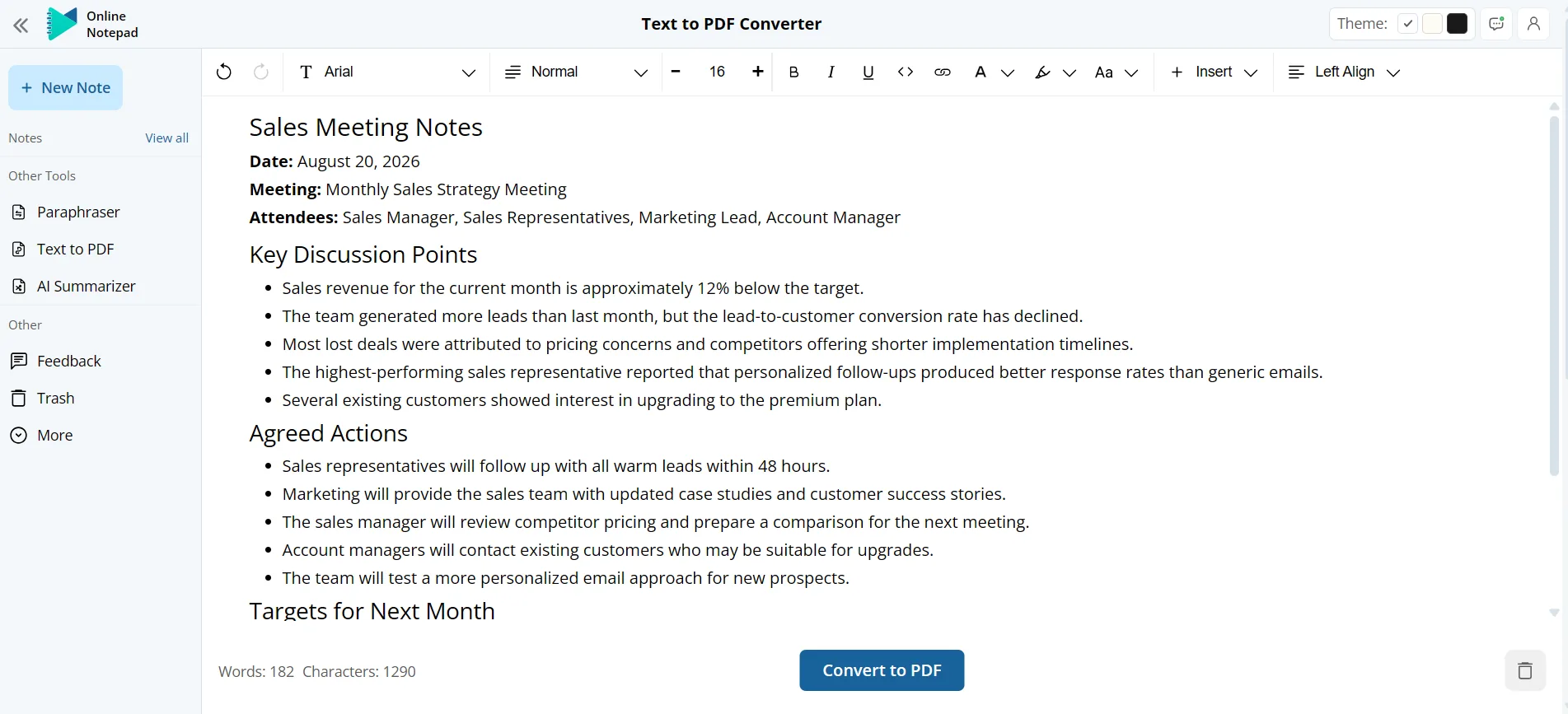
The interface is responsive and includes options that support longer writing sessions. Theme controls, word and character counts, and browser-based editing can be useful when the content is being created from scratch rather than uploaded as a finished TXT file.
Features
- Provides a text editor for writing and editing before PDF conversion.
- Offers multiple themes for a more comfortable writing environment.
- Includes word and character counts for tracking the size of a document.
- Works in the browser without installation or a required account.
Limitations and Pricing
Batch conversion is not available according to the source comparison, so files need to be converted one at a time. The listed workflow is free and does not use a subscription tier for the basic features.
5. iLoveNote
iLoveNote is another browser-based option for quick text formatting and PDF export. It focuses on the basic controls needed to adjust written content before it is saved as a PDF.
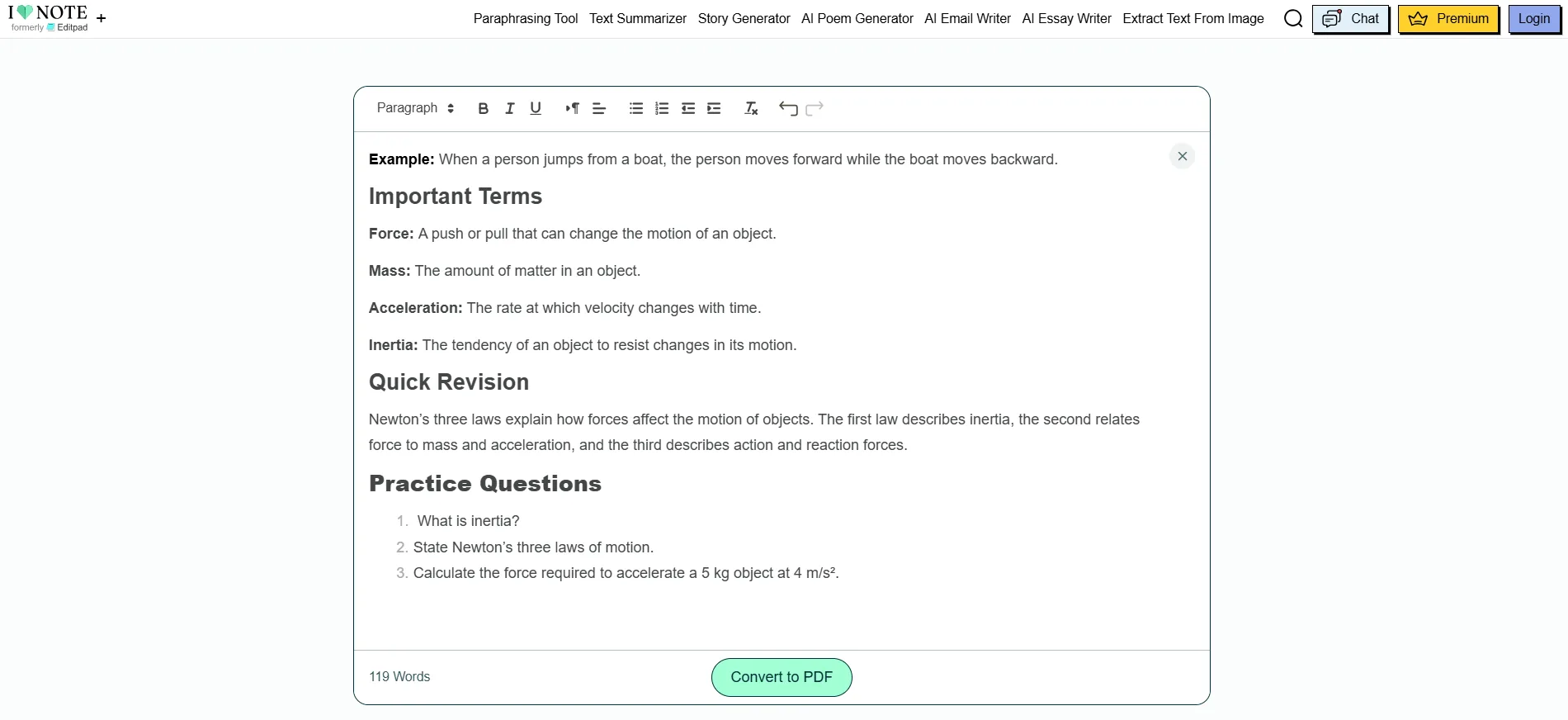
The workflow is simple: prepare the text in the editor, apply the available formatting controls, and convert it when the page is ready. That makes it a reasonable fit for short documents where advanced layout controls are not the main requirement. Students formatting coursework or study notes can also consult our complete guide on how students convert notes, essays, and assignments to PDF.
Features
- Provides basic text formatting before conversion.
- Works directly in a browser and is designed for quick export.
- Does not require signup for the standard workflow according to the source comparison.
- Is available as a free text to PDF option for ordinary documents.
Limitations and Pricing
The source comparison notes that adding image files to the document is not supported. The standard text to PDF workflow is described as free without login or signup.
Text to PDF Converter Comparison
| Converter | Main strength | Batch conversion | Best fit |
|---|---|---|---|
| TextToPDF.net | Structured editing and document controls | Not the main focus | Forms, organized documents, and controlled layouts |
| Imagetotext.me | Text editing, formatting, and PDF layout controls | Yes, accepts batch TXT inputs | Quick text formatting and one-click PDF conversion |
| Imagetotext.io | Rich text editing with quick export | Yes, according to the source comparison | Several simple text files and fast browser conversion |
| OnlineNotepad.io | Writing and reviewing inside the browser | No | Notes and content created directly in the editor |
| iLoveNote | Basic formatting and quick conversion | Not highlighted | Short documents that need a simple PDF export |
The table is a practical starting point rather than a permanent ranking. Features, limits, and pricing can change, so check the current workflow before relying on a specific option for an important document.
Which Text to PDF Converter Should You Choose?
Choose TextToPDF.net when the document needs headings, tables, checklists, forms, or a deliberate page structure before export. Its editor is more useful when you want to review the layout instead of converting raw text immediately.
Imagetotext.me and Imagetotext.io are a better fit when batch conversion is the deciding factor. OnlineNotepad.io makes more sense when the writing itself happens in the browser, while iLoveNote is aimed at quick, uncomplicated documents with basic formatting needs.
Your starting file also matters. If you already have a TXT file, an upload-based workflow may be quicker. If you are still writing, an editor with formatting and preview controls can reduce the amount of cleanup needed after conversion. Our guide to text to PDF formatting covers the preparation steps that improve the final page in either case.
A Simple Text to PDF Workflow
For a controlled conversion, the general process is straightforward:
- Add the text by typing, pasting, or uploading a supported TXT file.
- Organize headings, paragraphs, lists, and spacing before export.
- Preview the document and correct layout problems before downloading the PDF.
If you want a more detailed comparison of Word, Google Docs, and online tools, read our guide to simple ways to convert editable content into PDF. For common export problems, see common text to PDF problems and how to fix them.
Final Thoughts
The best text to PDF converter depends on the document rather than the name of the tool. Structured documents benefit from stronger editing and preview controls, while simple notes may only need a quick browser conversion. Batch work introduces another requirement because converting files one by one can become repetitive.
Before sharing the final PDF, check the headings, spacing, page breaks, and any information that needs to remain exact. A short review at the end is often enough to catch a missing line or an awkward page break before the document reaches someone else.
FAQs
Are text to PDF converters free?
The source comparison describes the basic workflow for all four tools as free, although features and limits can change. Check the current product page before using a converter for larger or repeated jobs.
Which converter supports batch conversion?
The comparison identifies Imagetotext.me and Imagetotext.io as the batch-conversion options. This can be useful when several simple text files need to be turned into PDFs without repeating the full process manually.
Can I format text before exporting it to PDF?
Yes. TextToPDF.net, Imagetotext.me, Imagetotext.io, OnlineNotepad.io, and iLoveNote all provide some form of editing or formatting before conversion. The amount of control varies, so choose the editor that matches the structure your document needs.
Which option is best for structured documents?
TextToPDF.net is the strongest fit in this comparison when the document needs headings, tables, checklists, forms, or a more deliberate layout. A simpler converter may be enough for short notes without those elements.
About the author
Written by Sourav Kumar Sahu
Content & Product Lead
Sourav Kumar Sahu handles content planning, user research, and product documentation for TextToPDF.net, focusing on PDF conversion, text extraction, OCR workflows, and clean document formatting. TextToPDF.net is maintained by developers and technical specialists with practical experience in PDF conversion, text extraction, OCR workflows, and document formatting.
View LinkedIn profileReviewed by
Sagar Kumar Sahu
Lead Developer & Technical Reviewer
Sagar Kumar Sahu leads tool development, technical review, and product maintenance for TextToPDF.net, ensuring engine stability, Web Worker performance, and technical accuracy.
Reviewer LinkedInNeed to convert a document?
Try our free tools online.