

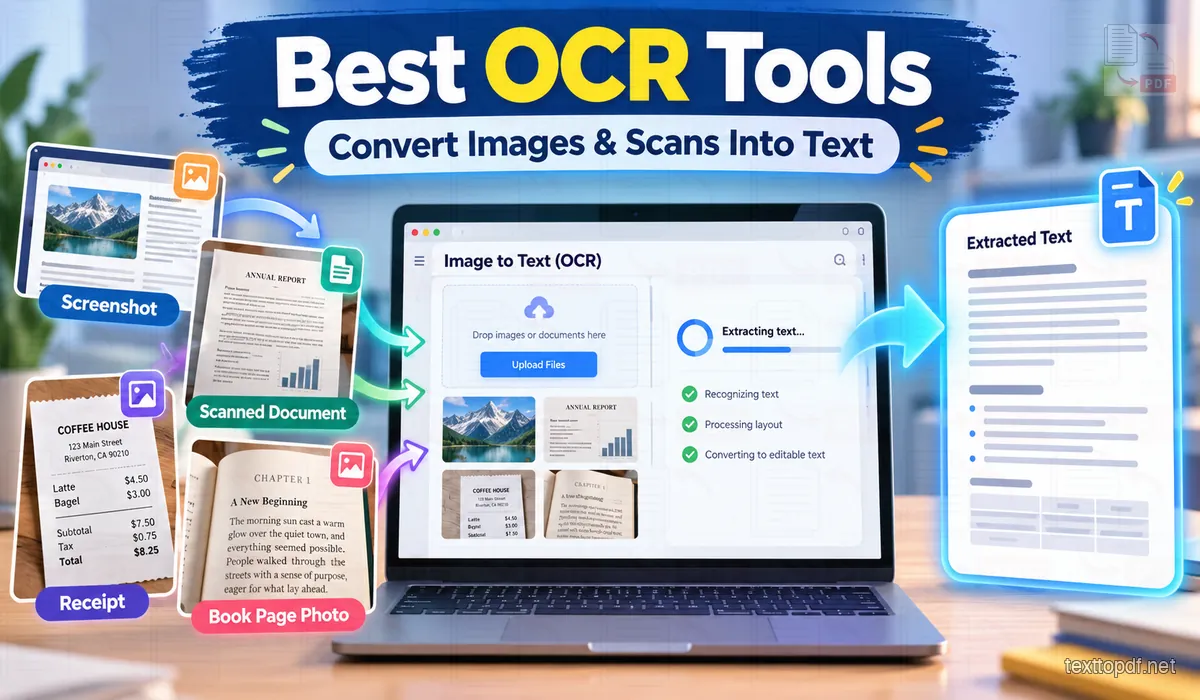
A screenshot, receipt, or scanned page can be easy to read and still impossible to copy. Typing the words again works for a short label, but it becomes slow when you need a paragraph or several pages. OCR, short for Optical Character Recognition, reads visible text in an image and turns it into editable characters.
The right tool depends on what you have: one screenshot, several image files, or a PDF made from scans. This guide compares five options by their file support, cropping and layout controls, and export formats. OCR can still misread small or blurred text, so check important names, dates, and numbers against the original.
What OCR does
A photo stores words as pixels rather than as selectable characters. OCR looks for shapes that resemble letters and numbers, then returns a text result. It can save retyping, but it usually does not rebuild the exact fonts, spacing, or table layout from the page.
If you are new to the process, our step-by-step guide to extracting text from an image shows what to check before and after an OCR run.
OCR tools at a glance
| Tool | Useful when | Notable options |
|---|---|---|
| TextToPDF.net | You want to select a region from an image and work with the result in your browser | Region selection, browser OCR, TXT or PDF export |
| OCRonline.io | You have images or a PDF and want to process a small batch | Image cropping, up to five image files, several output formats |
| ImageToTextConverter.net | You want to choose between plain text and a more structured result | Simple or formatted OCR, up to five files, multiple export formats |
| DNSChecker | You need crop and rotate controls or want to process several files | Up to five files, TXT, DOCX, or PDF download |
| IPLocation.io | You want several image adjustments before recognition | Crop, rotate, flip, and batch processing |
1. TextToPDF.net Image to Text
TextToPDF.net Image to Text is a good fit when the words you need are inside an image and you want to choose the part OCR reads. Upload one image or a batch, drag over the relevant area, run OCR, then review and copy the result or export it as TXT or PDF.
Its free browser OCR uses Tesseract.js and handles batches of up to 10 PNG, JPG, WebP, or BMP files. Free batches stay in the browser. Region selection is useful for a screenshot with menus around the text or a receipt where you only need one total. The tool focuses on English, and it is designed for image files; if your source is a multi-page scanned PDF, see our guide to extracting text from scanned PDFs before choosing a workflow.
2. OCRonline.io
OCRonline.io accepts images and PDFs, and its page currently allows up to five image files at a time, with a 4 MB limit per image. You can upload, drag and drop, paste, or use a public image URL. For an image, its crop control lets you select the area before recognition.
The service offers copy and download options, including TXT, DOCX, and PDF. Its feature list also describes support for multiple languages, handwritten text, equations, and very small print. Those options may help when the source is more complicated than a clean screenshot, though the result still depends on how clearly the original was captured.
3. ImageToTextConverter.net
ImageToTextConverter.net gives you a choice between Simple OCR for plain text and Formatted OCR, which aims to retain structure such as headings, lists, and tables. The site supports image files and PDFs and describes batch conversion for up to five files at once.
You can add an image by uploading, dragging, pasting, or entering a public URL. Results can be copied or saved in formats such as PDF, DOCX, TXT, HTML, or Markdown. The formatted option can be useful when a page is not just a paragraph, but check the order and spacing of tables or columns before reusing the output.
4. DNSChecker Image to Text
DNSChecker's Image to Text tool accepts common image formats and PDF files. It supports batches of up to five files, with crop and rotate controls before recognition. The extracted text can be copied or downloaded as TXT, DOCX, or PDF.
Its page states that uploaded files are deleted from its servers within 24 hours. That is useful to know when choosing a service, but check the current privacy terms before uploading anything sensitive.
5. IPLocation.io Image to Text
IPLocation.io also supports batches of up to five files and accepts image formats and PDFs. Before recognition, you can crop, rotate, or flip an image. Its page lists support for handwriting, equations, and microtext, with DOC, PDF, or TXT as download options.
Those extra controls may suit a mixed set of images, but OCR still needs a readable source. Small characters, handwriting, and complex layouts should be checked carefully after extraction.
Which OCR tool should you choose?
Start with TextToPDF.net when you are working from an image and want to isolate a particular text area in the browser. OCRonline.io is worth considering when you need image and PDF input, cropping, or its listed language and handwriting options. ImageToTextConverter.net is a practical option when you want to compare a plain-text result with an output that tries to retain more structure.
DNSChecker and IPLocation offer image controls and batch processing, with different download formats and listed features. For a scanned PDF, check that the tool accepts PDF files before uploading; an image-only workflow may not process the document directly. A PDF-specific OCR process can be different from extracting text from a single page image.
How to get a cleaner OCR result
Use the sharpest version of the image you have and keep the page as straight as possible. If the tool offers cropping, select the text you need without cutting off letters at the edges. A clearer, tighter image can also reduce unrelated words from menus, stamps, or nearby columns.
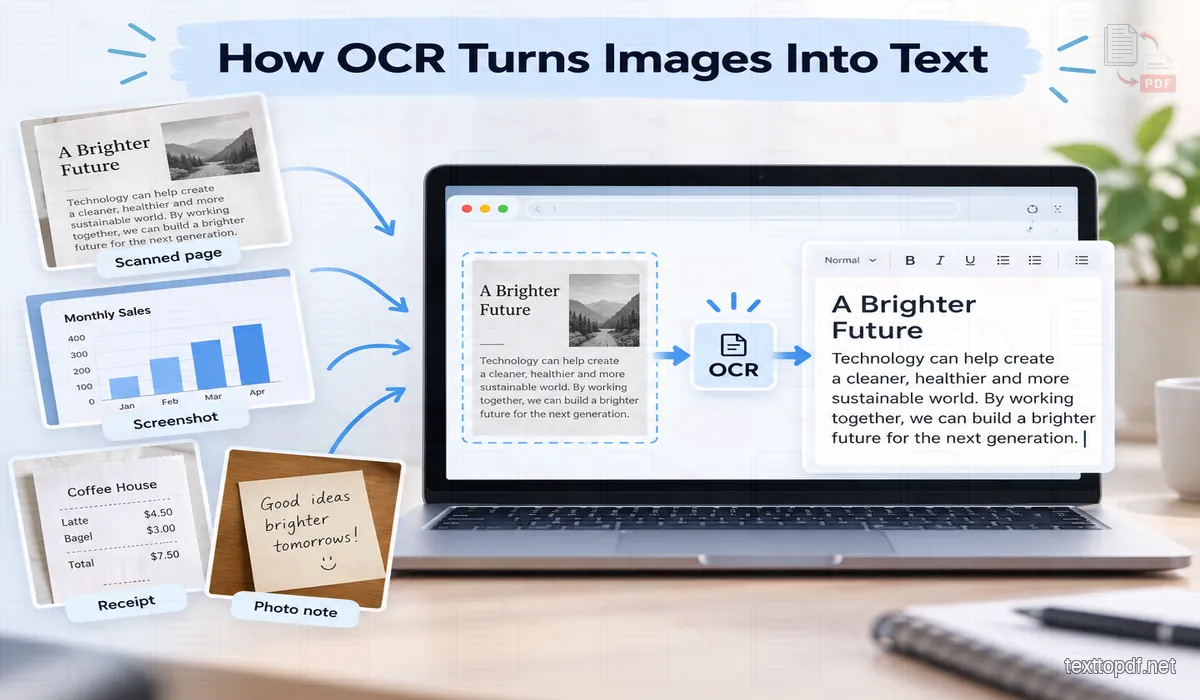
Read the extracted text while comparing it with the source, especially for names, amounts, dates, and reference numbers. If a result looks wrong even though the text seems readable, see our guide to why image-to-text results can be wrong and our explanation of how scan quality affects OCR accuracy.
Frequently asked questions
What is the best OCR tool for images?
It depends on the file and the controls you need. TextToPDF.net offers region selection for image files, OCRonline.io accepts images and PDFs, and ImageToTextConverter.net provides simple and formatted output choices. DNSChecker and IPLocation also provide image controls and batch options.
Can OCR convert a scanned PDF to editable text?
Yes, when the OCR service accepts PDF files. Some image-to-text tools only process image formats, so check the accepted file types first. Our scanned PDF extraction guide explains the PDF-specific workflow.
Does OCR keep the original page layout?
Usually not exactly. OCR focuses on recognizing characters, and line breaks, columns, or tables may need correction. A formatted mode may retain some structure, but compare it with the original before relying on the layout.
Should I check the text after OCR?
Yes. OCR can confuse similar characters or miss words, particularly in small, blurred, tilted, or low-contrast images. Check important details against the original before using the text in a document or record.