

Just think about a case where you receive a screenshot in your chat and want to copy an address from that image instead of typing it manually. The same problem can appear with other documents you receive in everyday life.
A receipt might contain an order number you need to copy, while someone may send you a photograph of a printed notice instead of the original document. You might also have an old scanned page with a paragraph you want to reuse, but in all of these cases the problem is the same: you can see the text, but you cannot select or copy it directly.
Manual typing can solve the problem when the image contains only a few words. Once you need an entire address, several lines from a document, or a longer paragraph, retyping becomes unnecessarily slow and introduces another chance to enter something incorrectly.
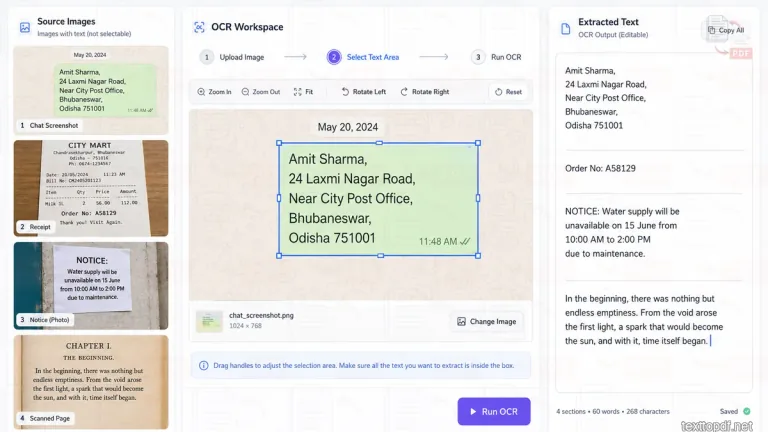
The practical solution is OCR, short for Optical Character Recognition. OCR examines visible characters inside an image and turns them into text that can be copied, corrected, searched, or reused. With the Image to Text tool, you can upload a picture, select the part containing the words you need, run OCR, and work with the extracted result instead of retyping it.
The short answer is therefore simple: use OCR to turn the words visible inside an image into editable text. The more useful part is understanding what affects the result, because a photographed page does not behave exactly like a screenshot and a receipt does not behave like a normal paragraph.
The Fastest Way to Get Text Out of an Image
For an ordinary picture with readable printed text, the process need not be technical. You just upload the image, select the relevant text area, run OCR, and compare the result with the original before using it elsewhere.
TextToPDF.net keeps those actions inside one workflow. After the image loads, you can drag over the exact part you want OCR to read rather than making the recognizer inspect everything around it. The selected region is prepared in the browser and processed with Tesseract.js, then the wording appears as editable text that can be copied or exported as TXT or PDF.
That area selection option is especially useful on busy or blurred images. A screenshot has profile photos and navigation controls, while a receipt can contain logos and divider lines. If the real target is one paragraph or one total, OCR has no reason to process every unrelated object surrounding it.
We measured that difference later in this guide rather than assuming that selecting a smaller area must always help.
What OCR Actually Does to Your Picture
An ordinary JPG or PNG does not contain editable letters merely because words are visible on the screen. To the computer, the letters are part of the image pixels. OCR has to identify areas that look like text and decide which characters those shapes represent.
The result is therefore a reconstruction of the visible wording, not a hidden copy of the source document. That explains why the sentence may come back correctly while the exact font, spacing, or page design does not.
Image condition can change the result considerably. An open-access OCR benchmarking experiment compared Tesseract, Amazon Textract and Google Document AI across 322 English book scans and 100 Arabic article scans. The researchers reproduced the material under 43 noise conditions, producing 18,568 documents and 51,304 processing requests.
The study found that added noise affected recognition performance and that the engines did not respond to degraded documents in the same way. English recognition was also considerably stronger than Arabic recognition in that particular experiment.
That is why a statement such as “OCR is 99% accurate” tells you very little on its own. Accuracy on one neat English page cannot predict what will happen to a tilted photograph, tiny text, or a complicated two-column layout.
A Practical Image-to-Text Workflow
Most people do not need to understand OCR models before extracting a sentence from the image. A few seconds spent examining the source image usually tells you more about the likely result than changing settings without knowing what problem you are trying to fix.
1. Look at the text before running OCR
Start with the part of the picture that actually matters. If you can comfortably read the wording at normal zoom and the page is reasonably straight, an ordinary OCR attempt is a sensible first move. Heavy shadows or very small characters give the recognizer less visual information to work with.
Resolution is much more important, although there is no single number that guarantees success. Higgsfield offers an AI Image Editor for cleaning up a low-quality scan before OCR runs. The official Tesseract guidance on improving OCR input quality says Tesseract works best with images of at least 300 DPI and warns that excessive skew can damage line segmentation. Its documentation also notes that image noise can reduce recognition quality.
Phone photographs do not always have a useful scan-DPI value in the same way as a scanner. Character size inside the image matters just as much, because a huge photo can still contain text that occupies only a handful of pixels.
2. Give OCR the part you actually want
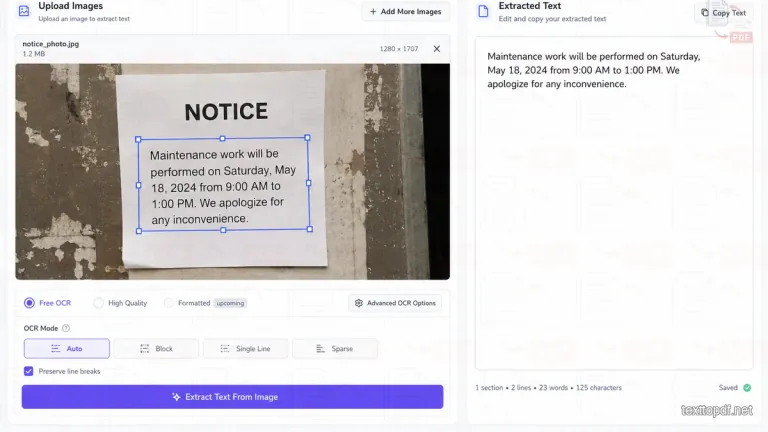
One paragraph inside a screenshot should not automatically require OCR over the entire screen. TextToPDF.net lets you drag over the target area first, so surrounding menus or decorative sections do not need to enter the recognition task.
Take an example of an online order screenshot. The upper half generally contains navigation links and a product image, while the order reference sits in a small block farther down. Selecting that block gives you an output centred on the information you came for.
A tight selection is not a magic accuracy switch. Our own area selection (inside the image) test found something more specific: on a clean, busy screenshot, OCR already recognised the target paragraph correctly when the full image was processed, but it also returned a large amount of unrelated interface text. Selecting the paragraph removed that extra material.
3. Match the recognition mode to the text
A paragraph has a different structure from one tracking number. TextToPDF.net currently provides Auto, Block, Line, and Sparse OCR modes so the recognition layout can match the material more closely.
Auto suits general screenshots and ordinary images. Block is intended for paragraph-style text. Line handles a single selected line, while Sparse is useful when short labels sit apart from one another.
There is no reason to change modes repeatedly when the first output already works. The option becomes useful when the layout of the source is obvious, but the default recognition pattern does not match it.
The tool also includes proper clean OCR preparation for difficult source images. It can enlarge the selected area, increase contrast, create a strong black-and-white version, and filter weaker OCR guesses. Those changes are most relevant when readable text sits on faint printing or a noisy background.
4. Review the result before reusing it
Once OCR finishes, the problem changes. You are no longer trying to get words out of an image; you are deciding whether the returned text is trustworthy enough for what comes next.
An ordinary paragraph might only need a quick read. An account number or financial value deserves direct comparison with the original picture because one incorrect character can make the whole value wrong.
If your output contains repeated mistakes, our separate guide explains why image to text conversion results can go wrong. That article concentrates on OCR failures, so this guide can stay focused on the extraction workflow itself.
What Usually Survives Image-to-Text Extraction
One common misunderstanding is that “extract the text” means “rebuild the original page.” Those are different jobs.
OCR primarily tries to recover written content. Visual reconstruction requires information about layout and styling that ordinary text extraction is not designed to reproduce exactly.
| Part of the image | What you can usually expect after OCR |
|---|---|
| Printed words | Often returned as editable text when the source is readable |
| Punctuation and numbers | Frequently retained, but important values still need checking |
| Paragraph breaks | Can survive when the layout is straightforward |
| Line breaks | Can change according to page structure |
| Fonts and colours | Usually not reproduced as the original styling |
| Two-column reading order | Can need correction when OCR combines columns |
| Tables | Text can be recognised without rebuilding the original cells |
| Logos and decorative shapes | Often ignored, although some shapes can become unwanted characters |
Receipts show why this distinction is very important. OCR might recognise the product names and every price yet return the lines in an inconvenient sequence. The words are technically present, but the relationship between those words still needs attention.
Tesseract's own documentation notes that tables can require additional layout analysis rather than plain recognition alone.
Our Controlled OCR Test: What Changed When the Image Changed?
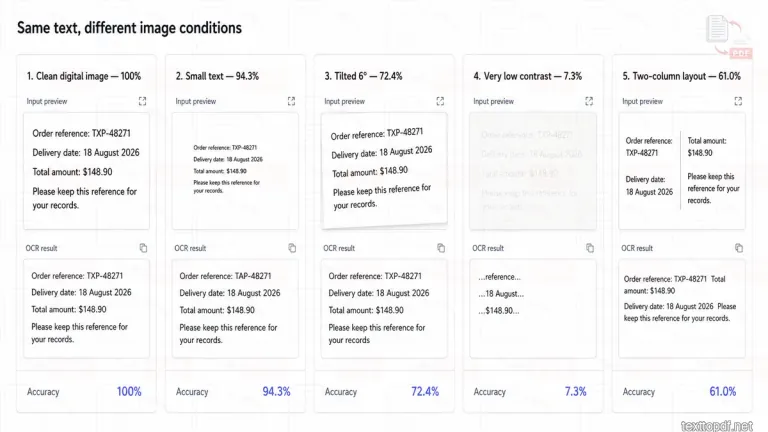
Instead of writing that better images “usually improve OCR” and leaving it there, we ran a controlled test for this guide on 15 August 2026.
The experiment used Tesseract 5.5.0 with the English language model and its default page-segmentation behaviour. Every sample contained the same 123-character passage:
Order reference: TXP-48271 Delivery date: 18 August 2026 Total amount: $148.90 Please keep this reference for your records.
Eight versions of that text were prepared to represent different OCR conditions. Four remained easy to read, while the others deliberately introduced smaller characters, page rotation, very weak contrast, or a two-column layout.
We normalized whitespace before comparing the OCR result with the original text. Character accuracy was calculated from the edit distance between the expected 123-character passage and the OCR output. A 100% result therefore means that this short test passage was returned without a character error after whitespace normalization; it does not mean that the same condition will produce 100% accuracy on every document.
| Test condition | Character accuracy in our test | What happened |
|---|---|---|
| Clean digital image | 100% | All 123 characters matched |
| Phone-photo simulation | 100% | Slight rotation and mild blur did not change the text |
| Receipt-style sample | 100% | The short monospaced passage was recognised correctly |
| Scanned-page simulation | 100% | Light paper noise did not introduce an error |
| Small text | 94.3% | 7 character edits were needed |
| Page tilted by 6° | 72.4% | 34 character edits were needed |
| Very low-contrast sample | 7.3% | Almost the entire passage disappeared |
| Two-column layout | 61.0% | Individual words survived, but reading order broke down |
The first 4 results are useful for the same reason as the failures: OCR does not automatically struggle simply because an image looks like a receipt or a phone photograph. When the characters remain large enough and sufficiently separated from the background, the recognizer can still return a perfect short sample.
The difficult cases tell a different story.
Small text introduced believable character mistakes
The small-text sample scored 94.3%, with seven edits required to match the original passage. Some of the returned text looked like this:
Order reference: TAP-48271 Debvery date: 18 August 2026 ‘tal amount: $148.90 Please heep ths reference for your records.
The output was still understandable, yet several errors can come in real use. TXP-48271 became TAP-48271, which is especially important because a reference number cannot be corrected safely from language context.
This supports a practical rule: a paragraph can look usable while a small number or code inside the same paragraph is wrong.
A six-degree tilt caused a much larger failure
The image rotated by six degrees fell to 72.4% character accuracy. Parts of lines disappeared, and some wording broke into separate fragments.
That result should not be interpreted as “six degrees always causes 27.6% error.” Our sample is too small for that claim. It does demonstrate how quickly line segmentation can become a problem once text no longer runs horizontally, which matches Tesseract's own warning about skew.
A second photo taken more squarely can therefore be a better fix than repeatedly correcting damaged OCR output.
Very weak contrast nearly stopped recognition
The very low contrast sample returned only a tiny piece of the expected passage and scored 7.3% in our comparison. Most of the text never reached the usable output.
This sample was deliberately severe, so it represents a failure condition rather than an average grey document. Its value is showing that OCR eventually reaches a point where the text may remain faintly visible to a person but no longer gives the recognizer enough separation between letters and background.
Image preparation becomes relevant before that point. A stronger contrast treatment can expose character boundaries that the original faint image does not present well.
Two columns kept many words but damaged their order
The 2 column sample scored 61.0% when compared with the intended reading order. OCR recognised much of the wording, but it merged text across the two columns.
Part of the output looked like this:
Order reference: TXP-48271 Total amount: $148.90 Delivery date: 18 August 2026 Please keep this reference...
That is a good example of why OCR quality cannot be judged only by asking whether the words appeared somewhere in the result. A page can have strong character recognition and still produce poor working text because the reading sequence is wrong.
We Also Tested Full-Image OCR Against a Selected Region
Region selection is one of the more practical parts of the TextToPDF.net workflow, so we tested that separately.
The test image contained our 123-character target paragraph inside a simple dashboard-style screenshot. The surrounding picture also contained headings, navigation wording, and a support message. First we processed the entire image. Then we cropped the OCR area around only the target paragraph and processed it again.
The full-image OCR returned 237 normalized characters. It recognised the complete 123-character target correctly, but it also returned 114 characters of unrelated surrounding text.
The selected region version returned 122 characters and scored 99.2% character accuracy against the target. The only difference was the final period, and no surrounding interface wording appeared in the result.
In this particular sample, region selection did not rescue badly recognised target text because the full-image OCR had already read the paragraph correctly. Its measurable benefit was removing 114 unwanted characters, which reduced the cleanup required afterwards.
That distinction is again important. Cropping should not be sold as something that automatically makes every word more accurate. Sometimes its biggest advantage is simply preventing unrelated content from entering the result at all.
What Our Test Does and Does Not Prove
The experiment above is original data from a controlled local benchmark, but it has limits that should be stated openly.
It used a short English passage rather than hundreds of pages. The photo taken from a phone camera, receipt, and scan conditions were prepared controlled samples rather than files collected from users. Tesseract 5.5.0 was used for the benchmark, while the free TextToPDF.net browser workflow uses Tesseract.js.
For that reason, these numbers are not a performance score for TextToPDF.net and should not be read as a promise that a particular image will reach the same percentage.
What the test does show is more useful for this guide: identical wording can move from 100% recognition to 94.3%, 72.4%, 61.0% or almost complete failure when the image condition and layout change.
That is why source quality deserves attention before you decide that an OCR engine itself is good or bad.
Photos, Pictures and Scans Do Not Behave the Same Way
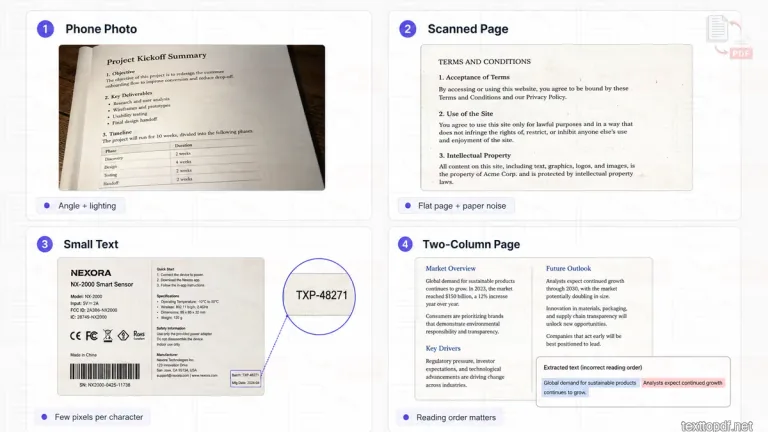
The phrase “image to text” covers several kinds of source material. OCR receives a different visual problem from each one.
Camera photos
A phone photograph introduces conditions that do not exist in a screen capture. The page can bend near a book binding, one side can sit farther from the camera, and room lighting can create uneven shadows across the paper.
A photograph taken almost directly above a page normally needs less correction than one taken from the side. If the first result is poor and you still have access to the document, another photo can save more time than manually fixing a heavily damaged extraction.
Our guide on how scan quality affects OCR accuracy goes deeper into resolution and source-image problems.
Digital pictures and saved graphics
Quote cards or saved social graphics often contain sharp digital text. The challenge here is more likely to be the surrounding artwork than the letters themselves.
A selected text area works properly when the quote occupies only one part of the graphic. OCR can then work on the wording without returning unrelated labels elsewhere in the picture.
Scanned pages
A scanner normally keeps a page flatter than a handheld camera, which gives OCR more predictable lines. Older pages can still contain faded ink and paper marks, so a scan is not automatically easy to recognise.
If several scanned pages already exist inside one PDF, there is little benefit in turning every page into a separate image first. Use the workflow for extracting text from a scanned PDF instead.
A PDF that already contains selectable text does not need image OCR at all. The PDF to Text tool can extract the existing text layer directly.
Receipts and structured pictures
Receipts can be visually readable while still creating awkward OCR output. Product names sit on one side, and prices sit elsewhere, while totals can depend on their position in the document.
Our receipt test returned the short sample without any character errors, but a full receipt is more complicated. Longer receipts often have many item lines and prices placed away from their labels, so OCR can recognise the words correctly while still putting them in the wrong order.
Small Text Can Fail Even When the Whole Image Looks Sharp
Small characters usually create surprising OCR failures because people judge the overall photograph rather than the number of pixels available for each letter.
Tesseract's older FAQ gives a useful technical reference. It reports a noticeable accuracy decline below 10-point text at 300 DPI and a rapid decline below 8-point text at 300 DPI. It also notes that very small x-heights leave little information for dependable recognition.
Our own small-text sample showed the same kind of problem in a controlled setting. The page itself did not look dramatically damaged, but the score fell to 94.3% and a reference code changed from TXP to TAP.
That is exactly the type of mistake that can slip through when the rest of the paragraph appears normal.
If the text is too small in the original image, crop around the part you need or use a sharper copy before running OCR. TextToPDF.net's Cleaner OCR can also enlarge the selected area, so the recognizer has a larger version of those characters to work with.
What I Would Check Before Trusting Extracted Text
The parts worth checking most carefully are the ones where a single wrong character can change the information completely. A normal sentence often gives the mistake away because the word stops making sense, but codes and reference numbers are harder to judge that way.
For example, TXP-48271 and TAP-48271 both look like valid reference numbers at a glance. If OCR changes just one letter, the result can still look believable even though it no longer matches the original image.
My priority would be four areas:
- Names and reference numbers that cannot be safely guessed from context.
- Dates and financial values where one character changes the information.
- Reading order when the source uses columns or separated blocks.
- Punctuation when it changes a quotation, measurement or technical value.
Our small-text test scored above 94%, but OCR still changed the reference code in the first line. This information is also important because a strong overall score can hide a small mistake in the exact detail you need to copy correctly.
A Detail Many OCR Guides Miss: The Surrounding Image Matters
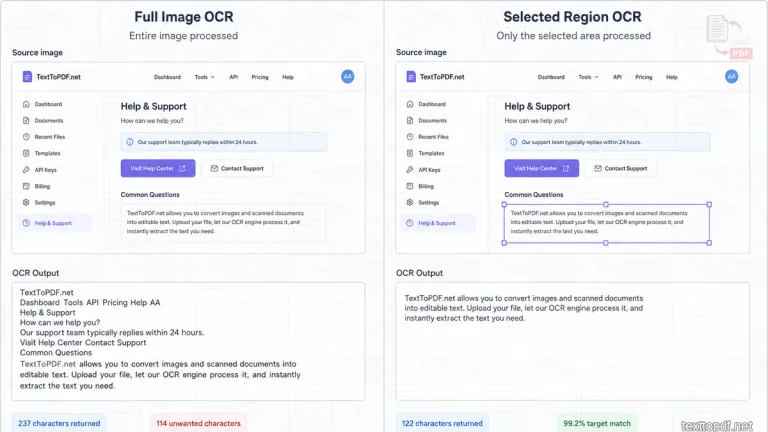
OCR advice often concentrates on the letters themselves, but real screenshots contain far more than letters. Buttons and avatars can sit beside a message, while forms can place boxes or labels around the wording.
Each extra region gives the recognizer more material to classify. Even when those objects do not reduce the accuracy of the target paragraph, they can enter the extracted output and leave you with more text to remove afterwards.
Our region-selection experiment measured exactly that situation. Full-image OCR recognised the target correctly but produced 237 characters instead of the 123 characters we actually wanted. Selecting the target area reduced the result to 122 characters and removed the unrelated interface wording.
That is the main reason the Image to Text converter lets you drag around a paragraph or line before recognition.
Do Not Expect the Original Formatting to Come Back Automatically
Suppose a photographed magazine page contains a large headline followed by two columns. OCR can recognise many of the words correctly without knowing that your goal is to reproduce the magazine design.
The extracted result is better treated as working text. Once the words are editable, paragraphs can be corrected or moved into another document. Exact visual reconstruction is a separate task.
Our 2 column benchmark gives a concrete example. Individual words survived, but the output joined parts of the left and right columns in the wrong sequence.
That is not merely a formatting problem. Once the reading order changes, the meaning of the extracted passage can also become harder to follow.
TextToPDF.net places recognised output into an editable area so mistakes can be corrected before the wording is copied or exported as TXT or PDF.
What About Handwriting?
Handwriting belongs in a different category from ordinary printed OCR. Letter shapes differ between writers, joined characters can blur together, and the same person may form one letter differently several times.
The current TextToPDF.net browser workflow is focused on English OCR rather than promising dependable recognition for every handwritten style. Handwritten extraction deserves separate testing instead of being treated as identical to ordinary printed text.
That is also why this guide concentrates mainly on printed photos, pictures, and scans. A dedicated handwriting workflow can examine those recognition problems without mixing two different tasks together.
What to Do When the Result Is Wrong
A poor OCR result does not always mean you need to switch tools. Start by looking at what actually went wrong in the output.
If complete words are missing, the text may be too small or too faint for OCR to read properly. When the correct words appear in the wrong order, the layout is usually the bigger problem. A tilted photograph can create another type of failure because the text lines are no longer aligned properly.
Our test showed how different these problems can look in practice. Small text caused several believable letter mistakes. Rotating the page by six degrees caused parts of the lines to disappear, and the two column sample returned much of the wording in the wrong reading order.
Our guide on why OCR results are wrong covers those recognition failures in more depth.
Privacy is important when the Picture Contains a Real Document
OCR images can contain information that would never appear in an ordinary public photograph. A receipt might show an address, while a form can contain account information or other private text.
TextToPDF.net's free Image to Text workflow runs Tesseract.js inside the browser. The live tool states that this browser OCR route processes the image locally rather than uploading it for the free conversion.
TextToPDF.net also documents separate OCR routes that can use isolated worker servers. According to the Security and Privacy framework, temporary server files have a hard maximum retention period of 15 minutes, while tools that depend on browsers have zero-minute server retention. Uploaded document content is not used for AI training.
That distinction is more useful than a vague privacy claim. Browser OCR and server OCR are separate processing routes, so users should know which one is handling a sensitive file.
A Better Way to Judge Image-to-Text Results
One question—“Did OCR work?”—does not tell you enough.
A better judgement separates character recognition from whether the result is actually usable. A missing comma inside personal notes might not matter, while one incorrect digit inside a payment reference can make the extraction unusable.
Our controlled test produced a good example. The small-text sample reached 94.3% character accuracy, which sounds strong at first. Yet it changed TXP-48271 into TAP-48271.
Before reusing OCR text, ask yourself four questions:
- Did it capture the wording you actually needed?
- Do the important names and numbers match the source?
- Is the reading sequence still understandable?
- Can the remaining mistakes be corrected faster than retyping the original?
That last question is important because useful OCR does not need to be mathematically perfect. If a long page would take several minutes to type and OCR produces usable text that needs a short review, the workflow has already saved real effort.
Extracted Text Becomes Useful When You Can Reuse It
People rarely search for a way to extract text from an image because OCR itself is interesting. They normally want the words for another task.
A paragraph might be going into study notes. A tracking number might need to be pasted into a website. A quotation may be moving into a draft, while a receipt value might need to be recorded elsewhere.
Once the wording is easy to edit, the image no longer controls what you can do with it.
With the TextToPDF.net Image to Text tool, you can process one image or a batch of up to ten supported files, select the section that matters, review the recognised text and export the finished result.
FAQs
Can I extract text from any image?
OCR can attempt recognition when visible text appears in an image, but success depends on the information available in the characters. Very small text, severe rotation, or extremely weak contrast can leave too little detail for dependable extraction.
Which image quality is best for OCR?
Text with strong separation from the background and sufficient character size gives the recognizer more useful information. Tesseract recommends at least 300 DPI for its own OCR workflow, although resolution alone does not guarantee a good result.
Can I extract only one paragraph from a picture?
Yes. TextToPDF.net lets you drag around the part of the image that you want OCR to process. Our controlled region test also found that selecting the target paragraph removed 114 characters of unrelated interface text from a busy sample.
Does selecting part of an image always improve OCR accuracy?
No. In our test, full-image OCR had already recognised the target paragraph correctly. Region selection mainly helped by removing unrelated surrounding text, which made the output faster to review.
Will OCR keep the original font and page design?
Not necessarily. OCR concentrates on recognising written content, while exact font styling and complex visual layout require separate reconstruction.
Why can two-column pages give strange results?
OCR can recognise words from both columns while combining them in the wrong sequence. Our controlled two column sample scored 61.0% against the intended reading order even though much of the individual wording was recognised.
How much can a tilted page affect OCR?
The effect depends on the source and OCR configuration. In our short controlled test, a six-degree tilt reduced character accuracy from 100% on the straight sample to 72.4%, but that number should not be treated as a universal threshold.
Can small text cause mistakes even when the image looks good?
Yes. Our small-text sample scored 94.3% and changed the reference TXP-48271 to TAP-48271. Small identifiers deserve direct comparison with the source even when the rest of the paragraph looks usable.
Can I extract text from several images together?
Yes. TextToPDF.net currently supports batches of up to ten PNG, JPG, WebP, or BMP images in its Image to Text workflow.
What should I do if several scanned pages are already inside a PDF?
Use a scanned-PDF workflow instead of handling each page as a separate picture. Our guide on how to extract text from a scanned PDF covers that process.
Is image-to-text extraction private on TextToPDF.net?
The free browser OCR workflow processes images locally in the browser. TextToPDF.net documents separate temporary server OCR routes with a maximum 15-minute retention period for files processed there.
Final Note
OCR is only useful when it turns the words present inside an image into text that can actually be reused. The quality of that result depends on more than the recognizer itself.
Our controlled test showed the same 123-character passage at 100% on several straightforward samples, 94.3% with reduced text size, 72.4% after a six-degree tilt, 61.0% in a two-column layout and only 7.3% under an intentionally severe low-contrast condition.
The region-selection test added another useful finding. Full-image OCR recognised the target paragraph correctly but returned 114 unwanted characters from the surrounding interface. Selecting only the paragraph removed that extra material and produced a 99.2% match to the target.
Those results point to a practical workflow: give OCR a readable view of the text, limit the recognition area when the rest of the image is irrelevant, and verify the characters where one mistake would matter.
For ordinary photos, screenshots, and image files, start with the Image to Text converter. If the source is already a multi-page scanned PDF, you can use the scanned-PDF extraction workflow instead.