


Don’t you just hate it when your Word file assignment gets free will and messes up the formatting without any provocation? You can lose precious marks over the fact that your meticulously structured research paper has reached the professor looking messy and disorganized.
The PDF format is universally acceptable for LMS platforms like Canvas, Blackboard, Moodle, and Google Classroom, and it keeps your work unchanged. Your teachers won't need another application to open the file; they can simply view it directly in their browsers.
Any notes you scan can also be a PDF. They are often the most useful and searchable file format that you can easily compress or keep secure from accidental edits.
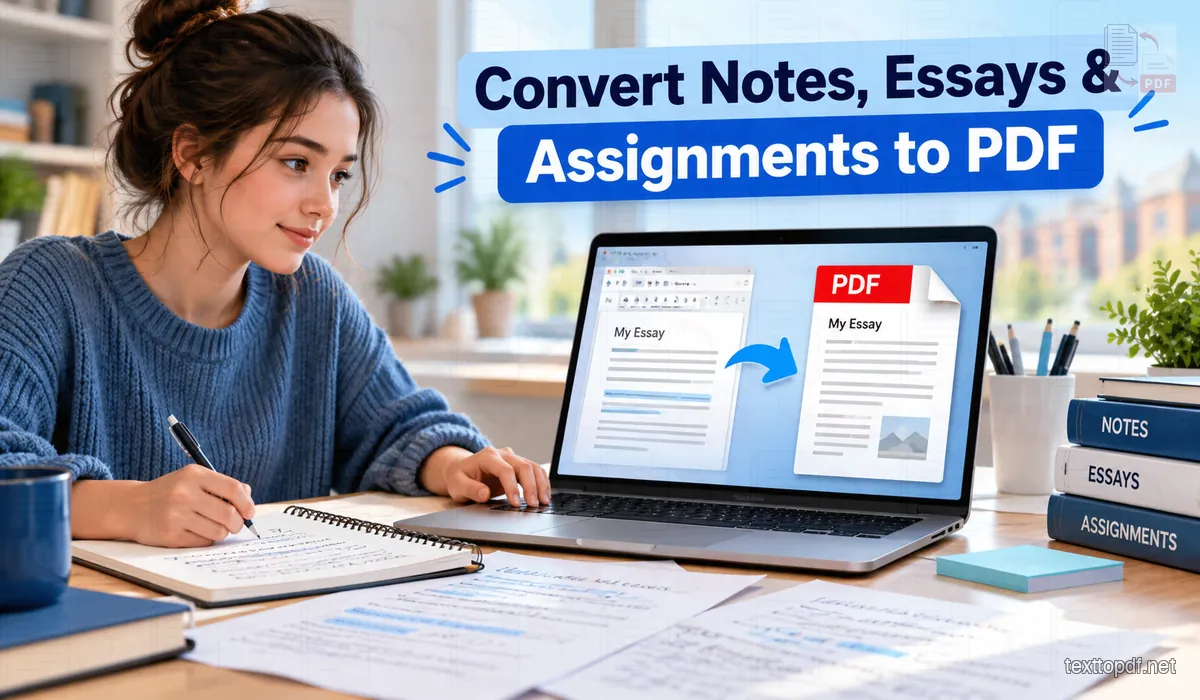
Any student can easily convert notes, essays, and assignments into PDFs, but they must do it the right way. Let's explore how you can digitize your written work and turn it into reliable, submission-ready PDFs.
Prepare the Document
Before you convert your digital document into a PDF, you have to ensure that its layout is fine. PDF locks the file, and you won’t be able to edit it once you convert it.
- Use Built-in Paragraph Spacing Tools: Instead of hitting “Enter” a few times to create space between paragraphs, use the application’s built-in paragraph spacing tools so the gaps don’t end up shrinking or expanding randomly after conversion. Following proper text-to-PDF formatting best practices ensures line breaks and margins stay consistent.
- Maintain Heading Hierarchy: Maintain a consistent hierarchy with headings. Assign the right heading signals, like Heading 1 for titles, Heading 2 for sub-sections, etc. This helps screen readers and generates automatic bookmarks in PDF viewers.
- Align Visual and Text Elements: Align the elements in the document. Ensure all bullet points, images, and text alignment follow a uniform pattern throughout the document so nothing wraps awkwardly.
- Proofread and Edit Thoroughly: Since you won't be able to make any more changes easily after export, make sure your work is well edited. If your school has AI policies, use an AI writing detector to check the percentage of AI use in your assignment and bring it within the required limit before converting.
Preparing clean content early saves you from formatting surprises later. If you are starting from raw text files, check our guide on preparing plain text before PDF conversion.
Converting Digital Essays and Assignments
Don’t take a screenshot or copy-paste text into a basic image converter. Instead, try the easy-to-use built-in tools available in the software you already use:
- Microsoft Word and PowerPoint: Click on File, then Save As or Export, click the file type drop-down menu, choose PDF, and click Save. If you run into missing characters or line shifting during export, see our guide on why text disappears when converting Word to PDF.
- Google Docs and Slides: Click on File, then Download, then PDF Document (.pdf). Your browser will instantly download the formatted copy.
- Mac Pages and Keynote: Click on File, then Export To, then select PDF.
- Browser and Notepad Print to PDF: With any web application, code editor, or notepad, you can try the Print to PDF trick. Press Ctrl + P on Windows or Cmd + P on Mac, change the printer destination to Save as PDF or Microsoft Print to PDF, and hit print.
Avoid using sketchy third-party apps as they can mess up your fonts, strip margins, or compromise privacy. Always use reliable text to PDF converters or the free TextToPDF.net editor when you want to turn raw text, notes, or essays into a clean PDF without installing desktop software. For a deeper look at different software methods, see our tutorial on simple methods to convert editable content into PDF.
Convert Handwritten Notes and Paperwork
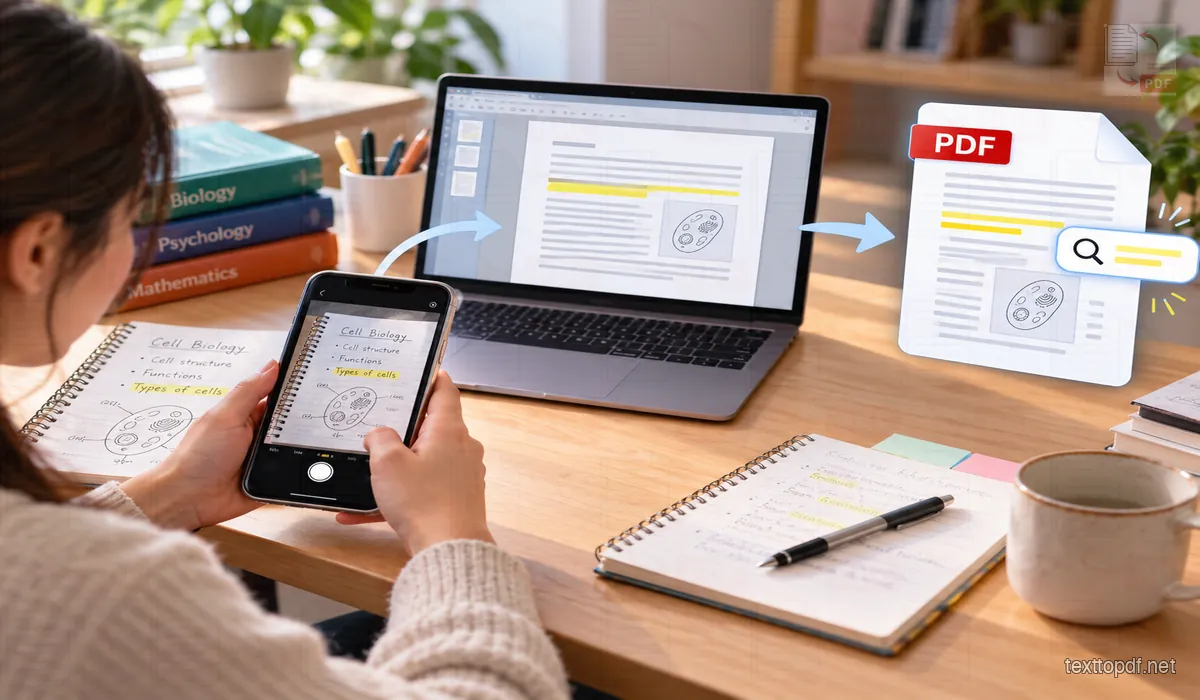
With notes and coursework paperwork that are handwritten, you will need to scan the physical copy. If you opt for taking a casual photo with your phone camera, your note will not be as useful or readable:
- Use Proper Lighting and Flat Contrast: Use your phone’s built-in scanner or a scanning app. This allows you to shoot in even light without casting shadows across the page. Simply place each page on a flat, contrasting surface (like a clean dark desk for white paper).
- Scan in Correct Order: Use your preferred scanner app or your phone camera’s native document scanning mode (available on iOS Files / Notes and Android Google Drive / Camera). Scan the pages in the correct sequential order.
- Crop and Adjust: Crop the edges to remove table borders, adjust contrast and brightness as needed, and combine all pages into one unified multi-page PDF rather than sending your teacher multiple loose image files.
Making Scanned Notes Searchable
A photo-based PDF is easy to view but hard to search. Tools with optical character recognition (OCR) turn the text in scanned pages into selectable, searchable text, which is especially useful when you are revising for exams or looking for a specific topic across hundreds of notebook pages.
You can use OCR when the notes contain typed handouts or clearly printed text. If you use an AI-driven OCR tool, it can even decipher your handwriting and make your written thoughts searchable. When scanned with OCR, you can:
- Highlight and Annotate: Select text directly on the page, add digital highlighters, or annotate specific definitions.
- Search Instantly: Use
Ctrl + ForCmd + Fto locate keywords, lecture dates, or key formula explanations in seconds. - Extract Quotes for Essays: Copy text directly from your lecture summaries into your essay draft without retyping every line manually.
To understand how text layers work under the hood, read our guide on searchable PDF vs scanned PDF and what is OCR in PDF. If you have an existing image scan that needs text extraction, you can also explore how to extract text from a scanned PDF.
Why Convert Digital Notes and Assignments to PDF?
When you already have a digital version of your notes or study materials in DOCX, Google Docs, or TXT format, you may wonder why you need to convert them into PDF. There are several key reasons:
- Consistent Formatting Across Devices: PDFs keep your work's layout identical on any screen. This is crucial if you have graphical data like charts, chemical formulas, and data tables in your worksheets, as it ensures the visual structure stays intact.
- Document Security and Integrity: With PDFs, you can lock and password-protect the file, keeping your notes and draft essays confidential. This is especially helpful if you share documents for peer review or store coursework in public cloud drives.
- Universal Acceptance on LMS Portals: PDFs are universally accepted by university and school LMS platforms (such as Canvas, Turnitin, Blackboard, and Moodle). Teachers can grade and comment on PDFs directly in their browser without formatting bugs.
- Searchable and Indexable: PDFs support text recognition and embedded bookmarks, so you can quickly index semester notes and search through textbooks and lecture archives effortlessly.
Make sure you have checked the formatting, completed your final proofreading, verified any academic guidelines, and ensured that all citations and references are accurate before submitting. While editing a PDF after the fact is possible, it can be cumbersome compared to editing the original source file.
Final Thoughts
PDFs are often the safest and most reliable format for academic documentation. Whether you want to finalize an assignment before submitting it to your professor or digitize handwritten lecture notes for revision, turning them into PDFs is the best option.
Even when PDF submission is not strictly mandatory, converting your essays and assignments to PDF is good practice. It protects your layout, fonts, and citations from accidental shifts during grading. Make sure the file has consistent formatting, clean margins, and no typos before exporting. If you are digitizing physical pages, always use an OCR scanning tool to ensure the text remains searchable and easy to quote.
Choosing the right conversion workflow based on your file type gives you a professional, readable, and submission-ready document every time.
FAQs
What is the best way for students to convert handwritten notes to PDF?
The best method is to use a mobile document scanning app (such as Apple Notes, Google Drive Scan, or Microsoft Lens) on a flat, well-lit surface. This automatically corrects perspective and contrast, creating a clean multi-page PDF rather than loose photo files.
Why do professors prefer assignment submissions in PDF format?
Professors and learning management systems (like Canvas and Blackboard) prefer PDFs because the formatting, fonts, tables, and margins stay identical on every operating system, screen, and browser without requiring specific word processing software.
How can students make scanned assignment PDFs searchable?
By using Optical Character Recognition (OCR). OCR detects letters and words within the scan image and places an invisible text layer over the page, allowing you to search (Ctrl + F), highlight, and copy text from handwritten or printed notes.
Does converting Word documents to PDF change the formatting?
No, when done properly using built-in export features or dedicated tools like TextToPDF.net, converting to PDF preserves your exact fonts, spacing, tables, and image placements.
Can I convert text notes to PDF directly in my mobile browser?
Yes. You can use free web-based converters like TextToPDF.net on any mobile browser. Simply paste your notes, apply any desired formatting, and tap download to get an instant PDF file.